
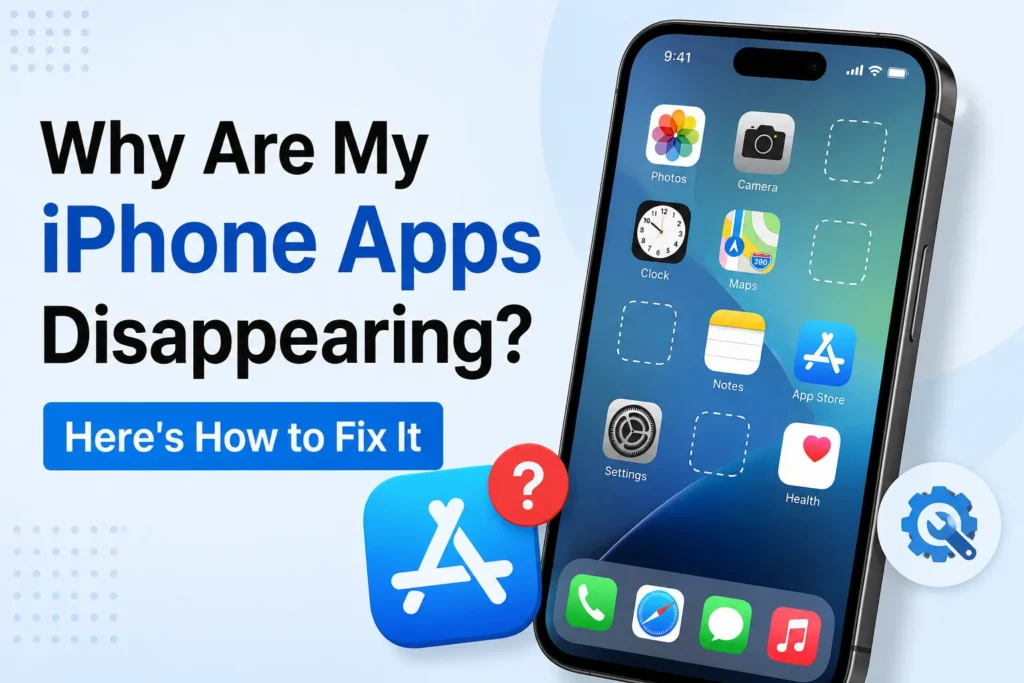
If you have noticed your iPhone apps disappearing of their own accord. Apple’s “Offload Unused Apps” feature has been available since iOS 11 and is still available in recent versions of iOS, including iOS 18.
This aims to free up storage space by deleting apps you do not use very often, but it can get pretty annoying when unexpected apps get wiped out. Fortunately, there is an easy way to stop that from happening.
If it is been enabled, you can do the following to disable Offload Unused Apps and stop it from clearing up your apps automatically:
What is “Offload Unused Apps”?
Offload Unused Apps removes the app itself from your iPhone while keeping its documents, settings, and other local data. The app icon remains on your Home Screen with a small download icon, and you can reinstall the app anytime to continue where you left off.
A setting that you can activate called “Offload Unused Apps” on iPhones kicks in and will automatically remove apps that you do not use very often if you set it. When an app is offloaded, it will still show up on the home screen with its icon, but it will be essentially uninstalled.
All of your data will remain intact, and you can easily reinstall it at a later time if needed. It saves you some space but can also confuse you when apps vanish without you knowing it.
How to Disable Offload Unused Apps on iOS 18
If you are using iOS 18, follow these steps to turn off the Offload Unused Apps feature:
- Open Settings on your iPhone.
- Scroll down and tap on Apps.
- Now click on App Store.
- Scroll down and disable the toggle for Offload Unused Apps.
If you turn this off, your iPhone will not automatically delete apps that have not been used for a while.

What if the apps are still disappearing?
If your iPhone is still clearing apps after turning off Offload Unused Apps, it is likely glitched. In this case, you would want to reset your iPhone.
Does Offloading delete my data?
No. Offloading removes only the app itself. Your documents and app data remain on your iPhone, and they are restored when you reinstall the app.
Difference between Offload and Delete
| Feature | Offload App | Delete App |
|---|---|---|
| Removes app | Yes | Yes |
| Keeps app data | Yes | No (usually) |
| Saves storage | Yes | Yes |
| Easy to restore | Yes | No |
Frequently Asked Questions
Why are apps disappearing from my iPhone?
The most common reason is that the Offload Unused Apps feature is enabled. It automatically removes apps you rarely use to free up storage while keeping their data on your iPhone. Apps may also disappear if they were deleted manually, restricted through Screen Time, or affected by an iOS software issue.
Does Offload Unused Apps delete my app data?
No. Offloading removes only the app itself. Your documents, settings, and other app data remain on your iPhone, allowing you to restore everything when you reinstall the app.
How do I stop my iPhone from automatically removing apps?
Go to Settings → Apps → App Store and turn off Offload Unused Apps. Once disabled, your iPhone will no longer remove unused apps automatically.
Can I get an offloaded app back?
Yes. Simply tap the app’s icon on your Home Screen or download it again from the App Store. Your saved app data will be restored if it is still available on your device.
Why does an app show a cloud download icon?
A cloud download icon usually means the app has been offloaded. Tap the icon to download the app again and continue using it with your existing data.

A little discussion goes a long way.
Ask a question, share your experience, or help someone find an answer.
There is room for your perspective.
No discussions match this view yet.
Your voice belongs here
Keep it useful. Keep it kind.