
I experienced this problem when my phone storage became clogged with random WhatsApp images. Family groups, work chats, and forwarded memes. Everything was being saved to my gallery without permission. After testing WhatsApp settings on both Android and iPhone, I found that it is not difficult to stop auto photo saving, but the options are placed in different locations depending on the device.
Here’s how I stopped WhatsApp from saving photos, and how you can do the same.
- Why WhatsApp saves photos by default
- How to stop WhatsApp from saving photos on Android
- Turn off media visibility
- Stop automatic media download
- How to stop WhatsApp from saving photos on iPhone
- Disable save to gallery
- Control media auto download on iPhone
- Stop photos from specific WhatsApp chats only
- On Android and iPhone
- My personal experience after changing these settings
- Frequently Asked Questions
Why WhatsApp saves photos by default
WhatsApp has been configured to save and automatically download media so users do not miss the shared content. This works fine at first, but over time, it fills your gallery and consumes storage. Group chats make it worse because every image is saved on your gallery.
The good part is that WhatsApp allows you full control of this behavior.
How to stop WhatsApp from saving photos on Android
I tested this on a recent Android phone with the latest WhatsApp app version.
Turn off media visibility
It stops downloaded images in your gallery.
- Open WhatsApp.
- Tap the three dots in the top right.
- Go to Settings.
- Tap Chats.
- Turn off Media visibility.
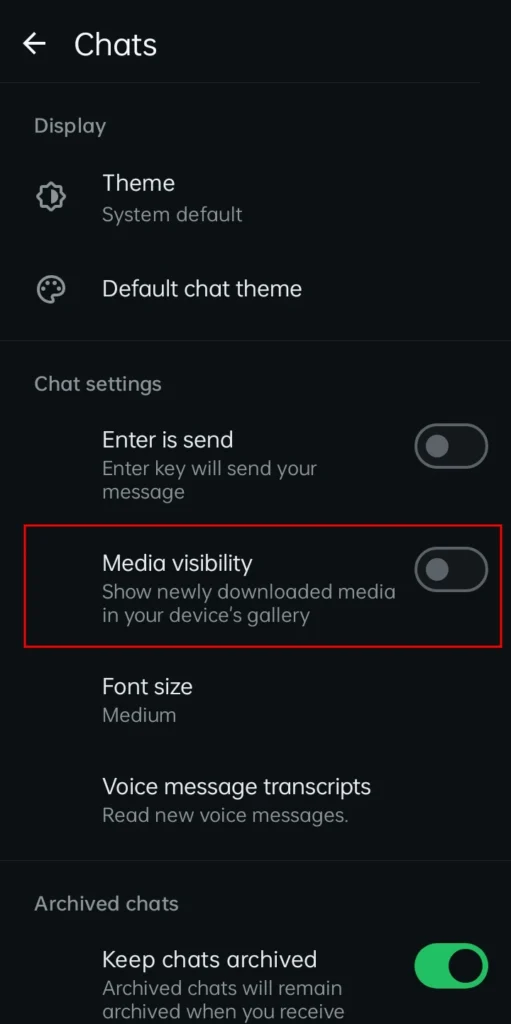
It only hides WhatsApp images from your gallery, but WhatsApp still downloads them in the background.
Stop automatic media download
To stop photos from saving, you can use these download settings.
- Open WhatsApp.
- Go to Settings.
- Tap Storage and data.
- Under Media auto download, set:
- When using mobile data to No media
- When connected on Wi Fi to No media
- When roaming to No media
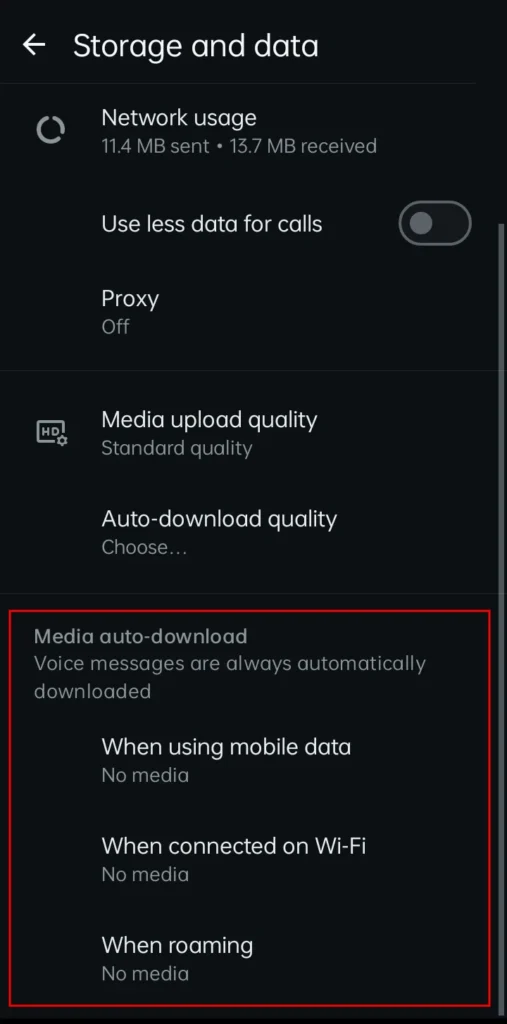
Now, photos will only download when you tap on them.
How to stop WhatsApp from saving photos on iPhone
I tested this on iOS, and it worked without any issues.
Disable save to gallery
- Open WhatsApp.
- Tap Settings at the bottom.
- Go to Chats.
- Turn off Save to Photos.
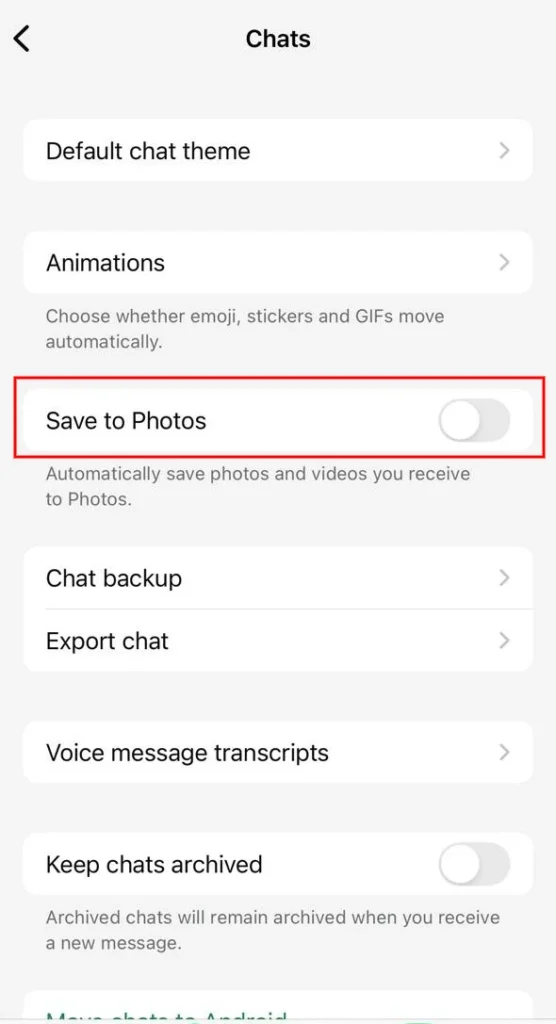
Now, WhatsApp photos stop appearing in your Photos app.
Control media auto download on iPhone
To stop background downloads
- Open WhatsApp.
- Go to Settings.
- Tap Storage and Data.
- Under Media Auto Download, set Photos to Never.
Now, WhatsApp does not download images unless you choose to.
Stop photos from specific WhatsApp chats only
Sometimes you may want photos from only one chat but not others. I tested this feature, and it is very helpful.
On Android and iPhone
- Open the chat you want to control.
- Tap the contact or group name at the top.
- Tap Media visibility or Save to Photos.
- Select No.
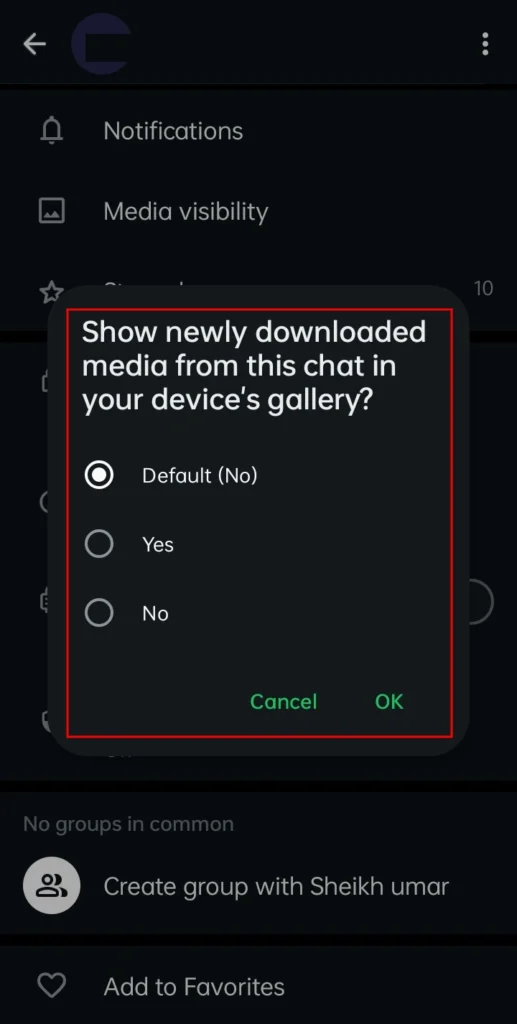
This setting only applies to that chat and does not affect others.
My personal experience after changing these settings
Once I turned this off, my phone storage stayed under control. I did not save any photos that were not important, and my gallery was clean again. WhatsApp felt more manageable, especially with active group chats.
If you use WhatsApp daily, these changes make a big difference.
Frequently Asked Questions
How do I stop WhatsApp from saving photos automatically?
Open WhatsApp Settings and disable Media visibility on Android or Save to Photos on iPhone. You can also turn off automatic media downloads under Storage and Data.
Will I still receive photos on WhatsApp?
Yes. Photos will still appear in your chats, but they will not be saved automatically to your phone’s gallery unless you choose to download or save them manually.
Can I save WhatsApp photos manually later?
Yes. Open the photo in WhatsApp and use the download or save option whenever you want to keep a copy on your device.
Can I stop photos from saving in only one WhatsApp chat?
Yes. Open the individual or group chat, tap the contact or group name, then change Media visibility or Save to Photos for that specific chat only.
Does turning off auto save delete existing WhatsApp photos?
No. It only prevents new photos from being saved automatically. Existing WhatsApp images already stored on your phone remain until you delete them manually.






A little discussion goes a long way.
Ask a question, share your experience, or help someone find an answer.
There is room for your perspective.
No discussions match this view yet.
Your voice belongs here
Keep it useful. Keep it kind.