
I had a folder of photos that appeared perfect on the small screen but turned out soft and blurry when displayed on the larger screen. Some were slightly out of focus. Others lost detail due to compression or low light. I tested many tools on the Windows PC to check what actually enhances clarity without turning images look artificial.
Here is what worked, what did not, and how to unblur photos.
- Why do photos look blurry on Windows?
- Method 1: Use the built-in Windows photos app
- Method 2: Improve clarity using Adobe Photoshop
- How I unblurred the image
- Method 3: Use free online AI tools on Windows
- What worked best
- Method 4: Use GIMP for free advanced editing
- What to avoid when unblurring photos
- My personal results after testing these methods
- Frequently Asked Questions
Why do photos look blurry on Windows?
Blurry images come from a common issue. Motion during capture, low resolution, poor lighting, or heavy compression can all reduce sharpness. Sometimes resizing or exporting settings removes detail from photo.
The important point to know is that no tool can fix a severely blurred image. However, mild to moderate blur can be improved.
Method 1: Use the built-in Windows photos app
I started with the built-in Windows Photos app. For lightly blurred images, it does a decent job.
- Right click the image and open it with Photos.
- Click Edit image.
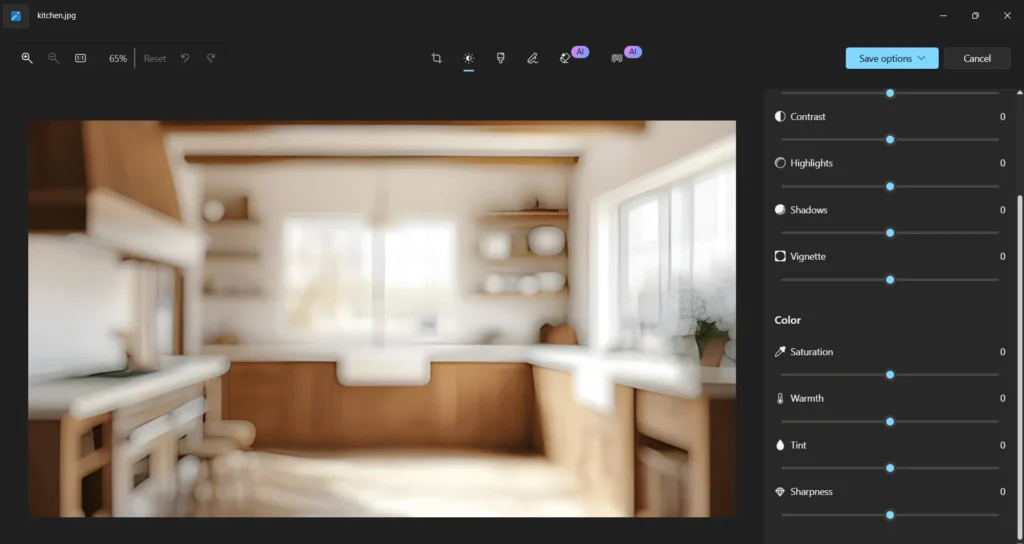
- Open the Adjustments section.
- Increase Sharpness slightly.
- Adjust Clarity and Contrast carefully.
- Save a copy to compare results.
You can also use Auto Enhance from the filters option.
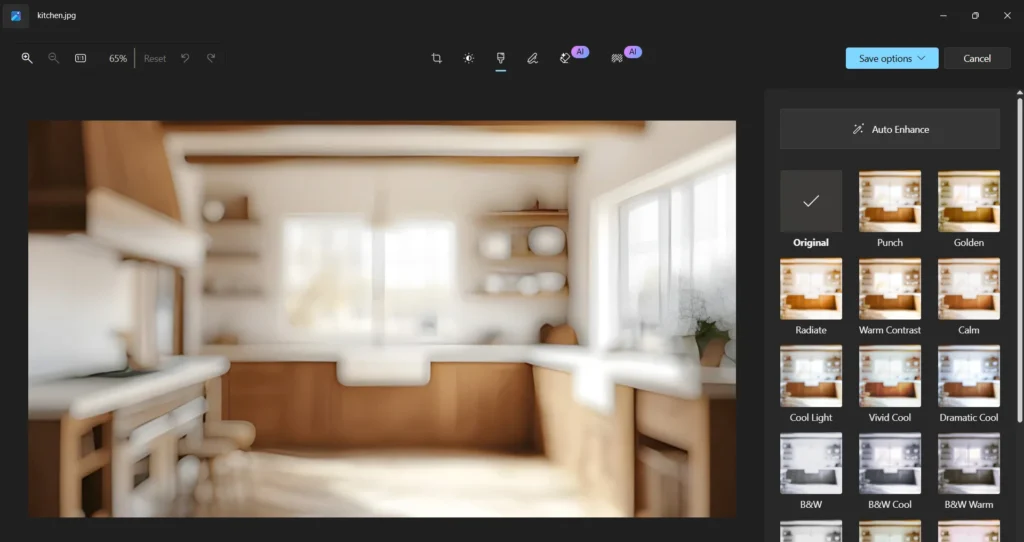
This works best with slightly soft images. Pushing sharpness too far adds noise, so small adjustments matter.
Method 2: Improve clarity using Adobe Photoshop
For more control, Photoshop gave the best results in my tests. It requires more effort but provides cleaner detail.
How I unblurred the image
- Open the photo in Photoshop.
- Duplicate the background layer.
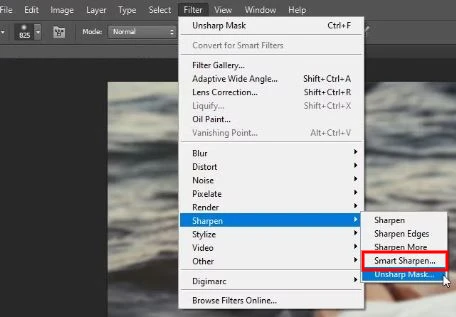
- Go to Filter, then Sharpen, then Smart Sharpen.
- Adjust Amount and Radius slowly.
- Reduce noise using the built in slider.
- Mask areas like skin or sky to avoid harsh edges.
Photoshop is best for portraits, product photos, and landscapes.
Method 3: Use free online AI tools on Windows
I also tested a few online AI tools, but Upscayl is the best option.
What worked best
AI tools analyze the image and rebuild lost detail.
- Upload the blurred image.
- Select Enhance or Sharpen.
- Let the tool process the image.
- Download the improved version.
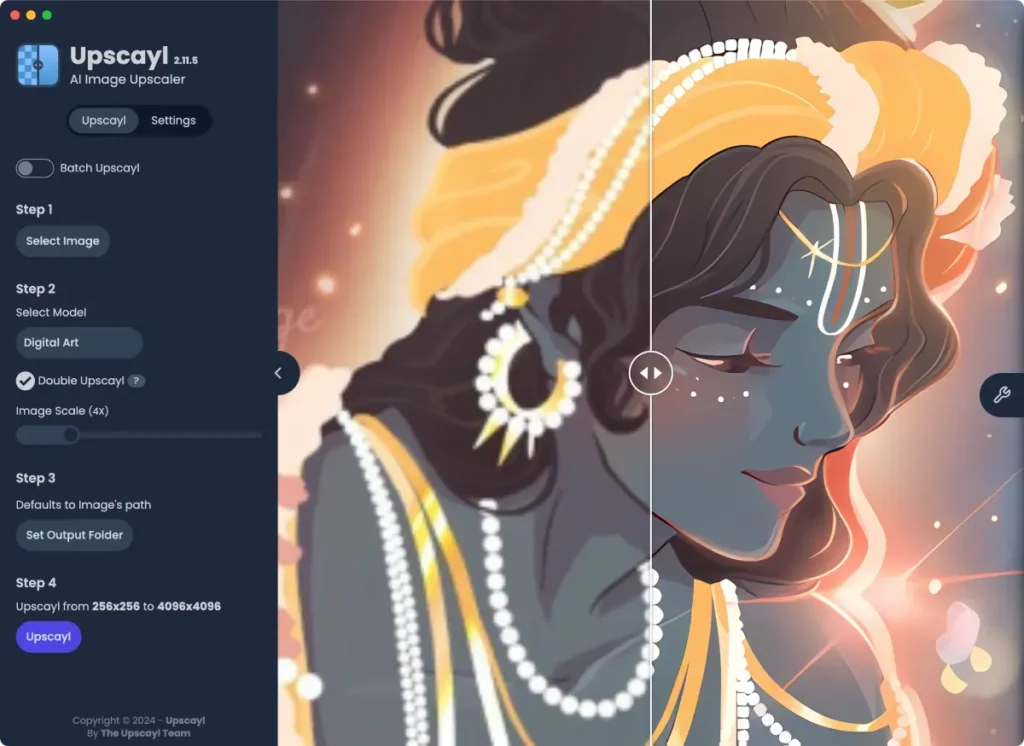
These tools are best for regular users and social media images. For professional work, desktop apps give you more control for editing.
Method 4: Use GIMP for free advanced editing
GIMP is a free alternative to Photoshop that works well on Windows. I tested it on a few blurry images and got good results.
- Open the image in GIMP.
- Duplicate the layer.

- Go to Filters, then Enhance.
- Use Unsharp Mask or High Pass.

- Adjust values slowly and preview changes.

- Export the final image.
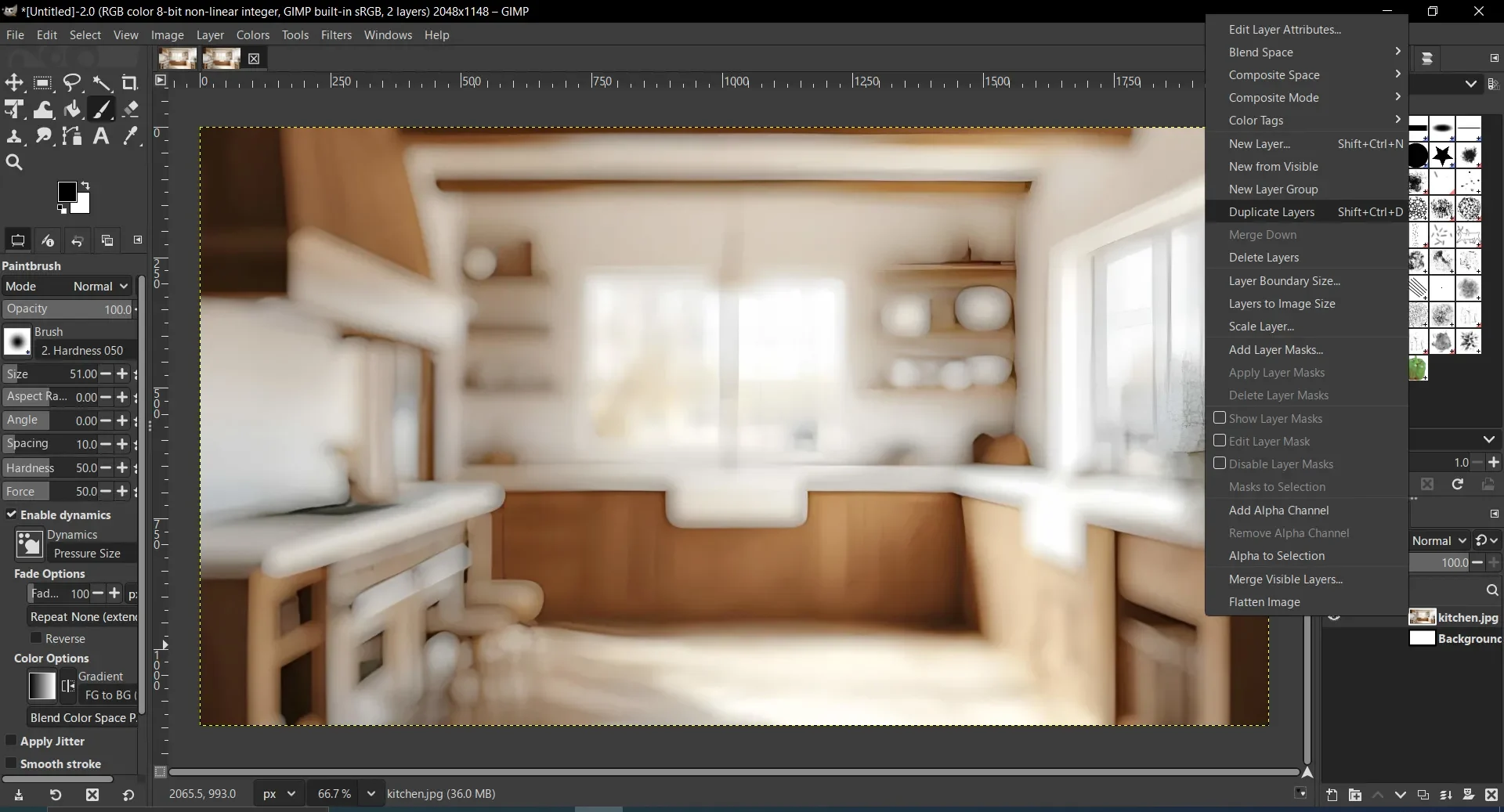
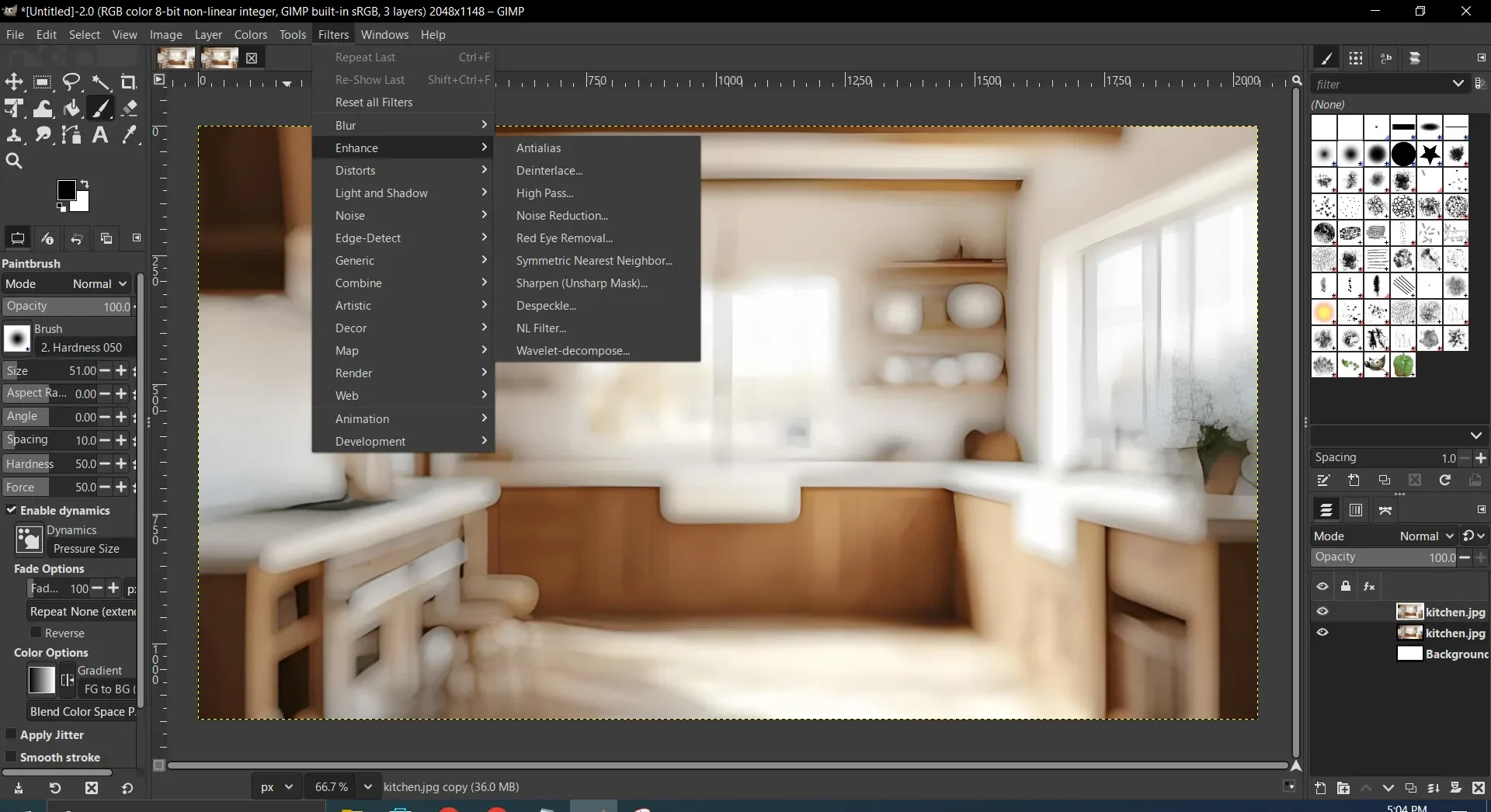
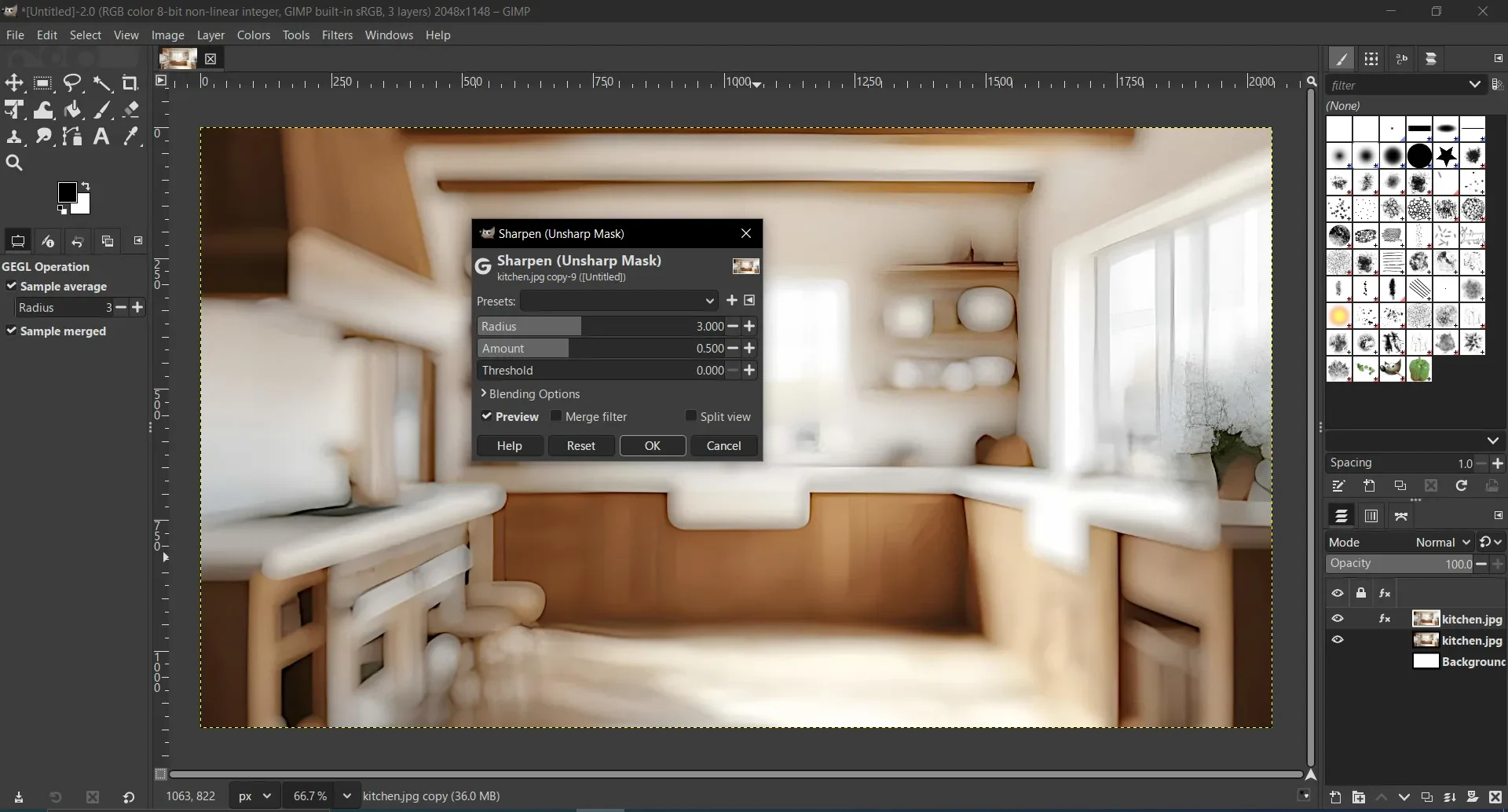
GIMP takes time to learn, but it can handle most clarity issues.
What to avoid when unblurring photos
While testing, I noticed some common mistakes that make photos worse.
- Do not over sharpen.
- Avoid extreme contrast boosts.
- Do not upscale low resolution images without AI tools.
- Always save a copy instead of overwriting the original.
Natural-looking clarity is preferable to forced sharpness.
My personal results after testing these methods
For quick fixes, the Windows Photos app is a good option. For serious edits, Photoshop gave the best results. AI tools were helpful for faces. I found GIMP to be a good free alternative once I spent time learning it.
Frequently Asked Questions
Why do photos look blurry on Windows?
Photos may appear blurry because of camera movement, poor focus, low resolution, low light, image compression, or resizing. These issues reduce the amount of visible detail in the image.
How can I unblur a photo on Windows?
You can use the Windows Photos app to increase sharpness, edit the image in Adobe Photoshop or GIMP, or use an AI image enhancement tool to improve clarity.
Can AI tools really unblur photos?
Yes. AI tools can improve the appearance of mildly or moderately blurred photos by enhancing details. However, they cannot fully restore information that was never captured in the original image.
Can a completely blurred photo be restored?
No. If a photo has lost too much detail due to severe blur or low resolution, no software can fully recover the original information. Minor blur produces the best results.
Which method is best for beginners?
The Windows Photos app and online AI image enhancement tools are the easiest options for beginners because they require very little editing experience.







A little discussion goes a long way.
Ask a question, share your experience, or help someone find an answer.
There is room for your perspective.
No discussions match this view yet.
Your voice belongs here
Keep it useful. Keep it kind.