
I use Google Docs almost every day, whether it’s sharing guides, creating reports, or submitting documents. When you always need a PDF version, you always do. PDFs look professional, keep formatting, and are easier to share or upload.
The good news is that Google Docs makes this very simple. I have tested all the methods on both desktop and mobile devices, and they are reliable without compromising formatting.
Here’s how to save a Google Doc as a PDF on Android, iPhone, iPad, and Desktop.
How to Save a Google Doc as a PDF on Desktop (Windows or Mac)
This is the fastest and most reliable method I personally use.
- Open your Google Doc in a web browser
- Click File in the top menu
- Hover over Download
- Select PDF Document (.pdf)
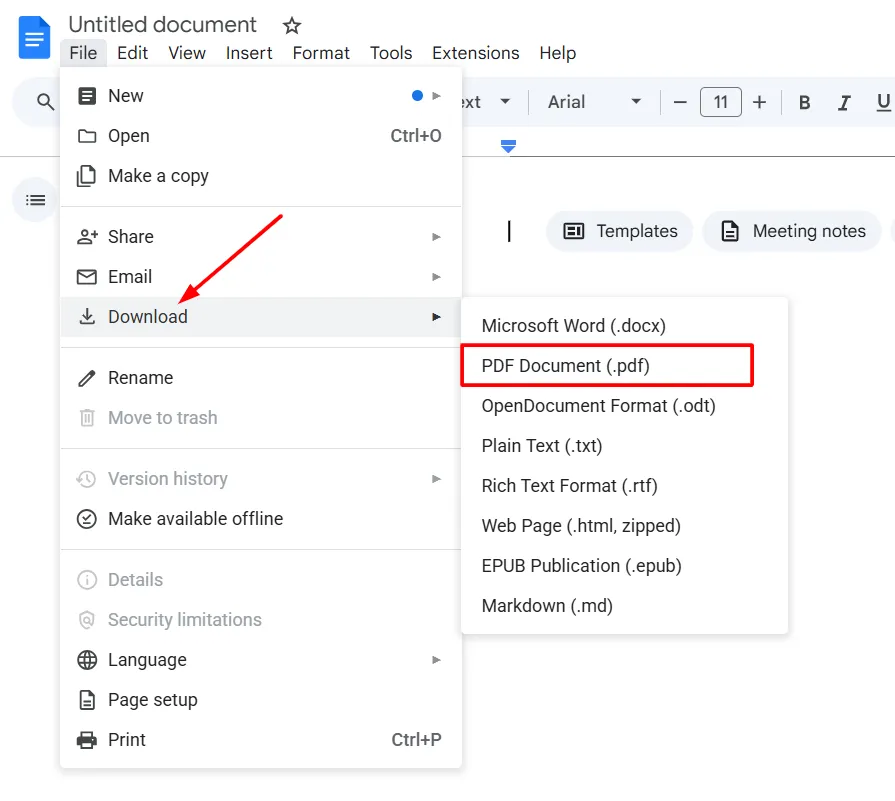
Your file will download as a PDF to your computer.
How to Save a Google Doc as a PDF Using Print Option
This method is useful if you want more control over layout or margins.
- Open your Google Doc
- Click File
- Select Print
- In Destination, choose Save as PDF
- Adjust layout or pages if needed
- Click Save
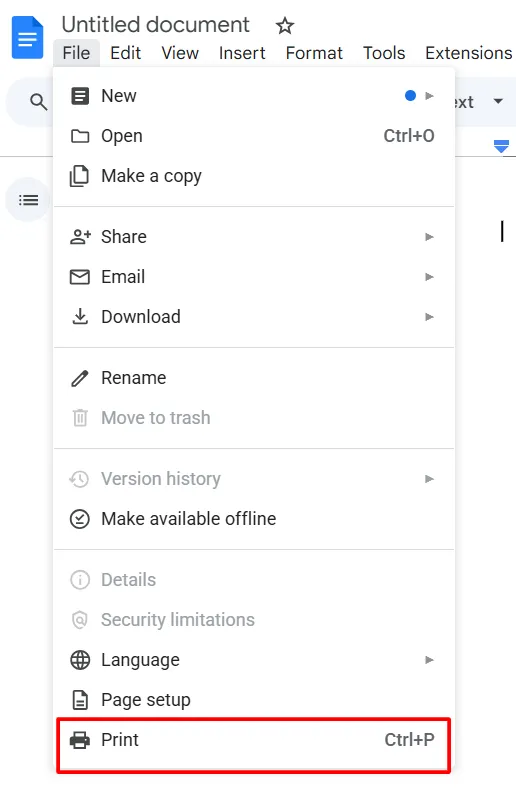
It works well when preparing documents for official submission.
How to Save a Google Doc as a PDF on Android, iPhone, or iPad
I tested this on Android, iPhone, and iPad, and it works smoothly.
- Open the Google Docs app
- Open the document
- Tap the three dots in the top right corner
- Tap Share & export
- Select Save as
- Choose PDF
- Tap OK
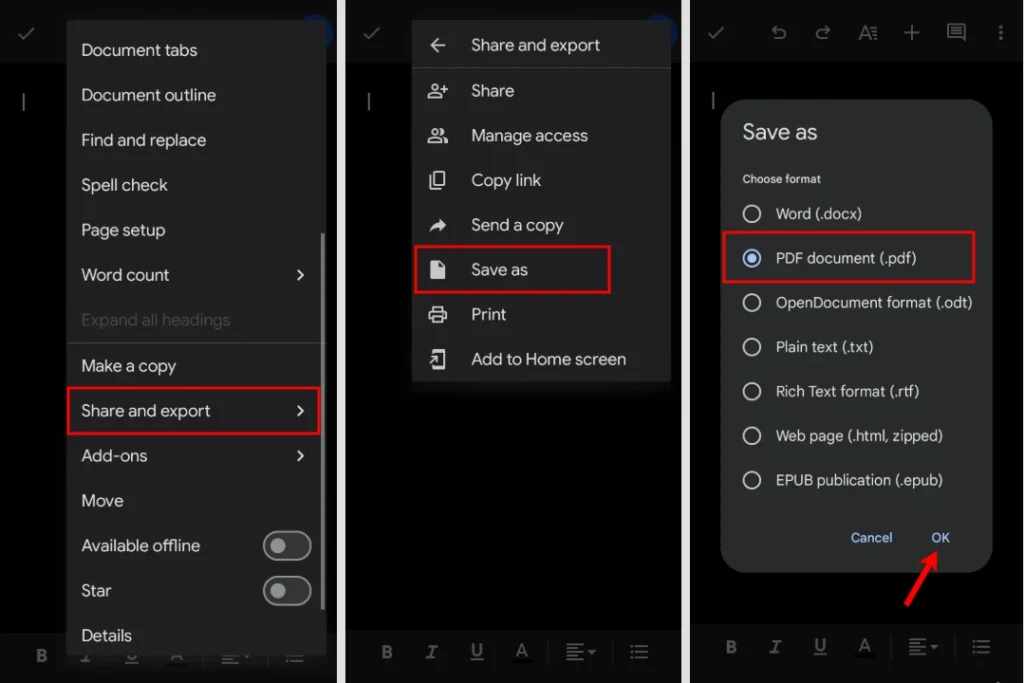
Your PDF will be saved to your phone storage.
How to Email a Google Doc as a PDF
If you want to send a PDF directly by email
- Open the Google Doc
- Click File
- Select Email
- Click Email this file
- Choose PDF as the file type
- Enter email details and send
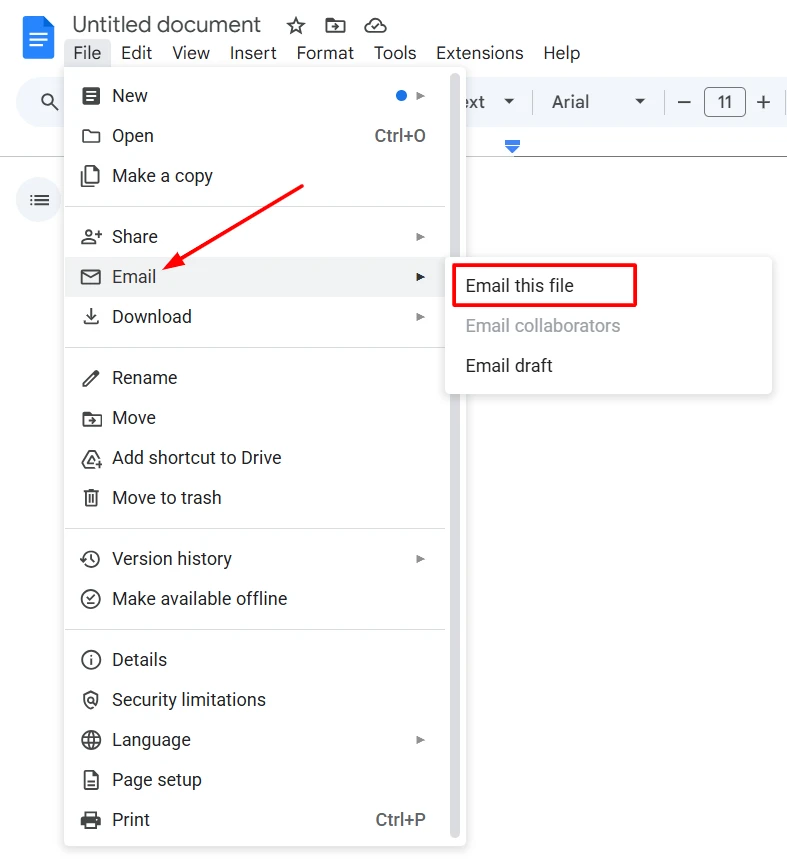
This is useful for quick sharing without downloading the file.
Is Saving Google Docs as PDF Safe?
Yes. Google Docs is encrypted securely, and there is no hidden tracking or editable text within the PDFs downloaded from Google Docs unless you add it.
Frequently Asked Questions
Can I save a Google Doc as a PDF without downloading it?
You can email a Google Doc as a PDF directly from Google Docs without first downloading it to your device. However, if you want a local copy, you’ll need to export or download it as a PDF.
Does saving a Google Doc as a PDF change the formatting?
No. Google Docs generally preserves the document’s formatting, fonts, images, and layout when you download it as a PDF.
Can I save a Google Doc as a PDF offline?
You can only export a Google Doc as a PDF if the document is available offline in the Google Docs app or browser. Otherwise, you’ll need an internet connection to access and convert the document.
Can I save a Google Doc as a PDF on my phone?
Yes. Open the document in the Google Docs app, tap the three dots, select Share & export, choose Save as, then select PDF.
Can I email a Google Doc as a PDF?
Yes. On the desktop version of Google Docs, go to File > Email > Email this file, choose PDF as the file format, then send it directly by email.
Is it safe to save a Google Doc as a PDF?
Yes. Exporting a Google Doc as a PDF is safe. The PDF retains your document’s content and formatting without making it easily editable.






A little discussion goes a long way.
Ask a question, share your experience, or help someone find an answer.
There is room for your perspective.
No discussions match this view yet.
Your voice belongs here
Keep it useful. Keep it kind.