

For years, Adobe Acrobat felt unavoidable. Every time I had to edit a PDF, sign a document, or merge files, Acrobat was the default option. It worked, but it never felt friendly. This app was heavy, its subscription continued growing, and most features I personally required were locked behind a paywall.
A few months ago, I finally decided to try a free alternative seriously, not just for one task, but as my everyday routine. I expected compromises. What I did not expect was that I would stop using Acrobat completely.
Here’s what happened, what I tried and why I no longer feel the need to pay for PDF editing.
- Why I stopped using Adobe Acrobat
- The free PDF Editor that replaced Acrobat for me
- Editing PDFs without paying anything
- Signing and filling forms made easy
- Merging, splitting, and compressing PDFs
- Built-in AI features that actually help
- Performance and ease of use
- Is it really enough for daily work?
- FAQs
- Is PDFgear completely free?
- Can it replace Adobe Acrobat fully?
- Does it work on Windows and Mac?
- Does it support OCR?
Why I stopped using Adobe Acrobat
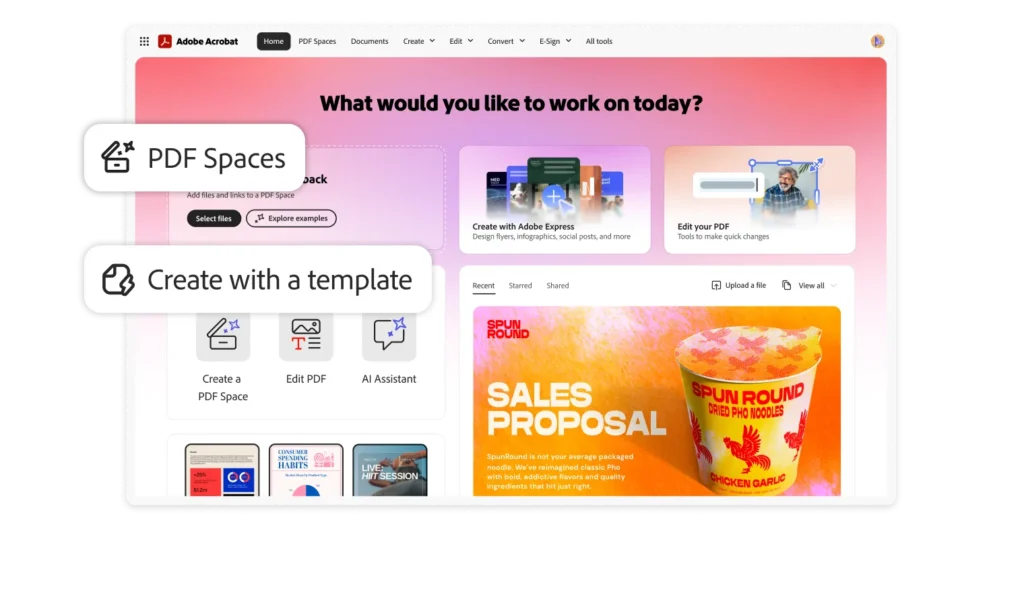
My main issue with Acrobat was not the quality. It was valuable.
Acrobat felt excessive to do basic tasks like editing text, filling forms, compressing files, or adding a signature. It slowed down my system, took time to load, and constantly reminded me to upgrade my plan.
As someone who works with PDFs daily, invoices, guides, and contracts, I needed something lighter and faster. I did not need advanced enterprise features. I needed a tool that just worked.
That is when I switched to PDFgear, the completely free PDF editor that surprised me in a way Acrobat never did.
The free PDF Editor that replaced Acrobat for me
After testing several options, including browser tools and open-source editors, PDFgear stood out.
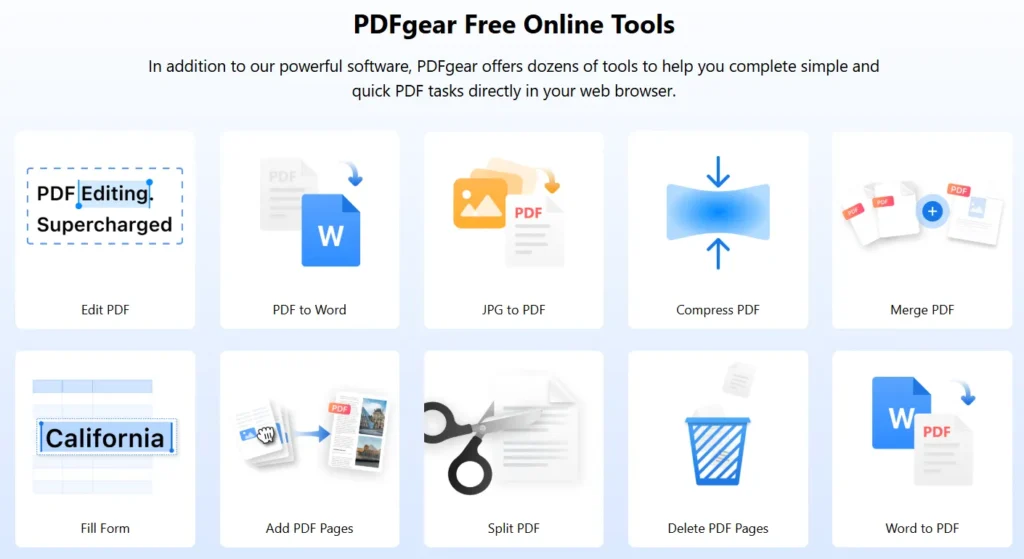
What impressed me first was how clean and simple it felt without sign-ups or watermarks. Just install and start working.
I used it on real tasks, not demos, editing client documents, signing contracts, merging PDFs, and even file conversion.
It did everything I used to do in Acrobat.
PDFgear is a free PDF editor that lets you edit, sign, merge, split, and summarize PDFs with AI. No watermark, fast performance, and ideal for daily use. |

Editing PDFs without paying anything
Editing text in PDFs is where free tools fail, either formatting breaks or the text becomes uneditable.
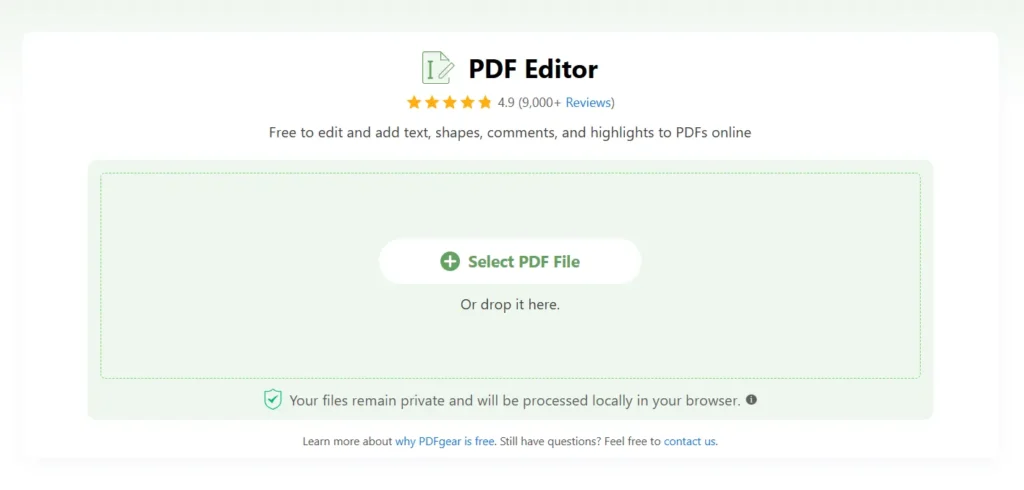
With PDFgear, I was able to
- Edit existing text directly
- Add new text boxes without layout issues
- Change font size and alignment easily
I edited long documents without crashes and delay. That alone made it feel like a serious replacement.
Signing and filling forms made easy
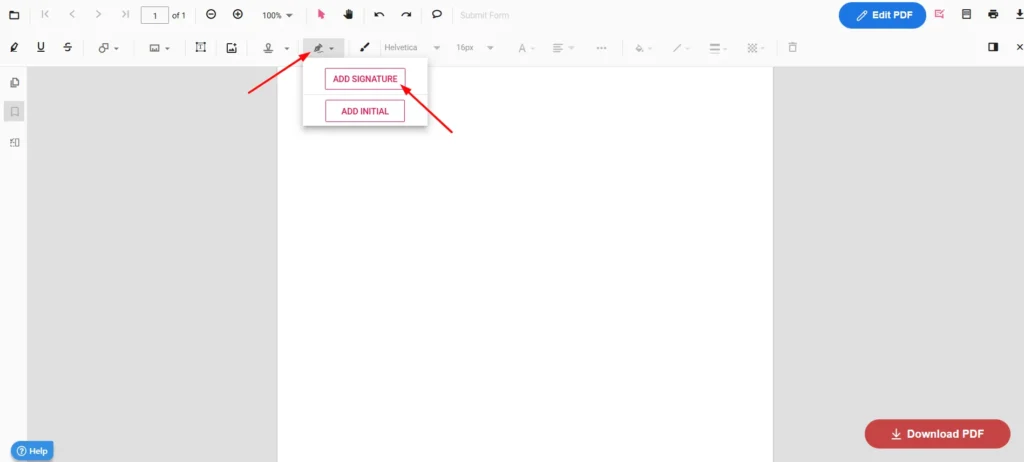
I sign PDFs regularly, and Acrobat kept trying to lead me to the paid features.
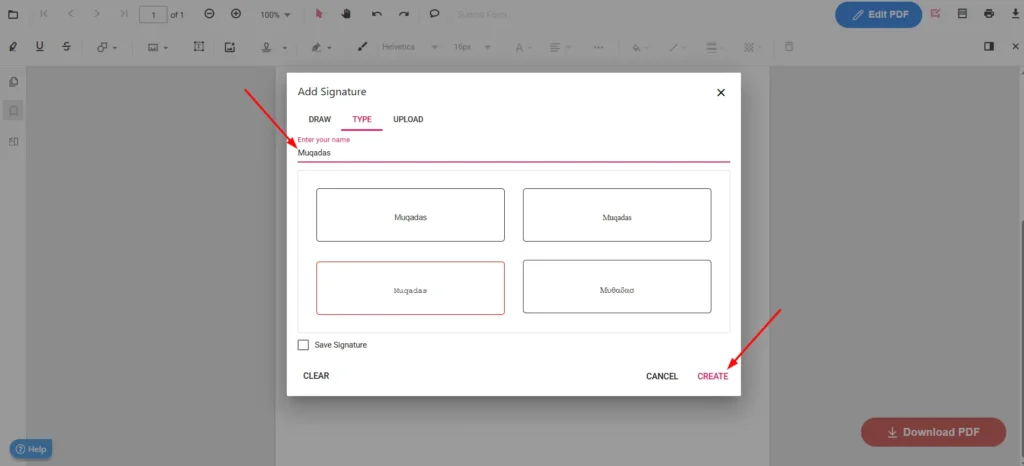
PDFgear lets you add digital signatures, fill interactive forms, and insert checkboxes and fields.
I signed multiple documents without printing or scanning anything. The process was faster and more natural than Acrobat.
Merging, splitting, and compressing PDFs
These are everyday tasks that should not require a subscription.
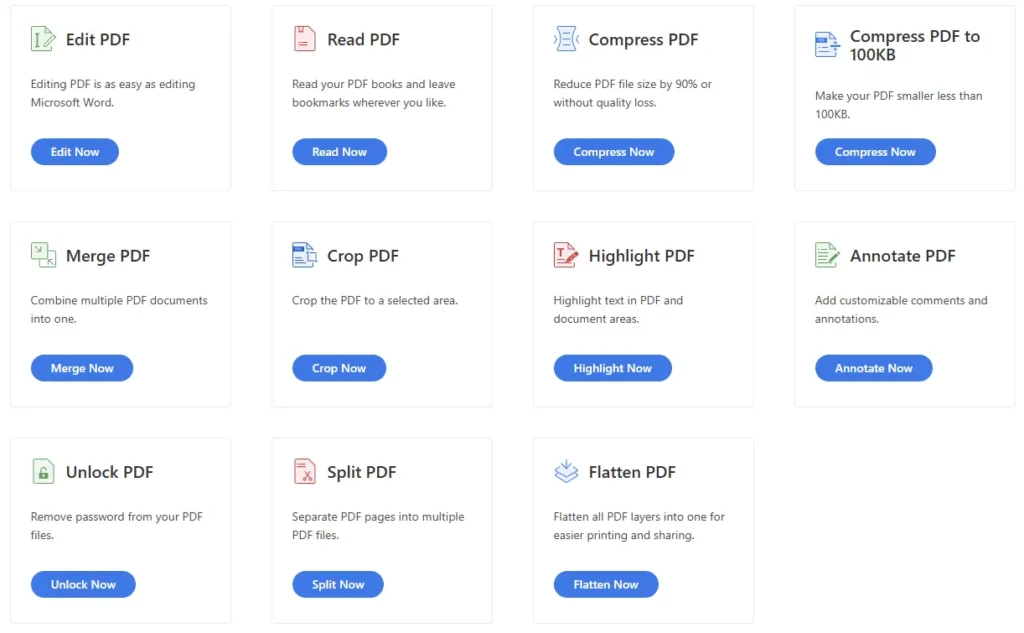
With this free editor, I was able to merge multiple PDFs into one, split large files into pages, and compress PDFs for email sharing.
The compression quality remained good.
Built-in AI features that actually help
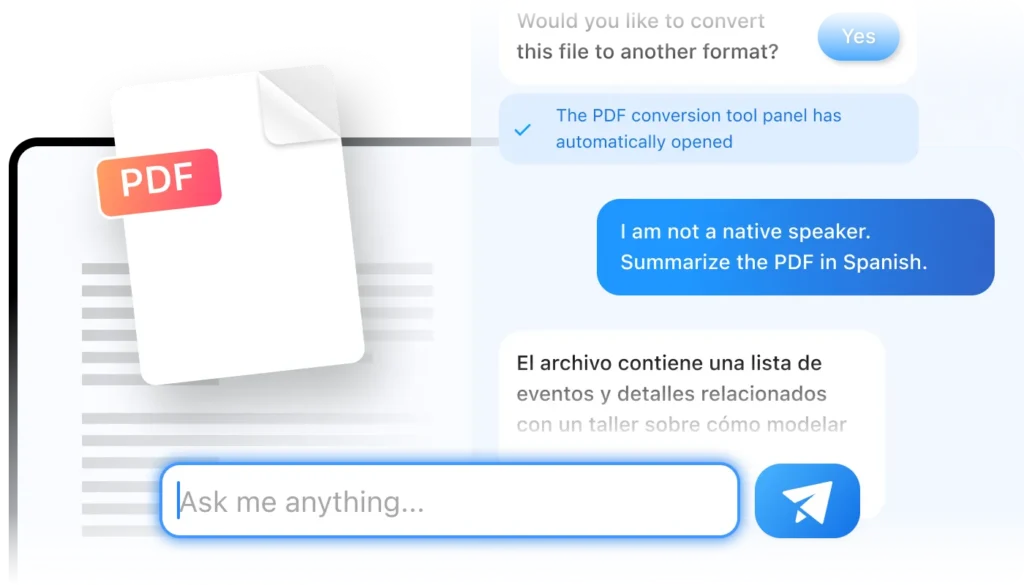
One feature I did not expect was built-in AI. PDFgear includes an AI assistant that can summarize long PDFs, explain complex sections, and help extract key points.
I tested this on long reports and guides. It saved me time when reviewing documents quickly.
Performance and ease of use
This is where Acrobat truly lost me.
PDFgear loads fast, even on older systems. It does not interrupt your workflow with upgrade prompts.
It feels like a tool built for users, not for subscriptions.
Is it really enough for daily work?
For my use, yes.
- I edit documents
- Sign contracts
- Convert files
- Merge and compress PDFs
I have not opened Acrobat in months.
If you work on deep enterprise workflows or advanced legal tools, Acrobat may still be good. But for most users, students, freelancers, and small businesses, this free editor does more than enough.
FAQs
Is PDFgear completely free?
Yes. There are no hidden charges, watermarks, or trial limits for standard features.
Can it replace Adobe Acrobat fully?
For most users, yes. It covers editing, signing, converting, and organizing PDFs without subscription costs.
Does it work on Windows and Mac?
Yes. PDFgear is available for both platforms.
Does it support OCR?
Yes. You can extract and work with text from scanned PDFs.






A little discussion goes a long way.
Ask a question, share your experience, or help someone find an answer.
There is room for your perspective.
No discussions match this view yet.
Your voice belongs here
Keep it useful. Keep it kind.