
Ever given your number to someone in a group chat and immediately regretted it? Yeah, same. That’s actually why I went and set this up on my own phone the moment I saw it available, mostly out of curiosity about whether it actually hides your number the way WhatsApp claims.
It mostly does. Here’s what I did, step by step, with a few things that surprised me while testing it out.
Do you have access yet?
Before you look for it, it’s important to know that it rolled out in phases through 2026, not all at once. When I first checked back in the spring, the option was not there for me at all. It appeared on my account a bit later when WhatsApp expanded the rollout.
So if you open Settings and do not see the username option yet, it’s not your fault. It just has not reached your account. If that happens, try again in a week or two and make sure you are using an updated version.
How I setup username
Here’s the complete process I followed on my own phone:
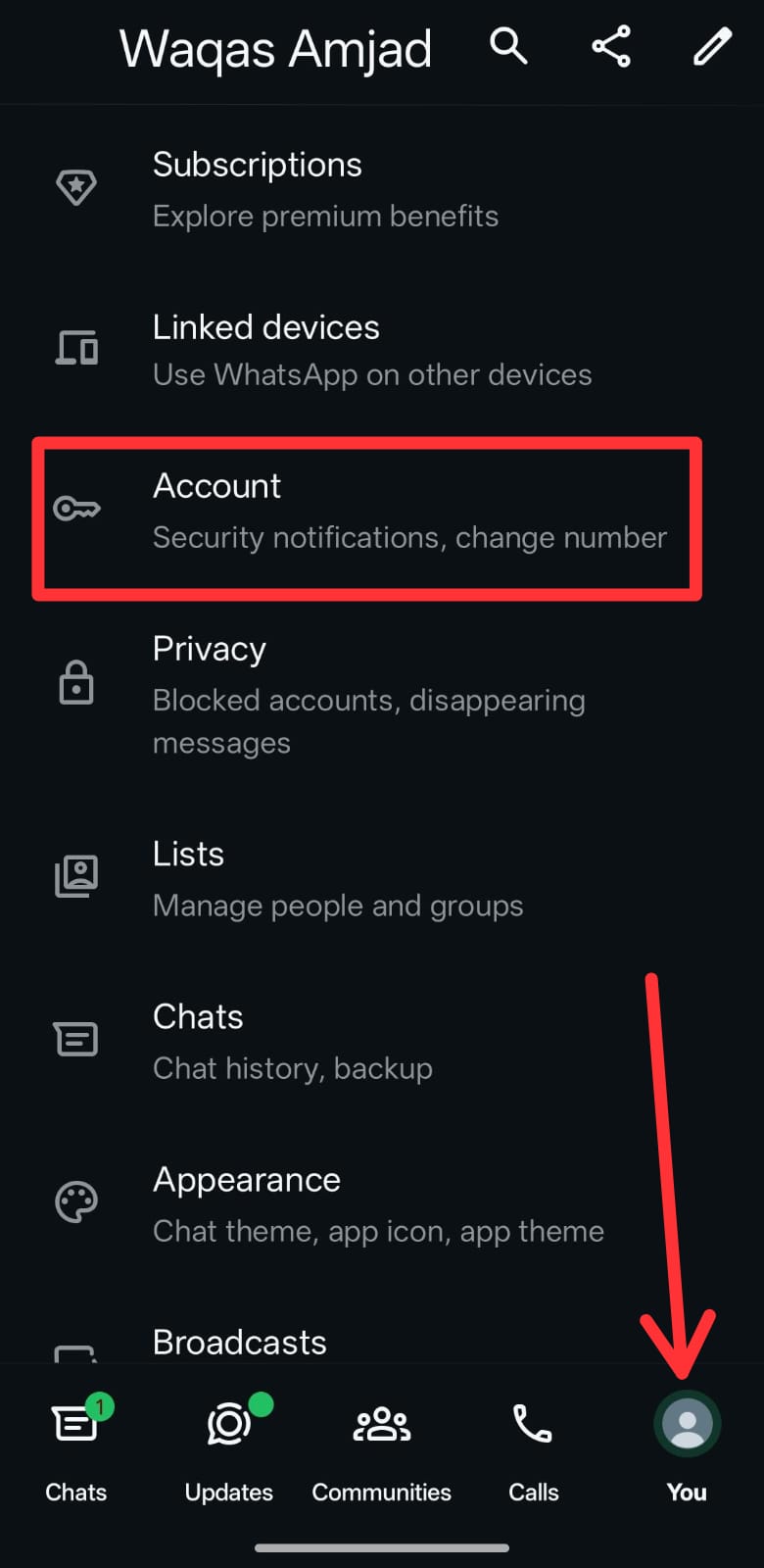
- Open WhatsApp and tap the You tab (or Settings, if your app still shows the old layout).
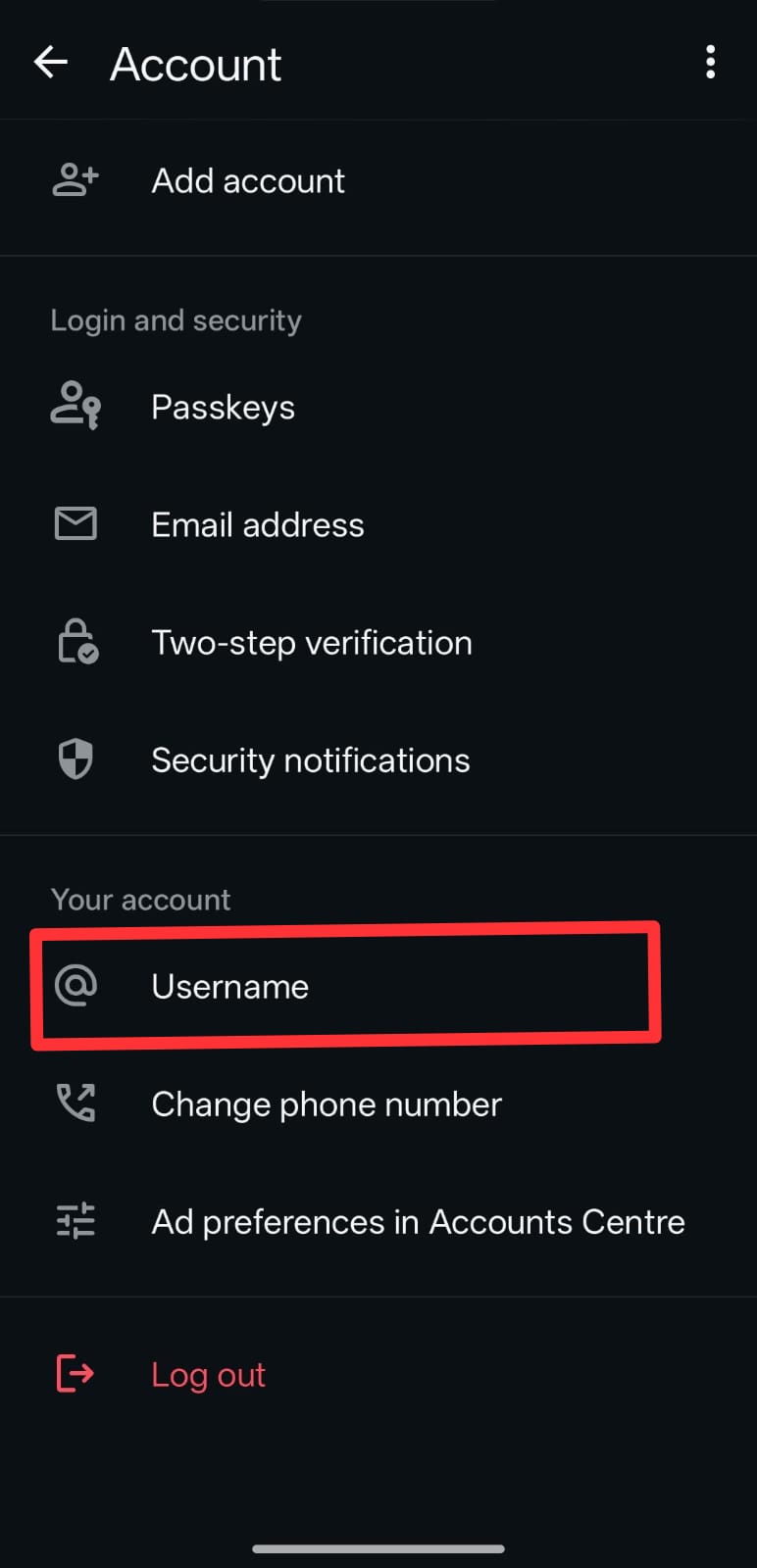
- Tap Account.

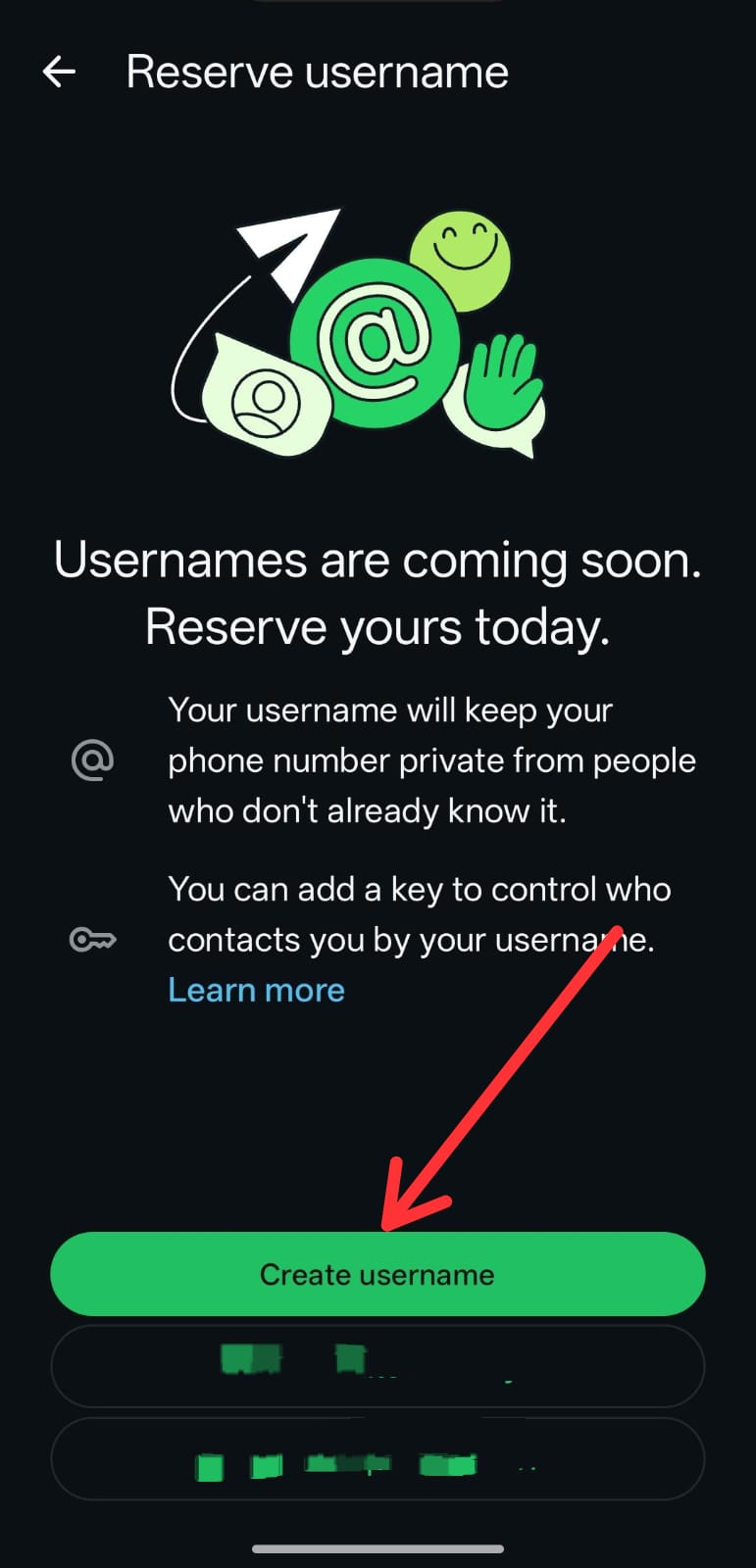
- Tap Username.

- Click on Create Username button.

- Type in what you want. WhatsApp checks availability live as you type, I had to try three different names before one was free.
- Once it shows as available, tap to save it.
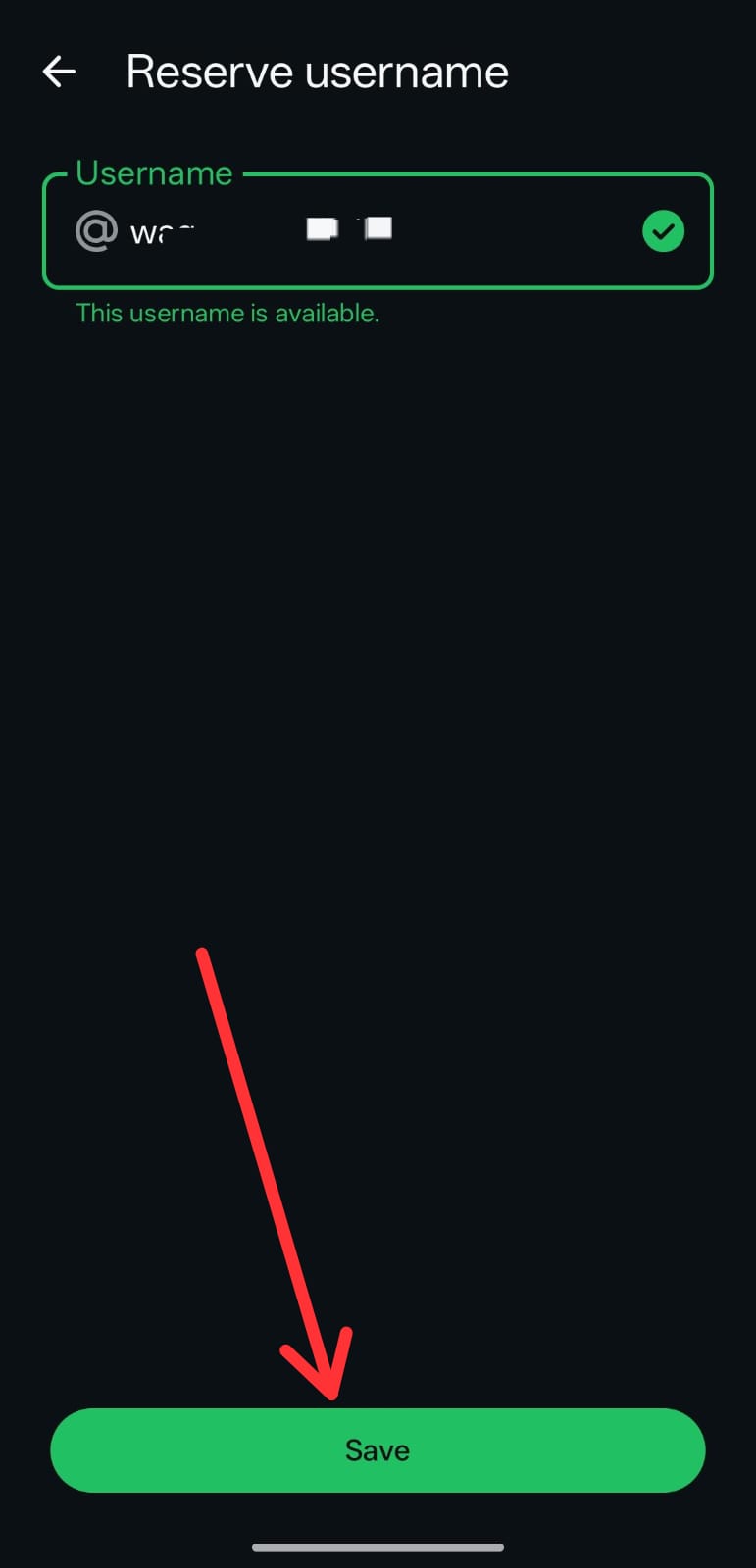
If you are setting this up for WhatsApp Business, it’s nearly same, Click on three dots, Go to Settings, then Account, then Username from there.
Rules I rrun into while testing
I only found out by hitting the wall myself
- Needs to be 3 to 35 characters.
- At least one letter is required, you can not just use numbers.
- Only lowercase letters, numbers, periods, and underscores are allowed. I tried a capital letter first and it got auto-converted.
- Can not start with “www.” or end in something like “.com.”
- WhatsApp blocks anything that looks like it’s impersonating a real business or public figure. I tested this by trying a well-known brand name as a throwaway test, and it was rejected.
If you have got a specific username in your mind, grab it. Once this is fully live for everyone, good short usernames are going to disappear fast.
What happens with Businesses you already talk to
I tested this against a business account that I message regularly. Since I had recently exchanged messages with them, nothing had changed on their end, they could still reach me via the number just like before. WhatsApp only removes the visibility of numbers for new contacts, not already active conversations. If you have not messaged a business in over 30 days, number-based access can expire, so it’s not unlimited.
Personal vs Business accounts
It works for both, but the point changes a bit. On a personal account, it’s mostly about privacy, keeping your number away from people you do not fully trust yet. On a business account, it’s more about looking professional and being easy to search by name, rather than a random string of digits.
Frequently Asked Questions
Do I have to set up a username to keep using WhatsApp?
No, it’s completely optional. Skipping it doesn’t change how your account works.
Can someone still find me by my phone number after I set a username?
Yes, anyone who already has your number can still reach you normally. This mainly controls what new contacts see.
Can two people have the same username?
No, I confirmed this myself while testing, usernames are unique. Once someone takes one, it’s unavailable until they change or drop it.
Will my username replace my display name in chats?
No, your name still shows as usual. The username is what new people search for or see instead of your number, not a name replacement.
Can I change my username later?
Yes, you can go back into Account settings and update it anytime, as long as the new one is still available.
Does this work the same way on iPhone and Android?
Yes, I checked both, the feature and the steps are identical across platforms.


A little discussion goes a long way.
Ask a question, share your experience, or help someone find an answer.
There is room for your perspective.
No discussions match this view yet.
Your voice belongs here
Keep it useful. Keep it kind.