
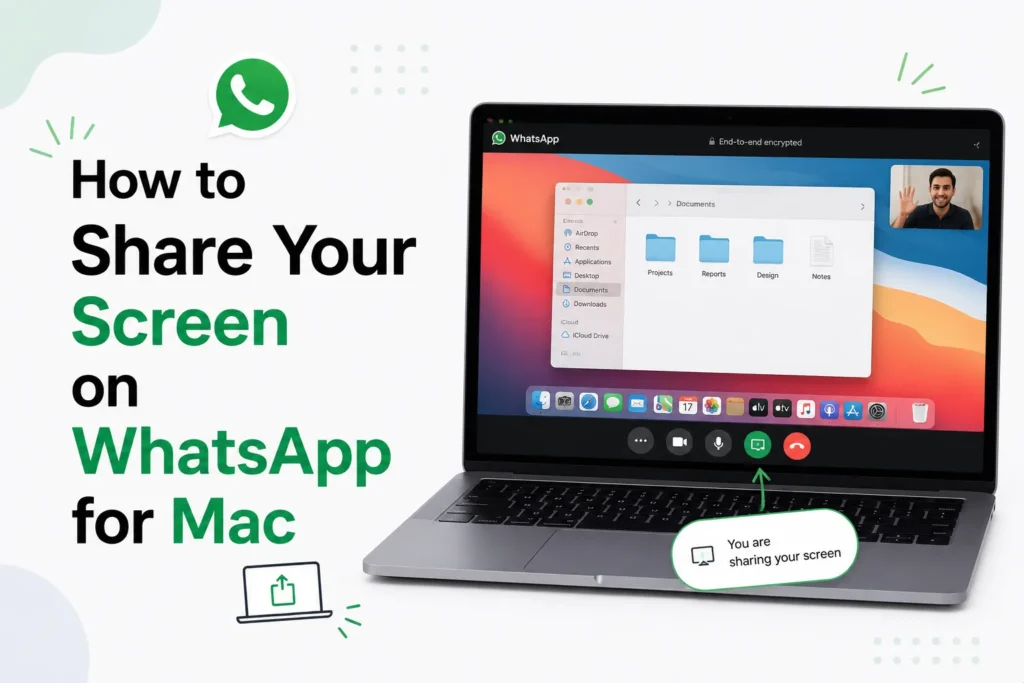
Have you ever tried to provide details on something complex on your Mac via WhatsApp and felt stuck halfway through? Text messages are confusing. Screenshots help, but they do not tell everything. This is where screen sharing makes a real difference.
WhatsApp on Mac can now be used to share your screen during a voice or video call. You do not need to explain and do things step by step, you can show what you are doing in real-time. It saves time and prevents any misunderstandings, especially when helping friends, colleagues at work, and relatives.
Here’s how you can share your screen on WhatsApp using a Mac.
How to Share Your Screen on WhatsApp for Mac

WhatsApp has made screen sharing easy and built it directly into calls.
- Open the WhatsApp desktop app on your Mac and log in to your account.
- Open the chat of the person or group you want to talk to.
- Click the video call icon in the top right corner to start the call. Screen sharing works during video calls.
- Once the call connects, move your cursor over the call window. You will see a screen share icon.
- Click the screen share icon. You will be asked to choose what to share:
- Your Entire Screen
- A Window
- Select your option, then click Share. The other person will now see your screen live.
- When you are finished, click the screen share icon again.
- Choose Stop Sharing to end screen sharing and return to the normal video call.
Why is Screen Sharing on WhatsApp for Mac useful?
Screen sharing removes confusion and speeds up the process. It is helpful for
- Explaining apps or settings step by step
- Showing documents, photos, or websites
- Helping someone fix a problem on their Mac
- Quick work discussions without extra software
WhatsApp screen sharing on Mac makes communication more natural. You do not need to explain a lot or repeat the same thing; you need to show what you want. This feature makes it easy and efficient whether you are helping a friend, instructing something simple, or working with a colleague. Now that you know how it works, you can move from explaining to showing in just a few clicks.
Frequently Asked Questions
Can I share my screen on WhatsApp for Mac?
Yes. WhatsApp for Mac supports screen sharing during video calls. You can share either your entire screen or a specific application window.
Can I share only one app window instead of my entire screen?
Yes. When you start screen sharing, WhatsApp lets you choose between sharing your entire screen or a single window, depending on what you want others to see.
Does screen sharing work during WhatsApp voice calls?
No. Screen sharing is available during video calls. If you’re on a voice call, you’ll need to switch to a video call before sharing your screen.
How do I stop sharing my screen on WhatsApp?
Click the Screen Share icon again during the call, then choose Stop Sharing. Your video call will continue unless you end the call.
Do I need to give macOS permission to share my screen?
Yes. The first time you use screen sharing, macOS may ask you to grant WhatsApp permission to record or share your screen. You must allow this for the feature to work.
Can I share my screen in a WhatsApp group video call?
Yes. If screen sharing is available for your version of WhatsApp, you can share your screen during supported group video calls as well as one to one video calls.







A little discussion goes a long way.
Ask a question, share your experience, or help someone find an answer.
There is room for your perspective.
No discussions match this view yet.
Your voice belongs here
Keep it useful. Keep it kind.