
Taking a regular screenshot in Google Chrome is easy, but capturing an entire webpage requires a different approach. Whether you want to save a long article, documentation, or a complete webpage, Chrome offers several ways to capture a full page on Windows using built in tools or trusted extensions.
Here are some ways to capture a full-page scrolling screenshot on Windows.
- Method 1: Take a full-page screenshot using Chrome’s built-in tool
- Method 2: Capture scrolling screenshot using Chrome extension
- Recommended Free Extensions
- Steps (Using GoFullPage)
- Method 3: Use Microsoft Edge Web Capture
- Method 4: Use Online Full Page Screenshot Tools
- Recommended websites
- How to use them
- Frequently Asked Questions
Method 1: Take a full-page screenshot using Chrome’s built-in tool
Google Chrome has a hidden feature that allows full-page screenshots without extensions.
- Open Google Chrome.
- Visit the webpage you want to capture.
- Press Ctrl + Shift + I (to open Developer Tools).
- Then press Ctrl + Shift + P to open the command search box.
- Type screenshot in the search bar.
- Select the “Capture full size screenshot” option from the list.
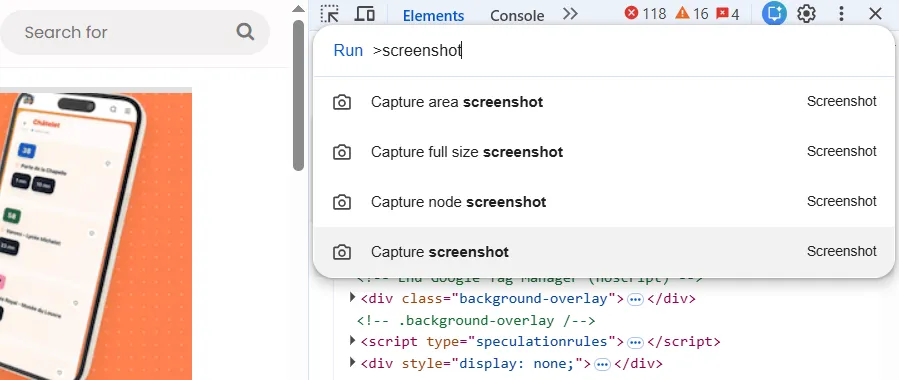
Chrome will scroll the entire page and automatically save a long screenshot as a PNG file.
This method is best for
- High-quality full-page screenshots
- Using built-in tools without installing anything
Method 2: Capture scrolling screenshot using Chrome extension
If you need to take regular scrolling screenshots, using an extension is faster and easier option.
Recommended Free Extensions
- GoFullPage – Full Page Screenshot Capture
- FireShot
- Awesome Screenshot
Steps (Using GoFullPage)
- Open Chrome Web Store.
- Search for GoFullPage.
- Click on the “Add to Chrome” button.
- Visit the webpage you want to capture.
- Click the GoFullPage icon in the Chrome toolbar.
- The extension will auto-scroll the entire page.
- Save the screenshot in the formats supported by the extension, such as PNG or PDF.
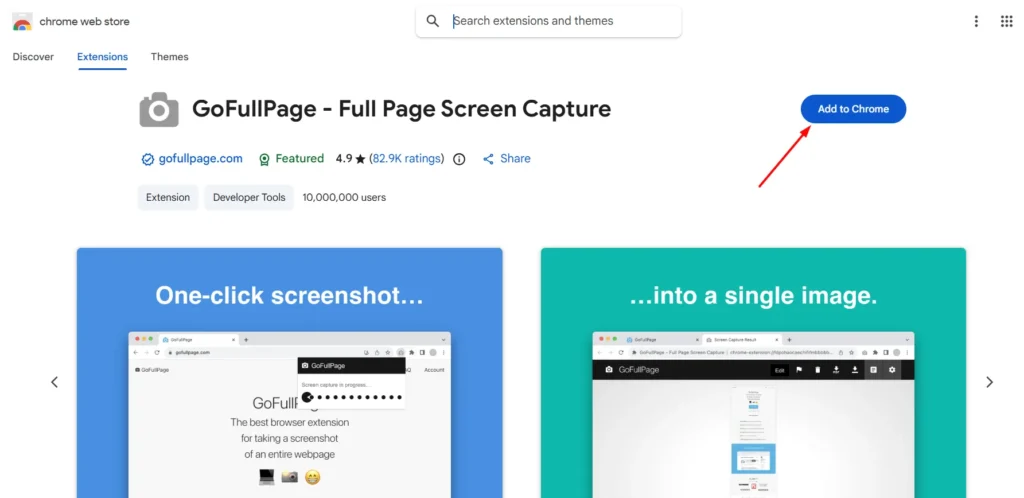
Why do you use these extensions?
- Easy to use
- Works on almost any webpage
- Supports saving as PDF
Method 3: Use Microsoft Edge Web Capture
If you need another built in option, Microsoft Edge includes a Web Capture feature that can save an entire webpage without installing an extension.
- Open the webpage in Microsoft Edge.
- Press Ctrl + Shift + S, or open the browser menu and select Web Capture.
- Choose Capture full page.
- Save or copy the captured image.
Method 4: Use Online Full Page Screenshot Tools
If you do not want to install anything, you can use a web-based tool.
Recommended websites
- screenshot.guru
- web-capture.net
How to use them
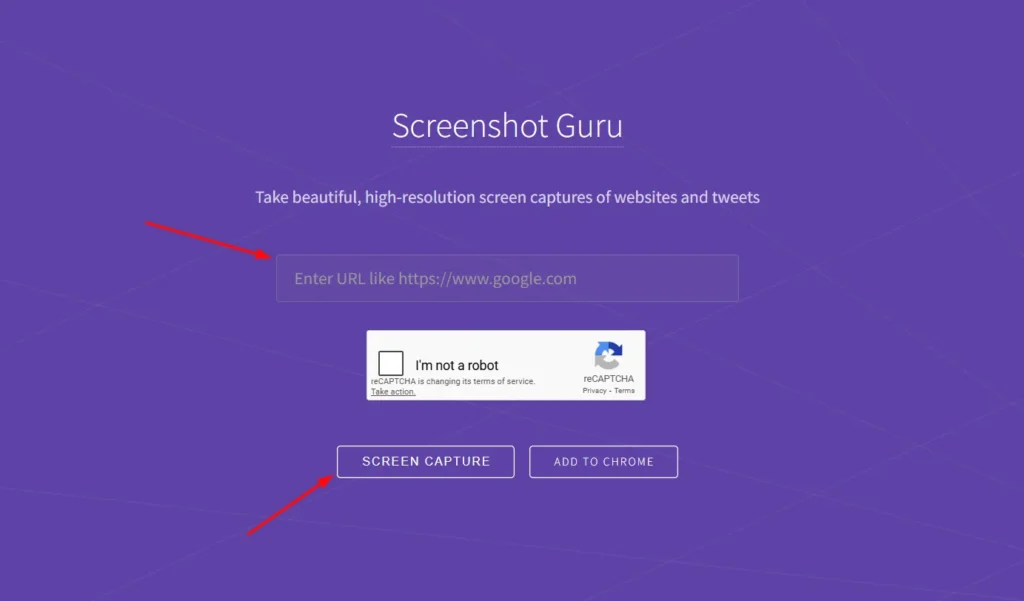
- Open the tool website.
- Paste the webpage URL.
- Click Capture Screenshot.
- Download the full-page image.
Taking a scrolling screenshot in Google Chrome on Windows is easy when you know the right tools. You can use the developer screenshot setup that is already available in Chrome, or you can use extensions such as GoFullPage and FireShot, but capturing a full webpage only takes a few seconds.
Frequently Asked Questions
Can Google Chrome take a full page screenshot without an extension?
Yes. Google Chrome includes a built in feature that lets you capture an entire webpage without installing any extensions. Open Developer Tools, launch the Command Menu, search for Capture full size screenshot, and Chrome will save the complete page as a PNG image.
Why can’t I find the Capture full size screenshot option in Chrome?
If the option does not appear, make sure you have opened the Command Menu by pressing Ctrl + Shift + P while Developer Tools is active. You should search for screenshot, not in the browser’s address bar. Updating Chrome to the latest version can also help if the feature is missing.
Which Chrome extension is best for scrolling screenshots?
GoFullPage is one of the most popular choices because it is simple to use and works well on most websites. FireShot and Awesome Screenshot are also reliable options if you want extra features such as editing, annotations, or saving screenshots in different formats.
Can I save a full page screenshot as a PDF?
Yes. Many scrolling screenshot extensions, including GoFullPage and FireShot, allow you to export captured webpages as PDF files. This is useful when you want to archive articles, receipts, reports, or other online content.
Does the Chrome built in screenshot tool work on every website?
It works on most standard webpages. However, some websites with dynamic content, infinite scrolling, or protected elements may not capture perfectly. In those cases, a dedicated screenshot extension often produces better results.
Can I take a full page screenshot on Windows without installing software?
Yes. You can use Chrome’s built in Capture full size screenshot feature or Microsoft Edge’s Web Capture tool. Both options let you capture an entire webpage without downloading third party software.






A little discussion goes a long way.
Ask a question, share your experience, or help someone find an answer.
There is room for your perspective.
No discussions match this view yet.
Your voice belongs here
Keep it useful. Keep it kind.