
Microsoft continues to expand AI features in Windows 11 through Copilot. While some advanced AI experiences require newer AI PCs with dedicated NPUs, many Copilot features are now available on supported Windows 11 devices.
- Microsoft’s AI models allow you to interact with your device using text or voice.
- Copilot can answer questions about Windows settings, help you complete tasks, and provide step-by-step guidance within supported Windows experiences.
- Microsoft is also introducing more agent-based AI capabilities that can help automate certain tasks on supported Windows devices.
While these additions align Microsoft with AI efforts from Google, OpenAI, and others, not all Windows users are excited about this change. Some prefer a more traditional computing experience or just do not feel comfortable with AI features constantly running in the background.
Why Some Users Are Cautious About Copilot
Microsoft’s AI journey has not been without controversy. One of its previous features, Recall, which automatically snapshots user activity for contextual assistance, had to be delayed due to privacy issues. That memory still lingers for many users, raising questions about data protection and control.
If you are one of the individuals who want to apply AI tools on your terms (or not at all), then it is not that difficult to disable Copilot in Windows 11 in a few steps.
How to Disable Copilot on Windows 11
If you want to keep your PC free from Copilot’s AI features, follow these steps
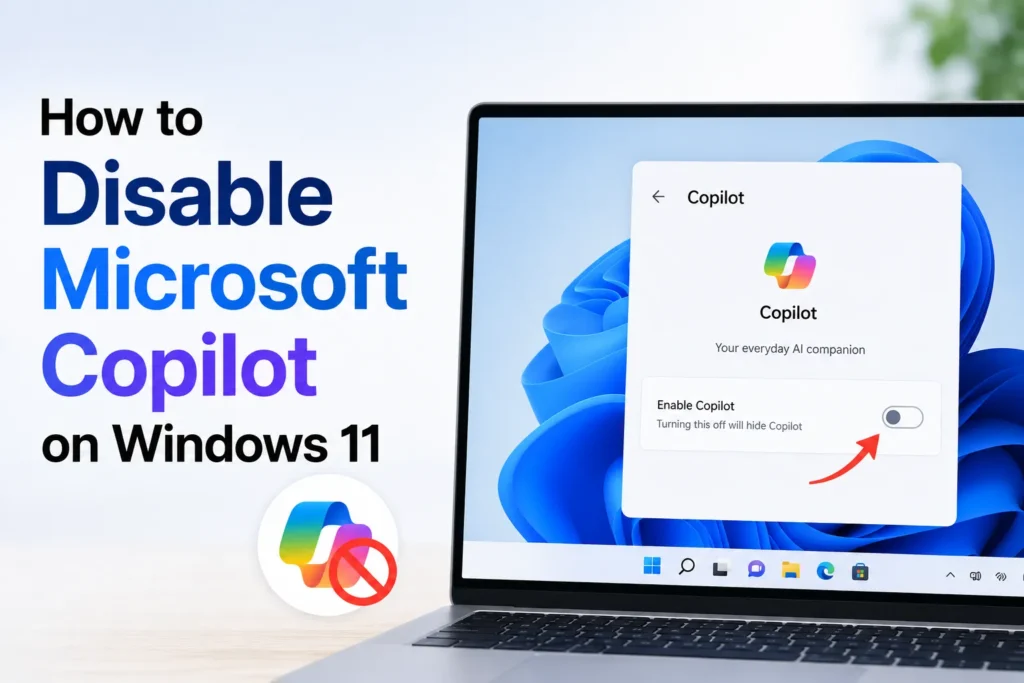
Right click the taskbar and select Taskbar settings. If the Copilot toggle is available, turn it off to remove the Copilot button from the taskbar
This will remove the Copilot icon from your taskbar.
To completely disable it from your system.
- Press Win + R and type regedit to open the Registry Editor.
- Navigate to
HKEY_CURRENT_USER\Software\Policies\Microsoft\Windows\WindowsCopilot - Right-click the Windows folder.
- Choose New > Key > name it WindowsCopilot.
- Right-click the new key > choose New > DWORD (32-bit) Value.
- Name it TurnOffWindowsCopilot.
- Double-click it, set Value Data to 1, and restart your PC.
This method applies to the legacy Windows Copilot experience. Microsoft notes that the TurnOffWindowsCopilot policy is deprecated and may not affect the newer Copilot app in recent Windows releases.
Additional Tips
Some Windows users have shared tricks online. For example, you can
- Open the Start Menu, right-click Copilot and Microsoft 365 Copilot, and uninstall both.
- Use PowerToys to remap or disable the Copilot key if your keyboard has one.
With these steps, you can enjoy a smooth Windows 11 experience without AI.
Frequently Asked Questions
Can I completely disable Copilot in Windows 11?
It depends on your Windows 11 version. You can remove the Copilot button from the taskbar, and some older versions also allow you to disable the legacy Copilot experience through the Registry Editor. However, newer Copilot apps may ignore this policy.
Will disabling Copilot affect other Windows features?
No. Disabling Copilot only removes access to Microsoft’s AI assistant. Core Windows features, installed apps, and your personal files will continue to work as usual.
Can I enable Copilot again later?
Yes. If you change your mind, you can turn the Copilot taskbar button back on or reverse any Registry changes you previously made. Restart your PC if required for the changes to take effect.
Is it safe to edit the Windows Registry to disable Copilot?
Yes, but only if you follow the steps carefully. Editing the Registry incorrectly can cause system issues, so it’s a good idea to create a backup or a restore point before making any changes.
Does uninstalling the Copilot app remove AI features from Windows 11?
Not always. Uninstalling the Copilot app removes the application itself, but some AI powered features built into Windows may still be available depending on your Windows version and future updates.







A little discussion goes a long way.
Ask a question, share your experience, or help someone find an answer.
There is room for your perspective.
No discussions match this view yet.
Your voice belongs here
Keep it useful. Keep it kind.