
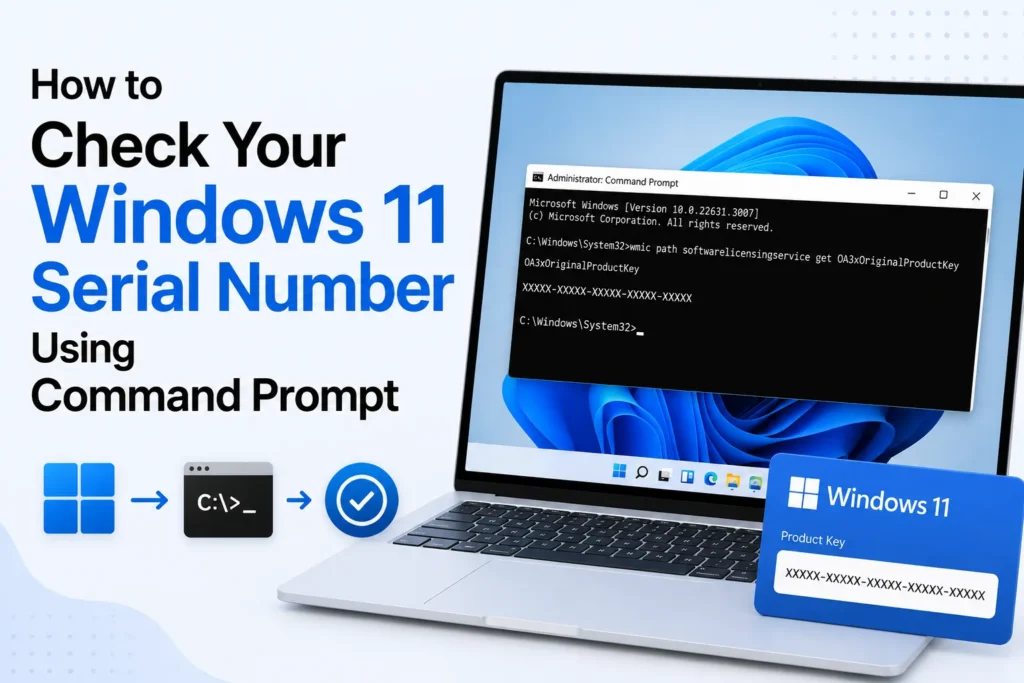
If you have ever tried to reinstall Windows 11, verified your device warranty, or contacted customer support, you are already aware of the importance of your PC’s serial number. It’s the unique hardware ID that manufacturers and technicians use to verify ownership, track warranty status, and provide accurate support.
The problem?
Most people do not even consider their serial number until they get locked out of Windows, the label becomes faded, or the laptop will no longer boot.
Luckily, Windows makes it incredibly simple to find your serial number, and it does not require an overturned laptop or a BIOS inquiry. You can quickly view it using a simple Command Prompt or PowerShell command.
How to Check Your Windows 11 Serial Number Using Command Prompt
wmic bios get serialnumberAlternative Command
If the Command Prompt method does not return a serial number, open Windows PowerShell and run
Get-CimInstance Win32_BIOS | Select-Object SerialNumberThis retrieves the serial number directly from your PC’s BIOS. On some custom-built desktop PCs, the manufacturer may not have stored a serial number, so the command may return a blank value.
What to Do With Your Serial Number
Once you retrieve it, you can use the serial number to
- check your warranty status online
- contact tech support
- register your device
- verify ownership
- prepare for reinstalling Windows
Never share your serial number publicly.
Frequently Asked Questions
Why do I need my Windows 11 serial number?
Your PC’s serial number helps identify your device for warranty claims, technical support, repairs, product registration, and ownership verification. Manufacturers often ask for it when troubleshooting hardware issues.
Where can I find my computer’s serial number?
You can find the serial number in Command Prompt, Windows PowerShell, your system BIOS, or on a label attached to your computer. Many laptop manufacturers also print it on the bottom of the device or inside the battery compartment.
Why does the Command Prompt show “To Be Filled By O.E.M.” instead of a serial number?
This usually means the computer manufacturer did not correctly store the serial number in the system firmware. If that happens, check the physical label on your device or contact the manufacturer for assistance.
Is the serial number the same as the product key?
No. A serial number identifies the physical computer, while a Windows product key is used to activate the operating system. They serve different purposes and should not be confused.
Can I check my serial number without opening the laptop?
Yes. If Windows is working, you can retrieve the serial number using Command Prompt or PowerShell without turning the laptop over or opening the BIOS.
Should I share my computer’s serial number online?
No. Your serial number is unique to your device and should be kept private. Share it only with the manufacturer or a trusted support representative when necessary.







A little discussion goes a long way.
Ask a question, share your experience, or help someone find an answer.
There is room for your perspective.
No discussions match this view yet.
Your voice belongs here
Keep it useful. Keep it kind.