
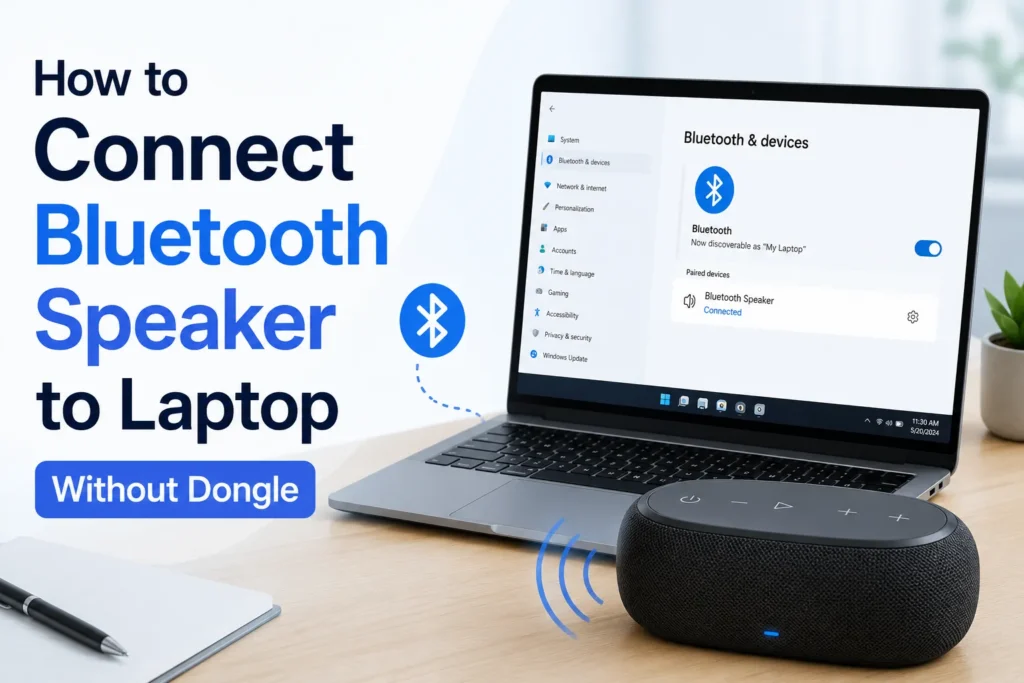
Bluetooth technology allows you to enjoy music, films, and make calls without complicated cables. With a built-in Bluetooth on your laptop, there is no need for a dongle at all. Here’s how to connect your Bluetooth speaker to your laptop easily on Windows 10 or Windows 11.
Check if your laptop has built-in Bluetooth
Most modern laptops already include a Bluetooth feature. To confirm
- Press Windows + I to open Settings.
- Go to Devices > Bluetooth & other devices (in Windows 10)
or
Settings > Bluetooth & devices (in Windows 11). - If you see a Bluetooth toggle, your laptop supports it.
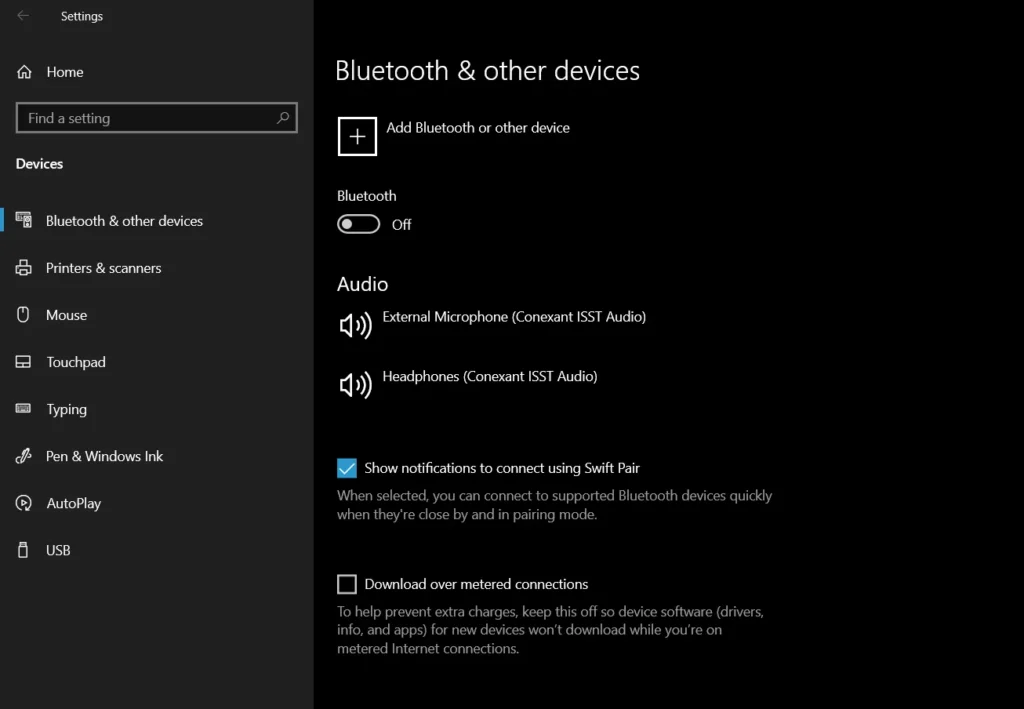
If there’s no toggle, it means Bluetooth is disabled.
Turn on Bluetooth on your laptop
Once confirmed, enable Bluetooth
- Windows 10: Go to Settings > Devices > Bluetooth & other devices > Turn Bluetooth On.
- Windows 11: Go to Settings > Bluetooth & devices > Switch Bluetooth On.
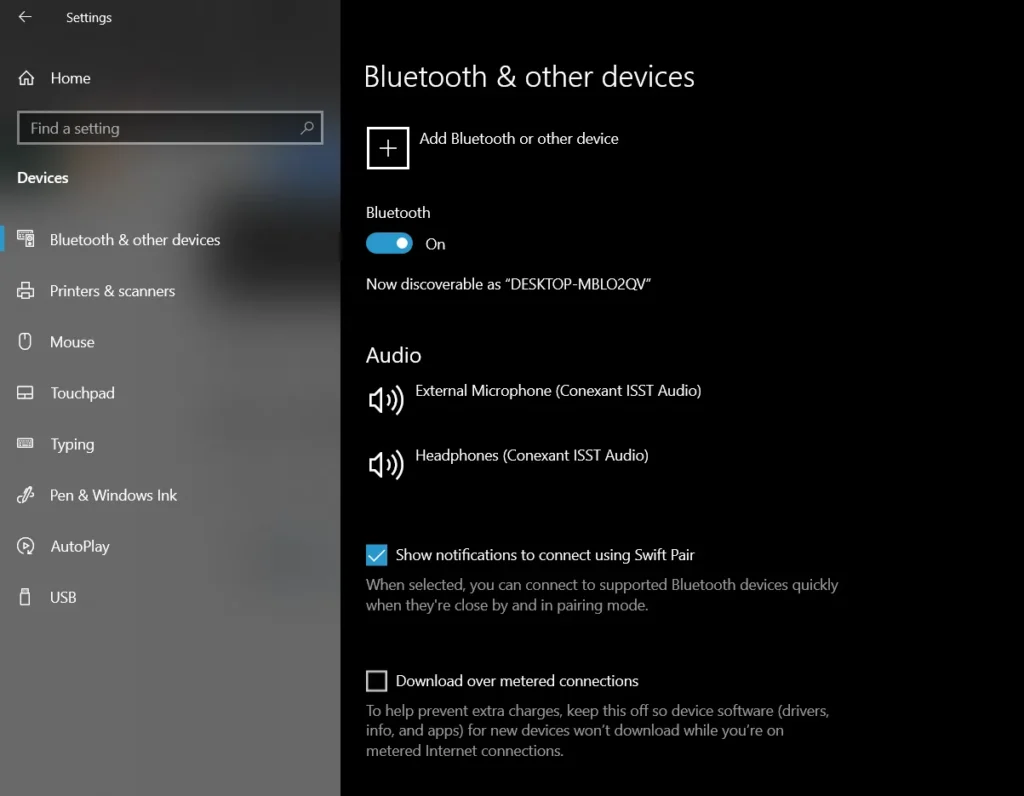
You can also press Windows + A to open Quick Settings, then click the Bluetooth button to turn it on or off.
Put your speaker in pairing mode
Every Bluetooth speaker has a pairing button or mode.
- Press and hold the Bluetooth or Power button until you see a flashing light or hear a pairing sound.
- Keep your speaker close to your laptop.
Pair the Speaker with Your Laptop
- Go to Bluetooth settings.
- Click Add device (or Add Bluetooth or other device).
- Select Bluetooth from the list.
- Your speaker will appear under available devices.
- Click to connect.
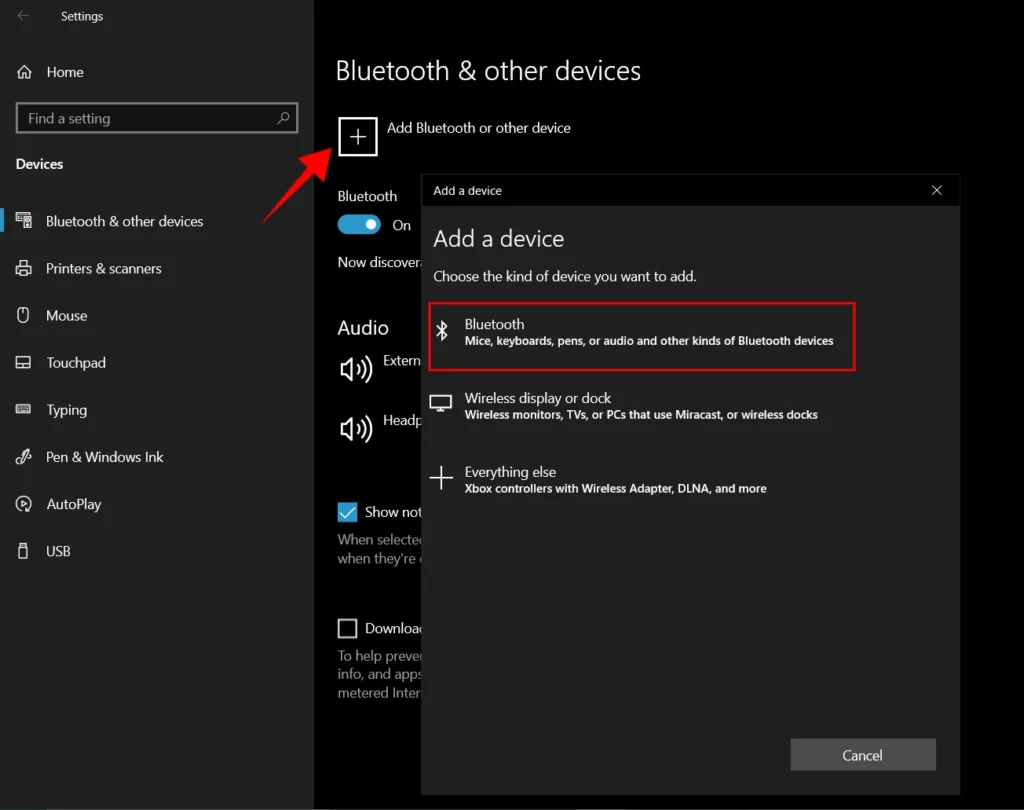
Now, you will hear a confirmation sound.
Set the speaker as default output device
To ensure all sound plays through the Bluetooth speaker.
- Right-click the Sound icon in the taskbar.
- Click the Sound icon on the taskbar, then select your Bluetooth speaker from the available audio output devices. You can also go to Settings > System > Sound and choose your speaker under Output.
- Navigate to Output option.
- Choose your Bluetooth speaker as the default device.
Now all audio will play wirelessly.
It is a fast and simple way to connect a Bluetooth speaker to your laptop without any dongle if your system has built-in Bluetooth.
Frequently Asked Questions
How do I connect a Bluetooth speaker to my Windows laptop?
Enable Bluetooth on your laptop, put your speaker into pairing mode, open the Bluetooth settings, select Add device, choose your speaker from the list, and wait for the connection to complete.
How can I check if my laptop has built in Bluetooth?
Open Windows Settings and go to the Bluetooth section. If you see a Bluetooth toggle, your laptop has built in Bluetooth. If no toggle appears, your device may not support Bluetooth or the driver may need to be installed.
Why won’t my Bluetooth speaker connect to my laptop?
This can happen if Bluetooth is turned off, the speaker isn’t in pairing mode, it’s already connected to another device, or the Bluetooth driver needs updating. Restarting both devices often helps resolve temporary connection issues.
How do I make my Bluetooth speaker the default audio device?
Click the sound icon on the taskbar and choose your Bluetooth speaker from the available output devices. You can also open Settings > System > Sound and select it under the Output section.
Can I connect a Bluetooth speaker without a Bluetooth adapter?
Yes. If your laptop has built in Bluetooth, you don’t need a separate USB Bluetooth adapter. Simply enable Bluetooth and pair the speaker through Windows settings.
Does this method work on both Windows 10 and Windows 11?
Yes. The steps are almost identical on both operating systems. The menu names may vary slightly, but the Bluetooth pairing process works in the same way.







A little discussion goes a long way.
Ask a question, share your experience, or help someone find an answer.
There is room for your perspective.
No discussions match this view yet.
Your voice belongs here
Keep it useful. Keep it kind.