
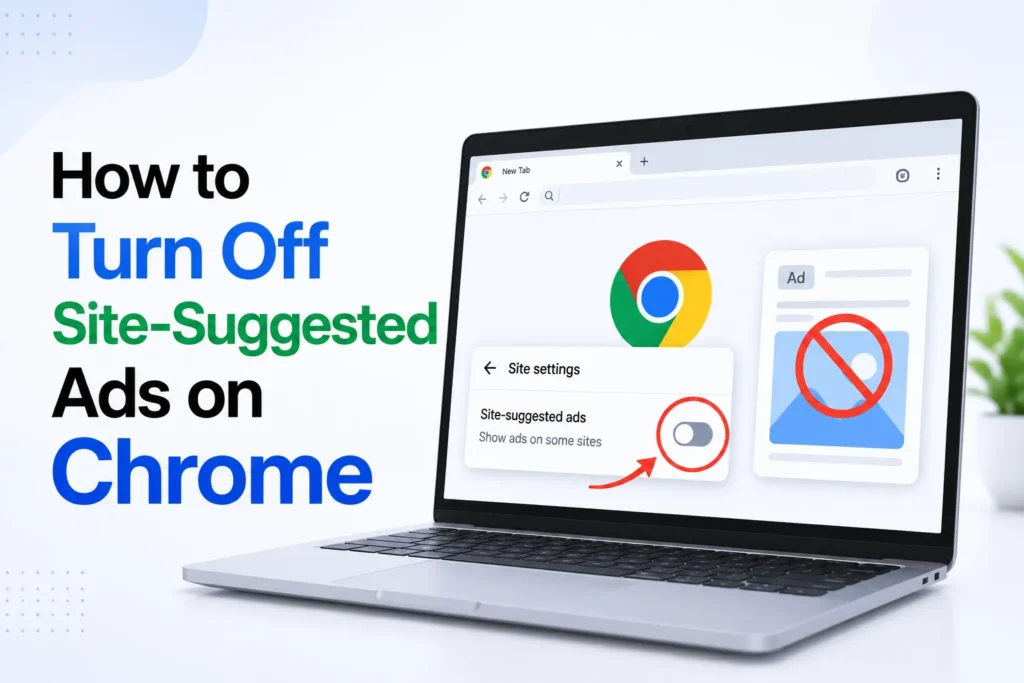
If you have ever searched for shoes, a gadget, or a vacation spot and then found ads for the same product following you everywhere on the Internet. It seems like the internet is following you everywhere you go. The personalized ads somehow keep on reappearing even after clearing your history or blocking third-party cookies.
The reason? Chrome has a separate feature, Site-Suggested Ads, that is independent of cookies and browsing history. It allows websites to recommend ads depending on your activity, even after you have taken privacy measures elsewhere. Luckily, there’s an easy way to disable it.
Here you will learn how to disable Google Chrome Site-Suggested Ads in a few simple steps.
How to Turn Off Site-Suggested Ads in Chrome
Here’s how you can turn off site-suggested ads in Chrome.
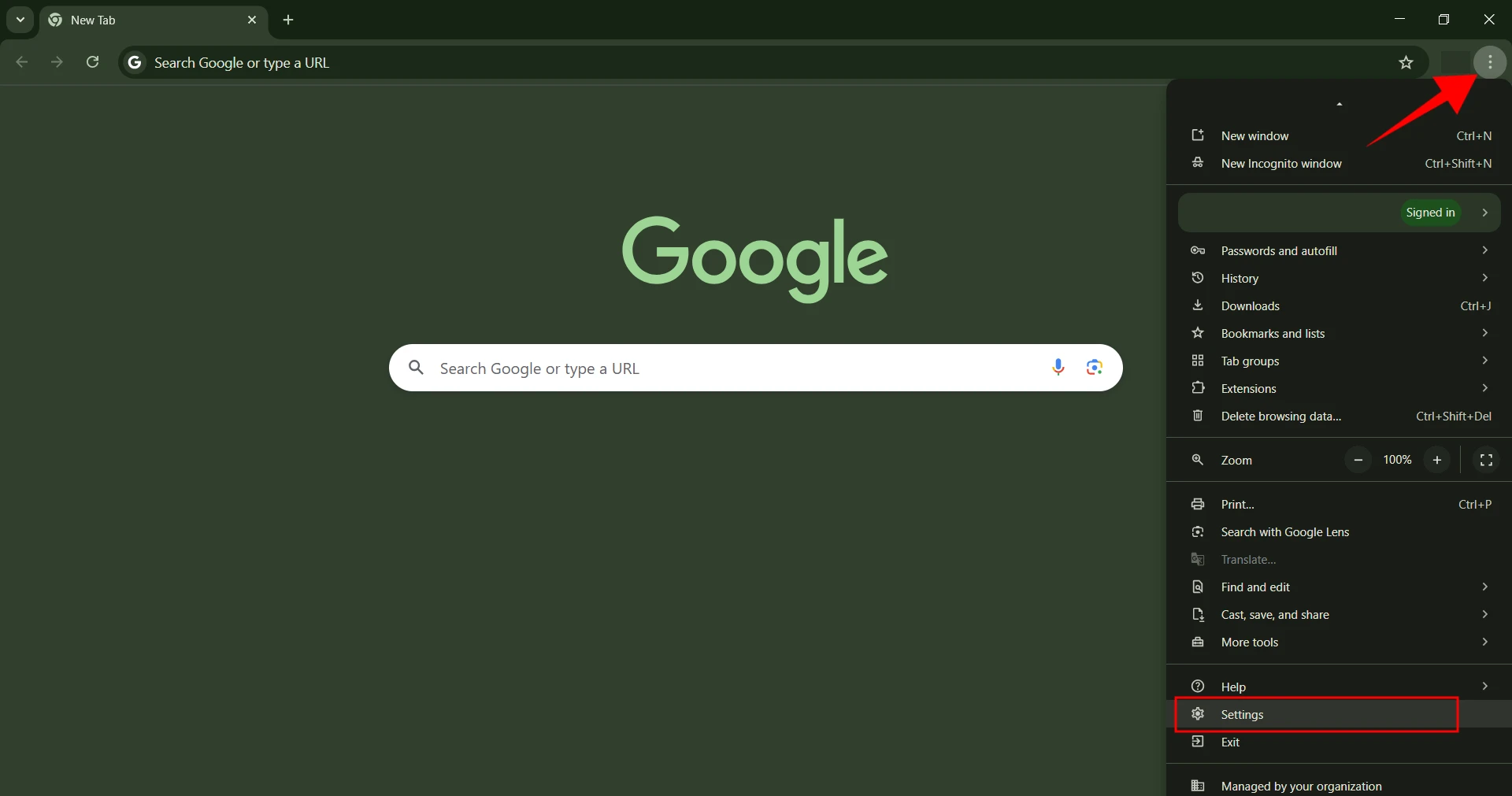
- Open the Google Chrome browser on your computer.
- Click on the three-dot (hamburger) menu located in the upper-right corner of the window and select Settings.

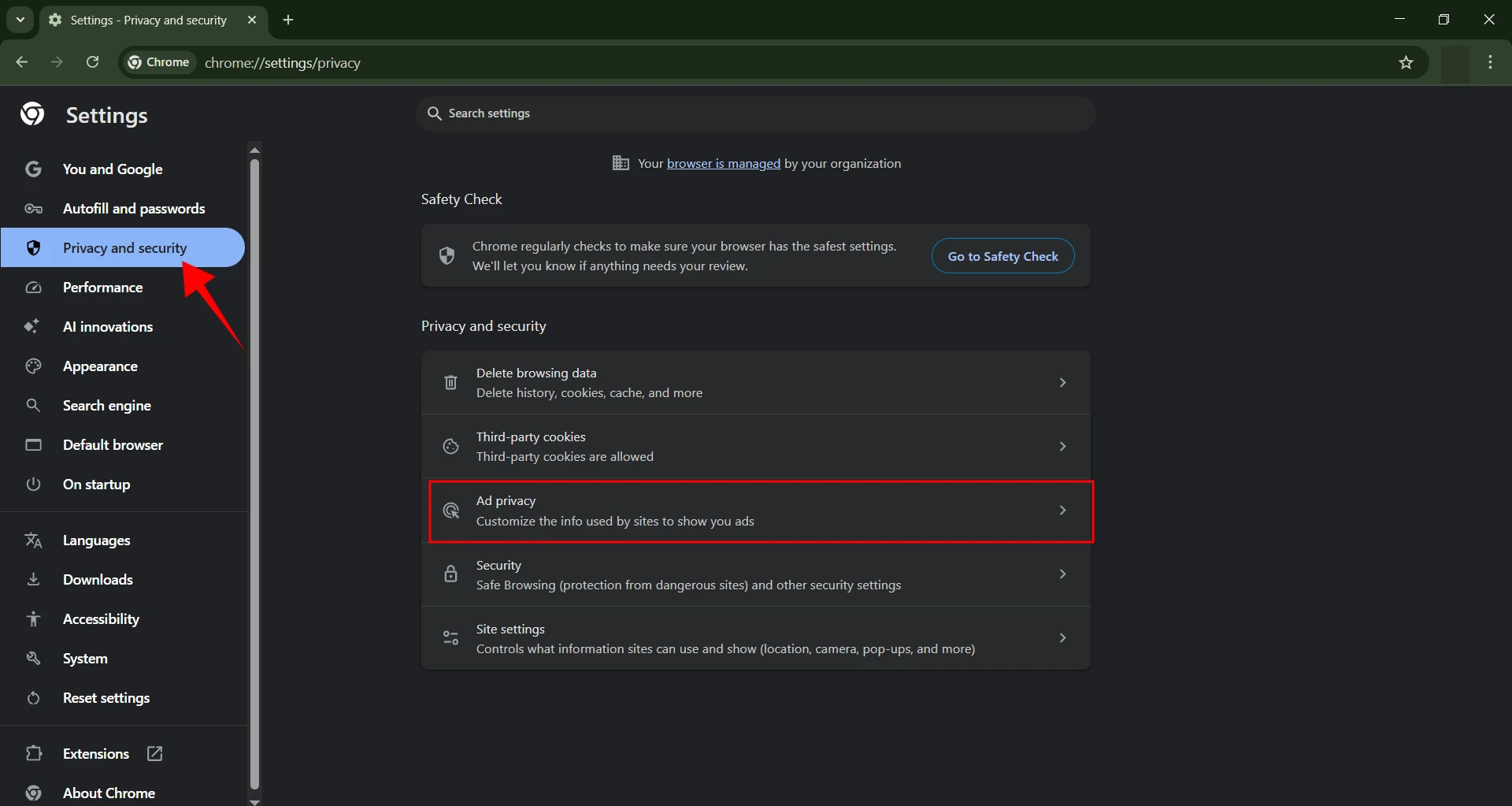
- Click Privacy and Security and then select Ads Privacy.

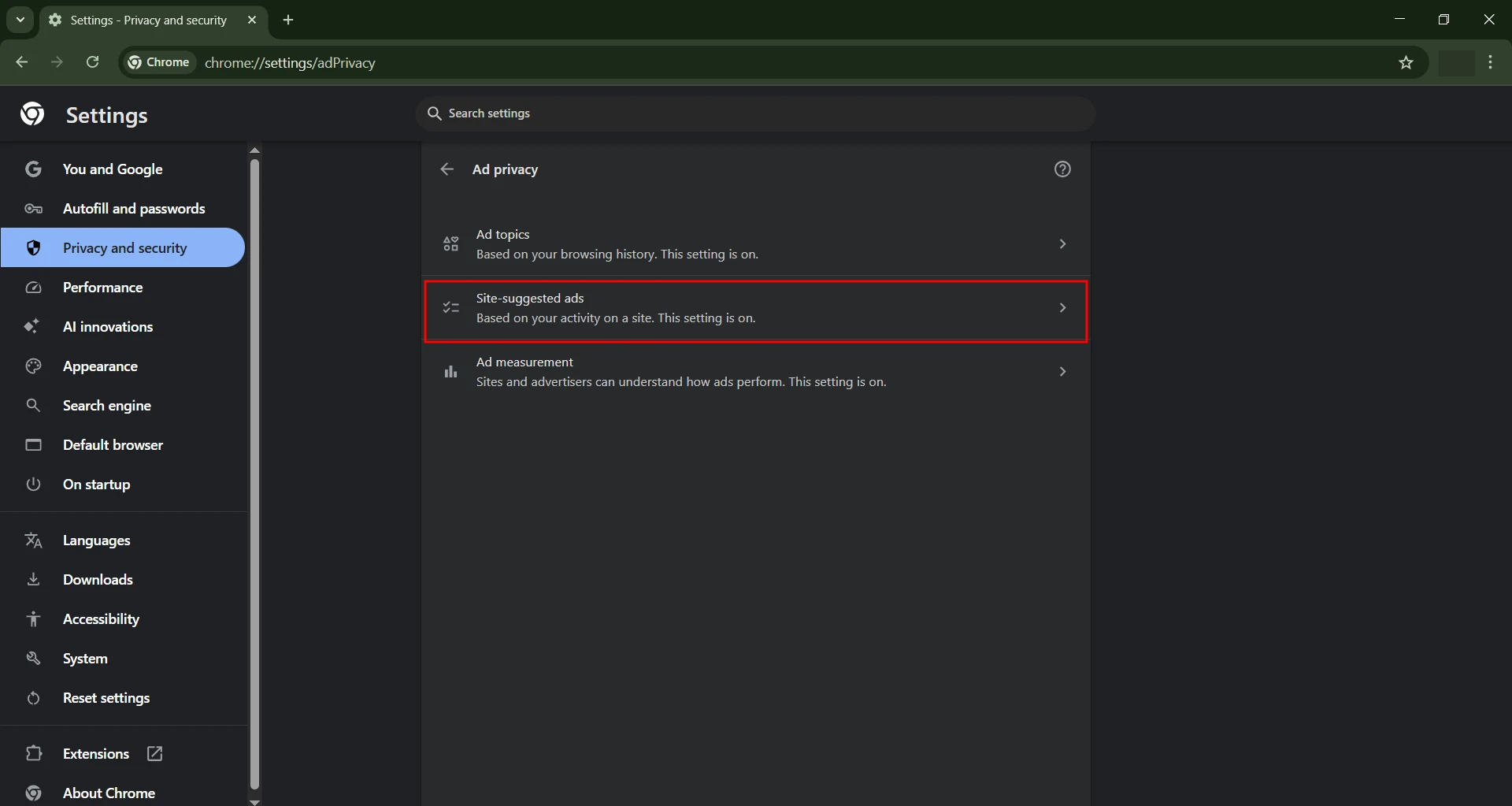
- Click on the Site-Suggested Ads option.
- Toggle off the switch next to Site-Suggested Ads to disable the feature.
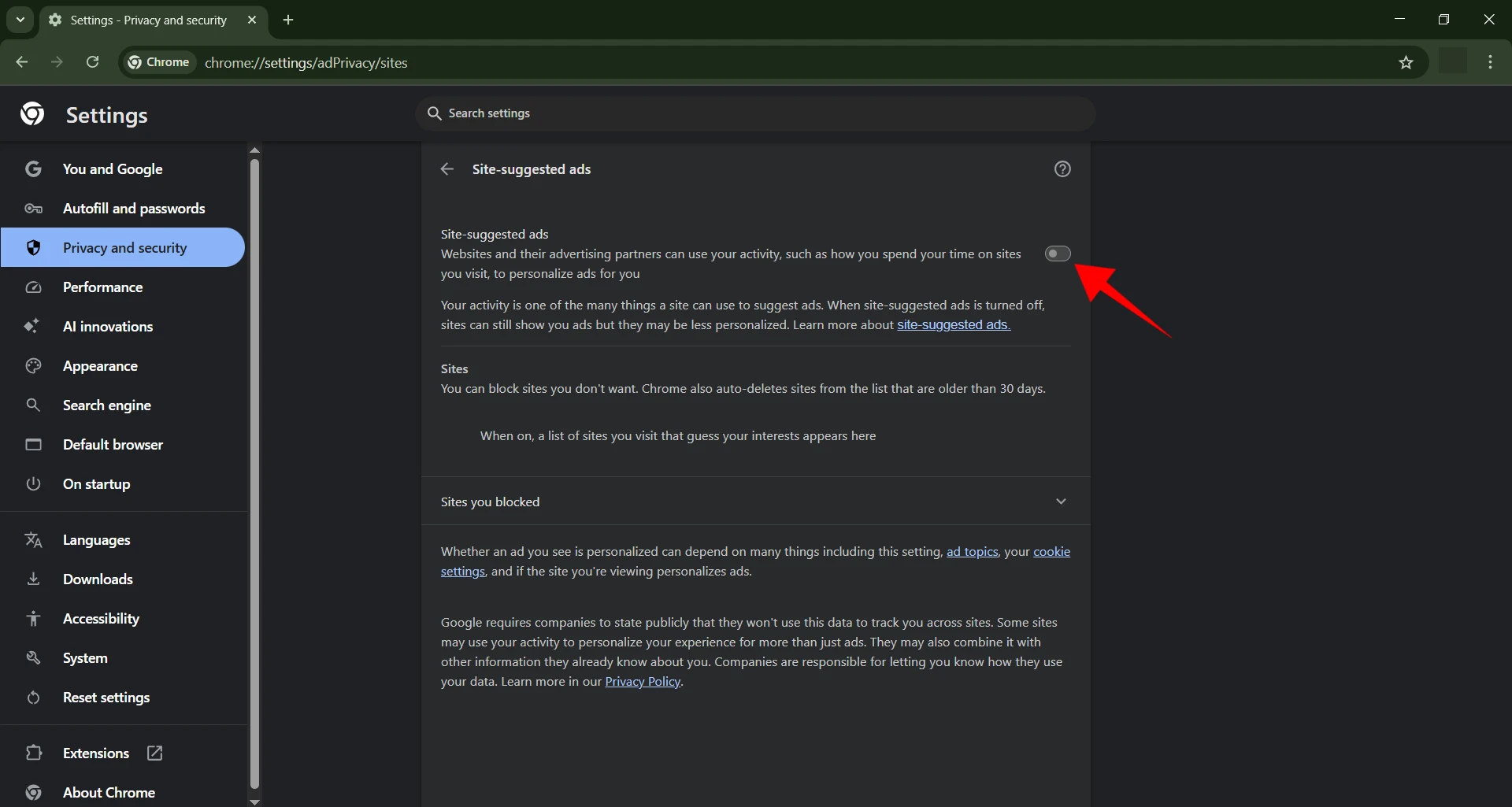
Once you toggle this feature off, you will still see ads, but they will be generic rather than weirdly specific to your previous searches or online actions. That means no more reminders about the shoes you did not buy or the place you once looked up.
Surfing the internet will be less intrusive and more private, like you were walking through a market where the sellers already know all about you.
Frequently Asked Questions
What are Site Suggested Ads in Google Chrome?
Site Suggested Ads are part of Chrome’s Ads Privacy settings. They allow participating websites to recommend more relevant ads based on your activity across their sites. This feature is designed to personalize advertising without relying entirely on traditional third party cookies.
Will turning off Site Suggested Ads block all ads?
No. Disabling Site Suggested Ads does not remove advertisements from websites. It simply reduces ad personalization, so you’ll continue seeing ads, but they are more likely to be generic instead of based on your browsing behavior.
Does disabling Site Suggested Ads improve privacy?
Yes. Turning off this setting limits how participating websites use your browsing activity to personalize ads. While it won’t make you completely anonymous online, it gives you more control over how your data is used for advertising.
Can I turn Site Suggested Ads back on later?
Yes. You can return to Settings > Privacy and Security > Ads Privacy > Site Suggested Ads at any time and enable the feature again if you want to receive more personalized advertisements.
Does this setting affect my browsing history or saved passwords?
No. Disabling Site Suggested Ads only changes how Chrome handles personalized advertising. It does not delete your browsing history, bookmarks, saved passwords, or other browser data.







A little discussion goes a long way.
Ask a question, share your experience, or help someone find an answer.
There is room for your perspective.
No discussions match this view yet.
Your voice belongs here
Keep it useful. Keep it kind.