
I experienced this personally when I tried to post a full-sized picture on WhatsApp, and noticed that the app was constantly cutting my face. WhatsApp zoomed in and cropped important parts, no matter how clear the image was. I tried several methods on Android and iPhone and found some trusted ways to upload a full picture without losing any part of it.
Here’s the step-by-step guide on how you can put a full picture on your WhatsApp profile without cropping.
- Why WhatsApp crop profile pictures?
- Method 1: Use WhatsApp built in crop tool
- My experience
- Method 2: Add White Background Using Any Photo Editor
- Why this works
- Method 3: Use Online Tools to Fit a Full Image
- What to do
- Method 4: Use Instagram Trick
- Limitation
- Best Image Size for WhatsApp Profile Picture
- Frequently Asked Questions
Why WhatsApp crop profile pictures?
WhatsApp uses square profile pictures. When you post a portrait or landscape picture, the app automatically zooms and gets it to fit that square. That is why full body photos or wide pictures are usually cut.
It is not an issue with WhatsApp settings. You need to edit the image before uploading it.
Method 1: Use WhatsApp built in crop tool
This method works best if your photo is close to a square shape.
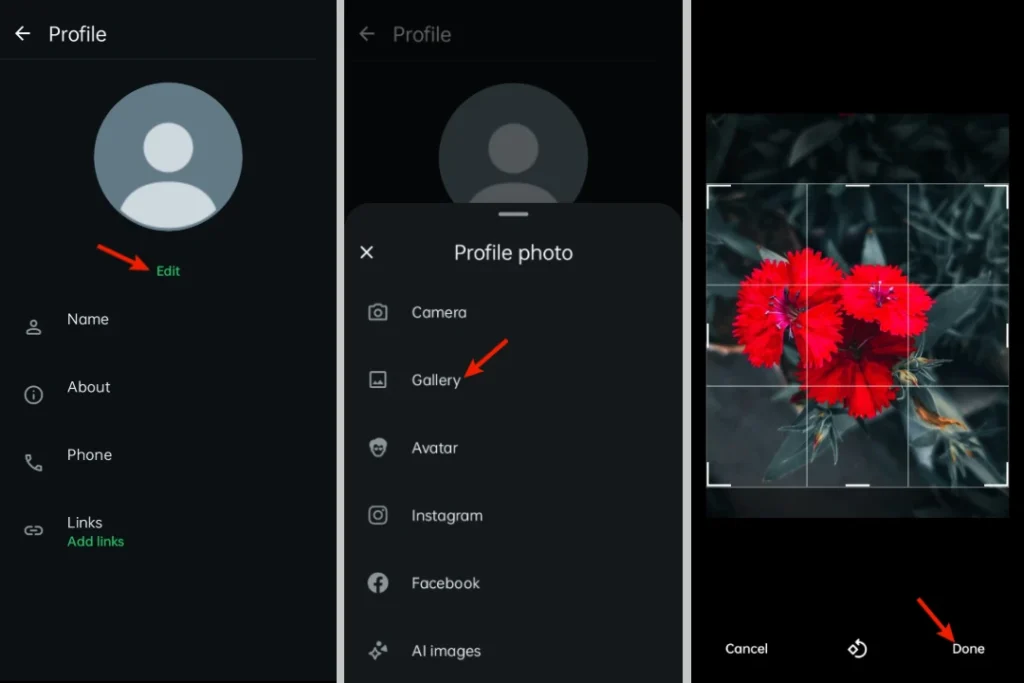
- Open WhatsApp and go to Settings
- Tap your Profile picture
- Select Edit, then choose Gallery
- Pick your photo
- Zoom out using two fingers until the full image fits inside the frame
- Adjust carefully and tap Done
My experience
This works only for images that are not too tall or wide. If the photo is very vertical, WhatsApp will still crop it.
Method 2: Add White Background Using Any Photo Editor
You can also add a white space around your image to force WhatsApp to display the full picture.
- Open any photo editor app on your phone
- Choose Canvas, Resize, or Background
- Set the canvas size to 1:1 square
- Place your photo in the center
- Fill the background with white or black
- Save the image
- Upload it to WhatsApp as your profile picture

Why this works
WhatsApp does not crop any image because it already has a square shape.
Method 3: Use Online Tools to Fit a Full Image
This is the most trusted method, and this one I personally use. If you do not want to install an app, you can use our online tool.
What to do
- Open a browser and search for square image maker
- Upload your photo
- Choose Square with Blur
- Or add background color if needed
- Download the edited image
- Upload it to WhatsApp
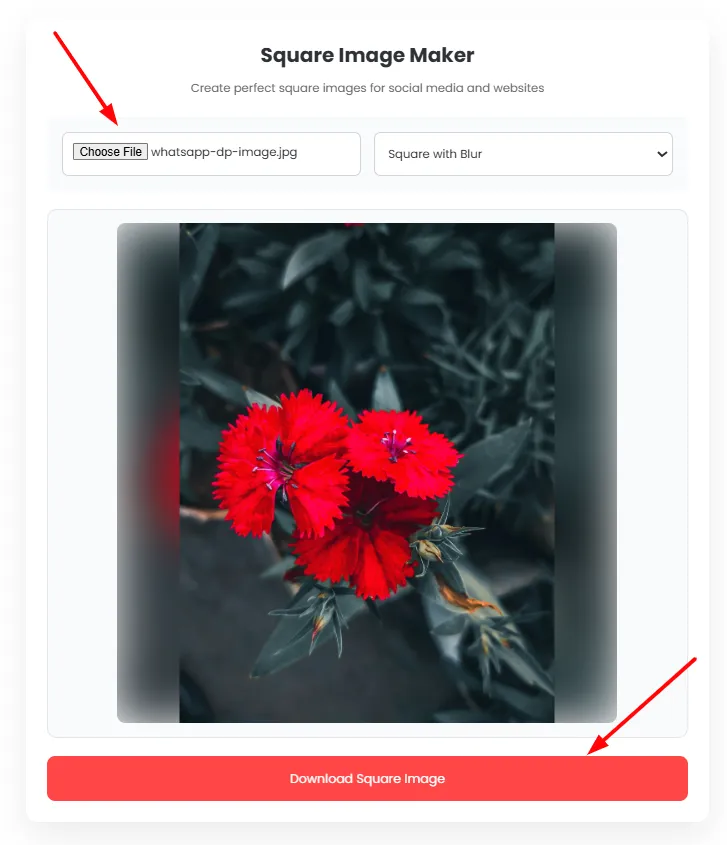
This method is best if you want quick editing without apps.
Method 4: Use Instagram Trick
This method surprised me, but it works.
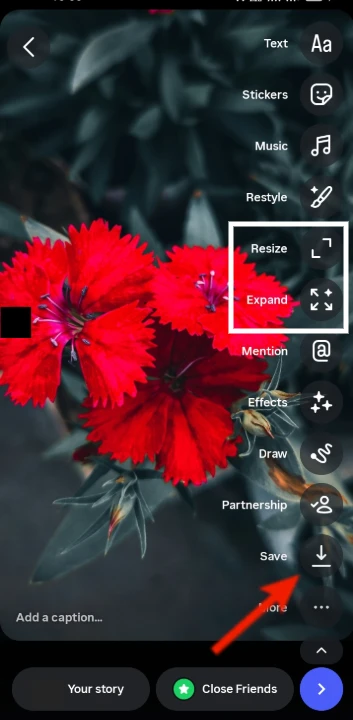
- Open Instagram
- Create a new Story
- Upload your photo
- Use Resize or Expand option to fit fully in the screen
- Click on Save icon to download it
- Upload it to WhatsApp
Limitation
Image quality may reduce slightly, but the full picture stays intact.
Best Image Size for WhatsApp Profile Picture
For best results, use these dimensions
- 500 by 500 pixels
- 720 by 720 pixels
- 1080 by 1080 pixels
Square images always work better and avoid cropping.
Frequently Asked Questions
Why does WhatsApp crop profile pictures?
WhatsApp displays profile pictures in a square (1:1) format. If you upload a portrait or landscape photo, the app automatically crops it to fit the square frame.
How can I upload a full picture on WhatsApp without cropping?
You can add white, black, or blurred padding around your photo using a photo editor or an online square image maker. Once the image becomes square, upload it as your WhatsApp profile picture to keep the entire photo visible.
What is the best size for a WhatsApp profile picture?
For the best quality, use a square image such as 500 × 500 pixels, 720 × 720 pixels, or 1080 × 1080 pixels. A 1:1 aspect ratio helps prevent unwanted cropping.
Can I upload a full WhatsApp profile picture on Android and iPhone?
Yes. The same methods work on both Android and iPhone. You can use WhatsApp’s crop tool, a photo editing app, or an online square image tool.
Does adding a white or blurred background reduce image quality?
No. If you save the edited image in high resolution, adding a white, black, or blurred background does not noticeably reduce image quality.







A little discussion goes a long way.
Ask a question, share your experience, or help someone find an answer.
There is room for your perspective.
No discussions match this view yet.
Your voice belongs here
Keep it useful. Keep it kind.