
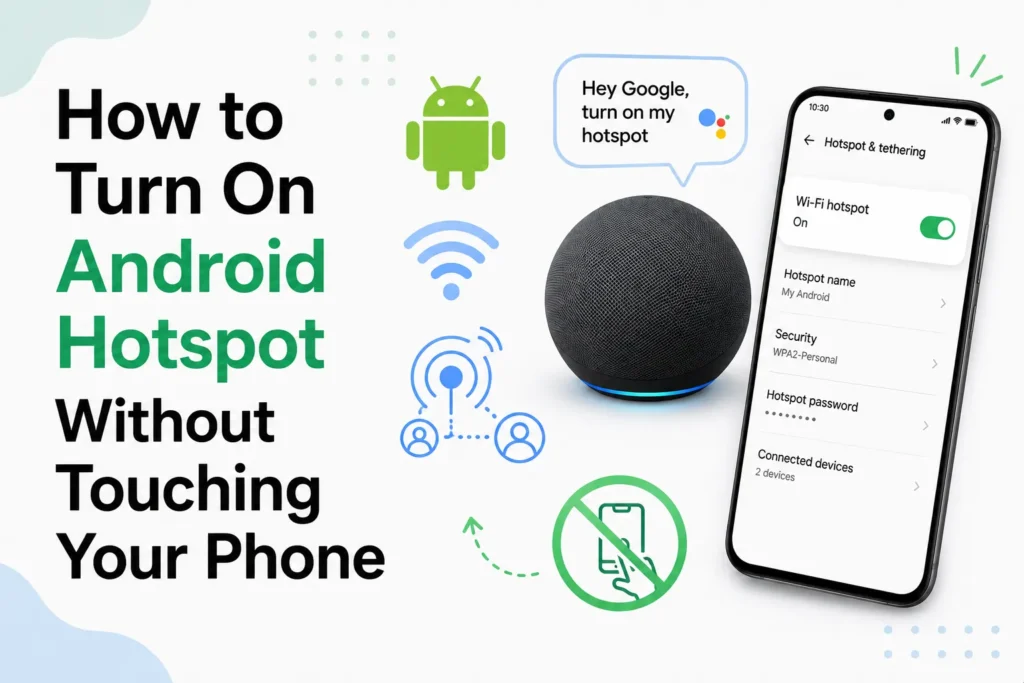
Turning on your Android phone’s hotspot at the right moment can save the day. It is useful when you do not feel safe using public Wi-Fi, when it is blocked, or when your home internet suddenly drops. At such times, a stable Wi-Fi connection keeps your work moving.
The problem is battery drain. Enabling the hot spot manually again and again is both power-consuming and annoying. The good news is that Android already offers smarter, hands-free ways to share your internet without unlocking your phone. With the right setup, your devices will automatically connect when you need.
Here’s how it works and what you need to set it up.
Enable instant tethering on Android and Chromebook

Cloud-based apps such as Google Docs and Google Drive require an active internet connection, and Chromebooks cannot do without it. While some apps can work offline, you need to plan. Instant Tethering solves this as it allows your Chromebook to connect to your phone’s hotspot automatically.
This feature works on
- Chromebooks running Chrome OS 71 or newer
- Android phones running Android 8 or later
Both devices must be signed in to the same Google account.
How to turn on Instant Tethering
- Turn on your Android phone and Chromebook.
- Make sure both are logged into the same Google account.
- On your Android phone, open Settings.
- Go to Network & Internet (or Connections on some phones).
- Tap Hotspot & tethering.
- Turn on Instant Tethering.
Once enabled, your Chromebook will automatically connect to your phone’s internet when the Wi-Fi is disconnected. You do not need to unlock your phone, enter a password, or switch anything on. It runs in the background.
Use cross-device internet sharing or Instant Hotspot

Android also offers Cross-Device Internet Sharing, called Instant Hotspot. This will allow other nearby devices to automatically turn on and connect to the hotspot on your phone.
It works best when
- Your phone runs Android 11 or later
- Bluetooth is enabled
- Devices are nearby
- All devices use the same Google account
When one device loses Wi-Fi, it looks for your phone’s mobile data connection and connects to it.
How to enable Cross-Device internet sharing
- Open Settings on your Android phone.
- Tap Google.
- Select Devices & sharing.
- Tap Cross-device services.
- Create or select a device group.
- Turn on Internet sharing.
After setup, any device in that group can manage and connect to your hotspot.
What about Samsung phones?
The Auto Hotspot is an automatic feature of Samsung devices. However, this is changing. Newer devices, such as Galaxy S25 series with One UI 7 and newer, are starting to support Google’s Instant Hotspot and cross-device sharing features.
If you use a Samsung phone
- Check Settings > Google > Devices & sharing
- Look for Cross-device services or Instant Hotspot options
Support depends on the software version and the region.
These features reduce battery drain, save time, and remove friction when switching networks. Your devices are automatically connected, as opposed to you struggling to use your phone every time your Wi-Fi drops.
Frequently Asked Questions
What is Instant Tethering on Android?
Instant Tethering is a feature that lets compatible Chromebooks automatically connect to your Android phone’s mobile hotspot when no Wi Fi connection is available.
What devices support Instant Tethering?
Instant Tethering works with supported Android phones and Chromebooks that meet Google’s software requirements. Both devices must be signed in to the same Google account.
Does automatic hotspot use more battery?
Using a mobile hotspot does consume battery power, but automatic hotspot features only activate when needed, helping reduce unnecessary battery drain compared to leaving the hotspot on all the time.
Can Samsung phones use automatic hotspot features?
Yes. Many Samsung Galaxy devices support Auto Hotspot, and newer models may also support Google’s Cross Device Internet Sharing or Instant Hotspot, depending on the software version and region.
Do all devices need the same Google account?
Yes. For Google’s Instant Tethering and Cross Device Internet Sharing features, your compatible devices must usually be signed in with the same Google account.
Can I still use my phone while the hotspot is active?
Yes. You can continue using your Android phone normally while it shares its internet connection with other devices, although heavy hotspot usage may reduce battery life more quickly.







A little discussion goes a long way.
Ask a question, share your experience, or help someone find an answer.
There is room for your perspective.
No discussions match this view yet.
Your voice belongs here
Keep it useful. Keep it kind.