
If you care about online privacy, you have likely heard of VPNs. A VPN helps protect your online activity by hiding your IP and encrypting your connection. This makes it harder for websites and advertisers to track your online activity.
Most VPNs require paid subscriptions, but Google offers a free VPN that is already integrated into some Android devices. It is known as VPN by Google and has been available on Pixel phones starting with the Pixel 7.
Here’s what VPN by Google does, its limits, and how to turn it on and customize it on your Pixel device.
- What is VPN by Google
- Limitations you should know about
- How to turn on VPN by Google on a Pixel phone
- Add VPN by Google to quick settings
- How to configure VPN by Google
- Enable always on VPN
- Block connections without VPN
- Pause VPN on trusted Wi-Fi networks
- Exclude certain Apps from the VPN
- Check usage and notifications
- Frequently Asked Questions
What is VPN by Google
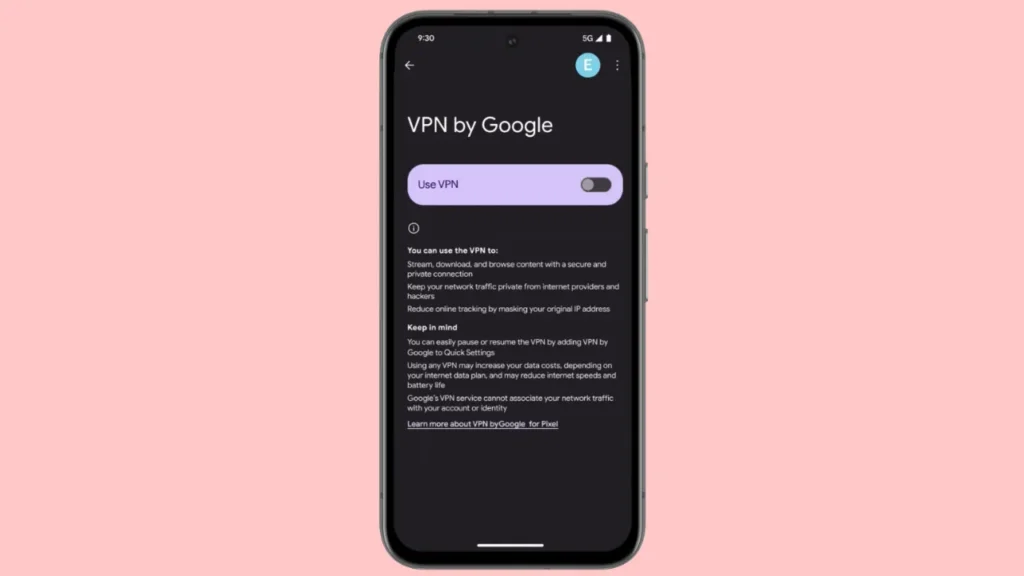
VPN by Google is a free VPN app developed by Google and is built into supported Pixel phones. Your traffic is redirected to Google’s VPN servers instead of directly connecting to the internet.
This does three important things.
First, it encrypts your internet connection that helps protect your data on public or unsecured networks. Second, it hides your real IP address and replaces it with the Google server address. Third, it hides your approximate location from websites and trackers.
VPN by Google does not require an additional app, unlike many third-party VPNs.
Limitations you should know about
VPN by Google is secure, but it is not developed to replace full-featured VPN services. You cannot select a server location. You must be signed in with a Google account to use it.
It can only work in approximately 30 home countries supported with your Google account. These include the United States, United Kingdom, Australia, Germany, and Singapore. When traveling, it works in more locations, including places like New Zealand, Puerto Rico, and even Antarctica.
However, a paid VPN can be suitable if you need advanced privacy controls or location switching.
How to turn on VPN by Google on a Pixel phone
Here’s how you can turn on VPN by Google in a few minutes.
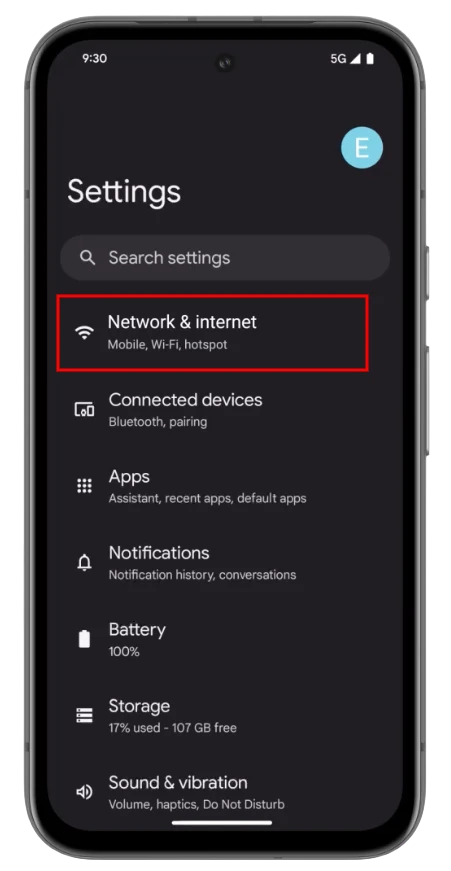
- Open the Settings app on your Pixel phone.
- Tap Network and internet.

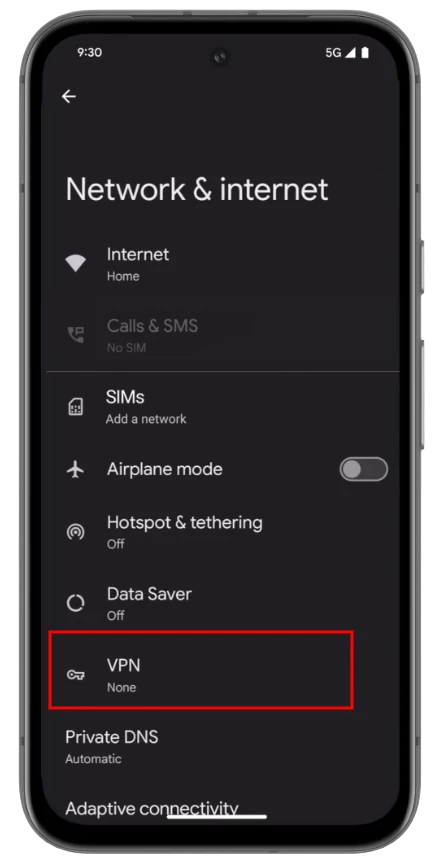
- Select VPN.

- Under the Built in section, tap VPN by Google.

- Review the permissions shown on screen.
- Enable Use VPN on mobile network if you want it active on cellular data as well.
- Tap Use VPN.

- Allow notifications if prompted.
- Wait for the connection to complete.

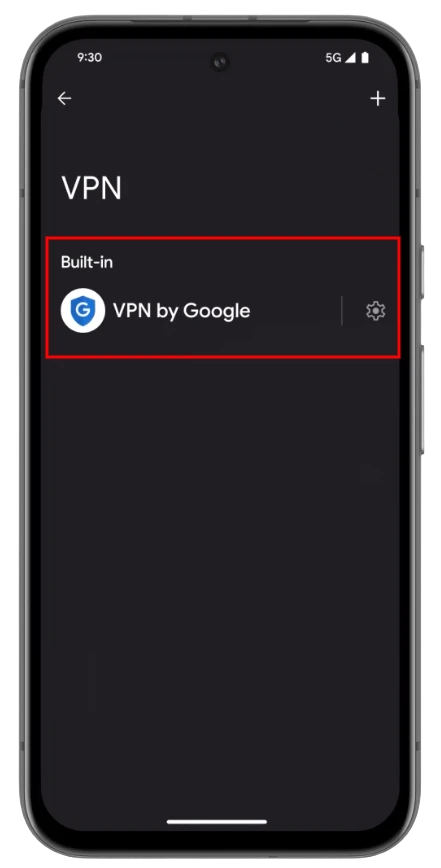
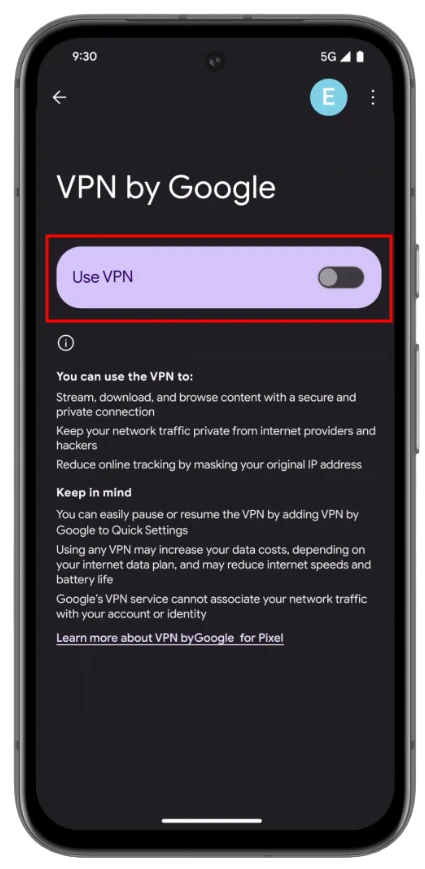
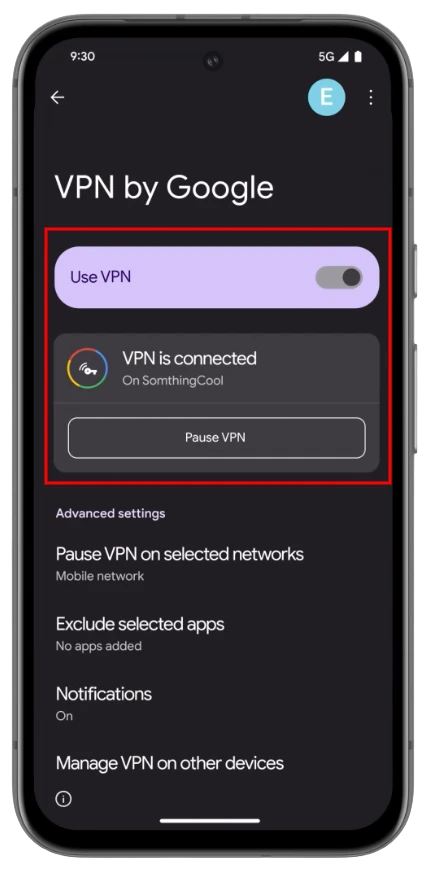
When the VPN is active, you will see a key icon at the top of your screen.
Add VPN by Google to quick settings
To make the VPN easier to control, you can add it to Quick Settings.
- Swipe down from the top of the screen to open Quick Settings.
- Tap the pencil icon to edit tiles.
- Find the VPN by Google tile.
- Press and hold it, then drag it to the top section.
- Tap the back arrow to save.
You can now tap the tile to turn on or off the VPN immediately.
How to configure VPN by Google
VPN by Google includes some useful options to customize how it works.
Enable always on VPN
- Open Settings.
- Go to Network and Internet, then VPN.
- Tap the gear icon next to VPN by Google.
- Turn on Always on VPN.
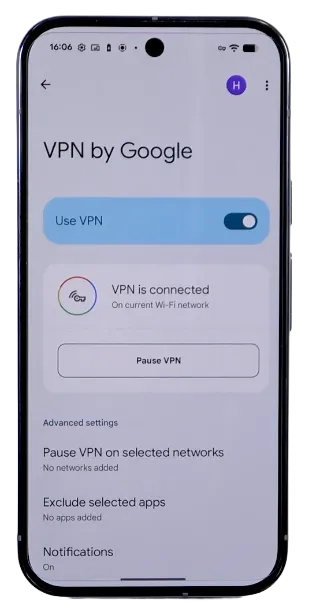
Block connections without VPN
If you want maximum privacy, you can stop your phone from connecting to the internet unless the VPN is active.
- In VPN by Google settings, enable Block connections without VPN.
- Tap Turn on to confirm.
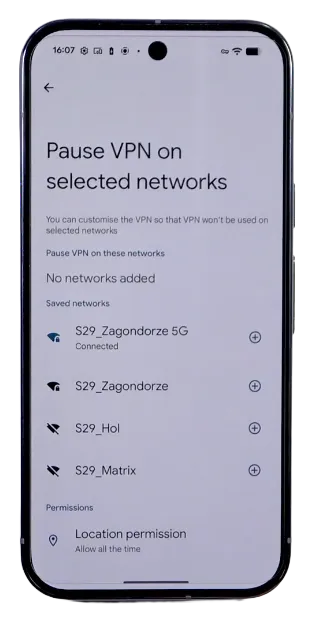
Pause VPN on trusted Wi-Fi networks
You can stop the VPN from working on specific Wi Fi networks.
- Open VPN by Google settings.
- Tap Pause VPN on selected networks under Advanced settings.
- Choose the saved networks where VPN should pause.
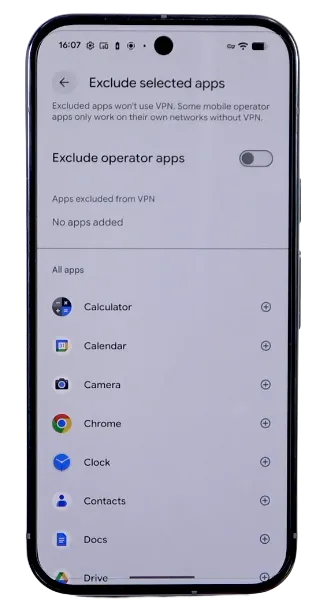
Exclude certain Apps from the VPN
Some apps may not work properly with a VPN. You can exclude them.
- In VPN by Google settings, tap Exclude selected apps.
- Select the apps you want to bypass the VPN.
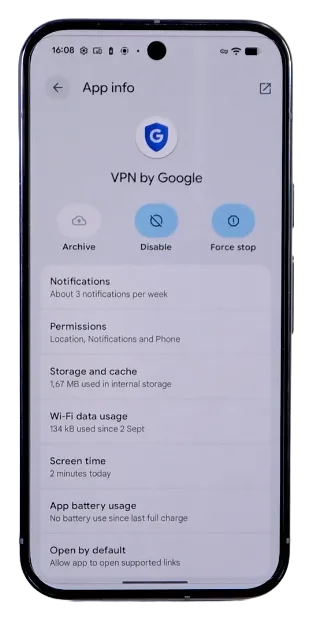
Check usage and notifications
You can also manage notifications, permissions, and mobile data usage from the VPN settings page.
VPN by Google is a good privacy tool that offers basic protection without paying for a subscription to Google VPN to Pixel users. It is user-friendly, reliable, and deeply integrated into Android. While it lacks advanced features like server selection, it does a good job of securing your connection on public Wi-Fi and mobile networks.
Frequently Asked Questions
Which Pixel phones support VPN by Google?
VPN by Google is available on supported Google Pixel devices. Availability depends on your Pixel model, Android version, Google account, and supported country or region.
Is VPN by Google free to use?
Yes. VPN by Google is included at no extra cost on eligible Pixel devices. You do not need to install a separate VPN app to use it.
Can I choose a server location with VPN by Google?
No. VPN by Google automatically connects you to its own servers and does not provide an option to manually select a country or server location.
Does VPN by Google work on mobile data and Wi Fi?
Yes. You can use VPN by Google on both mobile data and Wi Fi. You can also configure it to stay on all the time or pause on selected trusted Wi Fi networks.
Can I exclude certain apps from VPN by Google?
Yes. VPN by Google lets you exclude selected apps from the VPN connection if they do not work properly while the VPN is enabled.
Does VPN by Google completely hide my online activity?
No. VPN by Google encrypts your connection and hides your IP address, but it does not make you completely anonymous online. Websites, accounts you sign in to, and other tracking methods may still collect some information.







A little discussion goes a long way.
Ask a question, share your experience, or help someone find an answer.
There is room for your perspective.
No discussions match this view yet.
Your voice belongs here
Keep it useful. Keep it kind.