
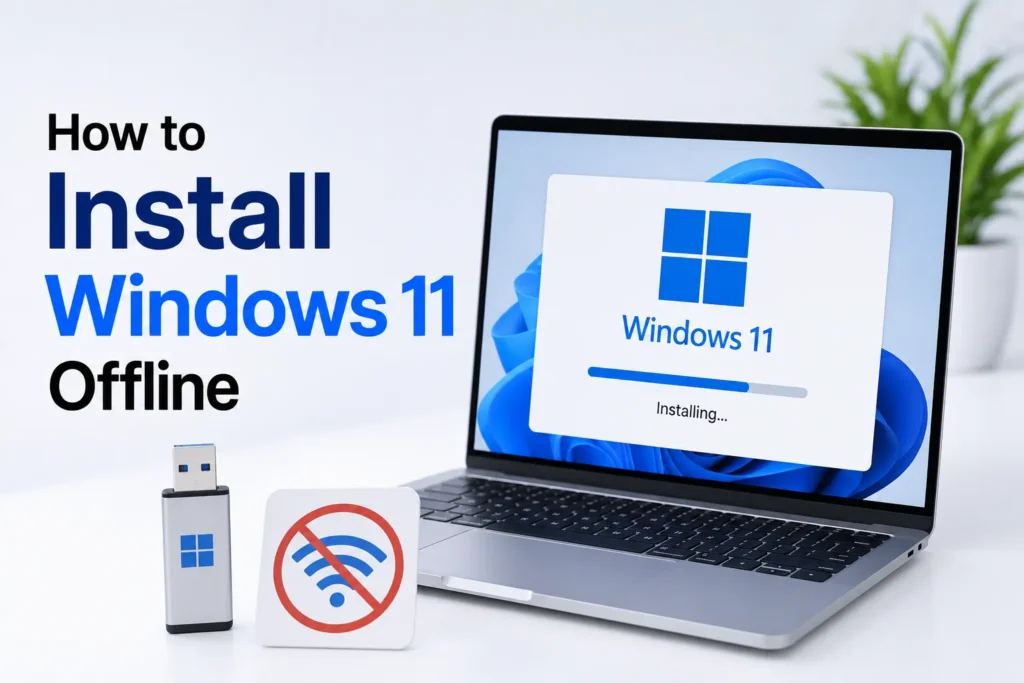
Microsoft has officially started reminding users that time is running out for Windows 10. After October 2025, the popular operating system will no longer receive security patches and feature updates, and the remaining holdouts will have few options but to upgrade to Windows 11. However, there’s a catch: Windows 11 requires an internet connection to install, and this may be frustrating for those installing Windows 11 on a second PC without stable internet connectivity.
Luckily, a few workarounds will enable you to install Windows 11 offline, so you can do without the required internet check and complete the setup process without any trouble.
How to Install Windows 11 Without Internet
If the setup process stops with an “Oops, you have lost connection” message, don’t worry. You can bypass the online requirement using the Command Prompt:
- When you see the error screen, press Shift + F10 on your keyboard.
- In the Command Prompt window, type:
OOBE\BYPASSNROand press Enter. - Your PC will restart automatically. After reboot, you will be back at the setup screen.
- Proceed with the regional and keyboard settings again.
- When prompted to connect to a network, select I don’t have internet.
- Then, click Continue with limited setup.
- Complete the rest of the installation process.
Now, you have installed Windows 11 offline, no Wi-Fi required.
Alternative Method: Using Registry Editor
If the first method does not work, try this registry tweak during setup:
- Press Shift + F10 to open Command Prompt.
- Type
regeditand hit Enter to open the Registry Editor. - Go to:
HKEY_LOCAL_MACHINE > SYSTEM > Setup - Right-click Setup, select New > Key, and name it LabConfig.
- Inside LabConfig, create a DWORD (32-bit) Value named bypassnro.
- Double-click it and set the value data to 1.
- Close Registry Editor and continue installation.
Note: This method does not bypass hardware requirements like TPM 2.0 or Secure Boot. Your system must still meet those prerequisites.
Prepare Drivers Before Installing Offline
If you are performing a clean install or setting up a new PC, it is always good to have all your required drivers. Save them in a folder on a USB drive, including
- Motherboard and chipset drivers
- Wi-Fi and LAN drivers
- Graphics and sound card drivers
During Windows installation, when you reach the “Where do you want to install Windows?” option, select Load driver > Browse, and find your prepared driver folder. Once installed, setup will continue without any problem.
Frequently Asked Questions
Can I install Windows 11 without an internet connection?
Yes. You can complete the Windows 11 setup offline by using Microsoft’s built in bypass method during installation. This lets you finish the setup without signing in online or connecting to Wi Fi.
Will installing Windows 11 offline affect future updates?
No. Once your PC is connected to the internet after installation, you can download Windows updates, drivers, and security patches just like any other Windows 11 device.
Does the offline installation bypass TPM 2.0 and Secure Boot requirements?
No. The offline setup only skips the internet requirement. Your computer must still meet Windows 11’s minimum hardware requirements unless you use separate methods designed to bypass those checks.
Why should I keep drivers on a USB drive before installing Windows 11?
Having essential drivers on a USB drive can save time if Windows does not recognize your network, storage, or graphics hardware during installation. You can load the required drivers without needing an internet connection.
Can I switch to a Microsoft account after installing Windows 11 offline?
Yes. If you complete the installation with a local account, you can sign in with a Microsoft account later through the Settings app after connecting your PC to the internet.

A little discussion goes a long way.
Ask a question, share your experience, or help someone find an answer.
There is room for your perspective.
No discussions match this view yet.
Your voice belongs here
Keep it useful. Keep it kind.