
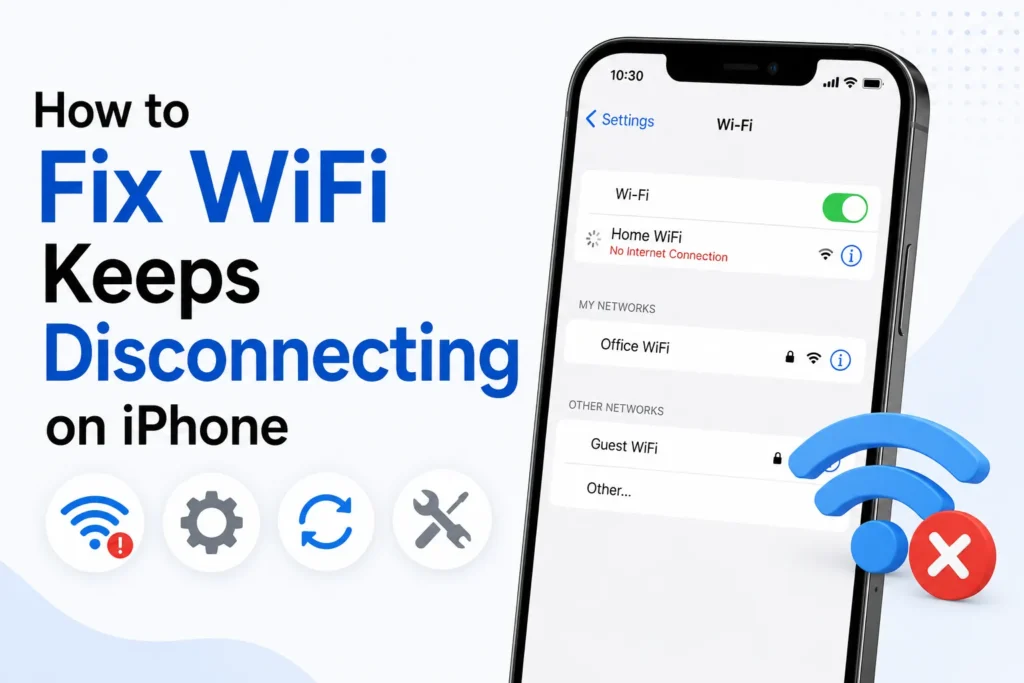
You are not alone if your iPhone’s WiFi is disconnecting, slowing down, or automatically changing networks. This problem occurs to many users after an iOS update, when their router is misconfigured, or when battery-saving settings interfere with WiFi stability.
Here’s how you can fix your WiFi connection permanently.
Turn WiFi off and on again
It will reset the connection between your iPhone and the router.
- Open Settings.
- Tap Wi-Fi.
- Turn the switch off, wait 5 seconds, then turn it on again.
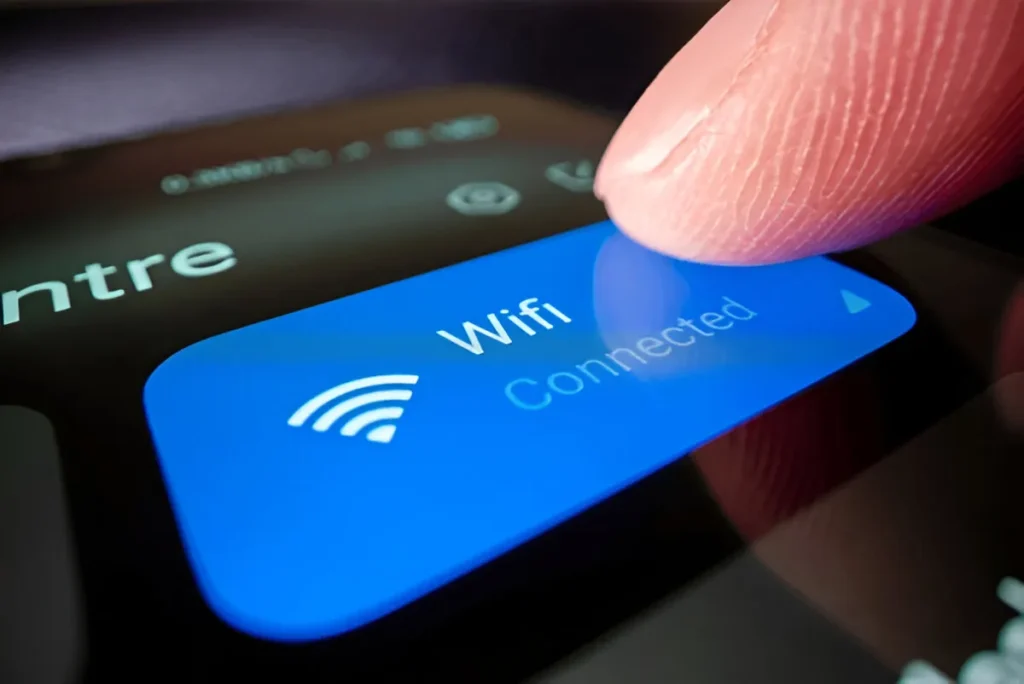
If your WiFi reconnects properly afterward, it might have been a temporary glitch.
Restart your iPhone
Rebooting kills background processes that might be interrupting WiFi.
- Press and hold Volume Down and Power button.
- Slide to power off.
- Turn it back on after 10 seconds.
Forget the WiFi network and reconnect
If your saved network has corrupt settings, reconnecting can help.
- Go to Settings and then Wi-Fi.
- Tap the (i) icon next to your network.
- Select “Forget This Network”.
- Reconnect and enter the password.
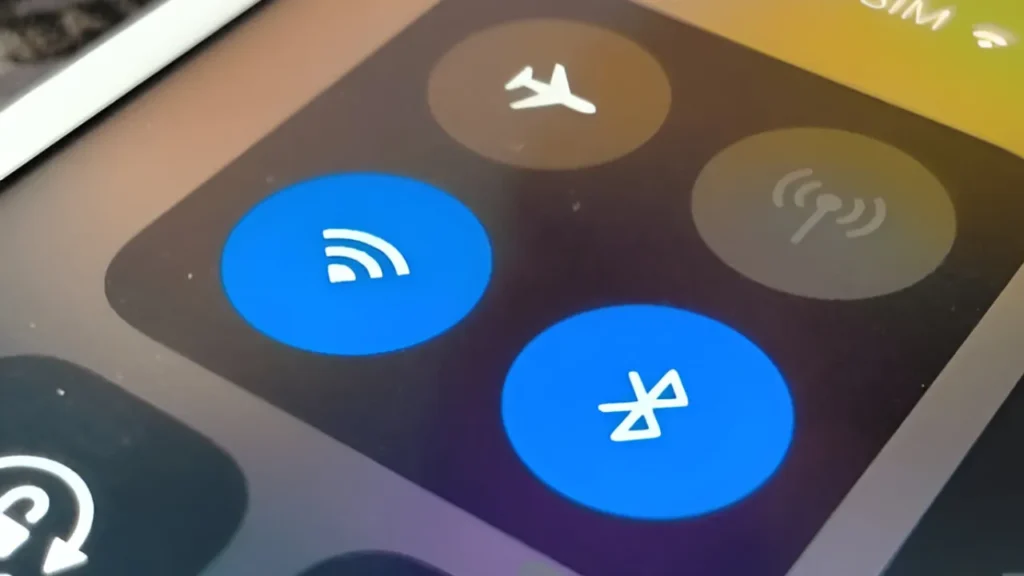
Disable WiFi assist
WiFi Assist will automatically switch to mobile data when the WiFi is weak. This may appear to be that your WiFi is disconnecting.
- Open Settings.
- Go to Cellular.
- Scroll down and turn off Wi-Fi Assist.
It will keep your iPhone connected to WiFi.
Turn off low data mode
Low Data Mode limits background activity, which can result in drops.
- Go to Settings and then Wi-Fi.
- Tap your connected network.
- Turn Low Data Mode off.
It helps maintain a stable connection.
Reset network settings (Most effective fix)
It will fix 90% of iPhone WiFi disconnect problems.
- Open Settings.
- Go to General, then select Transfer or Reset iPhone.
- Tap Reset.
- Select Reset Network Settings.
Your saved WiFi, Bluetooth, and VPN settings will reset.
Update to the Latest iOS Version
Sometimes the issue comes from a buggy iOS version.
- Open Settings.
- Go to General, then select Software Update.
- Install the latest update if available.
Apple regularly releases updates to improve WiFi stability.
Restart Your Router
Your iPhone may not be the problem, sometimes your router may require a restart.
- Unplug the router’s power cable.
- Wait 10–15 seconds.
- Plug it back in.
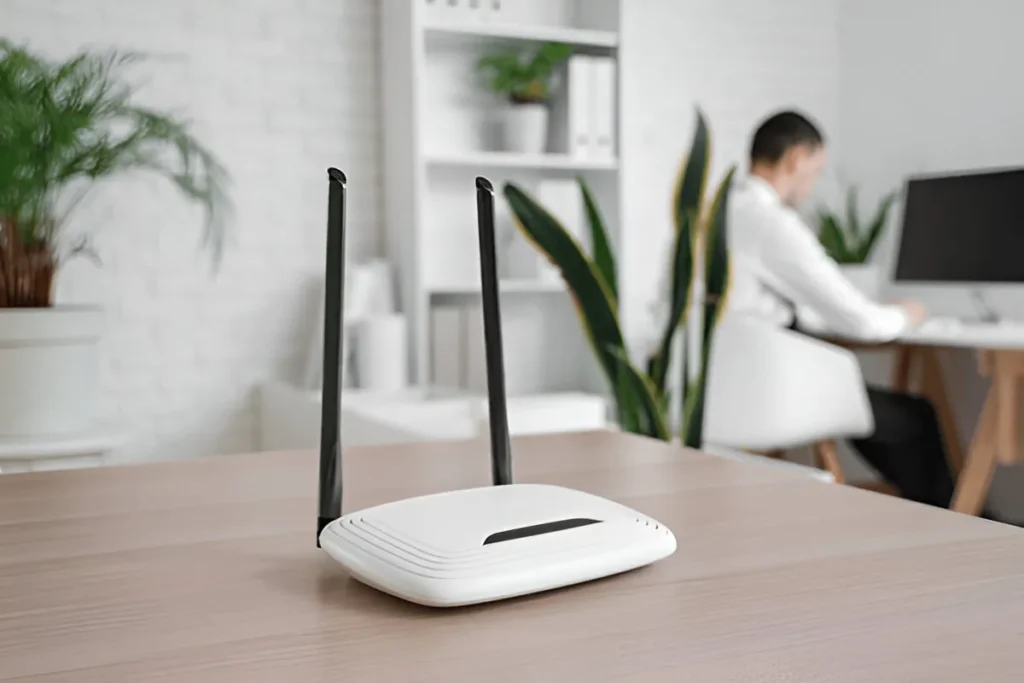
A restart will clear router errors and also improve signal strength.
Disable VPN or proxy (if enabled)
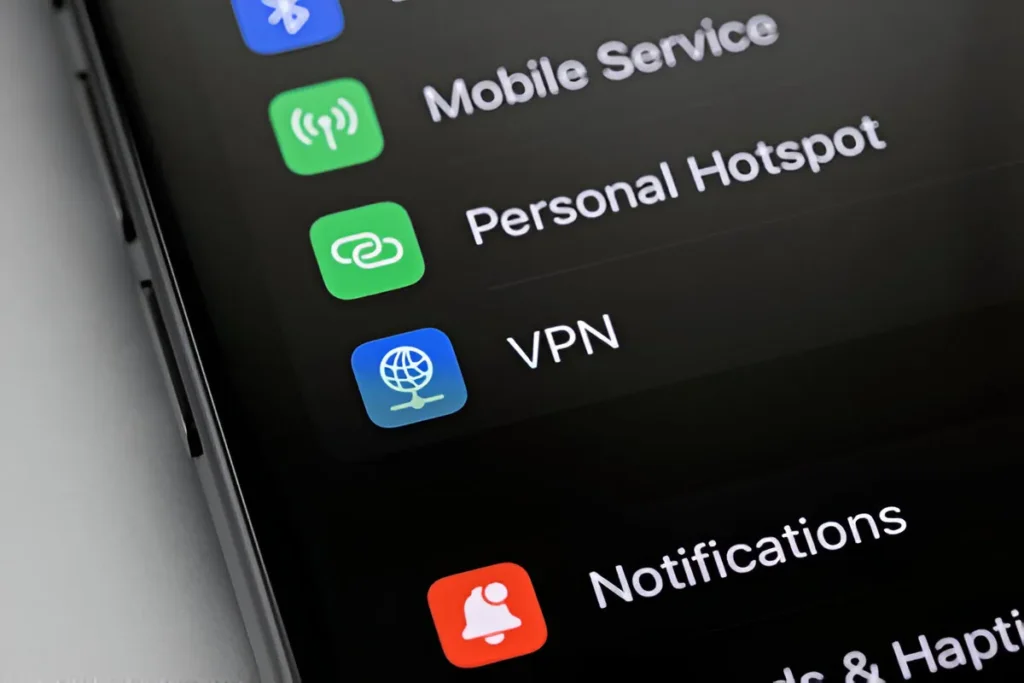
VPNs sometimes interrupt WiFi connections.
- Go to Settings, then VPN, and disable active profiles.
Check for Interference
Factors such as walls, microwaves, cordless phones, or long-distance calls can weaken signals. Try staying closer to the router and avoiding obstructions for better stability.
Frequently Asked Questions
Why does my iPhone keep disconnecting from WiFi?
Your iPhone may disconnect from WiFi because of outdated software, incorrect network settings, router issues, signal interference, or features such as WiFi Assist. Identifying the cause and applying the right fix usually restores a stable connection.
Will resetting network settings delete my personal data?
No. Resetting network settings does not erase your photos, apps, or other personal files. It only removes saved WiFi networks, Bluetooth pairings, VPN settings, and related network configurations, which you’ll need to set up again.
Should I turn off WiFi Assist on my iPhone?
If your iPhone frequently switches from WiFi to mobile data, disabling WiFi Assist may help. This feature automatically uses cellular data when the WiFi signal is weak, which can make it seem as though your WiFi keeps disconnecting.
Can an outdated iOS version cause WiFi problems?
Yes. Software bugs in older iOS versions can sometimes affect wireless connectivity. Installing the latest iOS update can fix known WiFi issues and improve overall network stability.
How do I know if my router is causing the problem?
If multiple devices experience slow speeds or random disconnections on the same network, the router is likely the cause. Restarting the router, updating its firmware, or checking for interference can often resolve the issue.
What is the best fix if my iPhone still won’t stay connected to WiFi?
If basic troubleshooting does not help, resetting your network settings is one of the most effective solutions. If the issue continues afterward, test another WiFi network to determine whether the problem is with your iPhone or your router.







A little discussion goes a long way.
Ask a question, share your experience, or help someone find an answer.
There is room for your perspective.
No discussions match this view yet.
Your voice belongs here
Keep it useful. Keep it kind.