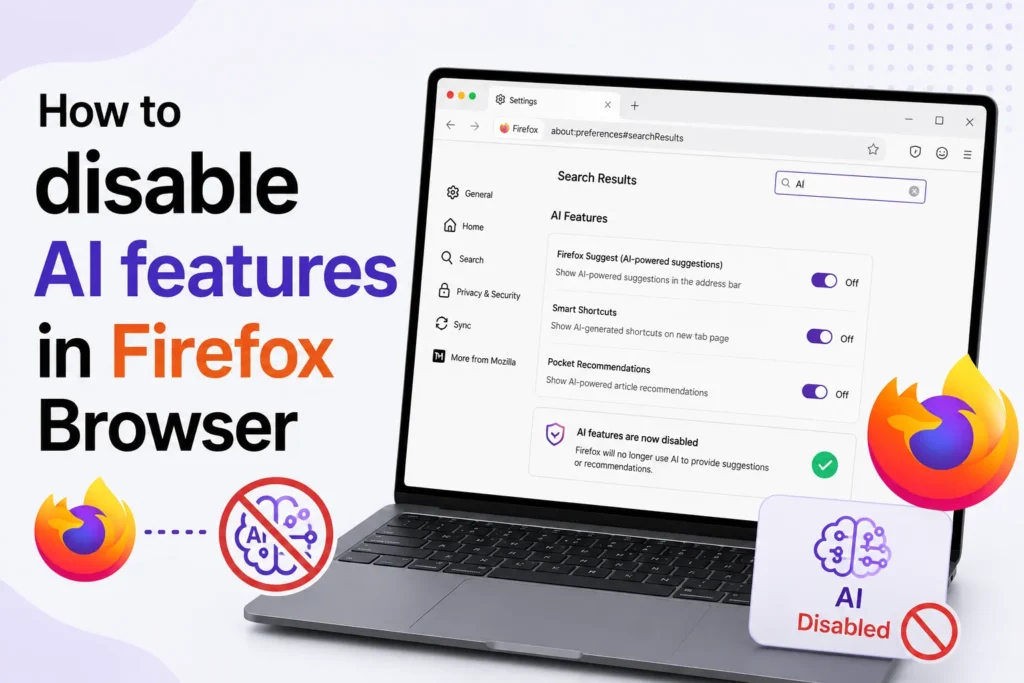
Firefox includes several optional AI-powered features, such as chat integration, page assistance, and smart tab management. While some users find these tools helpful, others prefer a simpler browsing experience without AI features enabled.
Firefox’s AI features have received mixed reactions. Some users appreciate the added productivity tools, while others prefer a cleaner browser with fewer built-in features. If you do not use these AI tools, Firefox allows you to disable many of them through its settings.
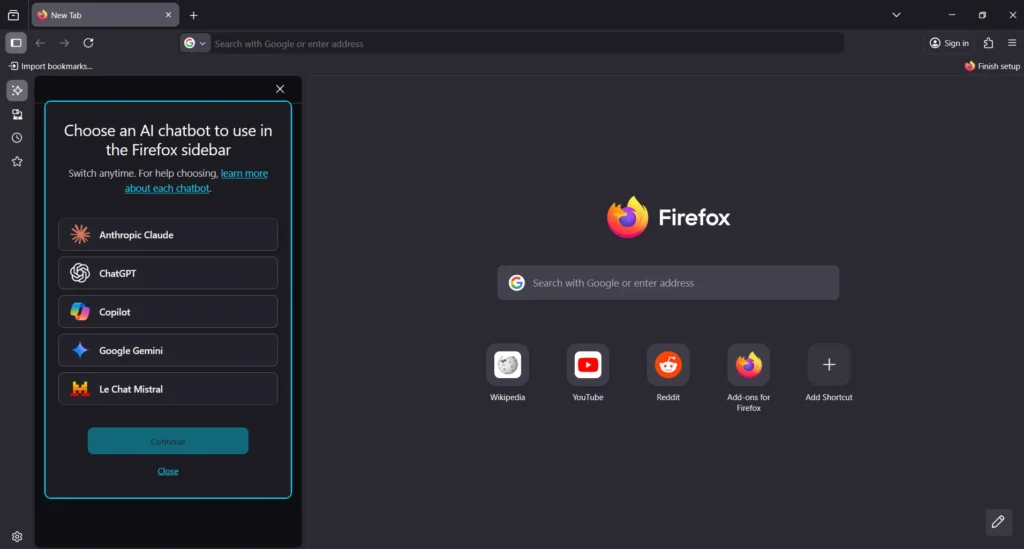
How to disable Firefox’s AI features
Note: The available AI preferences may vary depending on your Firefox version, operating system, and enabled experiments. If a preference is not available, it may have been renamed or removed in a newer release.
You can turn off all AI features at once or disable only the ones you do not need. Follow these easy steps
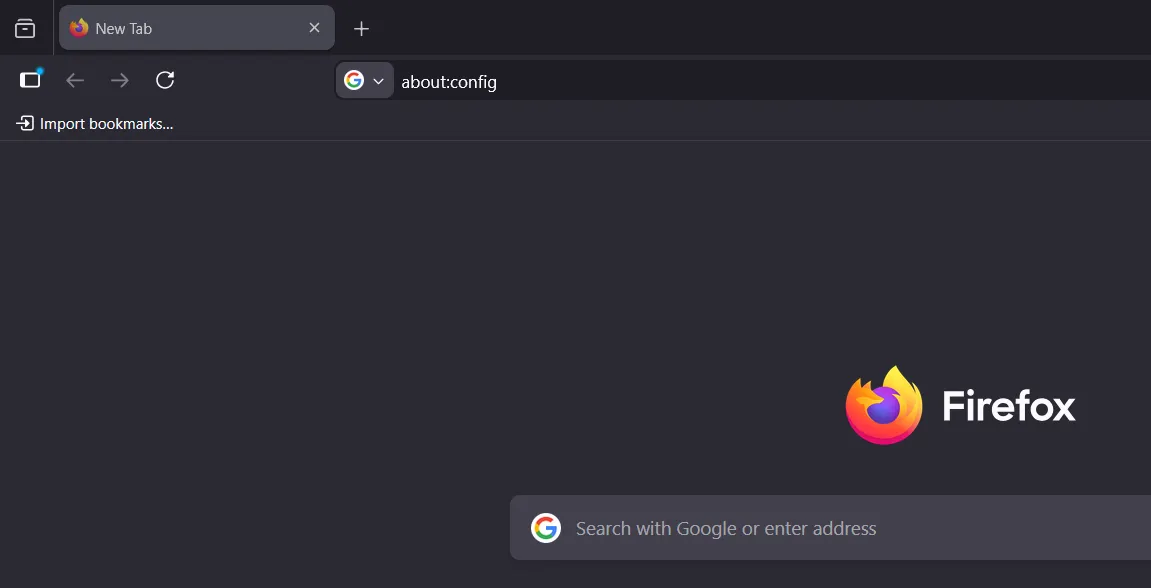
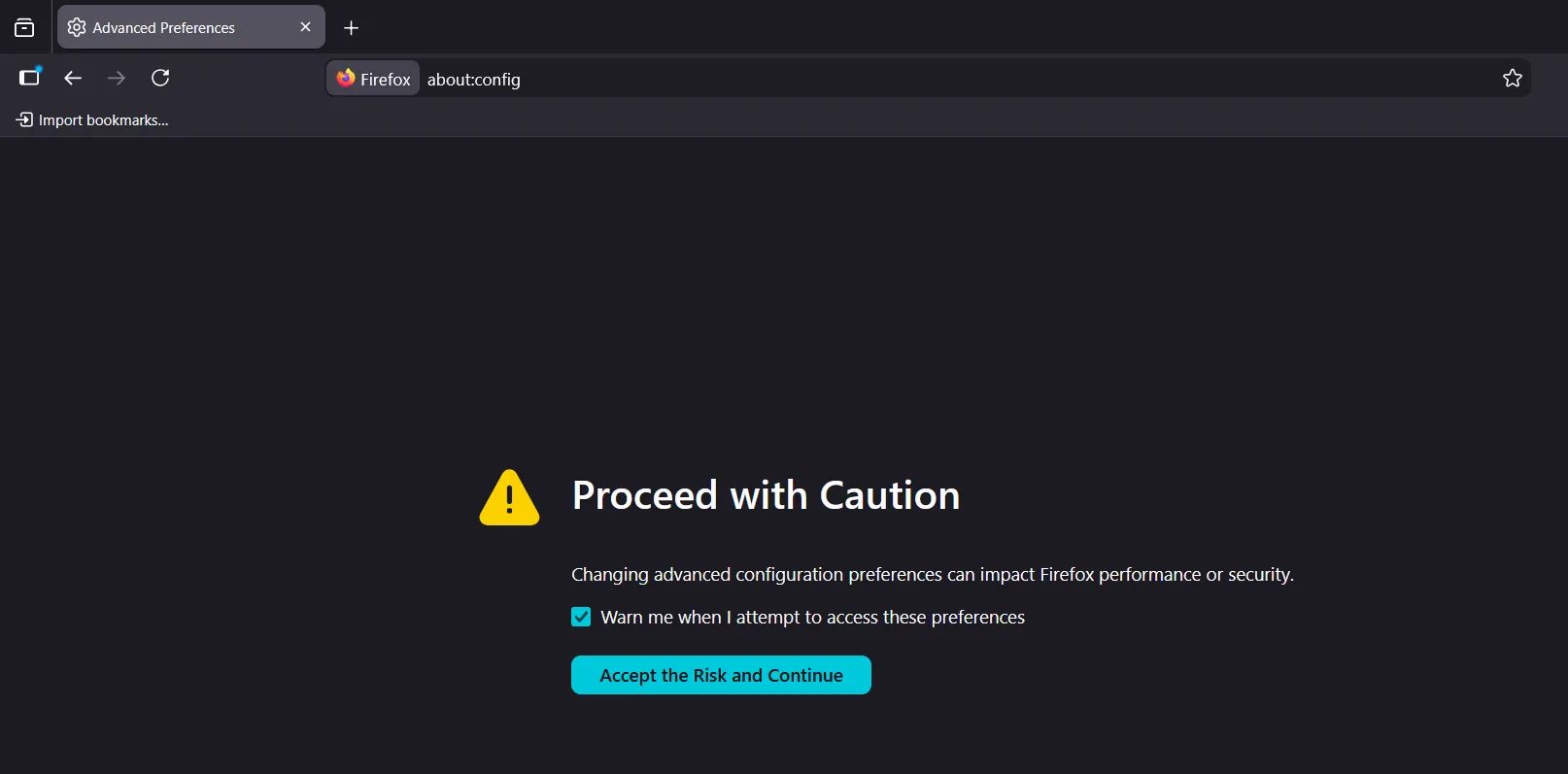
- Type about:config in the address bar and press Enter.

- Click “Accept the Risk and Continue”.

- Search for: browser.ml.enable

- Toggle the value from TRUE to FALSE

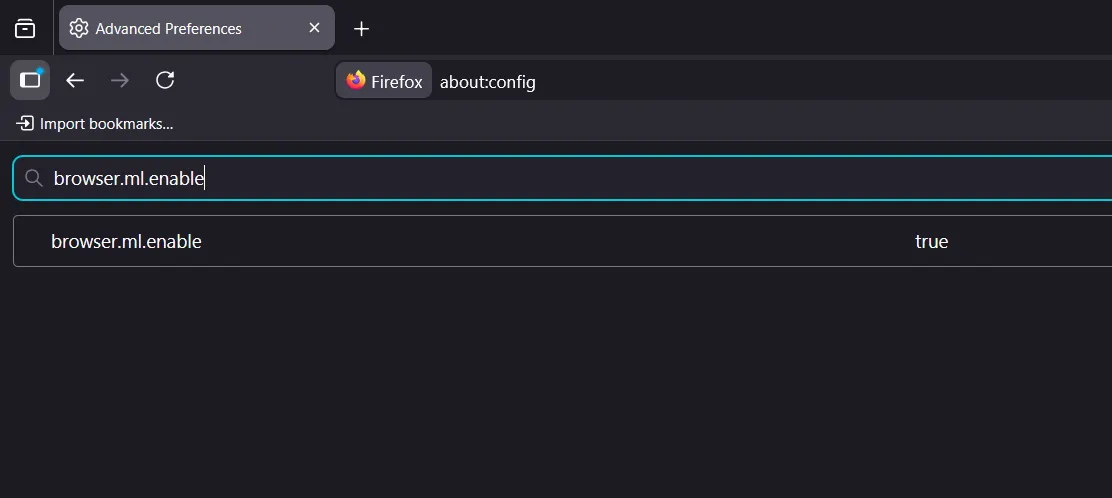
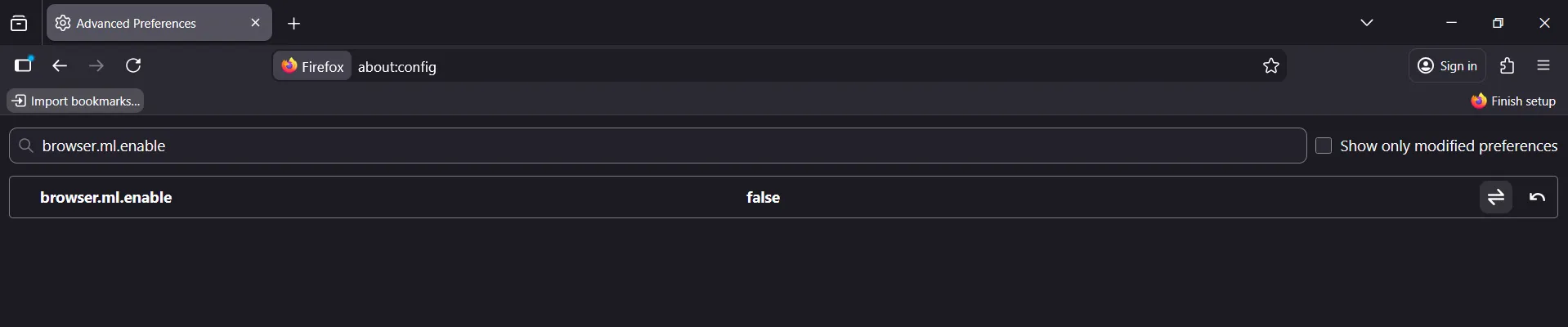
If you want to disable features individually, keep this set to True and move on.
Disable Specific Firefox AI Features Manually (Full List)
Below is the complete list of AI-related settings with their controls.
| Setting | Description |
|---|---|
| browser.ml.enable | Master switch for all machine-learning features. Turn this off to disable everything. |
| browser.ml.chat.enabled | Enables Firefox’s built-in AI chatbot. |
| browser.ml.chat.sidebar | Shows the AI chat panel in the sidebar. |
| browser.ml.chat.shortcuts | Allows AI chat shortcuts when selecting text. |
| browser.ml.chat.page | Enables the “Ask AI” pop-up when highlighting text. |
| browser.ml.chat.page.footerBadge | Displays the floating badge at the bottom of web pages. |
| browser.ml.chat.page.menuBadge | Adds the “Ask AI” button in page menus. |
| browser.ml.chat.menu | Adds “Chat about this” to right-click menus. |
| browser.ml.linkPreview.enabled | Enables AI-generated link previews and suggestions. |
| extensions.ml.enabled | Allows extensions to use Firefox’s ML API. |
| browser.ml.pageAssist.enabled | Powers AI summarization and page assistance. |
| browser.tabs.groups.smart.enabled | Enables AI-powered smart tab grouping. |
| browser.tabs.groups.smart.userEnable | Let users manually enable or disable AI tab grouping. |
Turn off what you do not want on, or turn off everything to have a clean and traditional Firefox experience.
Frequently Asked Questions
Can I completely disable AI features in Firefox?
Yes. Firefox includes a master AI preference that lets you disable supported AI features in one step. If you prefer, you can also turn off individual AI tools without affecting the rest of the browser.
Will turning off AI features make Firefox faster?
Disabling optional AI features may reduce background processing and memory usage on some systems. The improvement varies depending on your device and how many AI tools were active, but normal browsing performance is not negatively affected.
Will disabling Firefox AI break any browser features?
No. Standard browsing, downloads, bookmarks, extensions, and other core Firefox features continue to work normally. Only the AI powered tools and related options are disabled.
Can I disable only the AI chatbot in Firefox?
Yes. Firefox provides separate preferences for individual AI features, including the built in chatbot, AI sidebar, page summaries, link previews, and smart tab grouping. This allows you to keep the features you find useful.
Can I turn Firefox AI features back on later?
Yes. You can return to the same settings at any time and re enable the AI features you previously disabled. The changes take effect without affecting your saved data or browser profile.
Do Firefox AI features send my browsing data to Mozilla?
Some AI features may process selected content depending on how they work and the services they use. Before enabling any AI tool, review Mozilla’s privacy information and feature descriptions to understand what data may be processed.