

I spend hours creating thumbnails, banners, and social media posts for my projects. It was frustrating when Canva felt simple, and Photoshop felt complex. Once I discovered AI-powered design tools, the situation changed. These tools are useful to generate visuals more quickly, make layout suggestions, and even convert text prompts into creative designs.
If you want professional-looking visuals without designing skills, these are the best free AI tools you can start using today.
- 1. Canva (AI Features)
- Pros and Cons
- 2. Adobe Express (Free + Premium)
- Pros and Cons
- 3. VistaCreate
- Pros and Cons
- 4. Fotor AI Designer
- Pros and Cons
- 5. Snappa
- Pros and Cons
- 6. Designs.ai
- Pros and Cons
- FAQs
- Are these AI design tools free?
- Do I need design experience?
- Which tool is best for YouTube thumbnails?
- Can I use these tools on mobile?
- Will AI replace designers?
1. Canva (AI Features)
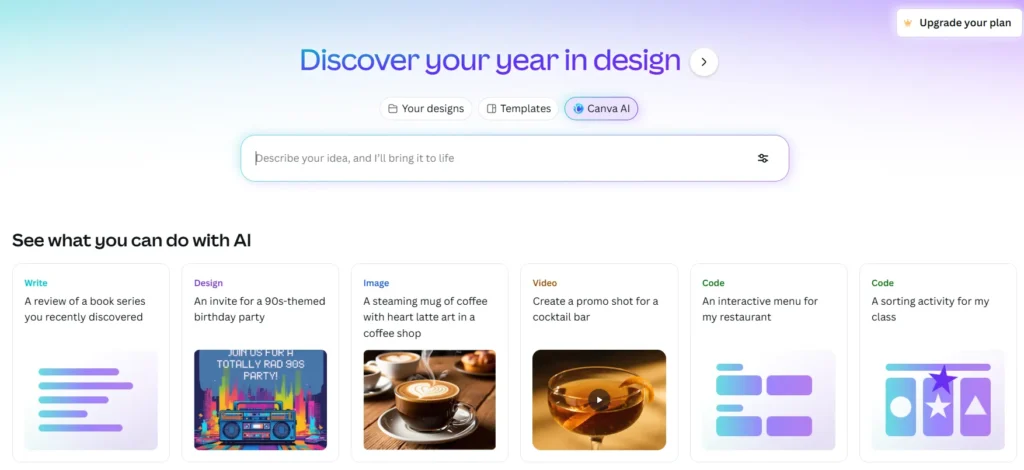
Canva is a user-friendly design tool that now offers AI-powered writing, layout, image creation, and suggestions.
You start with a blank canvas or choose a template. Canva AI can create design suggestions based on your content, rewrite text, make a layout, or resize your design for different platforms (e.g., YouTube thumbnail, Instagram story, Facebook post).
When I first made a YouTube thumbnail in Canva, I typed the title, and the AI suggested several layouts with readable fonts and appropriate graphics. I chose one, replaced the background with a photo, and had a professional thumbnail in a few minutes.
Pros and Cons
| Pros | Cons |
|---|---|
| Beginner friendly | Some templates are paid |
| Templates for all formats | Limited advanced editing |
| Built-in AI suggestions | Needs internet |
| Works on web and mobile | Best features in paid plan |
Best for YouTube thumbnails, Instagram banners, LinkedIn posts, and event posters.
2. Adobe Express (Free + Premium)
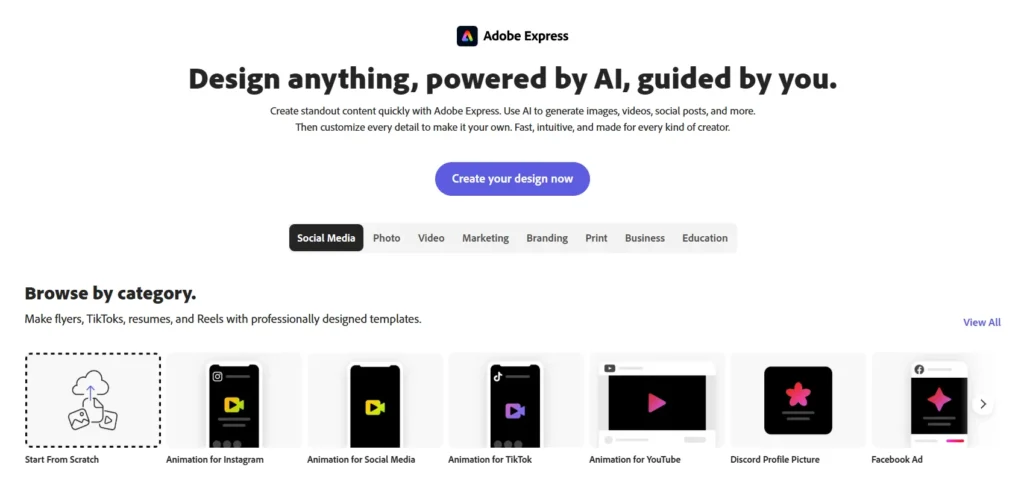
An easy-to-use, AI-powered design tool from Adobe that focuses on quick visuals and social media posts.
Adobe Express lets you choose the layout, font, and color combinations based on the visual you want to create. It also provides motion graphics and animation templates for social media posts.
When I created a class presentation cover page, Adobe Express suggested a professional typography layout according to my topic keywords. It felt like having a design assistant.
Pros and Cons
| Pros | Cons |
|---|---|
| Clean templates | Not as advanced as full Adobe suite |
| AI layout suggestions | Paid features locked |
| Grid and alignment tools | Can be slow on mobile |
| Works with Creative Cloud | Internet required |
Best for Instagram stories, event banners, and presentation covers.
3. VistaCreate
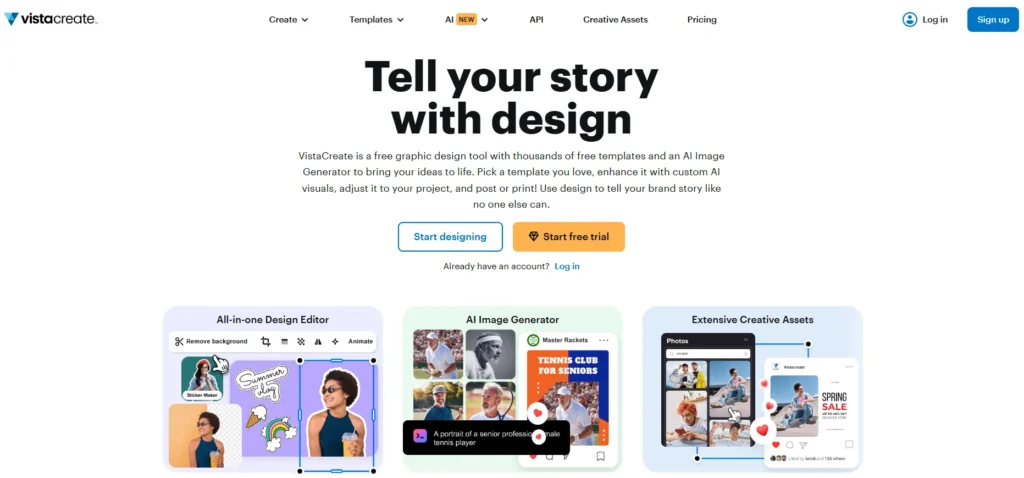
VistaCreate (formerly Crello) is a design tool similar to Canva, but with a strong focus on animated and social-ready design templates.
Select a design format (thumbnail, poster ad) and use the AI-guided controls to change backgrounds, add an animated element, and apply cohesive color sets.
To create a social media campaign post, I selected a template and added Crello’s animated stickers to make the post more dynamic. It helped to make the content stand out without any advanced design skills.
Pros and Cons
| Pros | Cons |
|---|---|
| Large template library | Some assets require credits |
| Animated graphics supported | Free plan limits downloads |
| Easy resizing | Limited advanced editing |
| Good for social ads | Internet needed |
Best for Instagram and TikTok posts, animated banners, and event flyers.
4. Fotor AI Designer
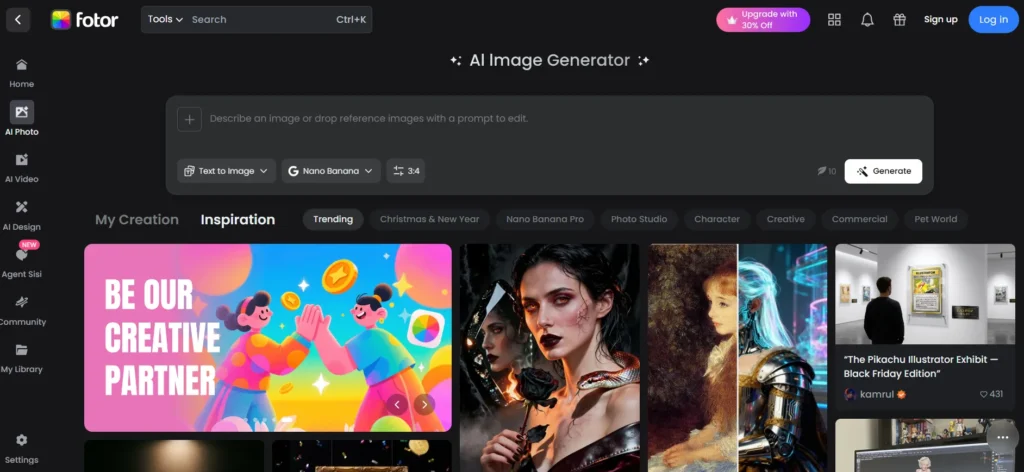
Fotor AI design tool offers AI image enhancement and creative tools that help refine images automatically.
Upload your image or start with a template. Use AI tools to enhance contrast, create background removals, and apply filters. It also suggests layout options that fit your image and text.
I used Fotor when I needed a thumbnail with a background subject and a title. The AI removed the background and suggested some layouts to ensure the text popped without crowding the image.
Pros and Cons
| Pros | Cons |
|---|---|
| Quick image enhancement | Free plan has ads |
| AI background removal | Some features premium |
| Easy text styling | Limited templates |
| Simple user interface | Needs internet |
Best for YouTube thumbnails, promotional banners, and poster designs.
5. Snappa
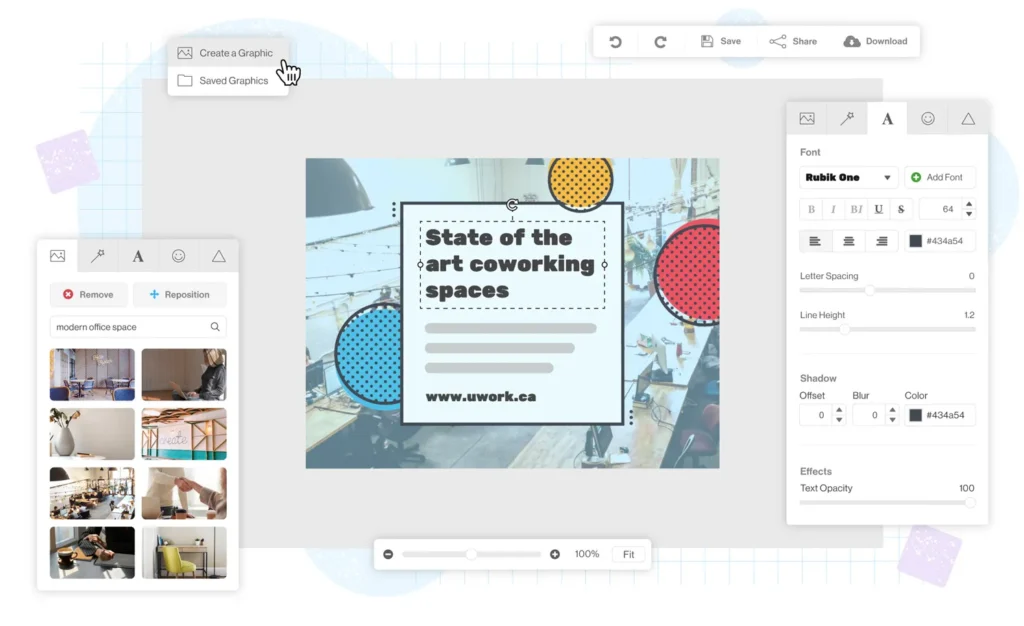
Snappa is a user-friendly graphic design tool that provides templates and AI-powered design assistance for social media graphics.
Select a canvas, insert images and text, and refine design using Snappa’s AI color and style suggestions. It also provides a quick export menu for various platforms.
When I created a LinkedIn banner, Snappa helped choose a professional layout that matched standard banner dimensions. It was more intuitive for banners than some general design tools.
Pros and Cons
| Pros | Cons |
|---|---|
| Good social media templates | Free plan limited |
| Fast custom dimensions | AI features basic |
| Easy export options | Watermark on free |
| Useful presets | Needs subscription for best assets |
Best for Blog banners, LinkedIn headers, and YouTube channel art.
6. Designs.ai
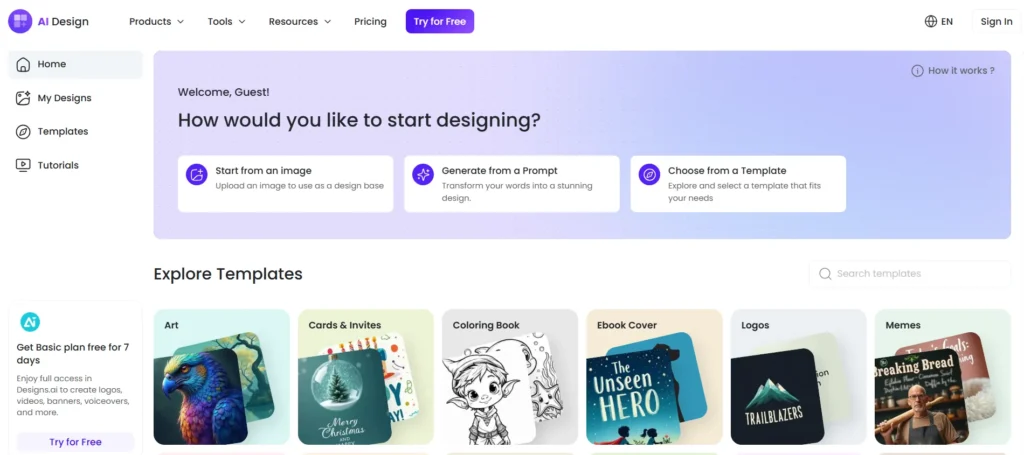
A collection of AI creative tools that create logos, social media graphics, and videos from your text prompts.
Write a short description of what you want (e.g., a gaming thumbnail with bold text), and Designs.ai will generate an image that you can edit.
For a quick “sale” post idea, I typed a simple prompt, and Designs.ai gave multiple layout ideas. I selected one and edited the text for a final social media ad.
Pros and Cons
| Pros | Cons |
|---|---|
| Fast AI generation | Some features paid |
| Multiple format outputs | Not as intuitive as Canva |
| Auto color and font suggestions | Internet needed |
| Good for quick visuals | Limited free assets |
Best for Social media posts, quick ad visuals, and thumbnails.
FAQs
Are these AI design tools free?
Yes, all listed tools offer free plans with useful features, and some have premium assets.
Do I need design experience?
No. These tools use AI templates and suggestions, so anyone can create professional visuals without design skills.
Which tool is best for YouTube thumbnails?
Canva, Fotor, and Designs.ai are very productive for creating attractive thumbnails.
Can I use these tools on mobile?
Most AI tools have responsive web versions and mobile apps.
Will AI replace designers?
AI helps with ideas and execution, but human input matters for creativity and final decisions.



A little discussion goes a long way.
Ask a question, share your experience, or help someone find an answer.
There is room for your perspective.
No discussions match this view yet.
Your voice belongs here
Keep it useful. Keep it kind.