
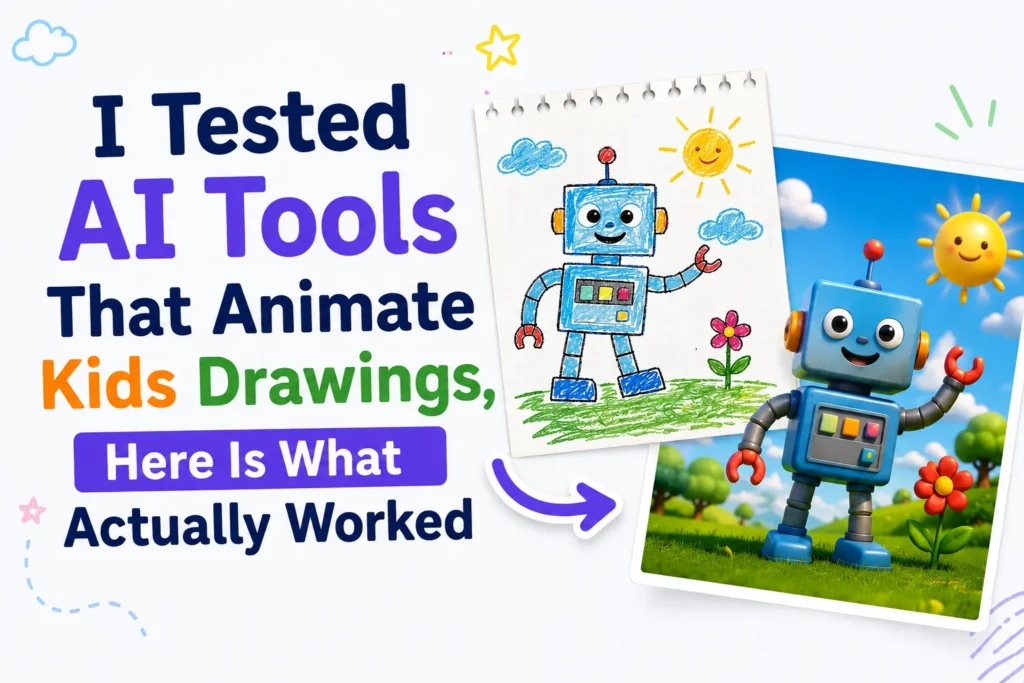
I tried several AI tools to see how well they can animate children’s drawings. I used a real hand-drawn picture using crayons on paper. My goal was simple. I was curious if these tools are user-friendly and easy enough for parents and teachers, and whether the results actually look good.
Below, I explain how I used each tool, what worked, and where I faced small issues.
- Tool 1: Meta Animated Drawings (Best Overall)
- How I used it
- My experience
- Best tips from my test
- Tool 2: Cutout Pro AI Image Animator
- How to use it
- My experience
- Best use case
- Tool 3: D ID Talking Avatar (Most Fun for Kids)
- How I tested it
- My experience
- Important note
- Tool 4: Runway ML (Advanced Option)
- How I used it
- My experience
- How to prepare a drawing before uploading
- Tool 5: Pixley (Best for Young Kids)
- How to use it
- What you get
- Best use case
- Frequently Asked Questions
Tool 1: Meta Animated Drawings (Best Overall)
This was the first tool I tried, and honestly, it is the most beginner-friendly.
How I used it
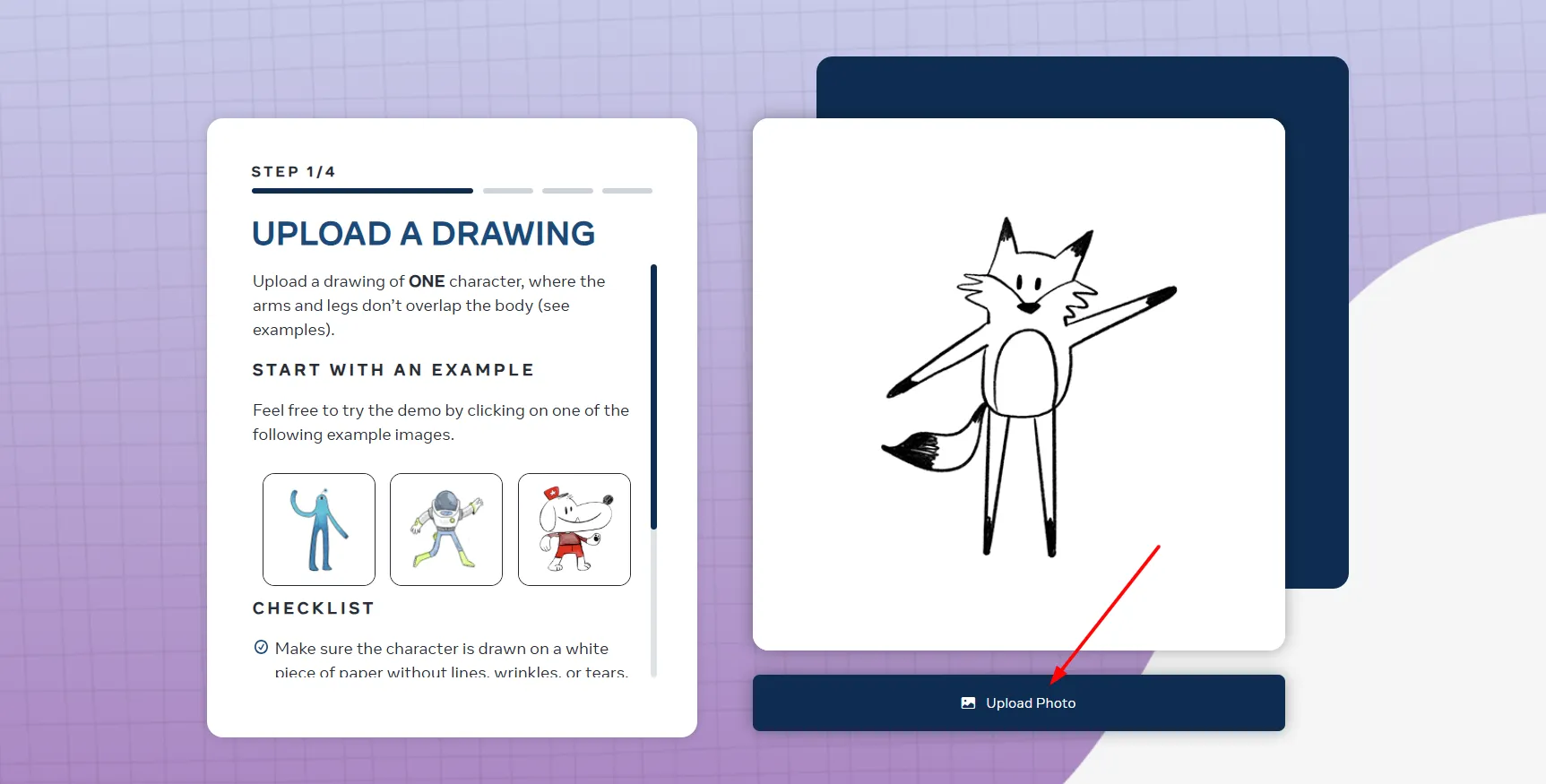
- I took a clear photo of the drawing using my phone.
- I opened Meta Animated Drawings in my browser.
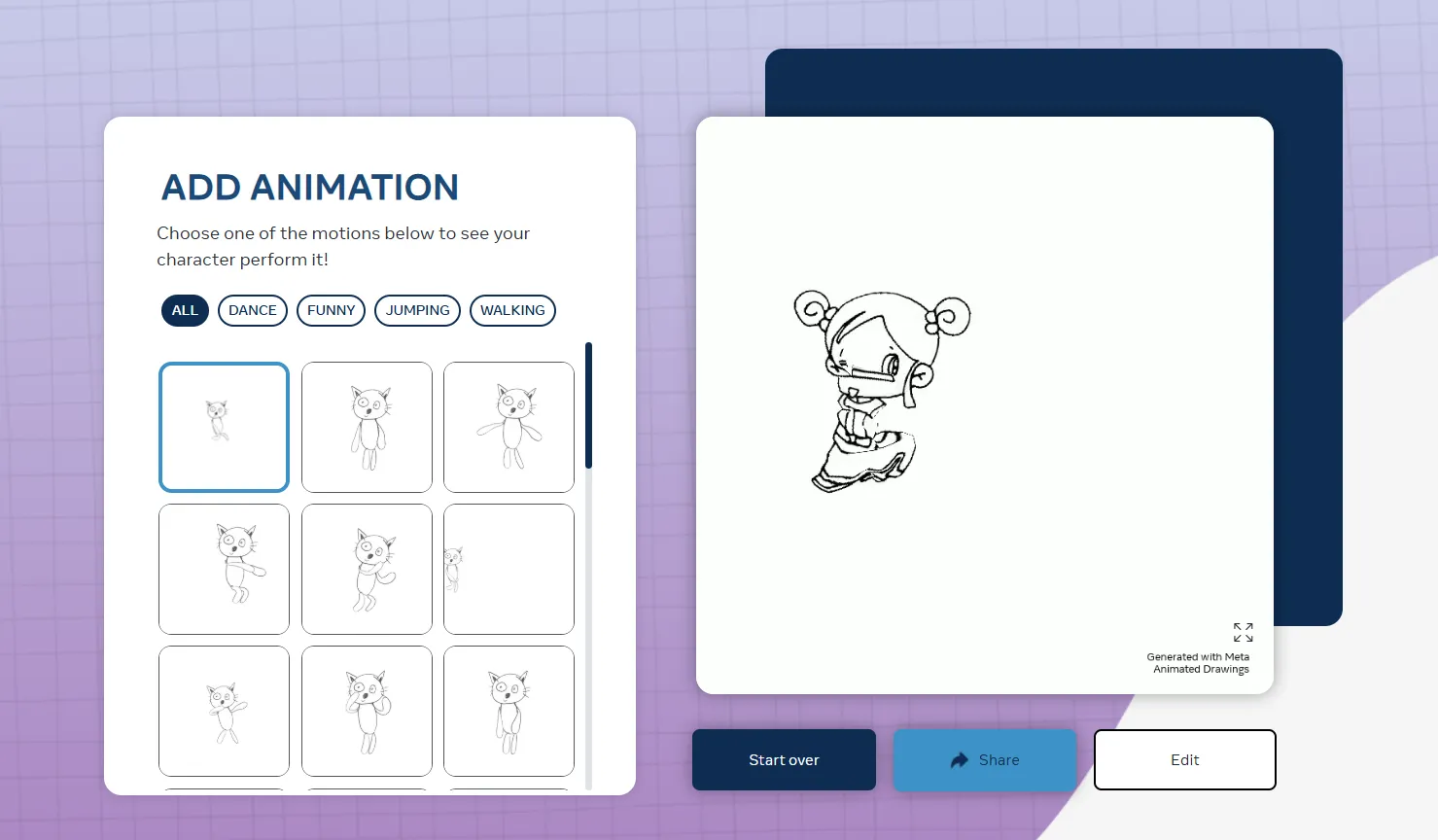
- I uploaded the image and click on Next button.

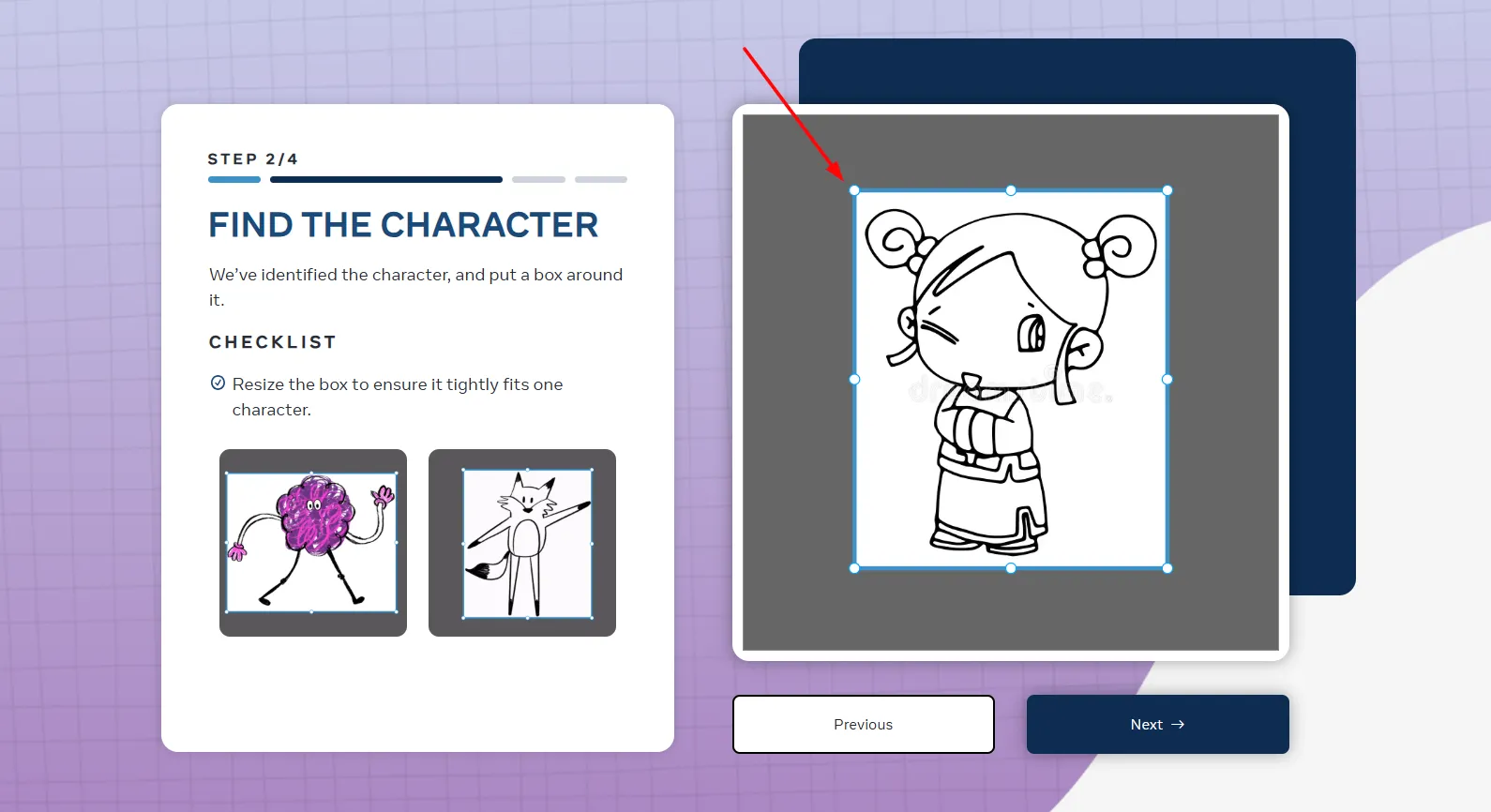
- The tool automatically detected the character.

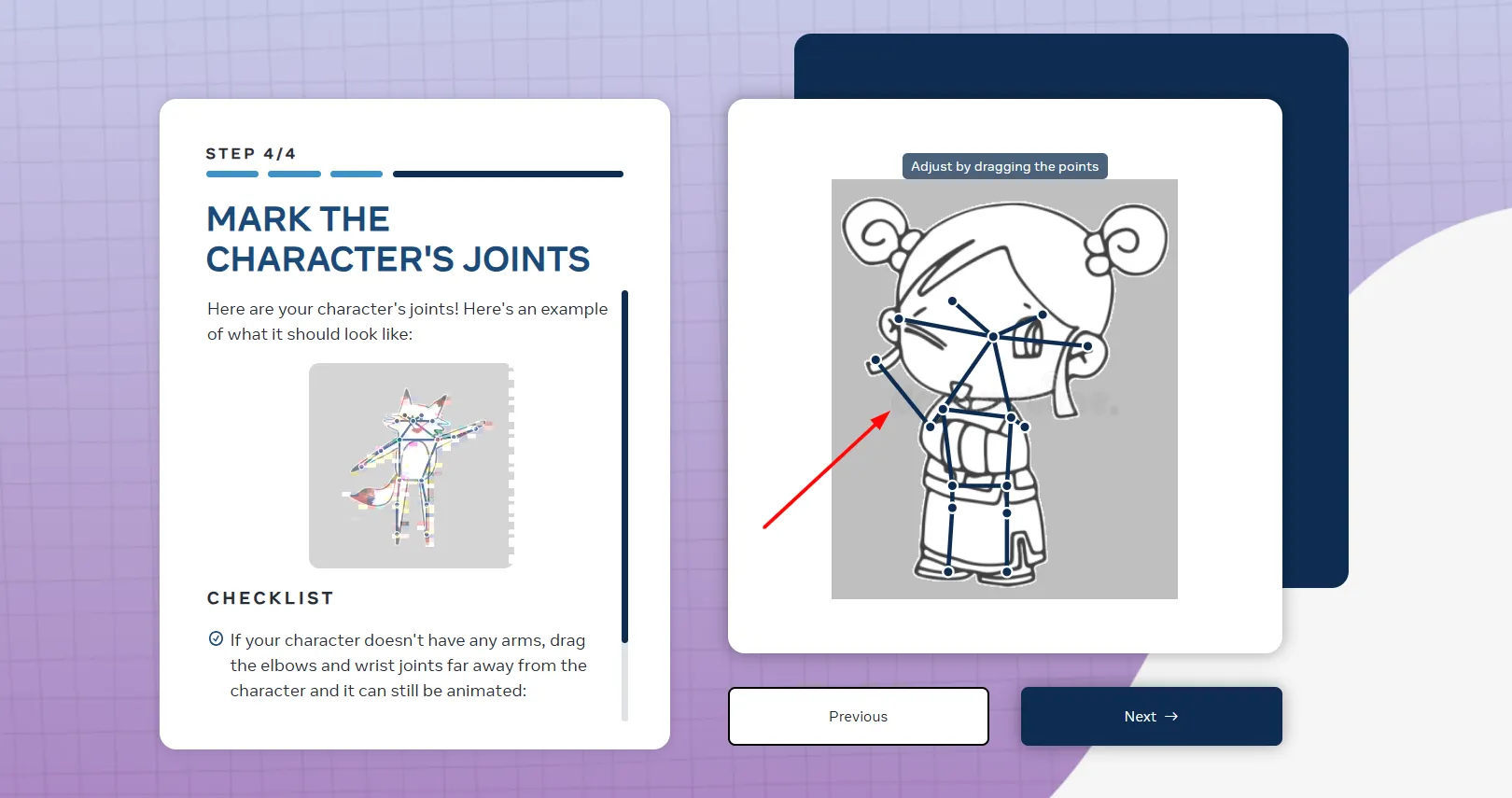
- I adjusted joints like elbows and knees when needed.

- I clicked Animate and selected a motion.

My experience
The animation was smooth and charming. Walking and jumping looked natural. Kids immediately recognized their drawing and responded positively.
Best tips from my test
Use a full body drawing with visible arms and legs. Avoid overlapping lines.
Tool 2: Cutout Pro AI Image Animator
I used this tool to test simple motion effects.
How to use it
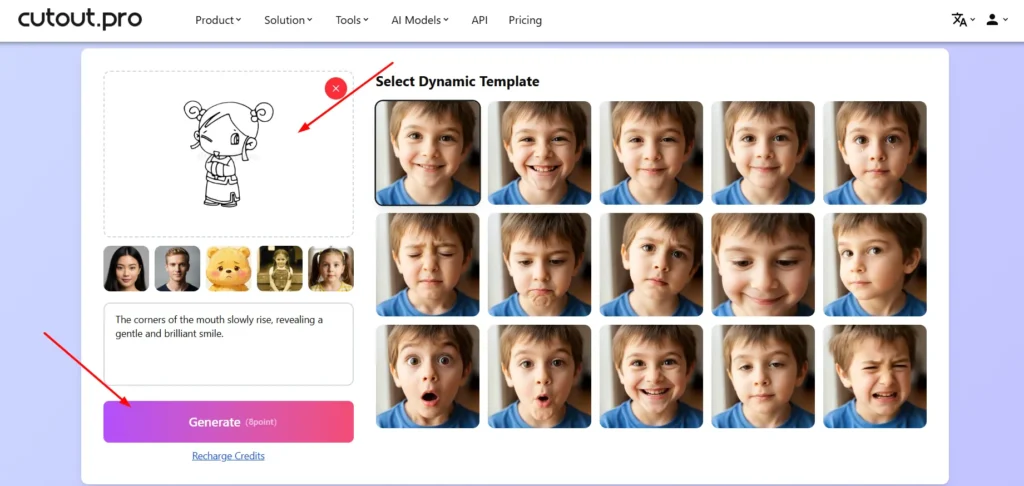
- Upload the drawing to Cutout Pro.
- Choose an animation style such as wave or nod.
- Click Generate.
- Download the animated result.
My experience
This tool is useful for basic movements. It was not very efficient with complex sketches, but for simple drawings it worked well.
Best use case
Half body characters or face focused drawings.
Tool 3: D ID Talking Avatar (Most Fun for Kids)
This tool animates drawings and makes them speak.
How I tested it
- Upload the drawing.
- Select a voice or type text.
- Generate speech animation.
- Preview and download the video.

My experience
Seeing a drawing talk felt magical. Lip sync was not perfect, but impressive for kids.
Important note
Make sure the mouth region is clearly drawn.
Tool 4: Runway ML (Advanced Option)
I tested this tool for more creative control.
How I used it
- Upload the image.
- Select motion or animation tools.
- Apply effects manually.
- Export the final video.
My experience
Advanced but not beginner friendly. Best for content creators.
How to prepare a drawing before uploading
This step enhanced results significantly.
Use white paper, good lighting, bold outlines, and avoid shadows. When I fixed lighting issues, animation quality improved immediately.
Tool 5: Pixley (Best for Young Kids)
Pixley is an app built for children aged 2 to 8. Where the tools above animate a single drawing, Pixley turns the drawing into a cartoon character with its own voice and personality, then puts that character in a story.
How to use it
- Download Pixley on iOS or open it on the web.
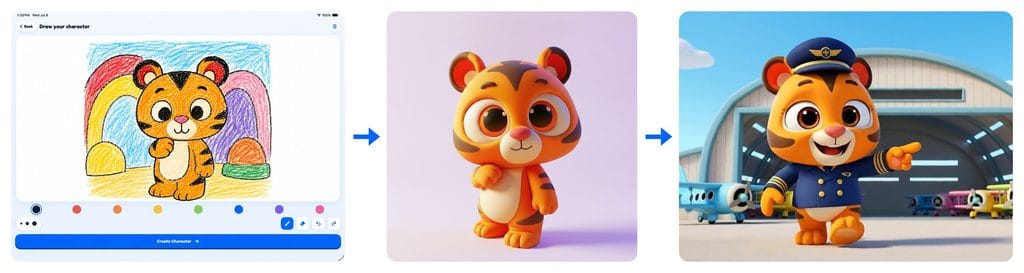
- Have your child draw a character in the app, or upload a photo of a drawing on paper.
- Pixley creates the character, with a look, a voice and a personality.
- Pick a lesson or theme for the story.
- Pixley writes, voices and animates a short episode starring the character. It is ready in minutes.
What you get
Beyond the animated episode, Pixley can make narrated bedtime storybooks, interactive stories where the child decides what happens next, and personalized learning modules, all with the same character.
Best use case
Parents of young children who want more than a moving drawing: a character their child made, in stories built around a lesson the parent chooses. There is a free trial on iOS.





A little discussion goes a long way.
Ask a question, share your experience, or help someone find an answer.
There is room for your perspective.
No discussions match this view yet.
Your voice belongs here
Keep it useful. Keep it kind.