
Backing up your photos, videos and valuable files ensures that your data is secure and can be accessed on various devices. This is easily done with cloud services such as Google Drive, Dropbox, and OneDrive but it also come with limitations. Most free plans provide only 15-20GB of storage, which is easily used up when you record 4K videos, save hundred of photos, or other big files.
However, cloud backups can be slow with weak Wi-Fi and privacy-concerned users might not want their business data on remote servers. This is where the local backups come in, a fast, safe and one time-purhase solution which allows you to save your data without subscriptions.
- Why choose a local backup?
- What you need to get started
- 1. USB Flash Drive
- 2. External hard drive or portable SSD
- 3. USB OTG (On-The-Go) Adapter
- How to back up your data locally
- 1. Connect your external drive
- 2. Open your phone’s File Manager
- 3. Copy or move your data
- Automate backups using Android apps
- Recommended app: FolderSync
- What local backups do not include
- Frequently Asked Questions
Why choose a local backup?
Local backups offer several benefits
- No subscription fees
- Faster transfers compared to cloud uploads
- Complete privacy
- Works without Wi-Fi
- Lets you free up storage on your phone quickly
Local backups are best when you have large files or want full control of your data.
What you need to get started
To back up your phone to an external drive, you will need one of the following
1. USB Flash Drive
- Perfect for smaller backups
- Usually available in 64GB–512GB
2. External hard drive or portable SSD
- Best for large backups like 4K videos
- Offer 1TB-4TB storage
- SSDs provide faster read/write speeds
3. USB OTG (On-The-Go) Adapter
Most Android phones have a USB-C port, so you’ll need:
- USB-C to USB-A OTG Adapter – required for external hard drives and SSDs
- Optional: USB-C flash drive (no adapter needed)
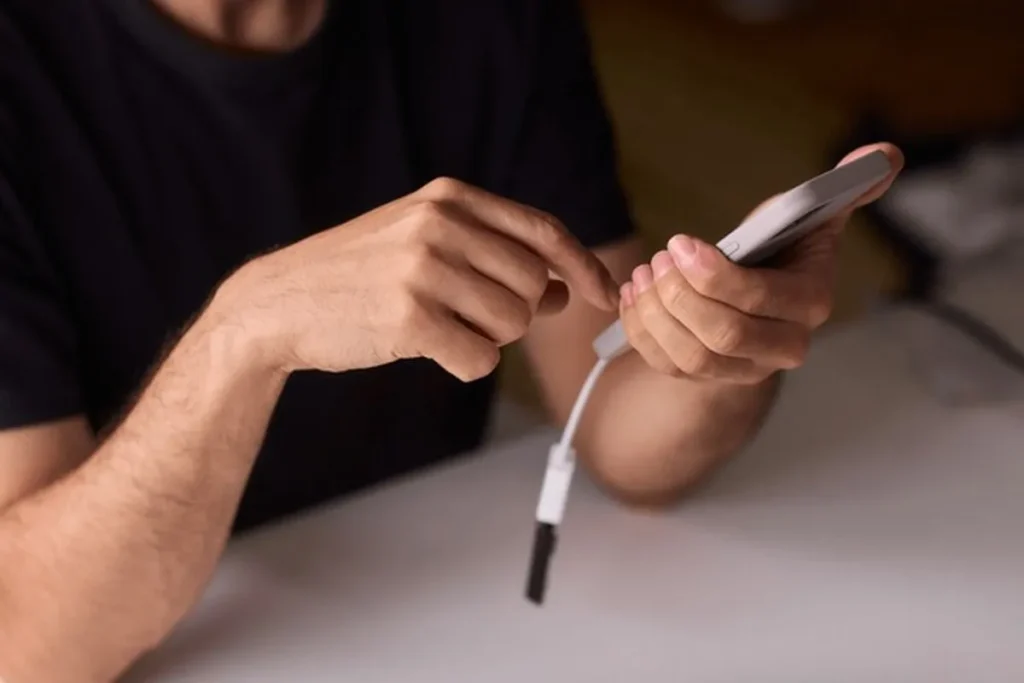
How to back up your data locally
1. Connect your external drive
- Plug the OTG adapter into your phone
- Connect your hard drive, SSD, or flash drive to the adapter
- Wait for your phone to detect the device
Most Android phones will show a notification like “USB drive connected.”
2. Open your phone’s File Manager
Use your built-in file manager or apps like Files by Google.
- Find the external drive
- Check its available storage space
3. Copy or move your data
Go through the folders where your files are stored
- DCIM / Camera – photos and videos
- Downloads
- Documents
- Screenshots
- WhatsApp / Media (optional)
You can choose
- Copy files (if you want them on both phone and drive)
- Move files (to free up space on your device)
Transfers through SSDs are very fast as compared to cloud uploads.
Automate backups using Android apps
Manual transfers can be tiring if you back up data regularly. Alternatively, you can use apps that automatically sunc your phone to an external drive every time it is connected.
Recommended app: FolderSync
- Automates backups
- Lets you schedule transfers
- Can sync specific folders (e.g., only Camera or Downloads)
- Works well with OTG-connected drives
What local backups do not include
While local backups are best for storing media and files, they do not include
- App data
- System settings
- Text messages
- Call logs
For those, you need Google Backup or a dedicated backup app.
Frequently Asked Questions
How do I back up my Android phone to an external drive?
Connect a USB flash drive, SSD, or external hard drive to your Android phone using a USB OTG adapter. Open your file manager, select the files you want to save, then copy or move them to the external drive.
Do I need the internet for a local Android backup?
No. Local backups are performed directly between your phone and the external storage device, so no Wi Fi or mobile data connection is required.
What files can I save in a local backup?
You can back up photos, videos, documents, downloads, screenshots, and other personal files. Local backups generally do not include app data, system settings, text messages, or call logs.
Can I automate local backups on Android?
Yes. Apps such as FolderSync can automatically copy selected folders to an external drive whenever it is connected, making regular backups easier.
Is a local backup better than cloud storage?
It depends on your needs. Local backups offer faster transfers, complete privacy, and no subscription fees, while cloud storage provides automatic syncing and access across multiple devices.







A little discussion goes a long way.
Ask a question, share your experience, or help someone find an answer.
There is room for your perspective.
No discussions match this view yet.
Your voice belongs here
Keep it useful. Keep it kind.