
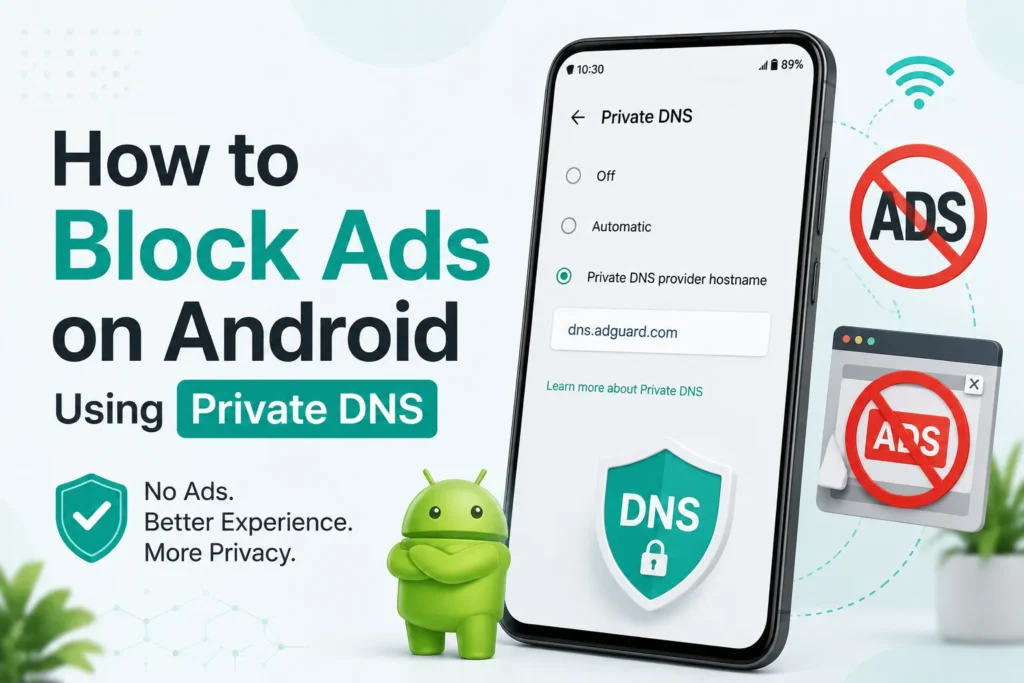
Ads get annoying fast, especially when you are trying to read an article or check a recipe, and a banner or pop-up comes up. Ad-blocker apps are available, but many of them quietly drain your battery or slow down your phone.
There is a better way, and it’s in your phone. Android 9 (Pie) includes a Private DNS setting for all devices that allows them to block most ads at the network level, without the need for any additional app.
How to block ads using private DNS on Android
- Open the Settings app on your phone.
- Go to Network & Internet (on Pixel and most stock Android phones) or Connections (on Samsung phones).
- If you don’t see Private DNS right away, tap More connection settings or Advanced.
- Tap Private DNS.
- Select the Private DNS provider hostname.
- Type in:
dns.adguard-dns.com - Tap Save.
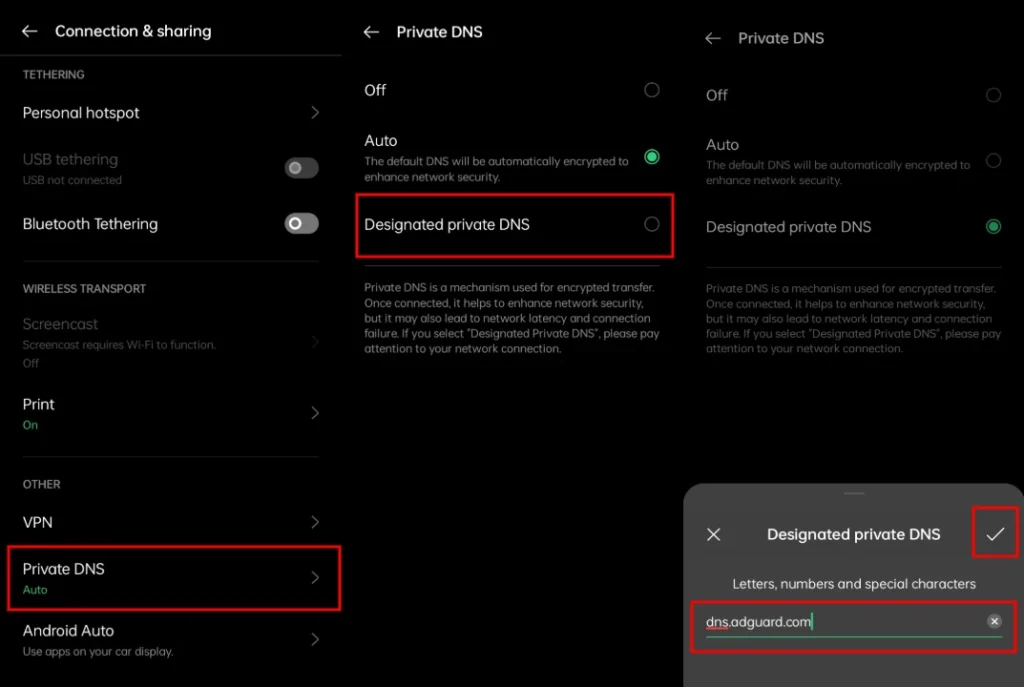
That’s it. Most ads across your browser and apps should disappear almost immediately.
Important correction: Older guides (including earlier versions of this one) list the hostname as dns.adguard.com. AdGuard has since moved its public DNS service to a new domain, and dns.adguard-dns.com is the hostname listed on AdGuard’s own site today.
Other AdGuard options
AdGuard offers many variations depending on what you want blocked:
- Standard (ads and trackers):
dns.adguard-dns.com - Family protection (ads, trackers, and adult content, plus Safe Search):
family.adguard-dns.com - Unfiltered (encrypts DNS but blocks nothing):
unfiltered.adguard-dns.com
If you share your phone with kids or want stricter filtering, use the family protection option.
Why does this work better than most Ad-Blocker apps?
A standard ad blocker app needs to work in the background, consuming extra battery and memory. Private DNS does not work that way.
It’s a setting, not an app, so there’s nothing extra running on your phone. It filters requests system-wide, across your browser and most apps, without needing root access or a VPN connection.
What it would not block
Private DNS is useful, but it’s not a perfect ad blocker. A few limits are worth knowing before you depend on it completely:
- YouTube serves ads from the same domains as its regular content, so DNS-level blocking can not tell them apart.
- Apps that load ads from their own core servers, rather than third-party ad networks, are not affected.
- It will not stop tracking done outside DNS requests, such as some app-level analytics.
For everyday browsing, though, the drop in ads and page clutter is noticeable.
Frequently Asked Questions
Do I need to root my phone for this to work?
No. Private DNS is a built-in Android setting, so no extra permissions beyond what Settings already has, and no root access is required.
Will this slow down my internet speed?
Not really for most people. DNS lookup is fast, and any small delay is negligible when pages load faster with ads and trackers blocked.
Why isn’t Private DNS blocking ads on YouTube?
YouTube ads are served from the same servers as YouTube videos, and a DNS blocker can not separate the two without blocking the app itself.
What happens if I want to turn it off later?
Go back to the Private DNS setting and set it to Automatic or Off. Nothing else on your phone is affected.
Can I use this on Wi-Fi and mobile data at the same time?
Yes. Private DNS is system-wide and will work on Wi-Fi or mobile data.

A little discussion goes a long way.
Ask a question, share your experience, or help someone find an answer.
There is room for your perspective.
No discussions match this view yet.
Your voice belongs here
Keep it useful. Keep it kind.