
Close Menu

    Subscribe to Updates

    Get the latest creative news from FooBar about art, design and business.

    What's Hot

    250+ Cool Minecraft Names Ideas (Funny & Unique)

    June 4, 2026

    150+ Cute and Funny Nicknames for Boys

    June 4, 2026

    150+ Best Funny WiFi Names – Unique, Cool & Good

    June 4, 2026
    Facebook X (Twitter) Instagram
    Trending
    • 250+ Cool Minecraft Names Ideas (Funny & Unique)
    • 150+ Cute and Funny Nicknames for Boys
    • 150+ Best Funny WiFi Names – Unique, Cool & Good
    • Best WhatsApp Group Names Ideas [Updated]
    • Clever, Private Story Names Ideas For Snapchat Stories
    Facebook X (Twitter) Instagram Pinterest YouTube Bluesky WhatsApp TikTok Threads RSS
    WikiTechLibrary
    • How To
    • Technology
    • Gaming
    • Freebies
    • Reviews
    • Names Ideas
    WikiTechLibrary
    Home»How To»How to Use FaceTime on Android Phones (Easy Guide)

    How to Use FaceTime on Android Phones (Easy Guide)

    Waqas AmjadBy Waqas AmjadSeptember 12, 2025No Comments3 Mins Read
    Facebook Twitter Pinterest Telegram LinkedIn Tumblr WhatsApp Email Bluesky Reddit Threads Copy Link
    use facetime on android phones
    Image Credit: PixieMe/ShutterStock
    Share
    Facebook Twitter LinkedIn Pinterest Telegram Email WhatsApp Threads Copy Link

    One of the most trusted and popular apps on Apple has always been FaceTime provides a high-quality video and audio calling experience on iPhone, iPad, and Mac. Apple users have a one-stop communication device with built-in features, including group calls, end-to-end encryption, screen sharing, custom backgrounds, and SharePlay.

    However, there is one more thing that most people are unaware of: Android users can also participate in FaceTime calls. While Apple has not released a FaceTime app on Android, there is a simple hack that lets anyone with a web browser participate in a FaceTime call, without using an iPhone.

    How to use FaceTime on Android

    If you are on Android, you can not start a FaceTime call, but you can join one with a link sent from an Apple user. Here’s how it works:

    On Android, you cannot make a FaceTime call, though you can join one with a link sent from an Apple user. Here’s how it works

    1. Receive a FaceTime Link
      Someone with an iPhone, iPad, or Mac creates the call link on the FaceTime app. Open the FaceTime app, tap Create Link, and then share it with you via text, email, or any messaging app.

      create facetime appp link
    2. Open the Link in Your Browser
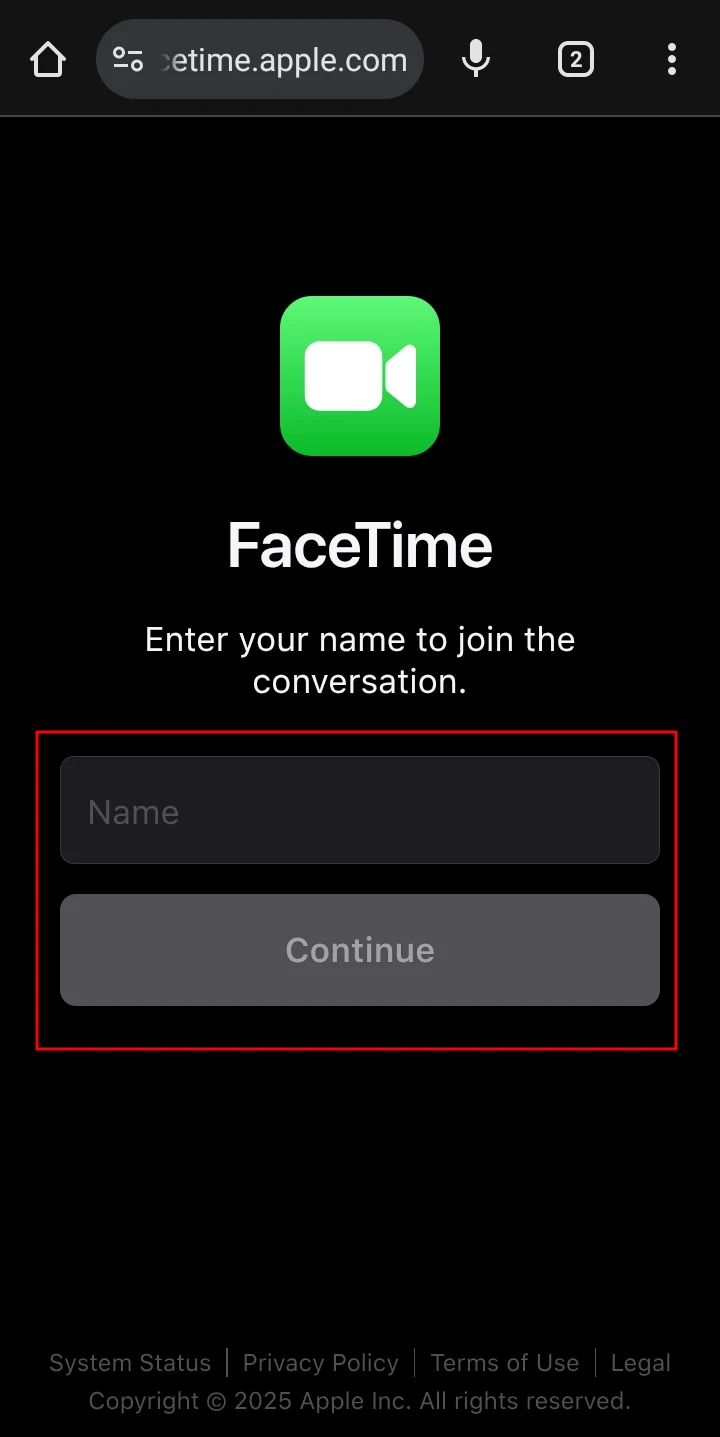
      Tap on the FaceTime link in your Android phone or tablet and open it in a browser. Apple officially recommends Chrome or Microsoft Edge for the smoothest experience. You will be asked to enter a display name. No Apple ID or phone number is required.

      enter name in facetime call
    3. Join the Call
      After you enter your name, you can have a preview of your video and audio settings. Change them as required, and then tap Join. Your browser might request you to grant access to your microphone and camera; allow these to proceed.

      join facetime call
    4. Wait for Approval
      The call host will receive a notification on their Apple phone to approve your entry. Once approved, you will be on a FaceTime call, like any Apple user.

      approve call facetime
    READ ALSO:  How to Know If Someone Blocked You on TikTok

    Do Apple Users Need to Stay on the Call?

    Here’s where things get interesting. While an Apple user creates the call link and grants your request to join, their presence is not always necessary afterward

    • One-on-One Calls: When you and only one Apple user are calling, they will be required to remain in the call. If they leave, the call ends.
    • Group Calls: If multiple participants are in the call, Apple host can leave the call after approving new joiners. Another Apple user in the call can then manage participants, including approving new entries.

    Android does not support a native FaceTime app, Apple’s link-based system provides a way for Android users to join calls. All that is required is a link, a browser, and a host approval. It is not as smooth as Zoom or Google Meet for cross-platform calls, but it can be useful when not all members of a family or a group have an iPhone.


    Related Posts
    How to Invest Your Money in Dubai, UAE
    dubai
    How to Create a WhatsApp QR Code to Share Your Contact
    how to create whatsapp qr code
    How to Connect Shopify to Facebook
    how to connect shopify to facebook
    How to Fix Spotify Not Showing as Your Status on Discord
    discord spotify
    How to Scan QR Codes in Your Phone Without Using Another Phone
    How to Scan QR Codes in Your Phone Without Using Another Phone
    How to Open Disk Utility on Mac
    macbook
    How To iphone
    Share. Facebook Twitter Pinterest LinkedIn Tumblr Email
    Waqas Amjad
    • Website
    • Facebook
    • X (Twitter)
    • Instagram

    Wikitechlibrary is written by Waqas Amjad, a full-time Passionate Blogger. With years of experience, he simplifies complex topics to help readers navigate the digital world. Waqas is committed to delivering accurate, user-friendly, and engaging content for audiences worldwide.

    Related Posts

    How to hide your SnapScore on Snapchat

    How to write mobile number in international format

    How to get Canva pro for free

    How to Stop iPhone Screen from Automatically Turning Off

    How to hide and unhide apps on iPhone

    How to watch two YouTube videos at once on Android

    Add A Comment

    Leave a ReplyCancel reply

    Latest Post
    Names

    250+ Cool Minecraft Names Ideas (Funny & Unique)

    By Muqadas Fatima
    Names

    150+ Cute and Funny Nicknames for Boys

    By Muqadas Fatima
    Names

    150+ Best Funny WiFi Names – Unique, Cool & Good

    By Farah Qaiser
    Names

    Best WhatsApp Group Names Ideas [Updated]

    By Farah Qaiser
    Most Viewed

    Google Pixel 10 Pro Models Come with a Free Gemini Subscription

    September 23, 2025

    How to Get Unbanned from Snapchat

    May 4, 2026

    How to Fix Ping issues in Online Games

    November 7, 2022

    How to Create a Link to Ask Box on Tumblr Blog

    May 30, 2023

    WikiTechLibrary is the Digital Library covering Content Primarily Related to Tech, How-To, Tips & Tricks, Social Media, Gaming, Education, Business & Finance, Telecom, Crypto, and Much More. We always try to provide new information to our visitors.

    Email: [email protected]

    Facebook X (Twitter) Instagram Pinterest YouTube Bluesky WhatsApp TikTok Threads RSS
    Our Picks

    APPLE iPad Pro 9.7″ Wi-Fi + Cellular Secret Codes

    August 5, 2023

    How to Get Rid of FFDShow

    May 23, 2023

    Jazz Apna Shehar Package (Selected Cities)

    August 15, 2023
    Top Reviews

    Privacy Apps I Use to Keep My Data Secure on Android

    January 14, 2026

    Jpgtotext.io Review: A Detailed Guide to Its Features, Prices and Uses

    October 26, 2023

    Best Video Editors for Android (Free & Paid)

    February 17, 2025
    © 2026 WIKITECHLIBRARY | All Right Reserved
    • About Us
    • Contact
    • Disclaimer
    • Privacy Policy
    • Terms
    • Cookies Policy
    • Editorial Policy

    Type above and press Enter to search. Press Esc to cancel.

    Join Now

    Loading Comments...