
Close Menu

    Subscribe to Updates

    Get the latest creative news from FooBar about art, design and business.

    What's Hot

    250+ Cool Minecraft Names Ideas (Funny & Unique)

    June 4, 2026

    150+ Cute and Funny Nicknames for Boys

    June 4, 2026

    150+ Best Funny WiFi Names – Unique, Cool & Good

    June 4, 2026
    Facebook X (Twitter) Instagram
    Trending
    • 250+ Cool Minecraft Names Ideas (Funny & Unique)
    • 150+ Cute and Funny Nicknames for Boys
    • 150+ Best Funny WiFi Names – Unique, Cool & Good
    • Best WhatsApp Group Names Ideas [Updated]
    • Clever, Private Story Names Ideas For Snapchat Stories
    Facebook X (Twitter) Instagram Pinterest YouTube Bluesky WhatsApp TikTok Threads RSS
    WikiTechLibrary
    • How To
    • Technology
    • Gaming
    • Freebies
    • Reviews
    • Names Ideas
    WikiTechLibrary
    Home»How To»How to Record a Phone Call on iPhone (iOS 18)

    How to Record a Phone Call on iPhone (iOS 18)

    Muqadas FatimaBy Muqadas FatimaMay 4, 2026No Comments3 Mins Read
    Facebook Twitter Pinterest Telegram LinkedIn Tumblr WhatsApp Email Bluesky Reddit Threads Copy Link
    how to record phone call on iphone ios 18
    Share
    Facebook Twitter LinkedIn Pinterest Telegram Email WhatsApp Threads Copy Link

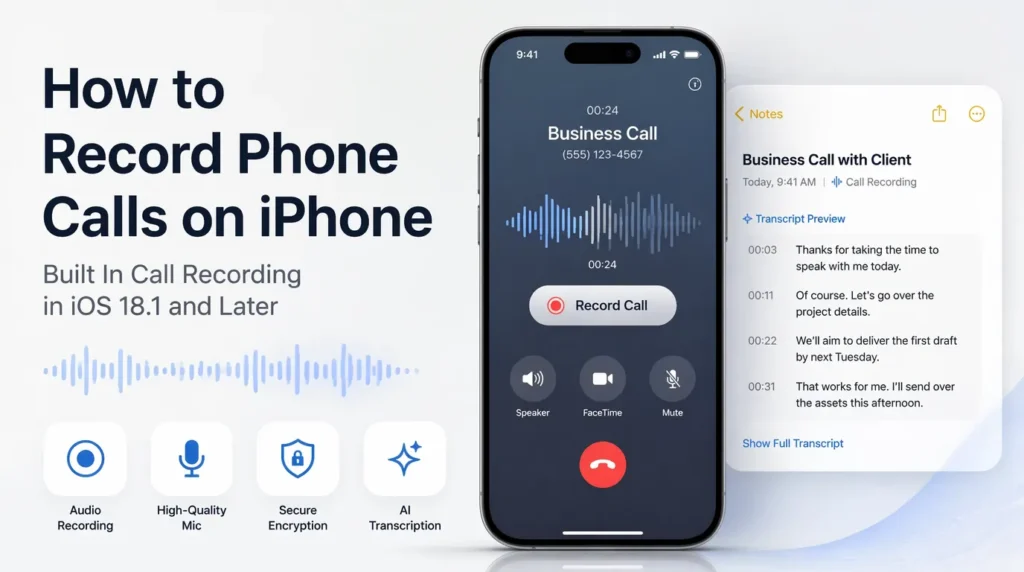
    With iOS 18.1, Apple has finally introduced a native call recording feature that eliminates third-party apps and cumbersome setups. Automatic transcription and easy integration with the Notes app are included. Nevertheless, availability varies depending on your device and region. Here’s how to record calls on your iPhone.

    Table of Contents show
    1 Can You Record a Phone Call on an iPhone Directly?
    2 How to Record a Phone Call on iPhone
    3 Feautures in iOS 18.1
    3.1 Call Transcription
    3.2 Live Voicemail
    3.3 Call Recording Legal Considerations
    4 Where Are My Call Recordings Saved?

    Can You Record a Phone Call on an iPhone Directly?

    Yes! When iOS 18.1 rolls out, your iPhone can record calls. However, it’s only available on the iPhone X or later, running iOS 16.5 or later in some places.

    Automatic notifications: When the call is recorded to follow privacy laws, both parties are notified.
    Storage in Notes: Call Recordings are saved in the Notes app in the “Call Recordings” folder with transcription support.

    If your device does not support this or it is not available in your area, third-party apps or methods will have to do.

    How to Record a Phone Call on iPhone

    Follow these steps to record a call using the built-in feature:

    • Open the Phone app.
    • Dial a number or choose an existing contact.
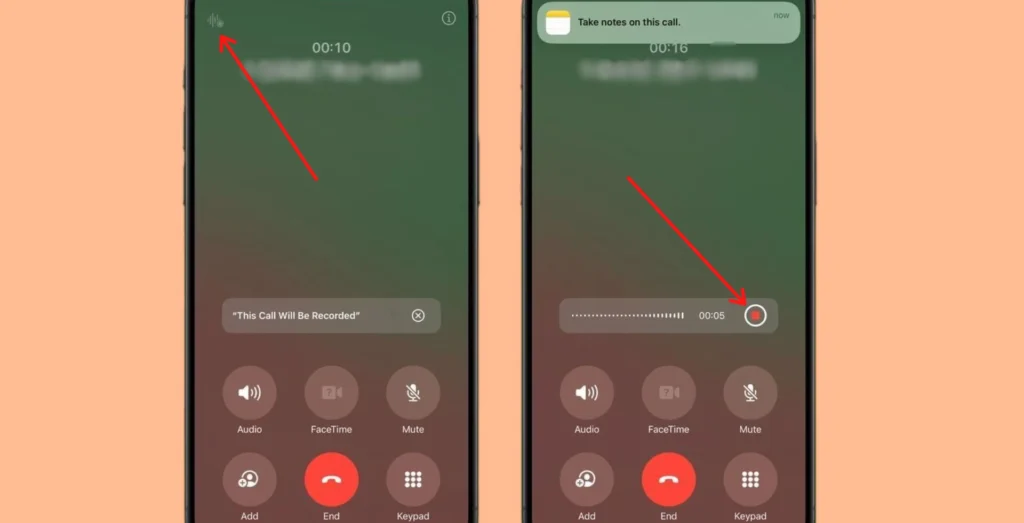
    • Once the call starts, tap the recording icon.
    • The recording will starts automatically. Both parties will receive an automated message when the call starts notifying them that the call is being recorded.
    • To stop recording, tap the recording icon again (or hang up the call).
    • Go to the Notes app.
    • Open the “Call Recordings” folder, to find your recording.
    • You can also view a transcription if supported.
    iphone call recording

    Feautures in iOS 18.1

    Call Transcription

    Using the Call Transcription feature, we convert audio recordings to text. This is helpful when used primarily for reviewing interviews, meetings, or important calls.

    READ ALSO:  How to See Blocked Numbers on an iPhone?

    How to view a transcript

    • After the call ends, a notification will appear from the Notes app.
    • Tap the notification to open the recording and transcript.

    You can

    • Play the audio.
    • Search within the transcript.
    • Specific text sections can be copied or shared.

    Languages supported include English (US), Spanish (Mexico), Korean, Mandarin, and many more.

    Live Voicemail

    Starting with iOS 17, Live Voicemail transcribes voicemail messages as it plays them. Based on the transcription, you can decide to answer the call.

    How to enable Live Voicemail

    • Go to Settings > Phone > Live Voicemail.
    • Toggle Live Voicemail on or off.

    Saved transcriptions are saved to the Phone app for later use and are searchable by keywords.

    Call Recording Legal Considerations

    Privacy laws differ by region, and recording calls is also permitted. During the recording, Apple informs all parties that it complies.

    • One-party consent: Only one participant (you) needs to be aware of and consent to the recording.
    • Two-party consent: Both participants must give their consent before recording.

    Before recording a conversation, always check your local laws.

    Where Are My Call Recordings Saved?

    For native iOS 18.1 recordings, they are saved in the Notes App under the “Call Recordings” folder. For third-party apps, look into the Files app or that app’s specific storage folder.

    READ ALSO:  How to Embed a Picture in Gmail

    The new feature brings Call Recording capability to the iPhone all in one place, making it easy and secure while abiding by privacy laws. Ignore local regulations at your own risk, whether using the native feature or alternatives.


    Related Posts
    How to Detect Plagiarism or Cheating in Google Classroom
    google classroom
    How to Start a Voice Chat in Group on WhatsApp
    whatsapp group settings
    How to Remove PDF Password on iPhone and iPad
    remove password from pdf file
    How To Replace Words Using SEO Magnifier Word Replacer Tool
    Which Metrics You Need To Track For Marketing And SEO Services
    How to Access Google’s Veo 2 AI Video Generator
    access googles veo 2 ai video generator
    How to Reply WhatsApp Messages from Notification on iPhone
    how to reply whatsapp messages from
    Share. Facebook Twitter Pinterest LinkedIn Tumblr Email
    Muqadas Fatima

    Muqadas Fatima is a dedicated writer at WikiTechLibrary, focusing on creating insightful "how-to" tutorials related to social media, tech, and life hacks. With a keen interest in simplifying the complexities of digital world, she creates content that helps readers improve their social media skills and adopt practical solutions for everyday challenges.

    Related Posts

    How to hide your SnapScore on Snapchat

    How to write mobile number in international format

    How to get Canva pro for free

    How to Stop iPhone Screen from Automatically Turning Off

    How to hide and unhide apps on iPhone

    How to watch two YouTube videos at once on Android

    Add A Comment

    Leave a ReplyCancel reply

    Latest Post
    Names

    250+ Cool Minecraft Names Ideas (Funny & Unique)

    By Muqadas Fatima
    Names

    150+ Cute and Funny Nicknames for Boys

    By Muqadas Fatima
    Names

    150+ Best Funny WiFi Names – Unique, Cool & Good

    By Farah Qaiser
    Names

    Best WhatsApp Group Names Ideas [Updated]

    By Farah Qaiser
    Most Viewed

    How to Fix WiFi Keeps Disconnecting on iPhone

    November 24, 2025

    How to Play Telenor Quiz ‘My Telenor App’

    November 1, 2023

    Zong Free 3G/4G Package for Facebook

    August 14, 2023

    YouTube Slows Down Load Times for Users With Ad Blockers

    January 15, 2024

    WikiTechLibrary is the Digital Library covering Content Primarily Related to Tech, How-To, Tips & Tricks, Social Media, Gaming, Education, Business & Finance, Telecom, Crypto, and Much More. We always try to provide new information to our visitors.

    Email: [email protected]

    Facebook X (Twitter) Instagram Pinterest YouTube Bluesky WhatsApp TikTok Threads RSS
    Our Picks

    Blue Lock Rivals codes (100% Working)

    December 25, 2024

    GTA 6 Price: How Much Will Highly Anticipated GTA 6 Cost?

    December 12, 2023

    How to Connect Mobile With LED

    November 8, 2023
    Top Reviews

    JoggAI Podcast Generator In-Depth Review: Powerful Tool or Marketing Hype?

    November 4, 2025

    Audioenhancer.ai review: The best tool to remove background noise in videos

    October 26, 2023

    MGID Review: Native Advertising Marketplace

    November 15, 2023
    © 2026 WIKITECHLIBRARY | All Right Reserved
    • About Us
    • Contact
    • Disclaimer
    • Privacy Policy
    • Terms
    • Cookies Policy
    • Editorial Policy

    Type above and press Enter to search. Press Esc to cancel.

    Join Now

    Loading Comments...




