

Using Instagram for scrolling can yield exciting results unless repetitive content repeats across your feed. You can restore your Instagram Explore page to discover more engaging content with a simple reset process.
Through Instagram’s Explore page, users can find new accounts and reels of photos and videos that match their activity. Your profile interests drive the content selection because Instagram displays media regarding your previous platform actions.
The Instagram feed operates through machine learning solutions that determine what content best appeals to your preferences. To view different content, you need to reset your Explore page.
How to reset your Instagram Explore page
The best approach to mix up your Explore page contains the following steps:
Manually Change Your Preferences
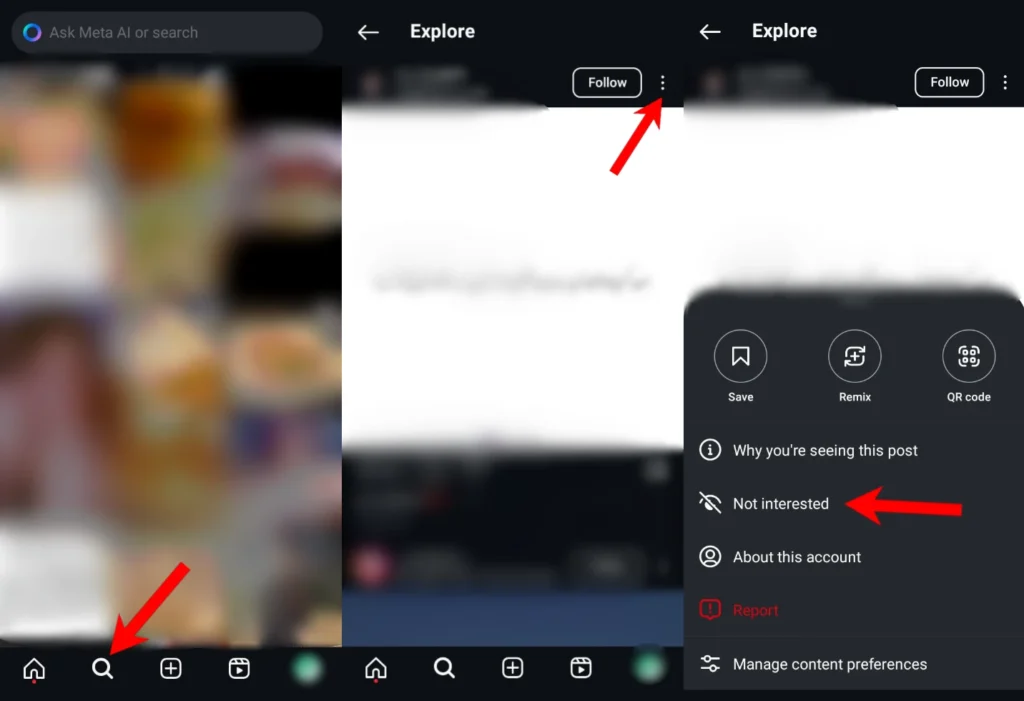
Instagram enables users to indicate their dislike of posts through the “Not Interested” selection option. Here’s how:
- Open the Instagram app.
- Go to the Explore page (magnifying glass icon).
- Find a post you do not want to see.
- Tap the three dots in the upper right corner of the post.
- Select “Not Interested” to remove similar content from your feed.
You can learn why an Explore page appears by selecting “Why you’re seeing this post.”
Refresh Your Explore Feed
Resetting Instagram’s recommendations quickly becomes possible by performing a refresh action on your Explore page.
- When you pull down on the screen, the content will show a spinning circle until the screen resets.
- New content will appear. Repeat as needed until you are satisfied with the feed.
Clear Your Instagram Search History
Exploration of content through Instagram depends on your search history, and clearing this database will reset the Explore section.
- Open the Instagram app.
- Go to your profile.
- Tap the three lines (☰) in the upper right corner.
- Select Your Activity.
- Tap Recent Searches > Clear All.
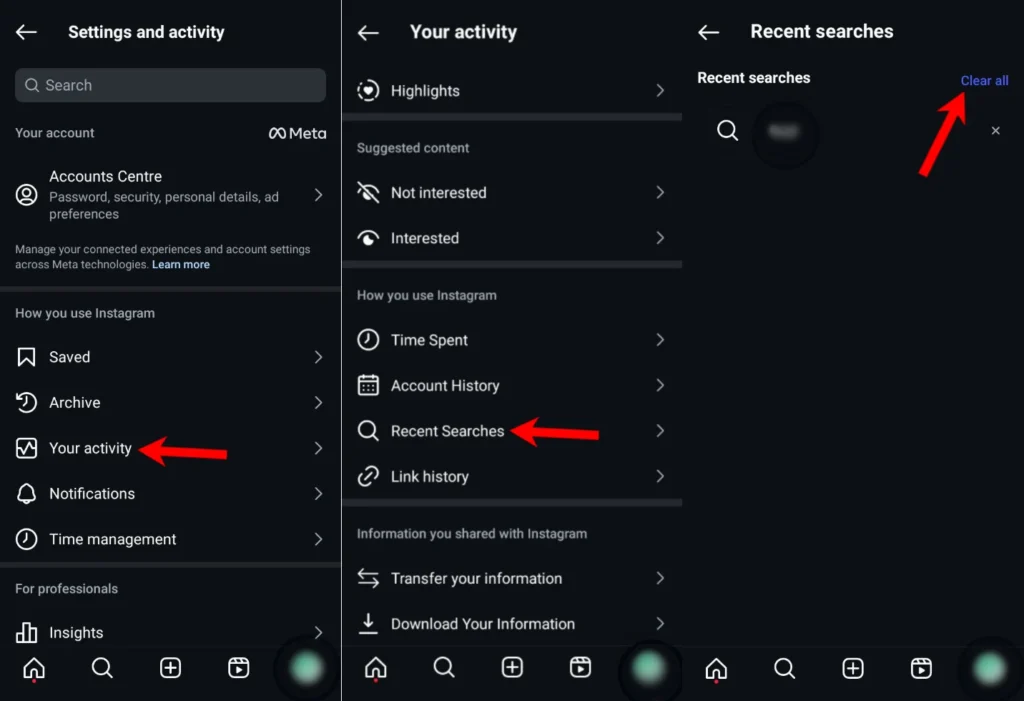
Your past search data will no longer receive recommendations from Instagram through this command.
Clear Instagram Cache
The platform stores interaction information in its data storage to enhance the speed of content delivery. When you clear your Instagram cache, the system removes saved data, which causes your feed to restart.
On Android
- Open Settings > Apps > Instagram.
- Tap Storage usage > Clear Cache.

On iPhone
- Go to Settings > General > iPhone Storage.
- Scroll down and tap Instagram.
- Tap Delete App, then reinstall it from the App Store.

How to Customize Your Explore Page
You must reset your Explore page before customizing it based on your preferred interests.
- The pages you interact with become key to shaping what Instagram shows you (interact via likes, comments, saving, and sharing).
- Click the “Not Interested” button when facing a post you want to disable from your feed.
- You can find new topics through the Explore search function on Instagram.
- The Instagram algorithm learns your preferences when you choose specific content.
Frequently Asked Questions
How do I reset my Instagram Explore page?
You can reset your Explore page by marking posts as Not Interested, clearing your Instagram search history, refreshing the Explore feed, and clearing the Instagram app cache.
Will clearing my search history reset Instagram recommendations?
Yes. Clearing your search history removes previous search signals, which helps Instagram refresh the recommendations shown on your Explore page.
Why is my Instagram Explore page showing unwanted content?
Instagram recommends content based on your likes, comments, searches, saves, follows, and watch history. Interacting with different content will gradually change your recommendations.
Does clearing the Instagram cache delete my photos or messages?
No. Clearing the cache only removes temporary app data. Your photos, messages, followers, and account information remain safe.
How long does it take for the Explore page to change?
Changes usually appear within a short time after you reset your recommendations and begin interacting with content that matches your interests.
Can I customize my Instagram Explore page?
Yes. Like, save, comment on, and follow accounts related to your interests while marking unwanted posts as Not Interested to improve future recommendations.


A little discussion goes a long way.
Ask a question, share your experience, or help someone find an answer.
cool
Your voice belongs here
Keep it useful. Keep it kind.