
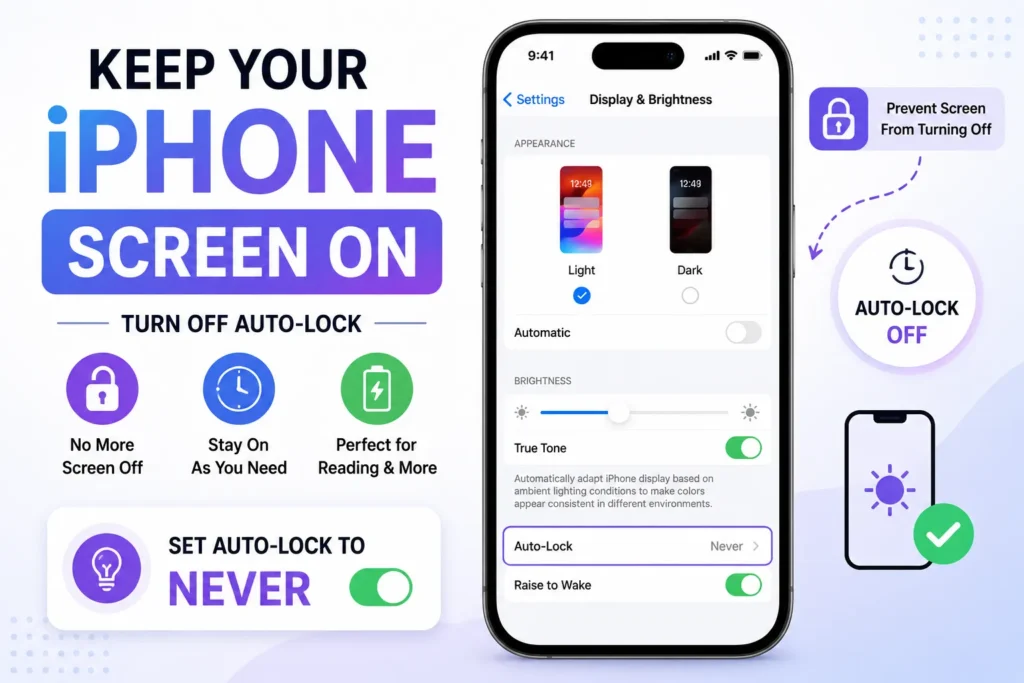
Do you often find your iPhone screen going blank or turning off while reading, checking a shopping list, playing memory games, and so on? You know the problem: It is all too common and caused by Auto Lock, but do not worry; it is easy to disable. Fortunately for you, we have come up with the perfect way to turn this off and maintain an active screen for as long as you require.
Auto lock is a feature that puts you in asleep mode when you stop using your iPhone. It dims halfway through the countdown before the screen shuts off, saving battery, but it can frustrate you when you want the screen up.
How to disable auto-lock on an iPhone
Follow these steps to turn off Auto-Lock:
- Open the Settings App.
- Go to Display & Brightness.
- Scroll down and tap on “Auto-Lock.”
- Disable Low Power Mode (if required).
- If Low Power Mode is enabled, Auto-Lock will be greyed out and set to “30 seconds.”
- If you want to disable Low Power Mode, go to Settings > Battery and toggle the mode off.
- Choose ‘Never’ to turn your iPhone screen on all the time.
Your iPhone’s screen will stay on until you manually lock it with the Side button.

How to fix a dimming screen even after turning off auto-lock
If your screen still dims, it may be the fault of Auto-Brightness. Here’s how to disable it:
- Open Settings app.
- Navigate to Accessibility.
- Tap Display & Text Size.
- Scroll down and turn off Auto-Brightness.

Why you should re-enable auto-lock later
While disabling Auto-Lock can be helpful, consider the following drawbacks:
- As you know, the most power-hungry component of your iPhone runs when the screen is left on constantly, that will drain your battery way faster.
- If Auto Lock is disabled, anyone can access your device if unattended.
Then, when you no longer need the screen to stay awake, re-enable Auto-Lock following those same steps and choosing a time limit – like 1 or 2 minutes.
Frequently Asked Questions
How do I stop my iPhone screen from turning off?
Open Settings, go to Display & Brightness, tap Auto Lock, and select Never. Your screen will remain on until you manually lock your iPhone.
Why is the Auto Lock option greyed out?
This usually happens when Low Power Mode is enabled. Turn it off from Settings → Battery, then you’ll be able to change the Auto Lock setting.
Why does my iPhone screen still dim after turning off Auto Lock?
If your screen continues to dim, Auto Brightness or other display settings may be responsible. You can disable Auto Brightness from Settings → Accessibility → Display & Text Size.
Does turning off Auto Lock drain the battery?
Yes. Keeping your screen on continuously uses more battery, so it’s best to enable Auto Lock again when you no longer need the display to stay awake.
Is it safe to leave Auto Lock disabled?
Disabling Auto Lock is convenient for reading or presentations, but it can reduce battery life and leave your iPhone unlocked if you forget to lock it manually.
Can I change the Auto Lock time instead of turning it off?
Yes. Instead of selecting Never, you can choose a shorter or longer time, such as 1, 2, or 5 minutes, depending on your preference.



A little discussion goes a long way.
Ask a question, share your experience, or help someone find an answer.
There is room for your perspective.
No discussions match this view yet.
Your voice belongs here
Keep it useful. Keep it kind.