
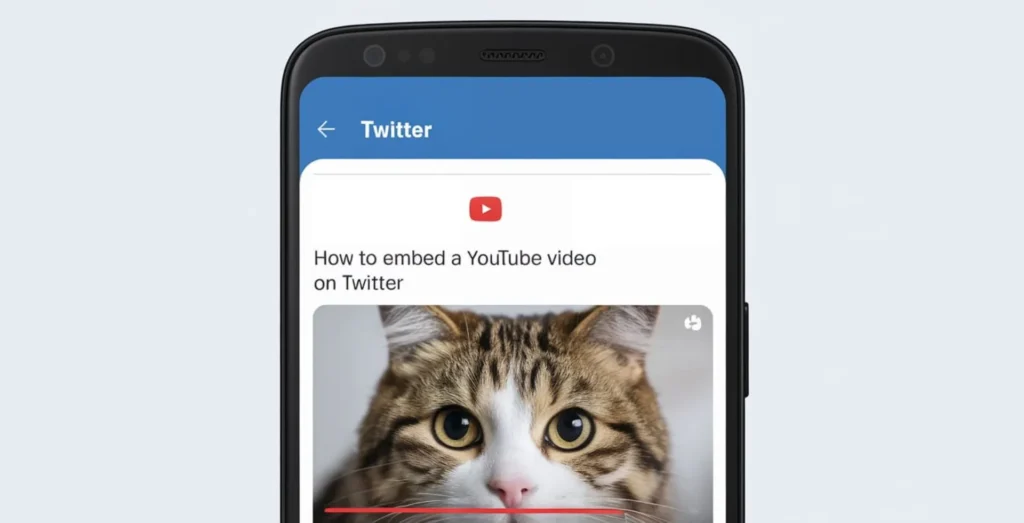
What if you experience an inspiring TED Talk or a mouth-watering seafood boil recipe video on YouTube? You want to tweet about this exciting discovery to your friends on Twitter (X) but are unsure how you will do that.
- How to Embed a YouTube Video on Twitter(X) Android
- Method 1: Share Video Directly via YouTube
- Method 2: Copy and Paste Video URL
- How to Embed a YouTube Video on Twitter (X) Desktop
- Method 1: Use the Share Button
- Method 2: Copy and Paste the Video URL
- How to Twitter (X) Share YouTube Videos (X) Without a Link
- Method 1: Take a Screenshot on Android
- Method 2: Click and Drag the Video on Desktop
How to Embed a YouTube Video on Twitter(X) Android
Creating a YouTube video and learning how and when to share it on Twitter (or Facebook or Instagram) is a requisite for today’s digital social media world. Below are two simple methods to share your favorite videos:
Method 1: Share Video Directly via YouTube
Here’s how to post a YouTube video on Twitter (X) directly:
- Go to the YouTube app.
- Play the video you want to share.
- Click on the Share button.
- Select the Tweet option.
- Edit your tweet and click on the post button.
Method 2: Copy and Paste Video URL
If the Tweet option does not redirect you to the Twitter (X) app, you can manually copy and paste the video link:
- Open the YouTube app.
- Play the video you want.
- Click on the Share button.
- Select the Copy link.
- Open the Twitter (X) app.
- Click on the + icon to the bottom right and choose Tweet.
- Tap into the text field and paste the link.
- Click on the Tweet option.
How to Embed a YouTube Video on Twitter (X) Desktop
Embedding YouTube videos on Twitter (X) is just as easy if you prefer a desktop browser. Here’s how:
Method 1: Use the Share Button
- Go to YouTube in your browser.
- Play the video you want.
- Click on the Share button.
- Then, click the Twitter (X) button.
- If prompted, click on Log into your Twitter (X) account.
- Click Edit your tweet.
- Click on the Post button.
Method 2: Copy and Paste the Video URL
If the direct sharing method does not work, try this:
- Copy the video link from the YouTube address bar.
- Open Twitter (X) in a separate tab.
- Paste the link into the What’s happening?! text box.
- Click Tweet to share the video.
How to Twitter (X) Share YouTube Videos (X) Without a Link
If you prefer not to include a clickable link in your tweet, here are some alternative methods:
Method 1: Take a Screenshot on Android
- Play the YouTube video.
- Take a screenshot of the frame.
- Open the Twitter (X) app and start a new tweet.
- Tap the image icon and select your image.
- Add your caption and tap Tweet.
Method 2: Click and Drag the Video on Desktop
- Open YouTube and Twitter on your browser.
- Drag the YouTube video thumbnail into the Twitter text box.
- Add your caption and click Tweet.
Now, you can share your favorite YouTube videos on Twitter (X). If you share a funny meme or insightful review, following these steps will help you get the most out of your content.




A little discussion goes a long way.
Ask a question, share your experience, or help someone find an answer.
There is room for your perspective.
No discussions match this view yet.
Your voice belongs here
Keep it useful. Keep it kind.