
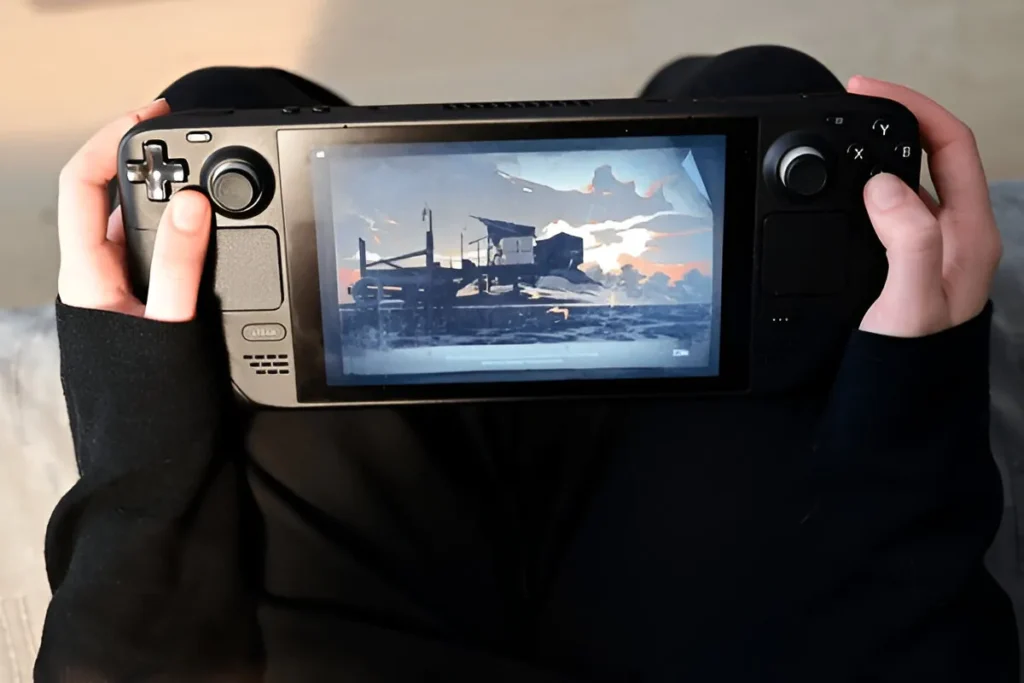
At the top of every Steam Deck, there is one power button, a simple control that does more than you might think. A single press can put the device to sleep or can wake it up; however, holding it will fully turn the console on or off. However, what would you do if you want to restart the Steam Deck without physically pressing that button?
Luckily, it can be done easily. The quickest way is to press the Steam button, go to Power and press Restart. Or, when you are on the home screen of your Steam Deck (where your recently played games are listed), simply press the B button to open the system menu and select your preferred power option.
Alternative Ways to Access the Power Menu
Valve created the Steam Deck with accessibility and convenience in mind. Similarly to the multiple ways to optimize battery life, several shortcuts can be used to get to access the power settings. For example, if you are browsing the Steam interface or using the touchscreen, tap Steam Menu at the bottom of the screen, go to Power, then tap the Restart.
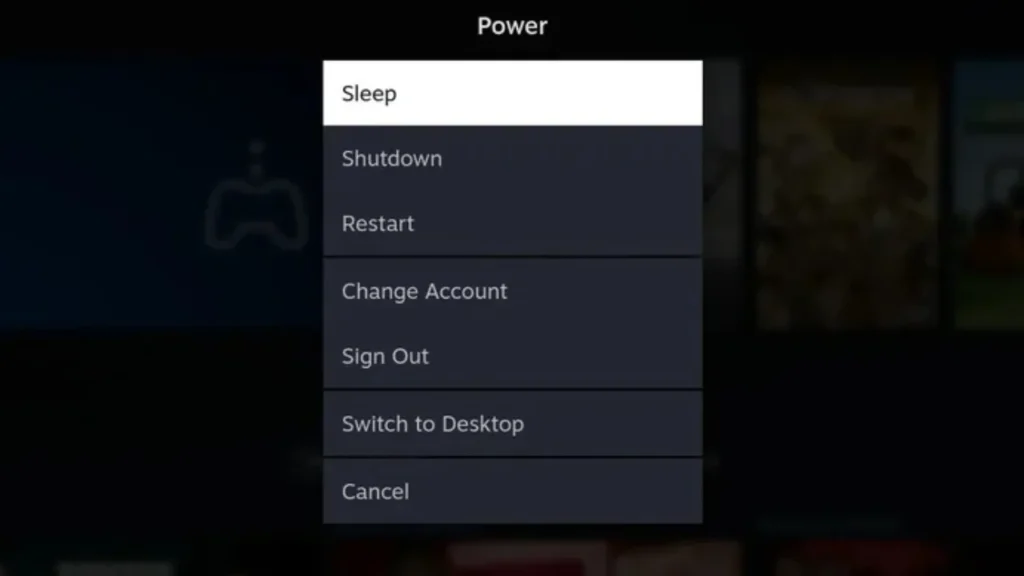
When you are using an external controller (when your Deck is docked or in wired mode, etc.) you can access the same menu on your gamepad. On a PlayStation controller, press PS button, but on an Xbox controller, use the Xbox media button. Most third-party controllers also feature a similar central button that performs the same function.
When You Must Use the Power Button
These software shortcuts will allow you to manage your power settings easily, even when you are playing non-Steam games using Heroic Launcher. However, if your Steam Deck is completely unresponsive, such as, when a game freezes or the system hangs, tap the physical power button to restart it.
To do this, press the button four seconds on the LCD version or 7 seconds on OLED version. This hard reset can save you from being stuck when software freezes or settings tweaks go wrong.
Sometimes, crashes and freezes can happen, especially when testing with new settings or third-party tools. Now you know some ways to restart or power off your Steam Deck, whether through the system menu, a connected controller, or power button itself.





A little discussion goes a long way.
Ask a question, share your experience, or help someone find an answer.
There is room for your perspective.
No discussions match this view yet.
Your voice belongs here
Keep it useful. Keep it kind.