
YouTube serves as a primary destination, enabling users to enjoy entertainment while acquiring knowledge. Is it possible to watch two different videos simultaneously at any moment?
Android devices provide multiple methods to enable dual video viewing, either for comparing two things while conducting simultaneous activities or simply for enjoyment. Here’s how:
Using Split-Screen Mode
Android’s built-in split-screen functionality enables dual app views on adjacent screens. However, the YouTube app does not have multimedia functions, so users need a browser to play the second video simultaneously.
Steps to Use Split-Screen Mode:
- Open the YouTube app and play the first video.
- Tap the Recent Apps button to view running apps.
- Press and hold the YouTube app icon, then select Split Screen.
- Open a web browser (Chrome, Firefox, etc.) on the other half of the screen.
- Go to YouTube.com and play the second video.
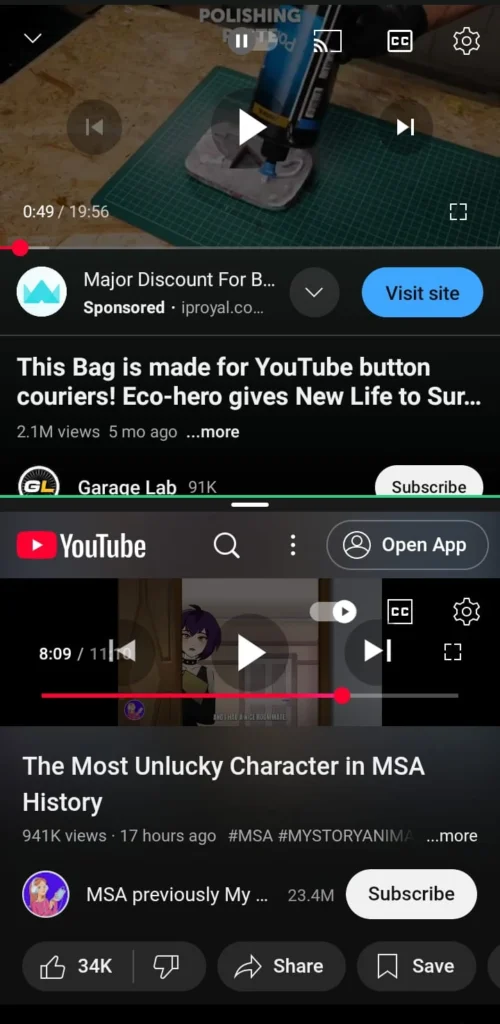
YouTube’s usability in this method depends on screen size.
Using Third-Party Websites
Users can watch synchronized YouTube videos through websites which have been specifically designed for this function whenever split-screen mode creates difficulties.
Popular Online Tools
- ViewSync – Syncs multiple YouTube videos.
- YouTube Multiplier – Plays up to eight videos simultaneously.
How to use these websites
- Copy the YouTube video URL.
- Open ViewSync or YouTube Multiplier in your browser.
- Paste the URLs into the textbox.
- Adjust the layout and settings.
- Start playing the videos together.
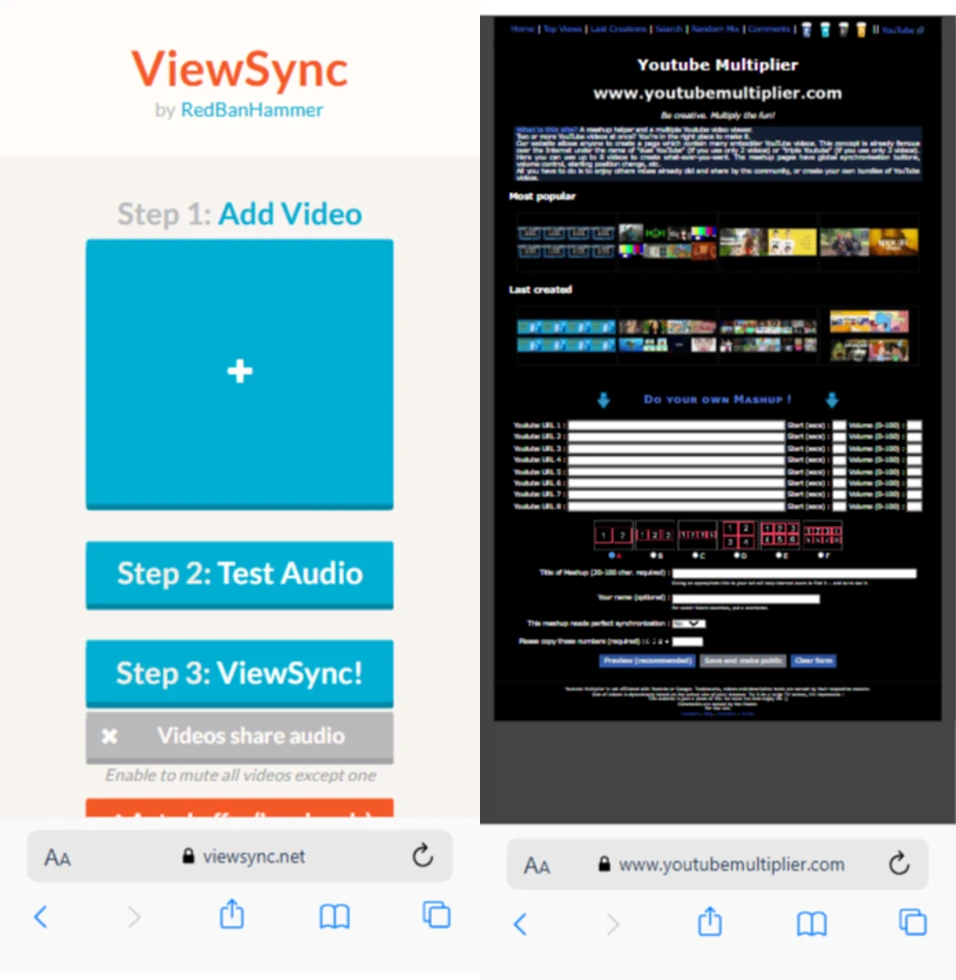
The tools function within browser environments without needing installation or download steps.
Using Third-Party Apps
The video synchronization feature of certain Android apps enables users to play videos at once.
Recommended Apps
- Rave – Syncs videos with chat features.
- Airtime – Lets you watch YouTube while video chatting.
How to use these apps
- Download and install the app from the Google Play Store or App Store.
- Create a Room or Session inside the app.
- Search for YouTube videos or paste their URLs.
- Start playing videos together.
Good for watching with friends in real time.
Using Picture-in-Picture (PiP) Mode
YouTube’s Picture-in-Picture (PiP) mode reduces video dimensions into a portable window, allowing users to combine applications.
How to enable PiP mode
- Open Settings on your Android device.
- Go to Apps Management.
- Select YouTube and enable Allow Picture-in-Picture (PIP).
- Play a YouTube video and swipe up to minimize it.
- Open a browser or another app and play a second video.
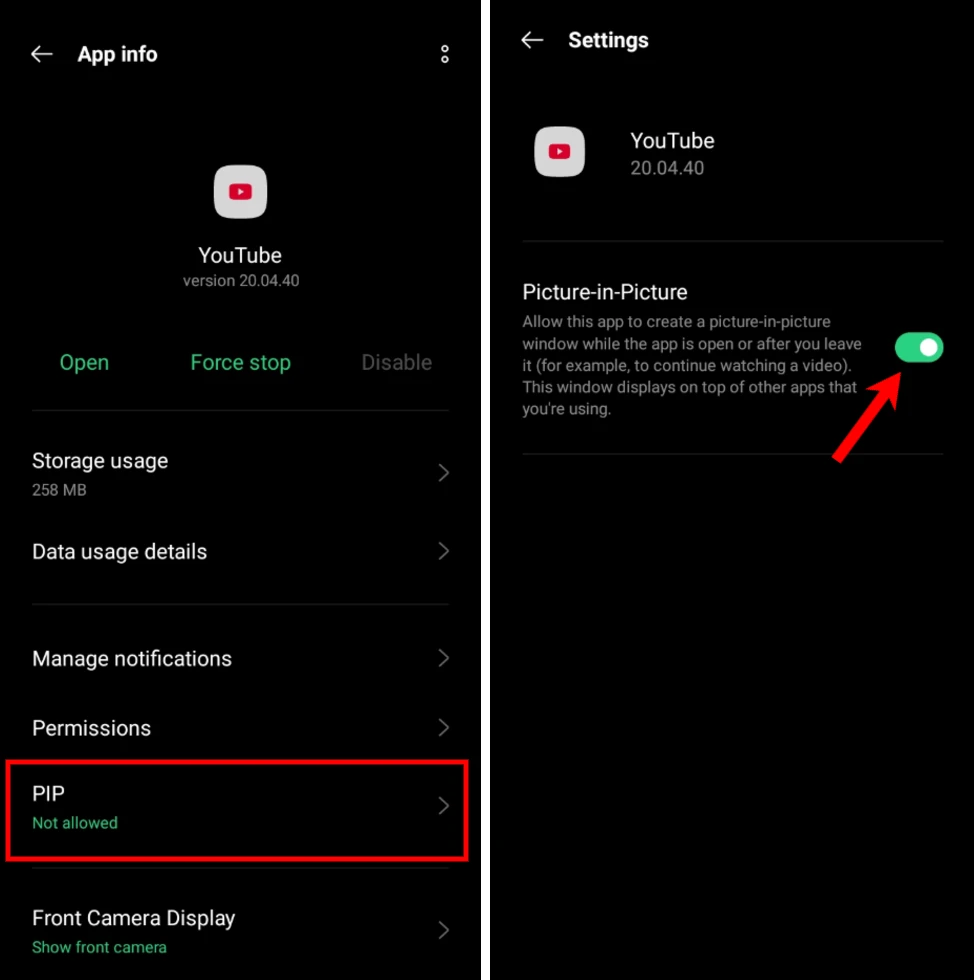
Note: Picture in Picture (PiP) support varies by device, region, and content type. Some users may need YouTube Premium to use this feature.
Frequently Asked Questions
Can I watch two YouTube videos at the same time on Android?
Yes. You can use Android’s Split Screen feature, Picture in Picture (PiP), or compatible third party apps and websites to play two YouTube videos simultaneously.
Does YouTube support dual video playback?
The YouTube app doesn’t have a built in feature for playing two videos at once. You’ll need to use Split Screen, PiP, or another supported method.
Do I need YouTube Premium to use Picture in Picture?
Picture in Picture availability depends on your country, device, and account type. Some users need YouTube Premium, while others may have access without it.
Can I watch two YouTube videos without installing an app?
Yes. You can use Android Split Screen with the YouTube app and a web browser, or use browser based tools that support multiple YouTube videos.
Which is the easiest way to watch two YouTube videos?
For most Android users, Split Screen is the simplest method because it’s built into the operating system and doesn’t require additional software.
Can I watch two YouTube videos on an iPhone?
iPhones have more limitations than Android. While Picture in Picture is supported on compatible devices, playing two YouTube videos simultaneously is generally more restricted.

A little discussion goes a long way.
Ask a question, share your experience, or help someone find an answer.
There is room for your perspective.
No discussions match this view yet.
Your voice belongs here
Keep it useful. Keep it kind.