
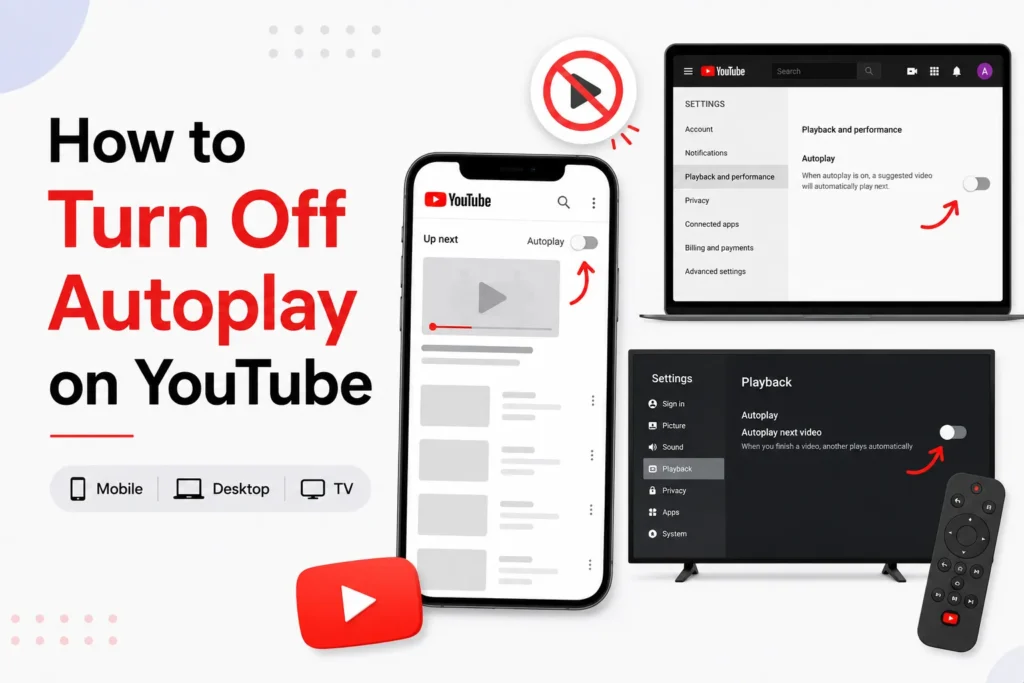
If you are wondering how to disable autoplay on YouTube, you are not alone. Autoplay is the feature that automatically plays the next recommended video after the current one ends. While YouTube does not disable it by default to encourage continuous watching, many users prefer to disable it to save data, reduce distractions, or avoid infinite video loops.
Here’s how to stop autoplay on YouTube on mobile, desktop, and smart TVs.
What is Autoplay on YouTube?
YouTube Autoplay automatically loads and starts playing the next suggested video after you have watched one video. It is designed to keep viewers engaged, and this may lead to wasted time and unnecessary data consumption, especially on mobile networks.
How to stop Autoplay on YouTube
Turn off Autoplay on YouTube app (iPhone and Android)
It is the most common way and works on both iOS and Android devices.
- Open the YouTube app on your phone.
- Play any video.
- Tap once on the video to bring up the playback controls.
- Look at the top right corner of the video player.
- Tap the Autoplay toggle to switch it off.
If you do not see the autoplay toggle on the video screen, you can turn it off from settings.
- Tap your profile picture in the top right.
- Go to Settings.
- Open Playback.
- Turn off Autoplay next video.
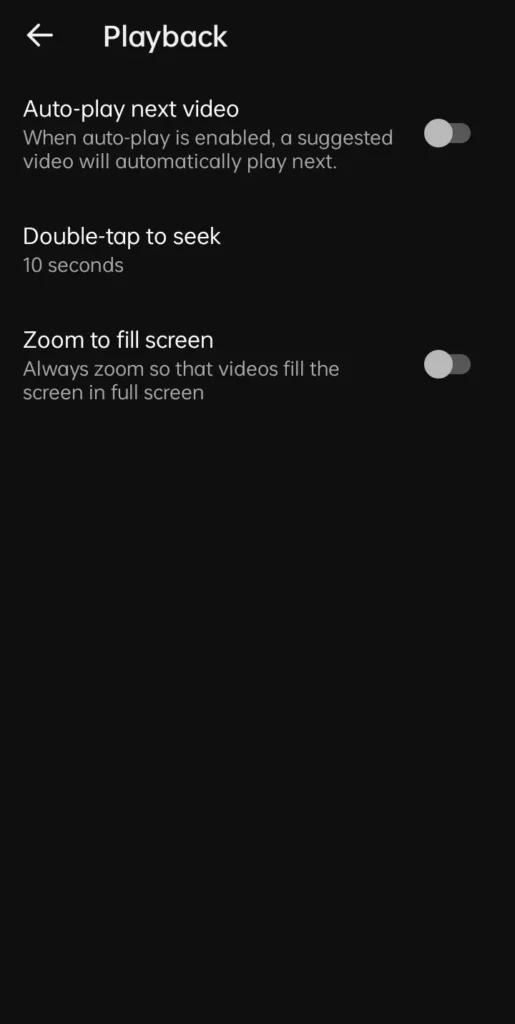
Your preference is usually saved for that device or account, although autoplay settings may differ between mobile, desktop, and TV apps.
Turn off Autoplay on YouTube desktop (Web browser)
You can also disable autoplay from the YouTube website.
- Open youtube.com in your browser.
- Play any video.
- Look at the top right area of the video player.
- Toggle the Autoplay switch off.
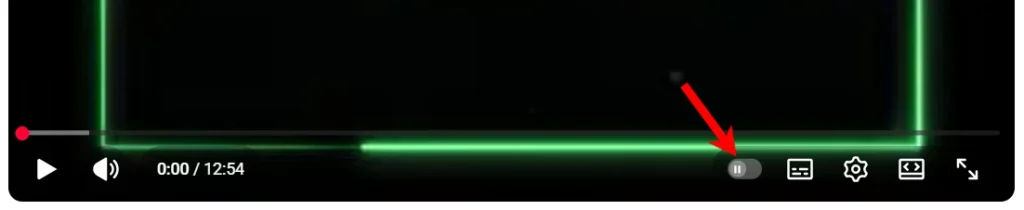
The autoplay button might not appear in some browsers. Then, it is the best way to disable autoplay with the help of the mobile app, as the setting can still apply to your account.
Turn off Autoplay on YouTube on smart TVs
If you watch YouTube on a TV, you can turn it off from the app.
- Open the YouTube app on your smart TV.
- Go to Settings from the left sidebar.
- Scroll to Autoplay next video.
- Turn the option off.
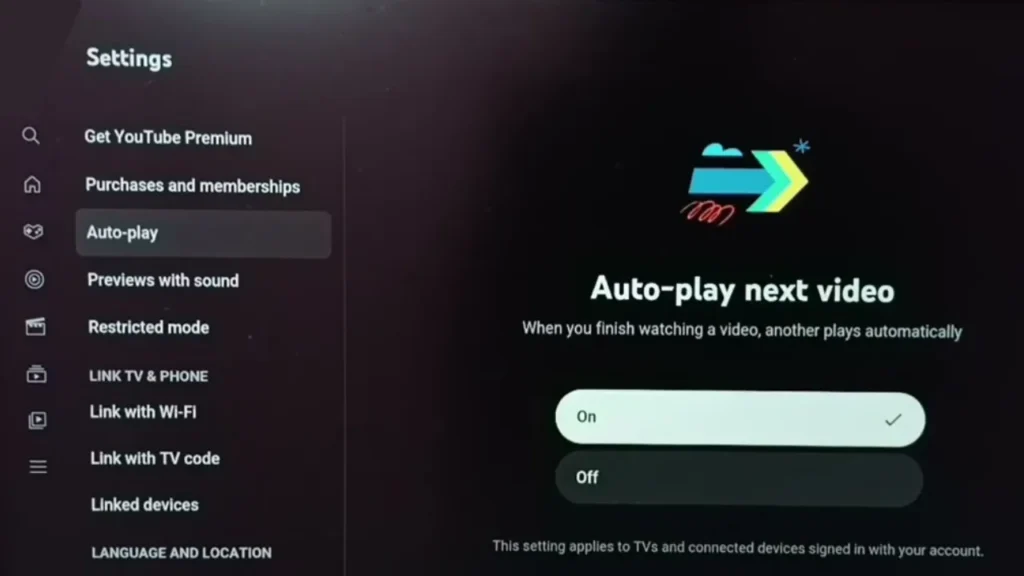
This method works for most platforms, including Samsung TV, LG TV, Roku, Fire TV, Android TV, Google TV, and Apple TV.
How to turn Autoplay back on
If you want YouTube to play videos automatically again, you can easily re-enable it.
- Play any video and turn the Autoplay toggle back on.
or - Go to Settings, then click on Playback, and enable Autoplay next video.
Frequently Asked Questions
How do I permanently turn off Autoplay on YouTube?
Turn off the Autoplay toggle while signed in to your YouTube account. Your preference is usually saved for that device or account, although some platforms may store the setting separately.
Why does YouTube Autoplay keep turning back on?
This can happen if you are using a different Google account, browsing while signed out, clearing your app or browser data, or using a device that stores Autoplay settings independently.
How do I stop YouTube from playing the next video on my phone?
Open any video in the YouTube app and turn off the Autoplay toggle. You can also go to Settings > Playback and disable Autoplay next video.
Does turning off Autoplay save mobile data?
Yes. Disabling Autoplay prevents YouTube from automatically streaming the next video, which can help reduce mobile data usage.
Can I turn Autoplay back on later?
Yes. You can re enable Autoplay at any time by turning the Autoplay toggle back on or enabling Autoplay next video in the Playback settings.
Does disabling Autoplay affect my YouTube recommendations?
No. Turning off Autoplay only stops the next video from playing automatically. It does not change your recommendations, subscriptions, or watch history.







A little discussion goes a long way.
Ask a question, share your experience, or help someone find an answer.
There is room for your perspective.
No discussions match this view yet.
Your voice belongs here
Keep it useful. Keep it kind.