
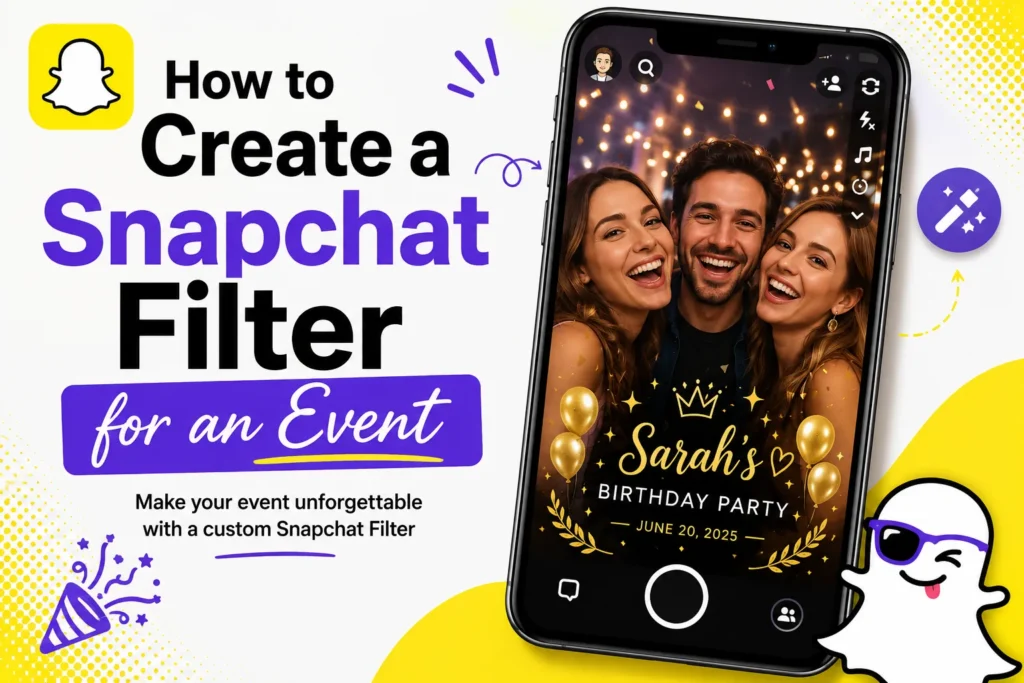
Snapchat filters are a simple way to make events more memorable. I have watched them being used at weddings, birthday celebrations, store openings, concerts, and even small family meetings. When done properly, an event filter is more than just a design for photos. It helps people promote your event to others, both online and offline.
The best thing is that you do not need advanced design knowledge or a huge budget. Snapchat offers a simple solution that allows every user to create and publish a personal filter in a few minutes.
- When should you use a Snapchat filter?
- What you need before starting
- Create a Snapchat Lens with Lens Studio
- Step 1: Download and install Snapchat Lens Studio
- Step 2: Choose a lens template
- Step 3: Customize your event filter
- Step 4: Test the filter in real time
- Step 5: Publish your Snapchat filter
- Step 6: Set event location and time
- Step 7: Submit for review
- How much does a Lens Studio event filter cost?
- How to Test Your Snapchat Filter
- Frequently Asked Questions
When should you use a Snapchat filter?
Snapchat filters are useful for several events. Common example includes
- weddings and engagements
- birthday parties
- school events
- brand launches
- sports events
- community gatherings
When your guests are active on Snapchat, a custom filter will allow you to share the moments with them instantly.
What you need before starting
Before creating a Snapchat Filter or Lens, you will need a Snapchat account, your event details, and any images or branding you want to include.
You need a Snapchat account, a Windows or Mac computer, an event theme or idea, and basic design assets like text or logos.
Lens Studio provides templates, so you do not need any coding knowledge.
Create a Snapchat Lens with Lens Studio
This method is best if you want advanced effects like animations or face tracking. Lens Studio is a free tool by Snapchat for Windows and Mac.
Step 1: Download and install Snapchat Lens Studio
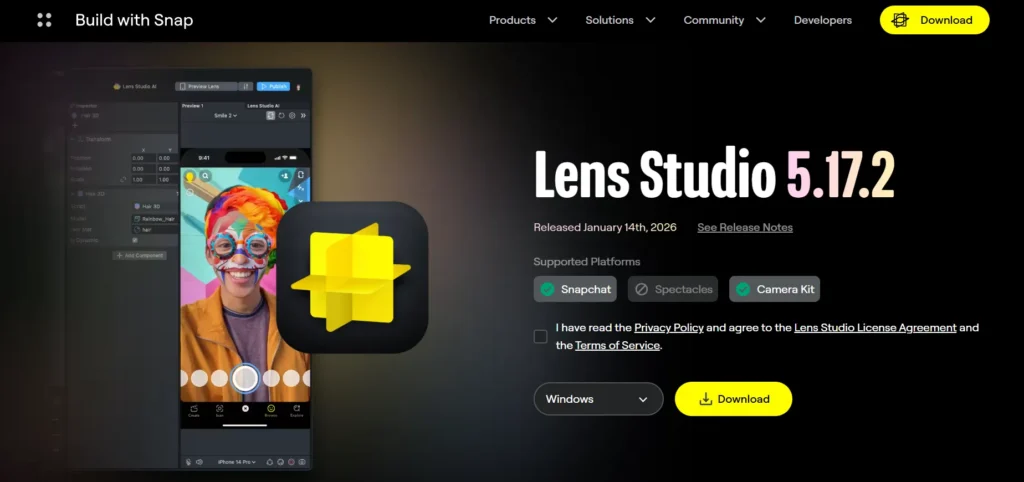
Visit Snapchat’s official Lens Studio website and download the software.
Open the app and log in with your Snapchat account.
Step 2: Choose a lens template
Once Lens Studio opens, you will see multiple templates. For events, the most useful templates are
- Face Mask
- Face Decoration
- World Object
I personally recommend starting with a Face Decoration template. It can be easily customized and can be used for parties and gatherings.
Step 3: Customize your event filter
Now comes the creative part.
You can add event text, change colors and fonts, add logos or icons, and adjust position and size.
Make sure text remains near edges and does not overlap faces. Simple designs worked much better than crowded designs during my testing.
Step 4: Test the filter in real time
Lens Studio lets you test your filter instantly using your webcam or phone.
Use this step seriously. Check face tracking accuracy, text visibility, and overall look.
I adjusted my filter multiple times before it looked perfect.
Step 5: Publish your Snapchat filter
Once satisfied, click the Publish button. You will provide the name of your filter, select a category, and set visibility.
Follow the publishing options shown in Lens Studio and choose the visibility that best matches your use case.
Step 6: Set event location and time
Snapchat asks for the event venue and duration during submission.
Draw the event area on the map. Smaller areas cost less and work better.
Choose start and end times according to your event schedule.
Step 7: Submit for review
After submission, Snapchat reviews your filter.
Approval usually takes a few hours, but sometimes up to 24 hours. After approval, your filter becomes live automatically during the scheduled time.
How much does a Lens Studio event filter cost?
Lens Studio itself is free.
However, event-based distribution may require payment according to territory and time span. Prices are different, but small events are affordable.
How to Test Your Snapchat Filter
After approval, visit the event location during the scheduled time.
- Open Snapchat
- take a photo
- Open Snapchat and look for your approved Lens or Filter in the camera experience during the scheduled time.
Your filter should appear. If it does not, then check your app’s location permissions and internet connection.







A little discussion goes a long way.
Ask a question, share your experience, or help someone find an answer.
There is room for your perspective.
No discussions match this view yet.
Your voice belongs here
Keep it useful. Keep it kind.