
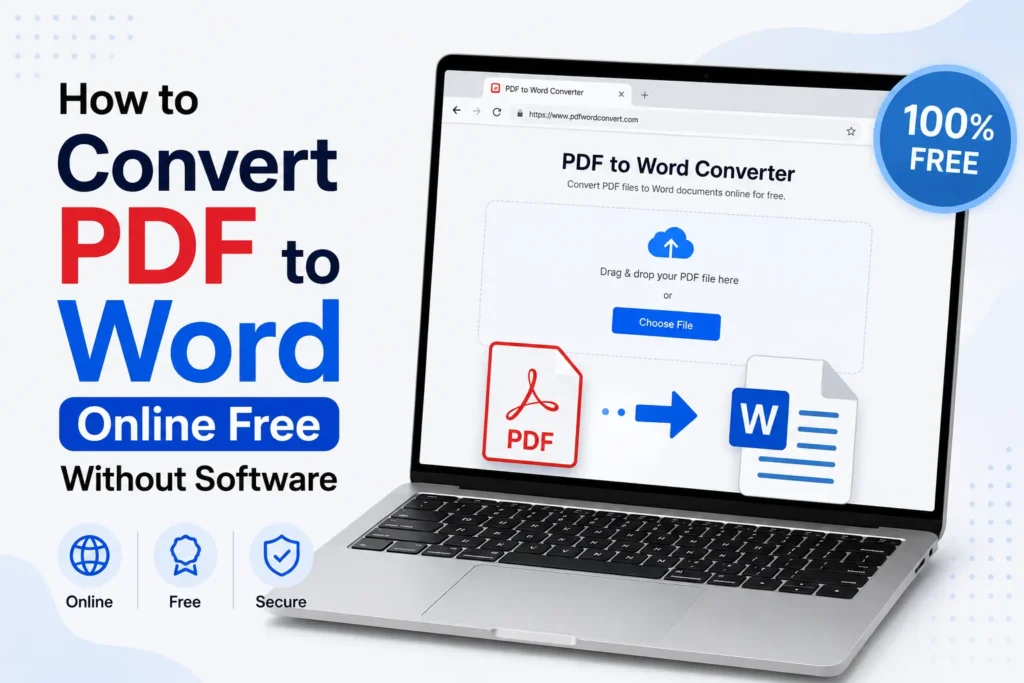
The PDF files are very easy to view, but can be difficult to edit. The easiest method to change your PDF is to convert it into a Word (DOCX) document, and the best part is that you do not need to install any software. It has several reliable online converters that allow you to upload your PDF and download it as an editable Word file within seconds.
Here are some simple and safe methods you can use on Windows, Mac, Android, or iPhone.
1. Using Google Docs (Free & Safe)
Google Docs is one of the safest ways to convert a PDF to Word without needing to install any software. Here’s how you can do it.
- Go to Google Drive in your browser.
- Click New > File Upload.
- Upload your PDF file.
- Right-click the uploaded file and choose Open with > Google Docs.
- Once it opens, click File > Download > Microsoft Word (.docx).
Your PDF will be instantly converted to a Word document.
Why use it
- No ads
- Completely free
- Safe and secure
- Works on all devices
2. Using Online PDF to Word Converters (Fast & Simple)
Several free websites offer PDF-to-Word conversion without software. Some websites are Smallpdf, ILovePDF, PDF2DOC, and Adobe Online PDF Converter.
- Open one of the websites.
- Click Select PDF or Upload file.
- Choose your PDF from the device.
- The website converts it automatically.
- Click Download Word.
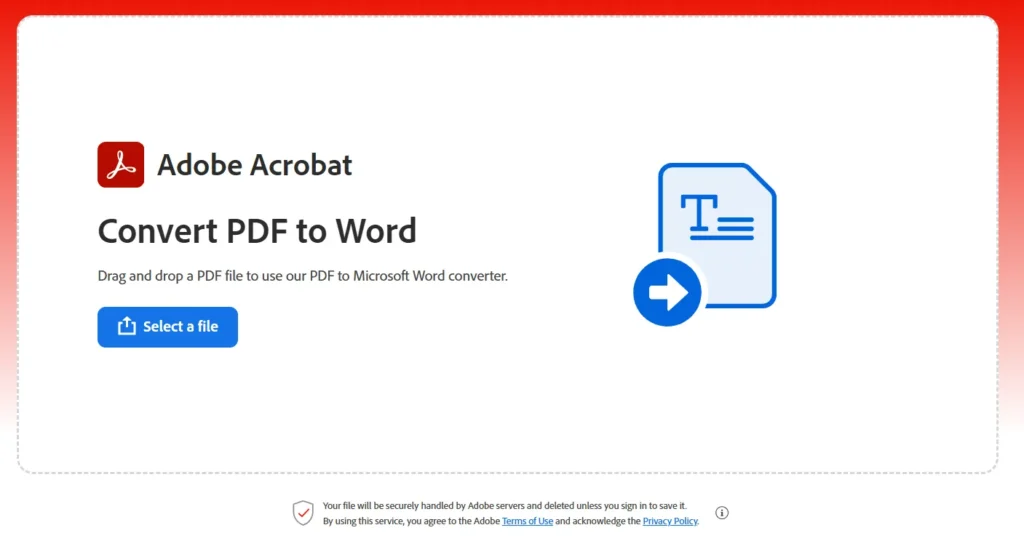
These tools are best for normal documents.
Note: Avoid uploading sensitive or private PDFs to online converters.
3. Using Microsoft Word Online (Free Browser Tool)
If you have a Microsoft account, you can convert PDFs using Word Online
- Visit Office.com and sign in.
- Open Word Online.
- Click Upload and Open.
- Select your PDF.
- Word will convert it automatically.
- Save the file as .docx.
Why is it good
- High accuracy
- Best for documents with formatting
- Free to use
4. Using Your Mobile Browser (Android/iPhone)
You can also convert PDFs directly on your mobile phone using any browser.
- Open Chrome or Safari.
- Go to smallpdf.com/pdf-to-word.
- Upload your PDF from phone storage.
- Download the converted Word file.
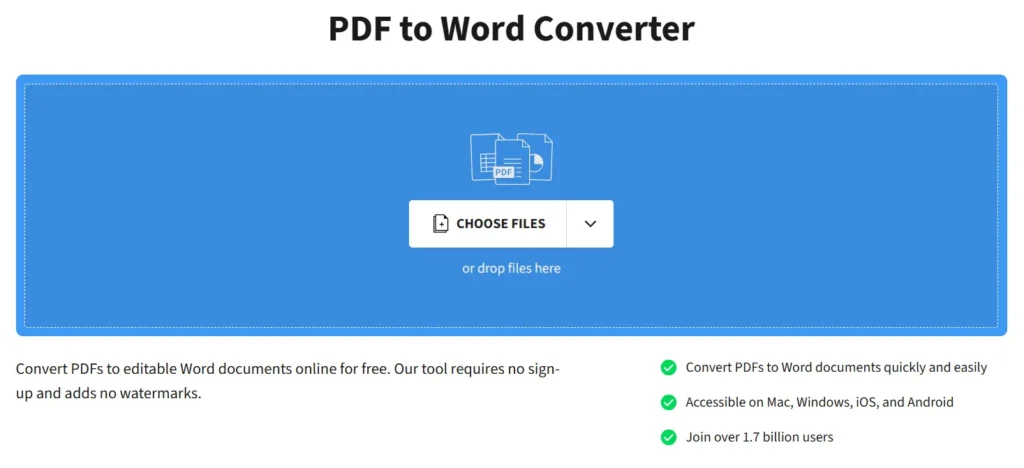
Converting a PDF to a Word document online is fast, easy, and free. Whether you choose Google Docs, Microsoft Word Online, or any trusted converter website we mentioned in this article, you can turn your PDFs into editable Word files within a few seconds without installing any software.
Frequently Asked Questions
Can I convert a PDF to Word for free?
Yes. Several free tools, including Google Docs and Microsoft Word Online, let you convert PDFs into editable Word documents. Many online converters also offer free conversions for standard files, although some may have size or daily usage limits.
Will converting a PDF to Word keep the original formatting?
It depends on the document. Simple PDFs usually retain most of their formatting, while files with complex layouts, tables, images, or custom fonts may require some manual adjustments after conversion.
Is it safe to use online PDF to Word converters?
Trusted conversion services are generally safe for everyday documents, but you should avoid uploading files that contain sensitive personal, financial, or business information unless you fully trust the provider and understand its privacy policy.
Can I convert a scanned PDF into an editable Word file?
Yes, if the converter supports Optical Character Recognition (OCR). OCR detects text inside scanned documents and turns it into editable content. Without OCR, scanned pages are usually treated as images.
Can I convert PDFs to Word on my phone?
Yes. You can use Google Docs, Microsoft Word Online, or trusted PDF conversion websites in your mobile browser to convert PDFs on Android or iPhone without installing desktop software.
Which method gives the best PDF to Word conversion quality?
For most documents, Google Docs and Microsoft Word Online provide reliable results. If your PDF contains complex formatting, you may achieve better accuracy with Adobe’s online converter or another trusted PDF editing service.







A little discussion goes a long way.
Ask a question, share your experience, or help someone find an answer.
There is room for your perspective.
No discussions match this view yet.
Your voice belongs here
Keep it useful. Keep it kind.