
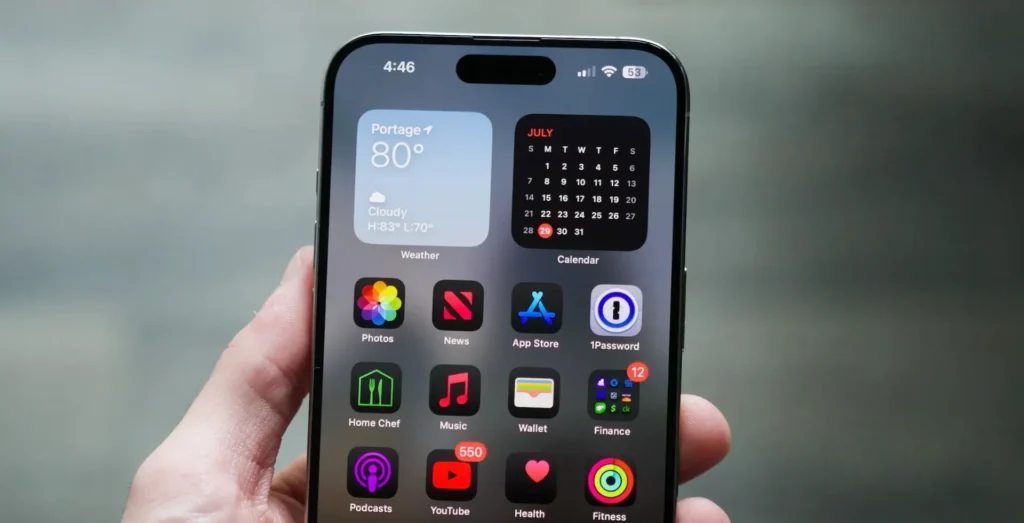
Apple restored Siri through Apple Intelligence with a redesigned interface, enhanced intelligence capabilities, and flexible customization. Siri’s renaming capability represents one of the main improvements iOS 18 introduces to users.
Through iOS 18, you can change Siri’s name into any alternative term, ranging from “Jarvis” to “Computer” or whatever personal moniker suits you best.
The process of renaming Siri on iPhone devices can be learned through instruction of iOS 18’s new Vocal Shortcuts feature.
How to Rename Siri on iPhone in iOS 18
Users cannot find an explicit option to rename Siri within Apple device settings. Users can activate Vocal Shortcuts from iOS 18 to achieve the renaming of Siri functionality. The system enables users to create their own activation phrases for Siri alongside other system tasks.
- Ensure your iPhone is updated to iOS 18.
- Open the Settings app.
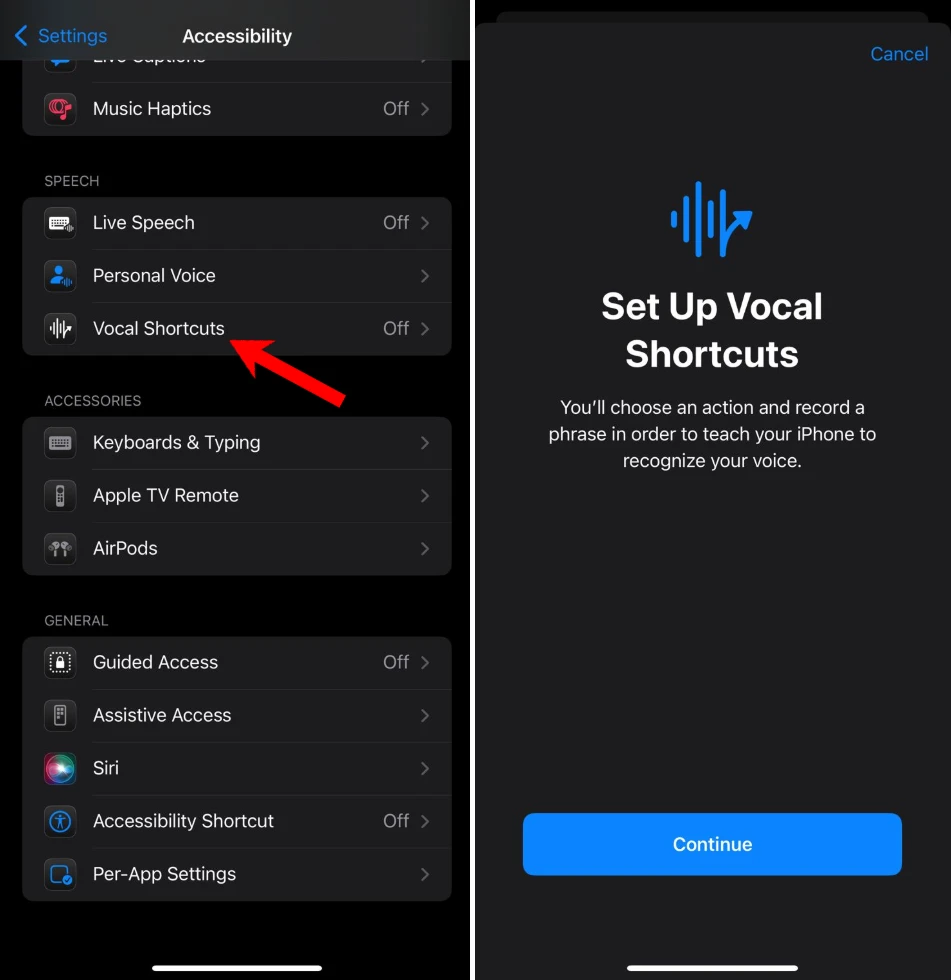
- Go to Accessibility.
- Scroll down and tap on Vocal Shortcuts.
- Tap Continue.

- Scroll down and select Siri. (Do not select “Siri Request”.)
- Enter your preferred wake phrase, such as “My Computer” or “My phone”.
- Say the custom phrase three times to train your iPhone to remember it.
- Once setup is complete, tap Continue to complete the changes.

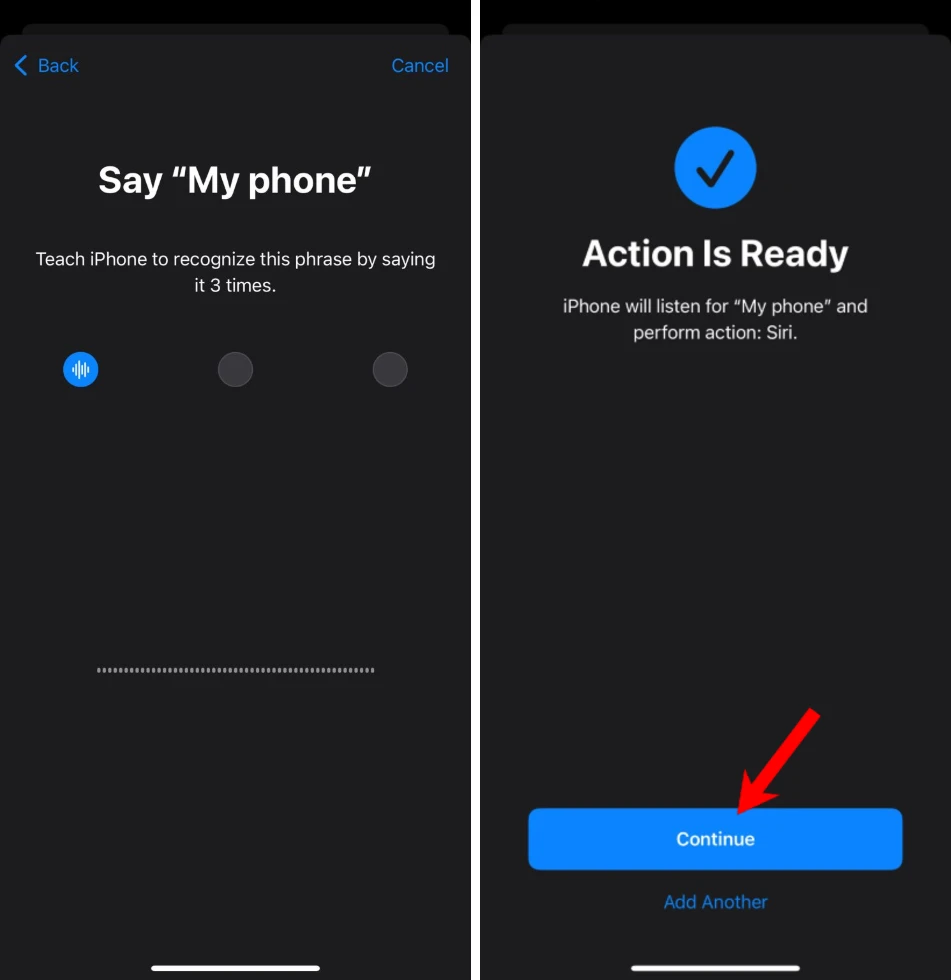
Your iPhone now allows the activation of Siri through your personalized wake command.
Limitations of Renaming Siri in iOS 18
The capability to rename Siri brings pleasure and utility but includes some minor limitations.
- When you activate your custom wake word, you must wait briefly before giving a command, unlike the “Siri” wake command, which allows instant responses.
- The updated Siri name works on iPhone devices without synchronization between Apple platforms. Siri name recognition via HomePods, Macs, and iPads requires users to maintain their original Siri identification.
Other Uses for Vocal Shortcuts
Beyond renaming Siri, vocal shortcuts enable you to perform the following tasks:
- Run shortcuts for specific tasks.
- With your voice commands, you can activate system features, including taking screenshots, volume adjustments, and opening the Control Center.
Users requiring alternative methods to operate their iPhones should find this feature beneficial.







A little discussion goes a long way.
Ask a question, share your experience, or help someone find an answer.
There is room for your perspective.
No discussions match this view yet.
Your voice belongs here
Keep it useful. Keep it kind.