
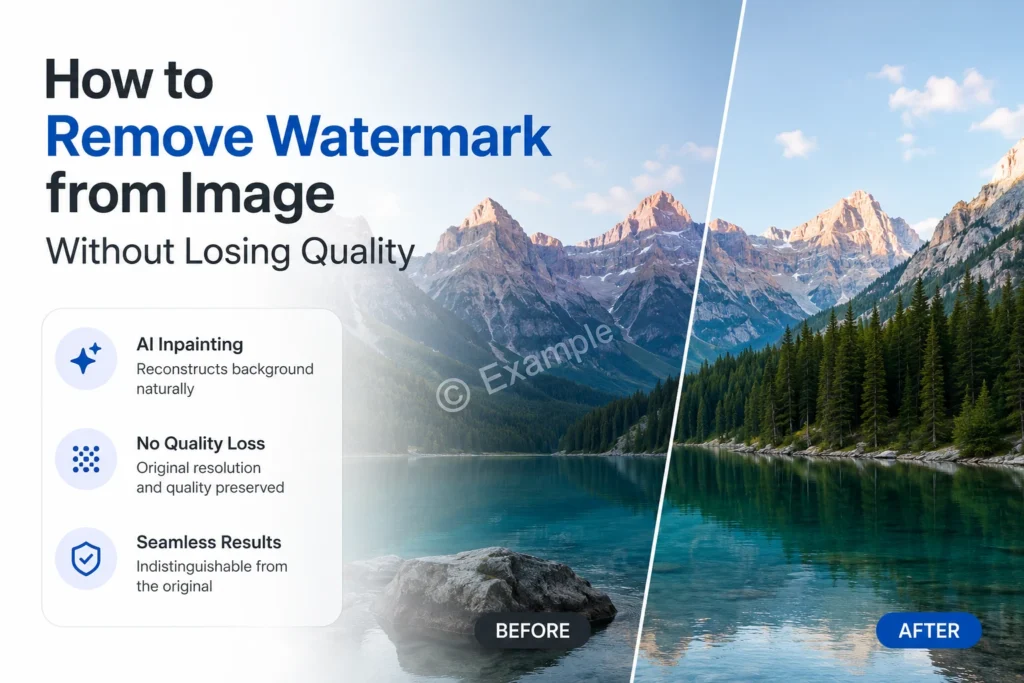
One of the most common concerns about removing watermarks online is whether the process will damage the image. It’s a fair question, older tools and bad implementations did exactly that, leaving blurry patches, color distortions, or compressed output that looked worse than the original watermark. Phototune.ai remove watermark uses AI inpainting to reconstruct the background naturally, and downloads the result at the same resolution and quality as the original. Here’s exactly why that matters and how it works.
Why Some Watermark Removal Tools Damage Image Quality
Not all watermark removal tools are created equal. The approaches that damage image quality fall into a few predictable categories:
| Approach | How It Works | Quality Impact |
| Blur / smudge | Covers watermark with a blurred area | Obvious, blurry patch is worse than the watermark |
| Solid fill | Paints over watermark with a solid color | Obvious, color block is immediately visible |
| Basic clone stamp | Copies pixels from nearby area | Patchy on complex backgrounds, visible seam |
| Output compression | Saves the result at lower quality than the original | Entire image loses sharpness and detail |
| Downscaling | Reduces image dimensions to hide artifacts | Image becomes smaller than the original |
| AI inpainting (proper) | Reconstructs background from full image context | Seamless, indistinguishable from original |
How AI Inpainting Preserves Quality
AI inpainting works differently from all the approaches above. Rather than covering, copying, or compressing, it reconstructs.
The model analyzes the entire image: the textures surrounding the watermark, the color gradients, the lighting, the structural patterns. Based on this analysis, it generates new pixels that represent what the background should look like in the area covered by the watermark. The reconstruction is based on what the model has learned from millions of images about how real backgrounds behave, it doesn’t guess randomly, it applies learned patterns.
The result: the removed area blends seamlessly into the rest of the image. There are no blurry patches, no color blocks, no visible seams. And because the process only affects the watermarked area, everything else in the image remains completely untouched.
What ‘No Quality Loss’ Actually Means
When a watermark removal tool claims no quality loss, it should mean three specific things:
- Original resolution preserved, the output image has the same pixel dimensions as the input. No downscaling, no resampling.
- No additional compression, the downloaded file is not re-compressed at a lower quality setting. A high-quality JPG stays high-quality.
- Only the watermarked area is modified, every pixel outside the watermark area is identical to the original.
Phototune.ai meets all three criteria. The download is pixel-for-pixel identical to the original everywhere except where the watermark was, and that area is reconstructed naturally rather than covered or blurred.
Which Watermark Types See the Cleanest Results
| Watermark Type | Background Complexity | Result Quality |
| Corner logo on plain background | Low, solid color or sky | Excellent |
| Text overlay on simple background | Low to medium | Excellent, text pixels cleanly replaced |
| Date stamp in corner | Low | Excellent, typically invisible after removal |
| Platform logo (TikTok, Instagram) | Low to medium | Excellent, corner area easily reconstructed |
| Diagonal text on detailed background | Medium to high | Very good, AI handles complex reconstruction |
| Semi-transparent overlay | Medium | Good, depends on background complexity |
| Logo on skin or hair (portrait) | High | Good, manual brush improves results |
How to Get the Best Quality Result
A few practices ensure the cleanest possible output:
- Use the highest resolution version of the image you have. More pixels give the AI more context for reconstruction, a 4000px image produces a more accurate result than a 400px version of the same photo.
- Use PNG format when possible. PNG is lossless, there’s no compression degradation before the AI even starts processing. JPG files that have been saved multiple times accumulate compression artifacts that can affect the removal area.
- Check the result at full zoom before downloading. At reduced zoom, small artifacts in the reconstruction area can be invisible. View the image at 100% to catch anything that needs the manual brush.
- Use the manual brush on complex backgrounds. For watermarks that overlap with detailed areas, the manual brush lets you precisely target the remaining area and let the AI reconstruct it with more focused attention.
Step-by-Step: Remove Watermark Without Losing Quality
Step 1: Go to Phototune.ai and open the watermark remover. No account required, works directly in your browser on any device.
Step 2: Upload your image. Use the highest resolution version you have. JPG, PNG, and WEBP up to 10MB are supported.
Step 3: The AI automatically detects and removes the watermark, reconstructing the background naturally. For most standard watermarks, this takes seconds and produces a clean result immediately.
Step 4: Preview at full zoom. Check the area where the watermark was removed. If any traces remain on a complex background, use the manual brush to refine the specific area.
Step 5: Download. The output matches the original image dimensions and quality, the only difference is the watermark is gone.
For watermark removal that genuinely preserves image quality, Phototune watermark tool free uses AI inpainting to reconstruct backgrounds naturally, no blur, no compression, no downscaling. The download matches the original resolution and quality, with only the watermark area changed. Free, no account needed, results in seconds.



A little discussion goes a long way.
Ask a question, share your experience, or help someone find an answer.
There is room for your perspective.
No discussions match this view yet.
Your voice belongs here
Keep it useful. Keep it kind.