
On Android, Messaging Bubbles leave conversations in small, popped-out windows that appear over the top of whatever you do. While this can be convenient, it can get annoying if you do not want to be interrupted.
Android allows you to disable Bubbles for specific applications, single conversations, or all applications. Check out our guide to hide text messages on Android devices.
How to Disable Notification Bubbles on Android
Turn Off Bubbles for Selected Apps
- Go to Settings on your Android phone or tablet.
- Navigate to Apps and select the app you want to manage.
- Tap Manage Notifications.
- Choose “Nothing Can Bubble” or uncheck Bubbles option.
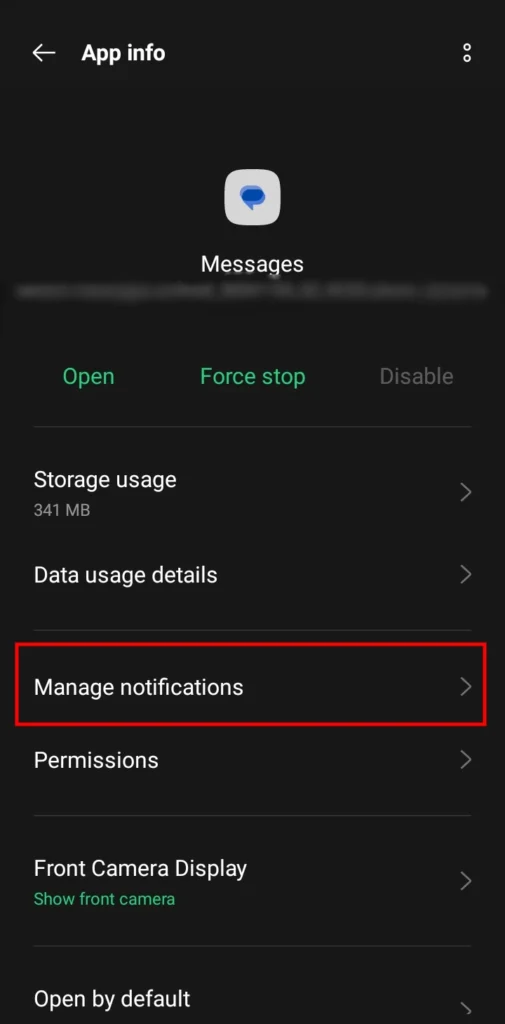

When you get a message in that app now, it won’t appear as a Bubble.
Turn Off Bubbles for Specific Conversation
- When a Bubble appears for a conversation, click the little icon at the bottom right of the notification.
- Click on the pop-up window and select Manage.
- Choose “Don’t Bubble Conversation.”
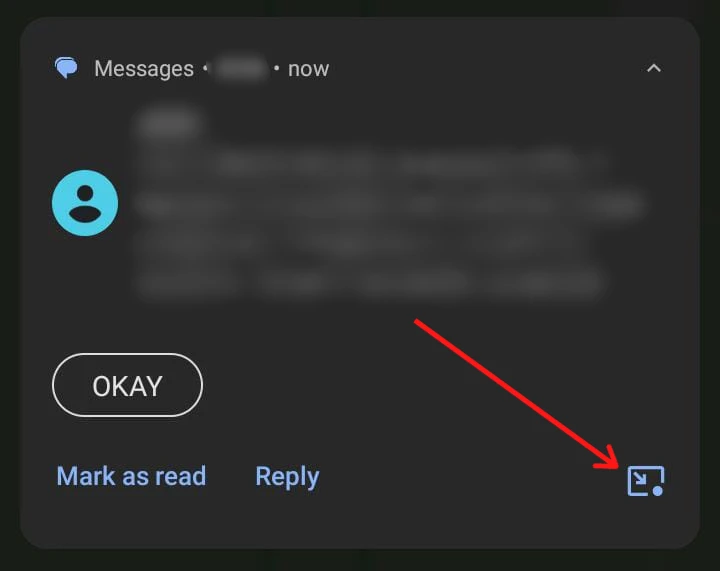
It will stop Bubbles from popping up for this conversation only.
Turn Off Bubbles for All Apps
- Go to Settings.
- Navigate to Notifications > Manage Notifications.
- Disable the “Allow apps to show bubbles” Option.
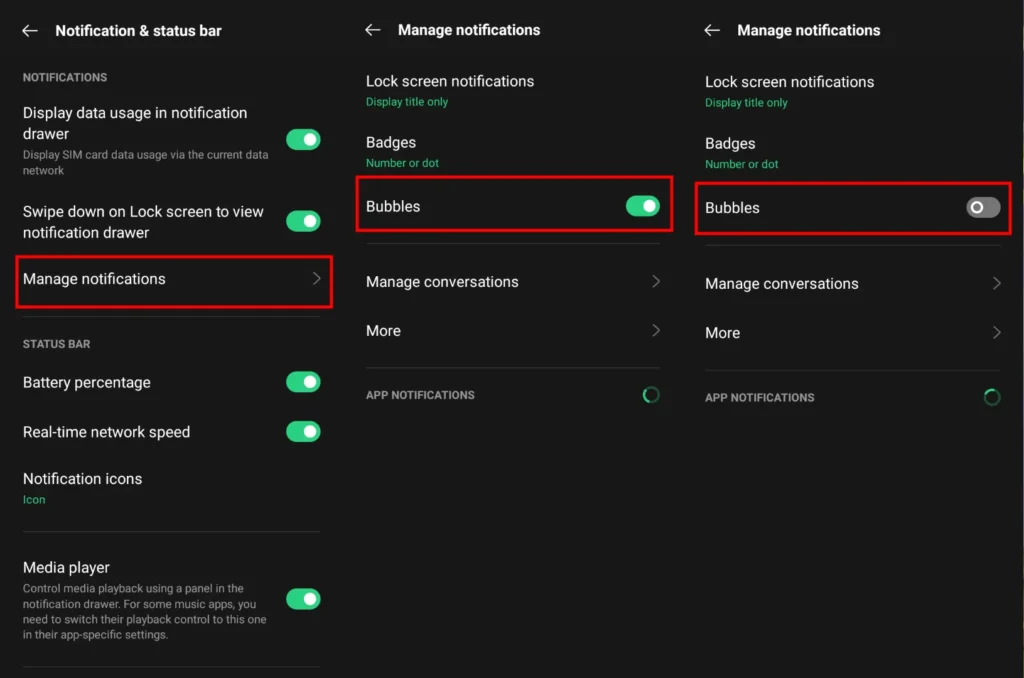
This will turn off Bubbles in all apps on your phone. You can re-enable this setting at any time if needed.
Final Thoughts
While Messaging Bubbles can be useful for multitaskers, they are not for everyone. With Android, you have the thumbscrew to turn them off completely, or just specific apps, conversations, or even entirely. To customize the notifications, you must do as I told you earlier.







A little discussion goes a long way.
Ask a question, share your experience, or help someone find an answer.
There is room for your perspective.
No discussions match this view yet.
Your voice belongs here
Keep it useful. Keep it kind.