
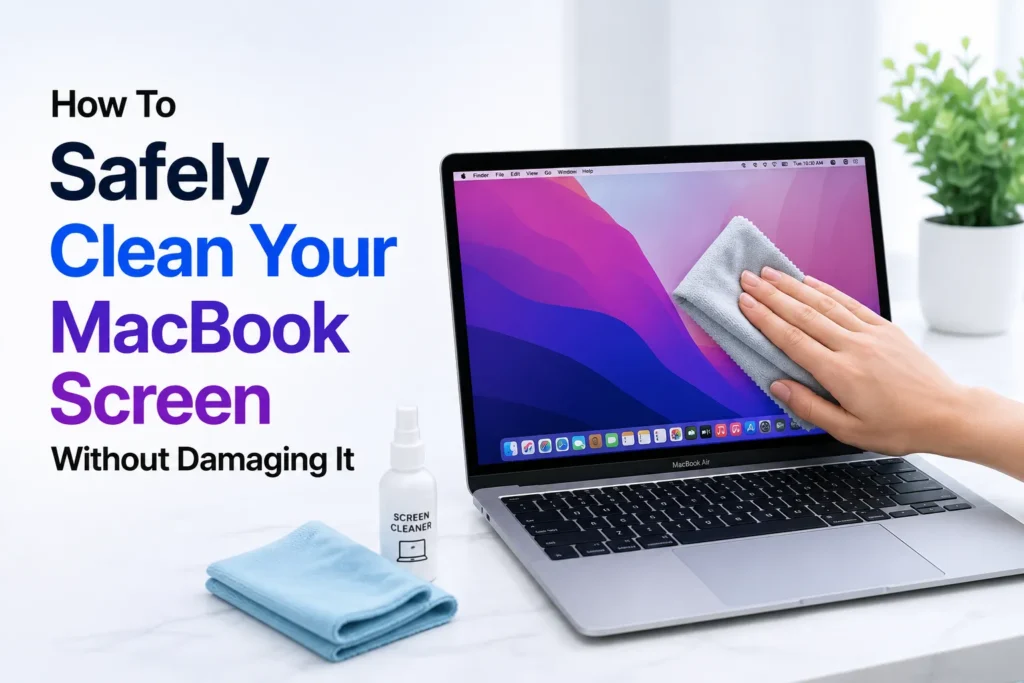
MacBook is a device that you depend on daily, whether you are working on a project, streaming your favorite shows, or traveling to a new place. Whether it is the lightweight MacBook Air M4 or the powerful MacBook Pro, every model deserves proper care to maintain the best performance and extended life.
However, with daily use, fingerprints, dust, smudges, and even accidental spills can reduce your screen’s clarity over time. Clearing your MacBook display not only improves visibility but also saves its quality. However, you need to be careful; one wrong move or a harsh chemical can permanently damage your screen.
Luckily, it is not hard to clean your MacBook when it is done correctly. Using the correct cleaning method helps protect your MacBook’s display and keeps it looking its best for longer.
Step-by-Step: Safely Cleaning Your MacBook Screen
You should shut your MacBook and unplug it from any cables and chargers before you start cleaning. It will avoid electrical damage and short circuits.
Next, avoid using strong liquids or household cleaners, especially ammonia or bleach. They may corrode the screen’s protective coating and damage internal components if they leak into the ports.
Use a soft microfiber cloth, a lint-free cloth, one that is designed for electronics. Avoid tissues, paper towels, or bath towels, as they can leave scratches.
- Slightly dampen the microfiber cloth with water, or use a 70 percent isopropyl alcohol solution if needed. Never spray liquid directly onto the screen.
- Gently wipe the screen in circular motions.
- Let the screen dry naturally, and then you can restart using your MacBook.
It’s also a good idea to clean your keyboard and USB ports using compressed air or specialized cleaning tools to maintain overall hygiene.
Frequently Asked Questions
Can I use glasses cleaner or household cleaner on my MacBook screen?
No. Most household cleaners and many glass cleaning sprays contain chemicals that can damage your MacBook’s display coating. Stick to a microfiber cloth with a small amount of water or a 70 percent isopropyl alcohol solution if needed.
Should I spray the cleaning liquid directly on the screen?
No. Always apply the liquid to a microfiber cloth instead of spraying it directly onto the display. This helps prevent moisture from entering the ports or internal components.
How often should I clean my MacBook screen?
There is no fixed schedule. Clean your screen whenever fingerprints, dust, or smudges start affecting visibility. Regular gentle cleaning is better than waiting until the screen becomes heavily soiled.
Can I use paper towels or tissues to wipe my MacBook display?
No. Paper towels, tissues, and rough fabrics can leave fine scratches on the display. A soft microfiber cloth is the safest choice for cleaning your MacBook screen.
Do I need to turn off my MacBook before cleaning the screen?
Yes. Powering off your MacBook and disconnecting chargers or accessories before cleaning reduces the risk of accidental damage and makes it easier to see dust and smudges on the display.







A little discussion goes a long way.
Ask a question, share your experience, or help someone find an answer.
There is room for your perspective.
No discussions match this view yet.
Your voice belongs here
Keep it useful. Keep it kind.