
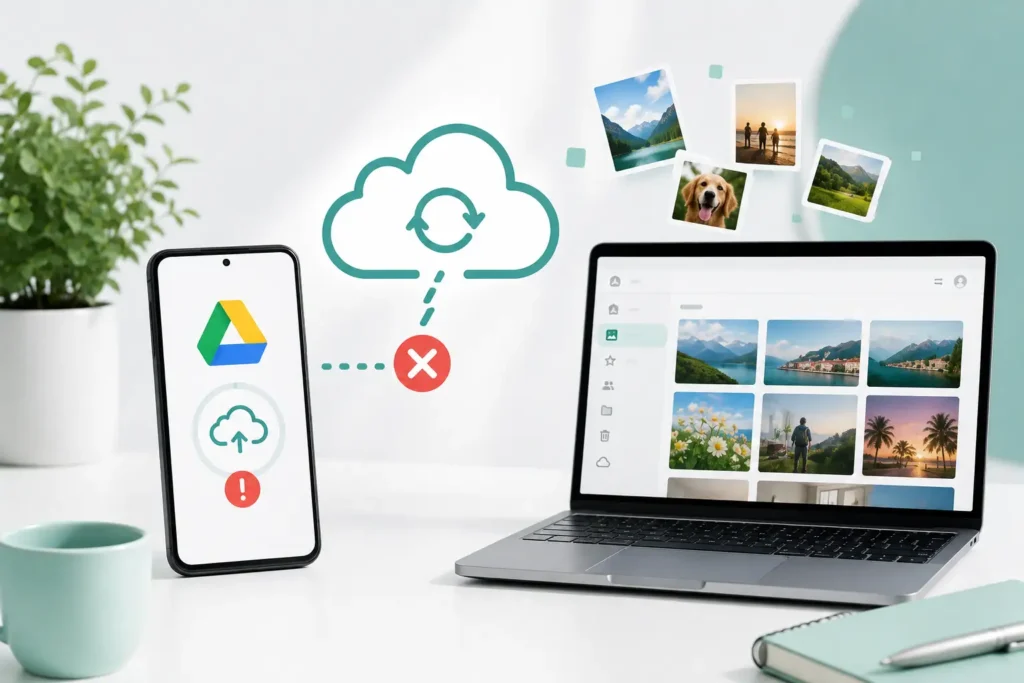
If you opened Google Photos and your new pictures are not there. You didn’t do anything wrong. Google made this change on their end, and starting August 10, 2026, the old backup method just stopped working.
Here’s what happened and the quick fix to get things running again.
What Google did
Before this, Google Drive on your computer could send a folder of photos straight into Google Photos by itself. You picked the folder once and forgot about it. That option is gone now.
Google was not sneaky about it though. They sent out a notice in May, followed by emails after that. Then in June you couldn’t add any new folders anymore. Now the folders that were still running have stopped too.
Your old photos are not going anywhere
Whatever already made it into Google Photos before August 10 is fine. Still there, still yours, nothing deleted.
And your other files on Google Drive, docs, spreadsheets, whatever, those keep syncing normally. This only touched the photo backup part.
Why this is a bit of a pain
Google does not have a desktop app just for Photos. So now you’re stuck using the website in your browser to manage backups.
Which means you need that tab open for it to keep working in the background. Or you can install it as a little app on your computer so it runs without needing the browser open all the time.
How to set backups up again
- Go to photos.google.com and log in.
- Hit the Plus button up top.
- Click Back up folders.
- Choose the folders you want it grabbing from.
- Want it running without a browser tab open? Look for an install icon in your address bar when you are on that page.
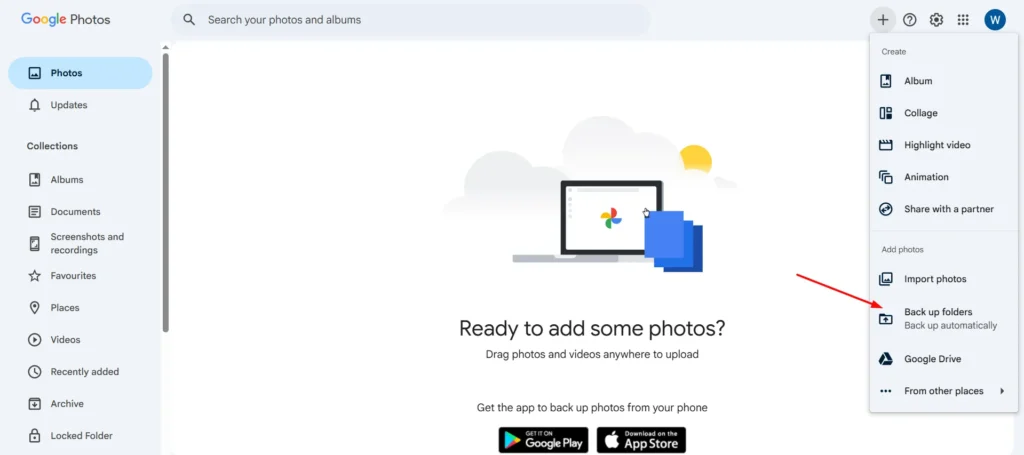
Got photos already in your Drive that never made it to Photos? There’s an “Import from Google Drive” option in that same menu. Use that instead if you’re just moving stuff over, not setting up ongoing backups.
Don’t forget this step
If your photos were syncing to both Drive and Photos before, go turn off the Drive side now. Otherwise you’re paying storage for the same photo twice, which is just wasteful.
- Open Drive on your computer.
- Go to Settings, then Preferences.
- Click Folders from your computer.
- Find the folder in question.
- Uncheck Sync with Google Drive.
- Done, then Save.
Does this matter to you?
If you take photos mostly on your phone, probably not much. Phone photos already back up on their own through the Photos or Apple Photos app.
But if you shoot on an actual camera and dump photos onto your laptop, yeah, this one’s on you to fix now. And if you’re on a Mac trying to back up your Apple Photos library, that was never something Drive could touch anyway. You’d have to send those through iCloud first, then grab them from there using the Photos app on your phone.
One small thought
Keeping everything in one app is a gamble, honestly, and this is a decent example of why. An external drive or a second backup somewhere costs you almost nothing and saves a lot of stress when a company decides to change something on you.
Frequently Asked Questions
Did I lose any of my old photos?
No. Anything from before August 10 is still there. This only stopped new stuff from uploading.
Is backing up still free?
Yep, same storage limit as before, no extra cost.
Do my regular files still sync?
Yeah, that's untouched. Only the photo part changed.
Why do I need my browser open for this?
Because there's no proper app for it. The browser (or the installed version of it) does the syncing.
I have a Pixel, do I need to do anything?
Nope, Pixel phones back up straight through the Photos app already.
What if I just ignore this?
Your photos stay put on your computer, nothing gets lost, they just stop showing up in Google Photos until you set the backup up again.

A little discussion goes a long way.
Ask a question, share your experience, or help someone find an answer.
There is room for your perspective.
No discussions match this view yet.
Your voice belongs here
Keep it useful. Keep it kind.