
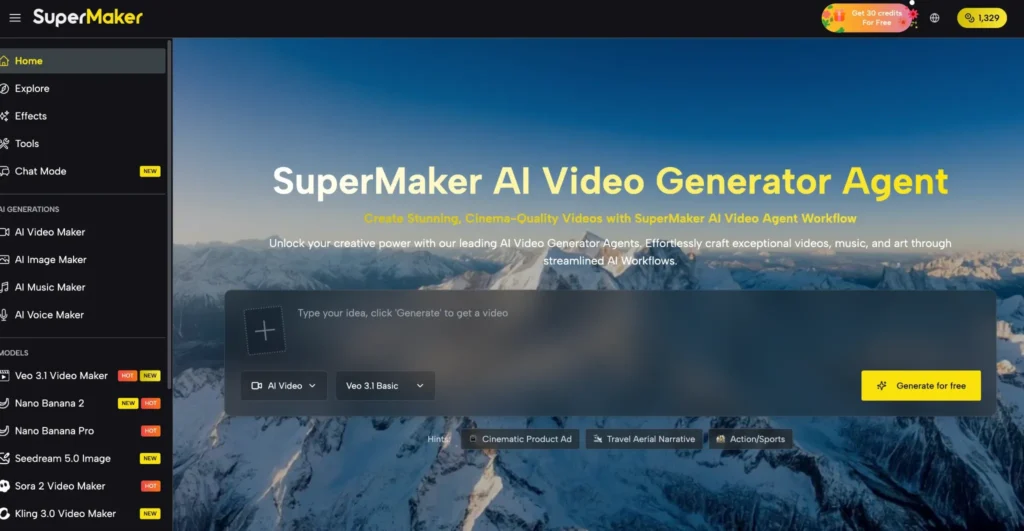
The gap between a mediocre AI-generated track and a genuinely great one often has nothing to do with the tool and everything to do with how you use it. Text to music technology has matured to the point where studio-quality results are achievable by anyone, but only if you know how to prompt, structure, and refine your creative input effectively.
SuperMaker AI Music Maker is one of the most capable platforms for this, offering dual creation modes, genre-spanning style tags, and a full post-production suite, all free to start. These ten tips will help you extract the best output every single time.
- The Mistakes Most Beginners Make With Text to Music
- 10 Tips to Generate Better Music With SuperMaker AI Music Maker
- Tips 1–4: Prompting for Precision
- Tips 5–7: Using Custom Mode Like a Pro
- Tips 8–10: Post-Production & Workflow Efficiency
- Use Extend Song for longer formats.
- Use Vocal Remover to create stems for remixing.
- Convert to WAV before delivering to clients or platforms.
- Step-by-Step: Applying These Tips in One Session
- How SuperMaker AI Music Maker Compares for Prompt-Driven Music Creation
- Conclusion
The Mistakes Most Beginners Make With Text to Music
Before getting into the tips, it helps to understand where most people go wrong:
- Vague prompts: Writing “make a song” produces generic, undirected output. The AI has no emotional anchor or stylistic target to work toward.
- Ignoring mode selection: Most tools offer a simple mode and a custom mode. Using the wrong one for your goal limits the output before generation even starts.
- Over-relying on a single attempt: Great text to music output often comes from iterating, trying different prompts, styles, and structures rather than accepting the first result.
- Skipping post-production: Generating a track is only the first step. Tools like stem separation, format conversion, and track extension exist for a reason.
- Neglecting commercial rights: Many creators don’t check whether their generated music is cleared for commercial use before publishing, a mistake that can lead to strikes or takedowns.
Understanding these pitfalls puts you ahead of the majority of first-time users.
10 Tips to Generate Better Music With SuperMaker AI Music Maker
Applying these techniques consistently will dramatically improve your output quality, creative efficiency, and final production value.
Tips 1–4: Prompting for Precision
- Lead with emotion, not just genre.
Instead of “a pop song,” write “an uplifting pop song with a bittersweet tone, like the feeling of leaving home for the first time.” Emotion gives the AI a tonal anchor that genre labels alone cannot.
- Specify instrumentation explicitly.
“Acoustic guitar, warm upright bass, light brush drums, no synthesizers” produces a far more targeted result than “acoustic.” The Simple Mode in SuperMaker responds directly to keyword-level specificity.
- Add tempo and energy markers.
Include descriptive language like “slow-burning, 70 BPM” or “high-energy, fast tempo, driving rhythm.” The Text to Music engine processes these as compositional parameters, not just stylistic hints.
- Use reference context.
Describe the purpose: “background music for a travel vlog about Southeast Asia,” “intro track for a true crime podcast,” or “battle theme for a fantasy mobile game.” Context shapes harmonic decisions, arrangement density, and overall production character.
Tips 5–7: Using Custom Mode Like a Pro
- Switch to Custom Mode when lyrics matter. When your project requires specific words, brand messaging, educational content, a story-driven song, use Custom Mode and input your own lyrics with proper structure tags:
[Verse],[Pre-Chorus],[Chorus],[Bridge],[Outro]. This gives the AI Lyrics Maker and arrangement engine a clear map to follow. - Define your style tag combinations deliberately. SuperMaker’s style tag library spans pop, rock, EDM, classical, jazz, hip-hop, folk, ambient, and more. Combining two to three tags, “cinematic + orchestral + melancholic”, produces a more distinctive output than a single broad tag.
- Regenerate before editing. If your first generation misses the mark, regenerate with adjusted parameters before reaching for the editing tools. A sharper prompt produces a better foundation than a mediocre track heavily patched in post-production.
Tips 8–10: Post-Production & Workflow Efficiency
Use Extend Song for longer formats.
If your track is too short for a YouTube video or a game level, use the Extend Song feature to intelligently lengthen it while preserving the original mood, tempo, and arrangement style, without audible breaks or tonal shifts.
Use Vocal Remover to create stems for remixing.
The Vocal Remover separates vocals from the instrumental layer, giving you clean acapella and backing track files. This is invaluable for remixing, creating karaoke versions, or layering your own recorded vocals over a generated instrumental.
Convert to WAV before delivering to clients or platforms.
MP3 files are fine for personal use and social media, but professional delivery requires lossless quality. Run your finished track through the MP3 to WAV Converter before submitting to any production pipeline that demands uncompressed audio.
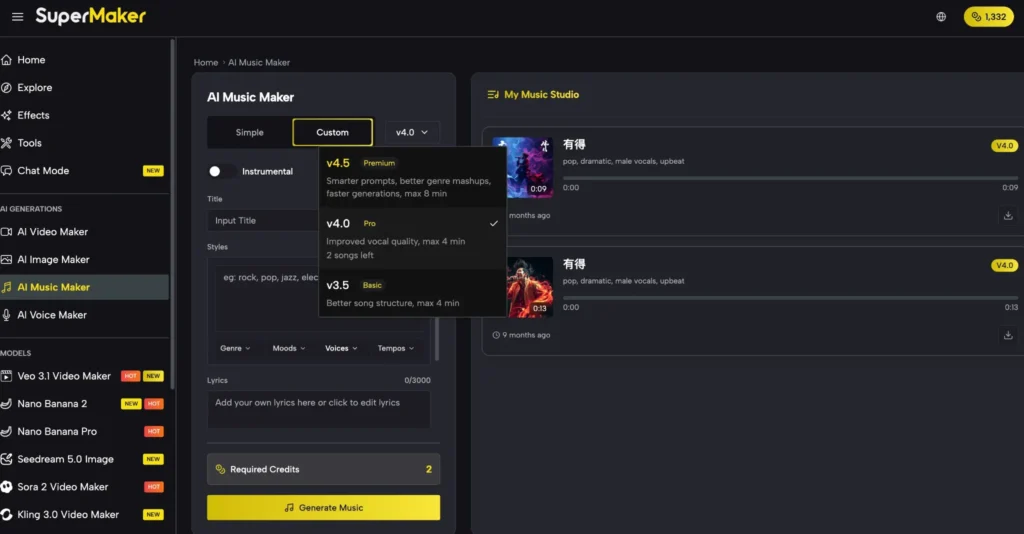
Step-by-Step: Applying These Tips in One Session
Here’s how a complete, tip-informed production session looks in practice:
- Open SuperMaker AI Music Maker — No account required to start. Choose Simple Mode for a quick draft or Custom Mode if you have lyrics ready.
- Write a detailed, emotion-first prompt — Include mood, instrumentation, tempo, genre tags, and intended use case (Tips 1–4).
- Generate and evaluate — If the result is off, adjust one variable at a time and regenerate (Tip 7). Don’t overhaul the entire prompt at once.
- Extend if needed — Use Extend Song to reach your required track length (Tip 8).
- Separate stems if applicable — Run through Vocal Remover to isolate the instrumental (Tip 9).
- Convert and export — Use MP3 to WAV Converter for professional-grade delivery, or export as MP3 for direct social or platform use (Tip 10).
How SuperMaker AI Music Maker Compares for Prompt-Driven Music Creation
| Tool | Prompt Control | Post-Production Tools | Commercial Rights | Free Plan |
| SuperMaker AI Music Maker | Simple + Custom Mode, style tags, lyrics input | Vocal Remover, WAV Converter, Extend Song | Pro/Enterprise full commercial | Yes, free to start |
| Suno AI | Natural language prompts, lyrics input | Limited | Limited free tier | Yes (restricted) |
| Udio | Detailed prompts, style control | Minimal | Limited | Yes (restricted) |
| Soundraw | Parameter sliders, no text prompt | Basic editing | Yes (subscription) | No free download |
| Mubert | Simple genre/mood tags | None | API-based licensing | Limited |
SuperMaker’s dual-mode prompting combined with a built-in post-production suite gives it a decisive edge for creators who want both creative control and professional output from a single workspace.
Conclusion
The best way to improve at text to music creation is to practice deliberately: try different emotional anchors, swap style tag combinations, and push Custom Mode with structured lyrics. Every iteration teaches you how the AI interprets your language. If you’re ready to put these tips into action, head to SuperMaker AI Music Maker and generate your first track free, no download, no setup, just your idea and a text box. The quality ceiling is higher than you think.



A little discussion goes a long way.
Ask a question, share your experience, or help someone find an answer.
There is room for your perspective.
No discussions match this view yet.
Your voice belongs here
Keep it useful. Keep it kind.