

The latest Windows 11 version 24H2 has Device Encryption, or BitLocker, enabled by default after a clean install.
Many users do not know that BitLocker is enabled now, and they do not even know that we have saved some of these recovery keys in their Microsoft account.
Table of Contents
Turn off BitLocker via the control panel
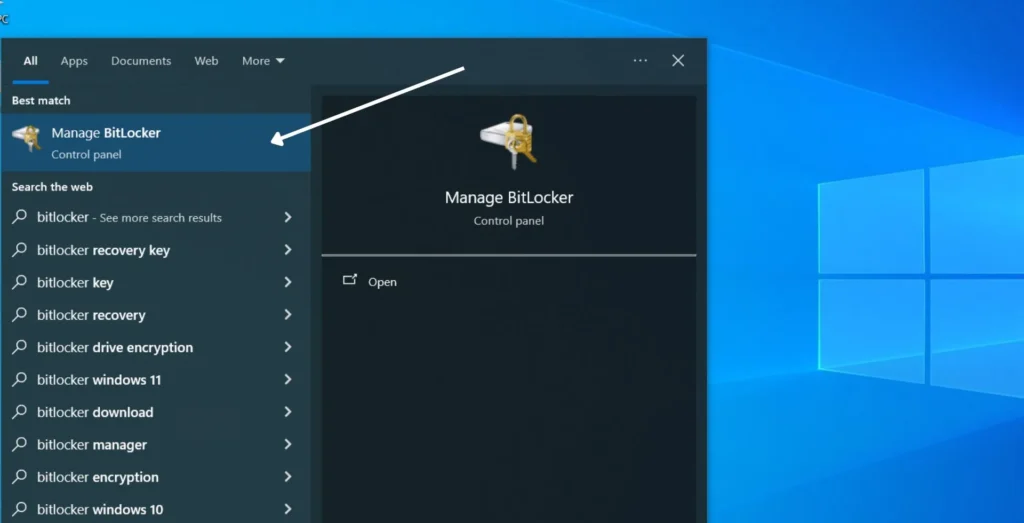
- Open the Start menu and search for “BitLocker.”
- Now, click on Manage BitLocker.
- Click on Turn off BitLocker and confirm again in the prompt box.
- The decryption will start, and you can watch it happen.
Turn Off BitLocker via Command Prompt
You can also disable BitLocker in the Windows command prompt program. Here’s how.
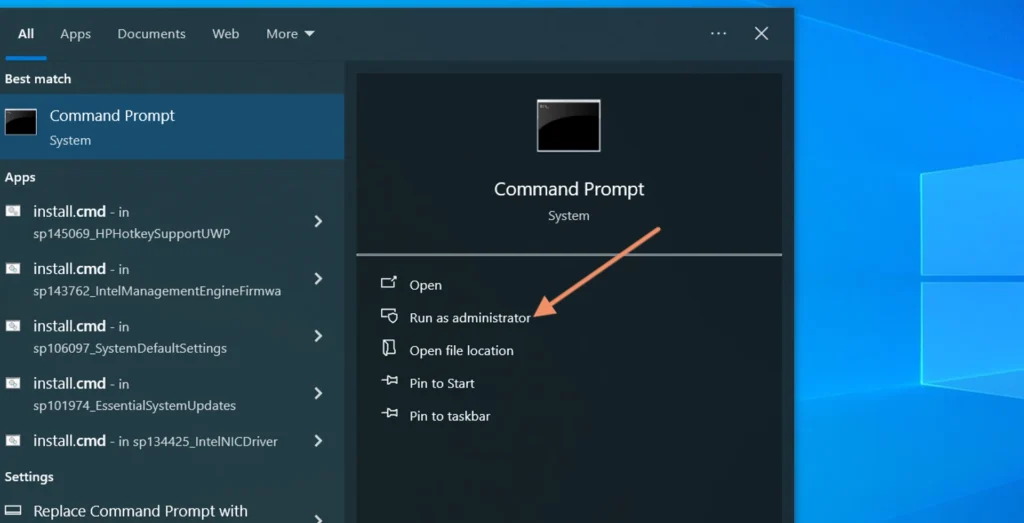
- Go to the Start menu.
- Search “cmd,”.
- Click Run as administrator when the Command Prompt program appears.
- Type the below command to see if BitLocker encryption was successful. The C: drive is fully encrypted.
manage-bde -status
- Now, run the command below to decrypt the C: drive.
If you want to decrypt another drive, change its drive letter.
manage-bde -off C:
Turn Off BitLocker via PowerShell
That’s also how you can turn off BitLocker on your PC using Windows PowerShell.
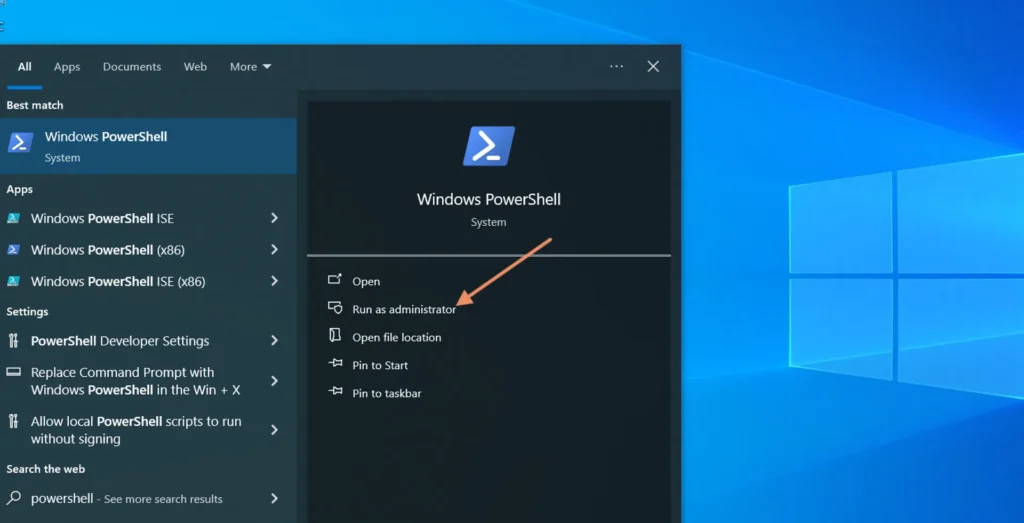
- Type PowerShell into your Start menu, right-click, and select Run as administrator.
- Open a command prompt.
- Type in the below to see the status of Bitlocker encryption. The C: drive is fully encrypted.
Get-BitLockerVolume
- To turn off BitLocker, run the below PowerShell command now.
To disable BitLocker on other drives, just change the drive letter.
Disable-BitLocker -MountPoint "C:"







A little discussion goes a long way.
Ask a question, share your experience, or help someone find an answer.
There is room for your perspective.
No discussions match this view yet.
Your voice belongs here
Keep it useful. Keep it kind.