Snapchat is known for its temporary messages and filters that make it more fun, but did you realize it can now share your screen with friends? You may stream a video or show off something interesting on your device. Snapchat’s screen-sharing function is right here for you.
Method 1: How to Share Screen on Snapchat (Mobile App)
Do you want to share your phone screen during a video call? Below are the steps for the same:
- Open the Snapchat app.
- Tap the chat icon.
- Select the friend’s chat you want to share with.
- Tap the video call or voice call icon at the top right.
- Once the call connects, tap the screen share icon at the bottom.
- Tap Share Screen when prompted.
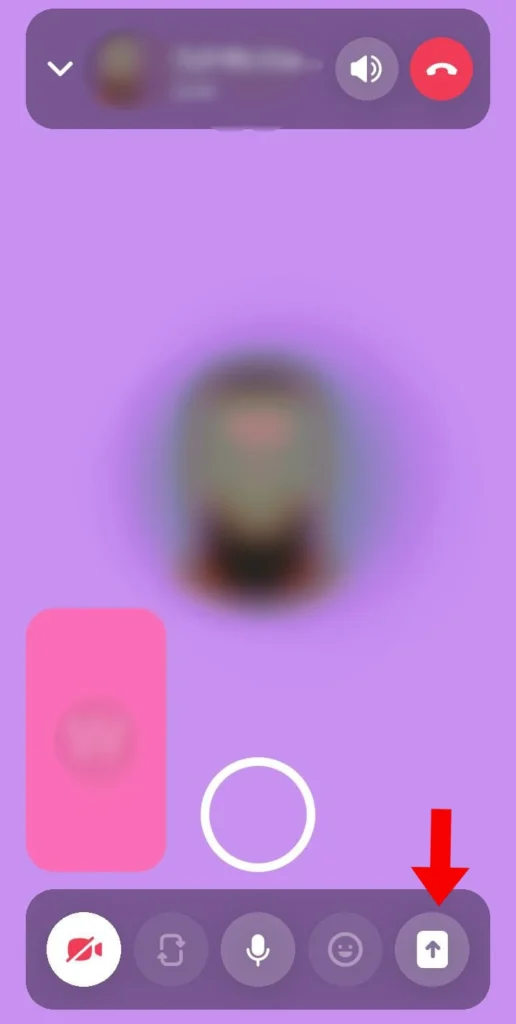
Now your friend can see whatever is running on your cell phone screen live.
Method 2: How to Share Screen on Snapchat for Web (Desktop)
You can also display screen-sharing via Snapchat for Web. Just follow these steps:
- Go to Snapchat for Web and log in to your account.
- Open a chat.
- Click the call or video call icon on the top right.
- Once the call starts, click the screen share icon at the bottom.
- Select the window or tab you want to share.
- Click Share.
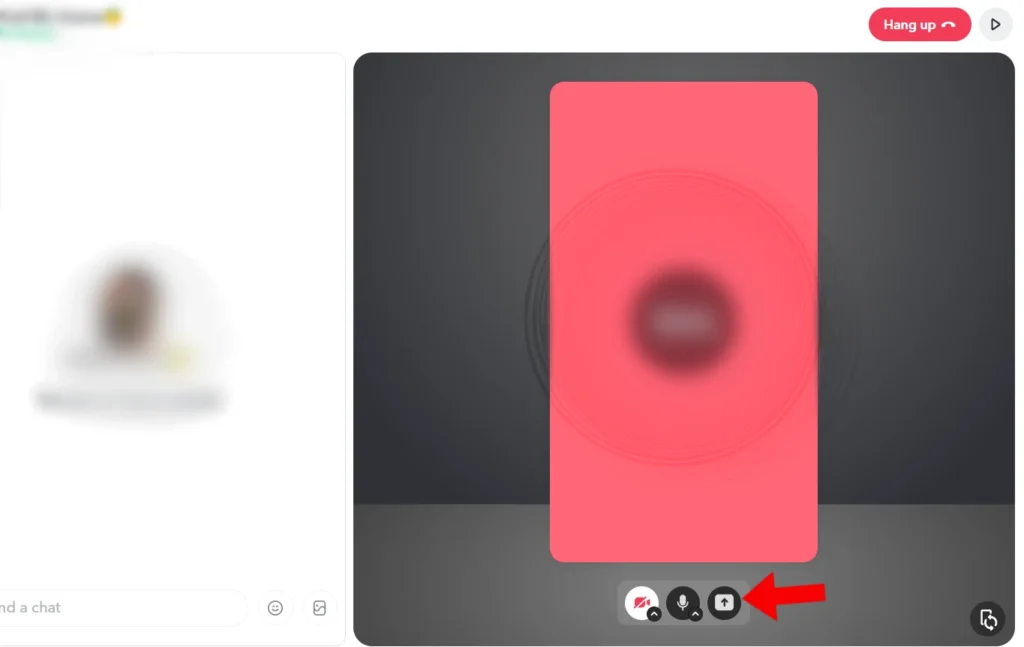
That’s how it is. Your desktop screen is now displayed to your friend via Snapchat.
Why can’t I screen share on Snapchat?
Suppose you have tried to share your screen, but it does not work. Look through the following points:
- Screen share is not available everywhere yet.
- Make sure you are properly signed in.
- You can not screen share in conversations with Snapchat’s AI chatbot.
Does Snapchat Screen Share Include Audio?
Yes. You can include Snapchat’s audio feature during the screen-sharing process. You can still communicate with each other and listen to the voices of the other party while you’re sharing the screen, fine for co-watching or live reactions.
By sharing your screen on Snapchat, the level of interaction increases. You can share efficiently even if you are having a game, watching content, or doing window shopping.