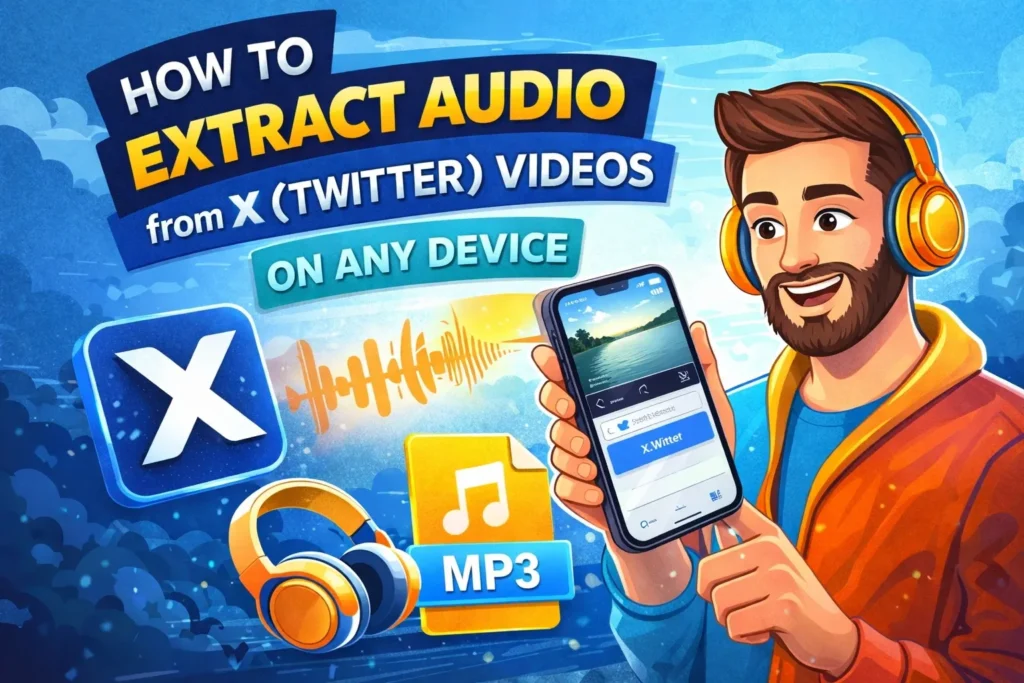
Many videos shared on X contain valuable spoken content. It might be a short interview, a podcast excerpt, or a quote that people want to replay later. Instead of saving the entire video, some users prefer to extract only the audio and keep it as an MP3 file.
This approach is especially useful when you want to listen offline, archive clips for research, or collect audio references from popular posts. With a browser-based workflow, a twitter to mp3 converter can process the video and produce an audio file that can be saved to your device.
Why Extract Audio from X Videos
Sometimes the visuals are not the main focus of a post. A conversation, speech, or commentary can be easier to review in audio form. Once converted to MP3, the file can be played in the background while working, traveling, or studying.
Creators often use this method when studying how people speak in viral clips. Listening to the audio without the video can make it easier to analyze tone, pacing, and emphasis. Researchers also build small libraries of audio clips that illustrate trends or memorable quotes.
Another practical scenario is sharing content with someone who only needs the audio. Instead of sending a full video file, an MP3 version is lighter and easier to store.
Step-by-Step: Extract Audio from an X Video
The process works on almost any device with a browser, including phones, tablets, and laptops.
- Open X (Twitter) and locate the post containing the video.
- Click or tap the share icon and copy the link to the tweet.
- Open your browser and visit the SSSX.IO audio extraction page.
- Paste the copied tweet link into the input field.
- Wait while the system processes the media from the post.
- Select the available audio output option.
- Download the file and save the MP3 to your device.
Once saved, the file can be moved into a music folder, editing software, or cloud storage. This workflow allows you to download audio from X video posts without installing additional software.
Understanding MP3 Audio Quality
Most extracted audio is delivered as MP3 because the format works on almost every device and media player. Whether you use a phone, laptop, or dedicated music player, MP3 files usually open without compatibility issues.
Different bitrate levels may be available depending on the source video.
| Audio Quality | Typical Use | File Size |
|---|---|---|
| Standard MP3 | Casual listening or archiving | Smaller |
| Higher Bitrate MP3 | Editing or detailed analysis | Larger |
| Universal MP3 | Playback across devices | Varies |
Higher bitrate audio often preserves more detail, which can be helpful when the sound includes music or multiple speakers. However, larger files take up more storage space, especially if you plan to save multiple clips.
Practical Uses for Extracted Audio
Once you have the MP3 file, it can be used in several ways. Some people save interviews or speeches to listen to later, while others collect short audio samples for creative projects.
For example, a content creator might gather a set of short clips that demonstrate strong storytelling hooks. A researcher could compile examples of commentary from different public figures. Because the audio is stored locally, it can be replayed without opening the original video post again.
MP3 files can also be organized into folders for easier reference. Keeping a small library of extracted audio makes it easier to revisit interesting clips without scrolling through timelines or searching for the original post.