
Handwritten notes are still useful in classrooms, meetings, research sessions, workshops, and personal planning. Many people think faster with a pen than with a keyboard. The problem comes later, when those pages need to be searched, edited, shared, summarized, or stored in a digital system. Retyping everything by hand can take a long time, especially if the notes include lists, dates, names, formulas, or multiple pages from a notebook.
This is where handwriting OCR can help. OCR stands for optical character recognition. It is the technology that reads text from an image and turns it into editable digital text. Traditional OCR worked best with printed documents, but modern AI-based OCR tools are now much better at reading clear handwriting, notebook pages, whiteboard photos, and scanned worksheets.
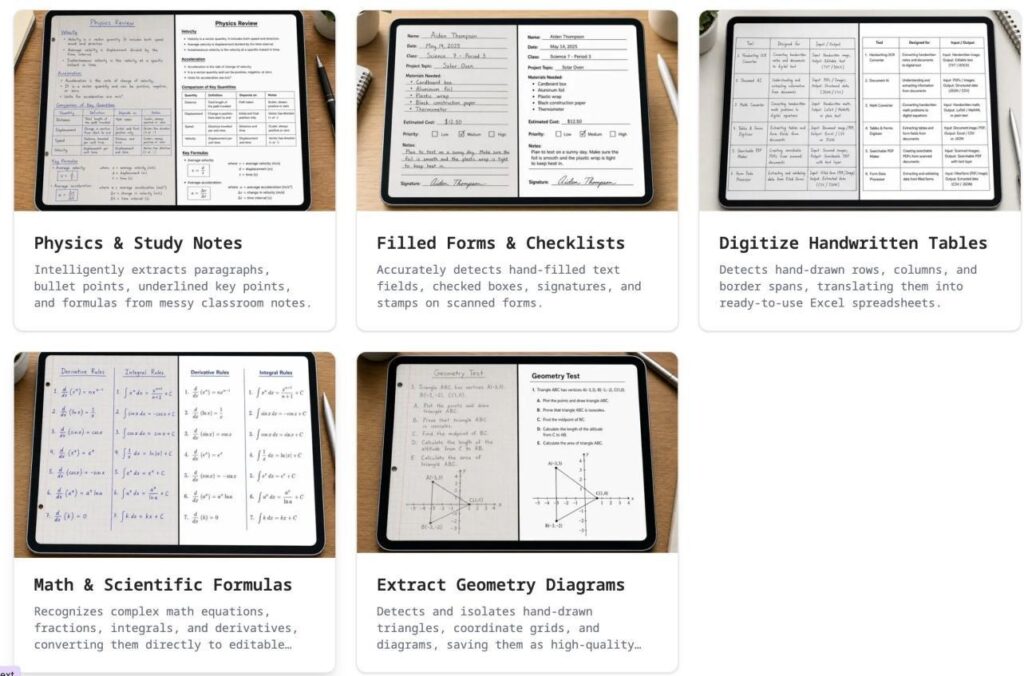
Handwriting OCR examples for notes forms tables formulas and diagrams
Examples of handwritten notes, forms, tables, formulas, and diagrams processed with OCR.
Below is a practical guide for turning handwritten notes into digital text while keeping the result accurate enough for real use.
Why Digitize Handwritten Notes?
Paper notes are easy to create, but they are hard to organize at scale. A student may have pages of lecture notes across different notebooks. A researcher may collect field observations in several handwritten journals. A business owner may write meeting decisions on paper and later need to share them with a team.
Once handwritten notes become digital text, they are easier to search, copy, translate, summarize, and edit. You can paste the result into Google Docs, Microsoft Word, Notion, email, a CRM, or a study app. Digital text also makes it easier to preserve old notes before paper is damaged, lost, or thrown away.
Digitizing notes does not mean handwriting is outdated. It simply connects paper-based thinking with digital workflows.
Step 1: Prepare a Clear Image
OCR accuracy starts before you upload the image. The clearer the photo, the cleaner the text output will be. Place the page on a flat surface and use bright, even lighting. Avoid shadows from your phone, hand, or desk lamp. If the page is curved near the notebook spine, press it flat or scan one side at a time.
Try to keep the camera directly above the page. A tilted image can make letters harder to recognize. Crop away the table, background, fingers, and unrelated objects. If the page contains several sections, you may get better results by processing one page or one section at a time instead of uploading a crowded image.
For pencil notes, increase contrast if possible. Light gray writing can be difficult for OCR to separate from the page background. For ink notes, make sure the image is not blurred. A sharp photo is usually more important than a very large file.
Step 2: Use an OCR Tool Made for Handwriting
Not every OCR tool handles handwriting well. Some tools are designed mainly for printed invoices, PDFs, receipts, or screenshots. Handwritten notes are more difficult because letters vary by person, spacing is uneven, and pages may include arrows, crossed-out words, diagrams, or quick abbreviations.
For this type of task, it is better to use a dedicated tool. An online utility for handwritten notes to text conversion can read a photo or scan of handwritten content and turn it into editable text that can be copied, cleaned, and reused. This is useful for lecture notes, meeting notes, study summaries, research pages, worksheets, journal pages, and other handwriting-based documents.
After uploading the image, run the OCR process and wait for the tool to extract the text. For short notes, this may take only a moment. Dense pages with tables, formulas, or mixed handwriting may take longer and require more careful review afterward.
Step 3: Review Names, Numbers, and Special Terms
Even strong OCR tools need human review. Handwriting varies too much for any system to be perfect every time. Always check proper names, dates, phone numbers, addresses, prices, measurements, abbreviations, and technical terms. These details are often the most important parts of a note, and they are also the easiest to misread.
If your notes include formulas or symbols, compare the OCR result with the original image. Math notation, arrows, diagrams, and shorthand may need manual correction. If the tool preserves line breaks or lists, check whether the structure still matches your original notes.
Reviewing the output may sound like extra work, but it is still much faster than retyping everything from the beginning.
Step 4: Clean and Organize the Text
After the text is extracted, decide how you want to use it. For study notes, you may want to add headings, bullet points, and topic labels. For meeting notes, you may want to separate decisions, action items, deadlines, and owners. For research notes, you may want to group observations by date, source, or project.
This cleanup step turns raw OCR output into useful content. You can paste the text into a document editor, create a summary, build flashcards, send it to a teammate, or save it in a searchable knowledge base. If the notes are long, consider naming the file clearly and adding tags so you can find it later.
Common Mistakes to Avoid
One common mistake is uploading a dark or blurry photo and expecting perfect results. OCR depends heavily on image quality. Another mistake is processing too many pages at once. Smaller sections are easier to check and correct.
It is also important not to skip the final review. OCR is a productivity tool, not a replacement for judgment. If the text will be used for school, business, legal, medical, or financial decisions, verify the result carefully before sharing it.
Finally, avoid mixing unrelated notes on one page when possible. A clean page with clear spacing gives OCR more context and produces a better result.
Final Thoughts
Handwritten notes are valuable because they capture ideas quickly and naturally. Digital text is valuable because it is searchable, editable, and easy to share. Handwriting OCR brings both advantages together.
With a clear image, the right OCR tool, and a quick review process, you can move notebook pages, meeting notes, class summaries, and research observations into your digital workflow without spending hours retyping. The result is a more organized way to preserve ideas that started on paper.




A little discussion goes a long way.
Ask a question, share your experience, or help someone find an answer.
There is room for your perspective.
No discussions match this view yet.
Your voice belongs here
Keep it useful. Keep it kind.