
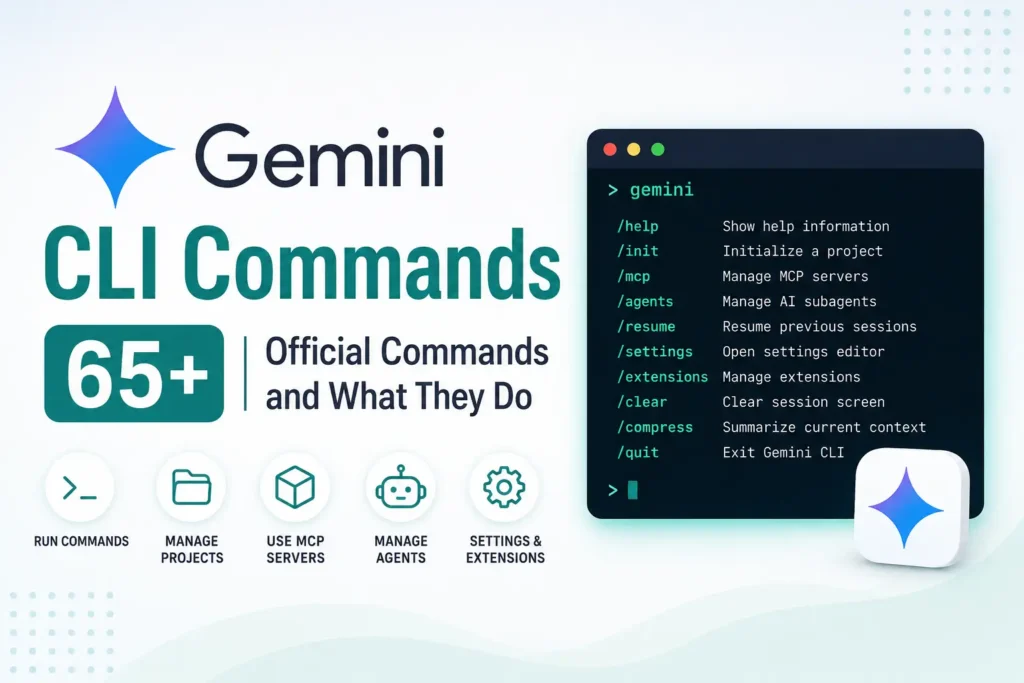
Gemini CLI includes a range of built in commands that help you manage coding sessions, files, models, extensions, MCP servers, and other parts of the CLI.
Most of these commands start with /, while Gemini CLI also supports @ for adding file or directory content to a prompt and ! for running shell commands directly from the CLI. Here are the main official Gemini CLI commands and what they do.
- Core Gemini CLI Commands
- 1. /about
- 2. /agents
- 3. /auth
- 4. /bug
- 5. /chat
- 6. /clear
- 7. /commands
- 8. /compress
- 9. /copy
- 10. /directory
- 11. /docs
- 12. /editor
- 13. /extensions
- 14. /help
- 15. /hooks
- 16. /ide
- 17. /init
- 18. /mcp
- 19. /quit
- 20. /restore
- 21. /rewind
- 22. /resume
- 23. /settings
- 24. /shells
- 25. /vim
- Subcommands and Extended Options
- 26. /skills reload
- 27. /agents reload
- 28. /commands list
- 29. /commands reload
- 30. /memory reload
- 31. /mcp reload
- 32. /extensions reload
- 33. /quit --delete
- 34. /resume list
- 35. /resume save
- 36. /resume resume
- 37. /resume delete
- 38. /resume share
- 39. /directory add
- 40. /directory show
- 41. /extensions list
- 42. /extensions install
- 43. /extensions enable
- 44. /extensions disable
- 45. /extensions uninstall
- 46. /extensions update
- 47. /extensions restart
- 48. /hooks list
- 49. /hooks enable
- 50. /hooks disable
- 51. /hooks enable-all
- 52. /hooks disable-all
- 53. /ide status
- 54. /ide enable
- 55. /ide disable
- 56. /ide install
- 57. /mcp list
- 58. /mcp desc
- 59. /mcp enable
- 60. /mcp disable
- 61. /mcp auth
- Context and Shell Shortcuts
- 62. @<file>
- 63. @<directory>
- 64. !<command>
- 65. !
- Frequently Asked Questions
Core Gemini CLI Commands
1. /about
Shows information about your Gemini CLI version. This information can also be useful when reporting an issue.
2. /agents
Manages local and remote subagents. You can list, reload, enable, disable, or configure available agents.
3. /auth
Opens the authentication settings so you can change how Gemini CLI signs you in.
4. /bug
Lets you report an issue with Gemini CLI. The text you enter after the command is used as the bug report headline.
5. /chat
Opens the session browser and lets you manage previous conversations and checkpoints. It is also an alias for /resume.
6. /clear
Clears the visible terminal screen and session display. You can also use Ctrl+L as a shortcut.
7. /commands
Manages custom slash commands. You can list available commands or reload command files after making changes.
8. /compress
Replaces the current chat context with a summary. This helps reduce token usage while keeping the important context from the conversation.
9. /copy
Copies the latest Gemini CLI response to your clipboard so you can easily reuse or share it.
10. /directory
Manages additional workspace directories. You can add directories or view the directories currently included in the workspace.
11. /docs
Opens the Gemini CLI documentation in your web browser.
12. /editor
Opens the editor selection menu, allowing you to choose a supported text editor.
13. /extensions
Manages Gemini CLI extensions. You can install, update, enable, disable, remove, configure, and view extensions.
14. /help
Displays help information for Gemini CLI, including available commands and how to use them.
15. /hooks
Manages hooks that can customize Gemini CLI behavior at different stages of a session.
16. /ide
Manages IDE integration. You can enable, disable, install, or check the status of the IDE connection.
17. /init
Analyzes your current project and creates a GEMINI.md file with project specific context and instructions.
18. /mcp
Manages Model Context Protocol servers. You can view, enable, disable, authenticate, and manage configured MCP servers.
19. /quit
Exits Gemini CLI. /exit can also be used for the same purpose.
20. /restore
Restores project files to a previous state before a tool was executed. It can be useful when you want to undo changes made by Gemini CLI.
21. /rewind
Moves backward through conversation history. It can also help revert chat history, file changes, or both.
22. /resume
Lets you browse and resume previous Gemini CLI sessions. You can also save, load, delete, and share conversation checkpoints.
23. /settings
Opens the Gemini CLI settings editor. It provides an easier way to view and change configuration settings.
24. /shells
Opens the background shells view so you can check and manage processes running in the background.
25. /vim
Turns Vim mode on or off. When enabled, you can use Vim style navigation and editing inside the Gemini CLI input area.
Subcommands and Extended Options
26. /skills reload
Reloads discovered skills from disk. This is useful after adding or changing skills.
27. /agents reload
Reloads the available agent registry so Gemini CLI can detect updated agents.
28. /commands list
Lists available custom slash commands from your user, project, and extension command directories.
29. /commands reload
Reloads custom slash commands without restarting Gemini CLI.
30. /memory reload
Reloads context files such as GEMINI.md so updated project instructions can be picked up.
31. /mcp reload
Restarts and reloads configured MCP servers.
32. /extensions reload
Reloads all active Gemini CLI extensions.
33. /quit --delete
Exits Gemini CLI and permanently deletes the current session history and temporary files.
34. /resume list
Lists available manually saved conversation checkpoints for the current project.
35. /resume save
Saves the current conversation as a named checkpoint.
36. /resume resume
Loads a previously saved conversation checkpoint so you can continue working from where you left off.
37. /resume delete
Deletes a saved conversation checkpoint that you no longer need.
38. /resume share
Exports the current conversation to Markdown or JSON.
39. /directory add
Adds one or more directories to the current Gemini CLI workspace.
40. /directory show
Shows the directories currently included in the workspace.
41. /extensions list
Displays the active extensions installed in Gemini CLI.
42. /extensions install
Installs an extension from a Git repository or local path.
43. /extensions enable
Enables a Gemini CLI extension that is currently disabled.
44. /extensions disable
Disables an installed extension without removing it.
45. /extensions uninstall
Removes an extension from Gemini CLI.
46. /extensions update
Updates installed Gemini CLI extensions.
47. /extensions restart
Restarts the active extensions.
48. /hooks list
Displays registered hooks and their current status.
49. /hooks enable
Enables a specific hook in Gemini CLI.
50. /hooks disable
Disables a specific hook.
51. /hooks enable-all
Enables all currently disabled hooks.
52. /hooks disable-all
Disables all enabled hooks.
53. /ide status
Checks the current status of Gemini CLI IDE integration.
54. /ide enable
Enables IDE integration.
55. /ide disable
Disables IDE integration.
56. /ide install
Installs the required IDE companion for Gemini CLI integration.
57. /mcp list
Lists configured MCP servers and their available tools.
58. /mcp desc
Shows configured MCP servers and provides descriptions of their tools.
59. /mcp enable
Enables a disabled MCP server.
60. /mcp disable
Disables an MCP server.
61. /mcp auth
Starts authentication for an MCP server that supports OAuth.
Context and Shell Shortcuts
62. @<file>
Adds the contents of a specific file to your Gemini CLI prompt. This is useful when you want Gemini to analyze or work with a particular file.
63. @<directory>
Adds content from a directory to the prompt. Gemini CLI can read relevant files inside the directory and use them as context.
64. !<command>
Runs a shell command directly from Gemini CLI. For example, !git status runs the Git command and returns its output to the CLI.
65. !
Toggles shell mode. Once shell mode is enabled, commands you enter are treated as shell commands until you turn it off.
Gemini CLI has more than just a few basic slash commands. It includes commands for sessions, project context, agents, extensions, MCP servers, IDE integration, hooks, and shell access.
For everyday use, commands such as /help, /clear, /compress, /resume, /init, and /settings are particularly useful. Developers working with advanced workflows can also use /mcp, /agents, /extensions, and /hooks.
Gemini CLI is actively updated, so the available commands can change as new features are added. The official command reference is the best place to check the current list.
Frequently Asked Questions
What are Gemini CLI commands?
Gemini CLI commands are built in commands that help users manage sessions, projects, files, extensions, MCP servers, and other CLI features.
How do I see Gemini CLI commands?
Type /help inside Gemini CLI to view the available commands and their usage.
What does /init do in Gemini CLI?
The /init command analyzes the current project and creates a GEMINI.md file with project specific instructions.
What is /compress used for?
/compress summarizes the current chat context to reduce token usage while keeping important information available.
What does /mcp do in Gemini CLI?
/mcp is used to manage Model Context Protocol servers and their connections.
Can Gemini CLI run terminal commands?
Yes. You can use the ! prefix to run shell commands directly from Gemini CLI.
What does the @ command do in Gemini CLI?
The @ syntax lets you include the contents of files or directories in your prompt so Gemini can use them as context.
Can I create custom Gemini CLI commands?
Yes. Gemini CLI supports custom slash commands that can be saved as TOML files and reused across projects.
What does /resume do?
/resume lets you browse and continue previous Gemini CLI sessions and manage saved conversation checkpoints.
Is Gemini CLI free?
Gemini CLI has its own authentication, usage limits, and available models. The exact limits and access can vary depending on the account and setup.







A little discussion goes a long way.
Ask a question, share your experience, or help someone find an answer.
There is room for your perspective.
No discussions match this view yet.
Your voice belongs here
Keep it useful. Keep it kind.