
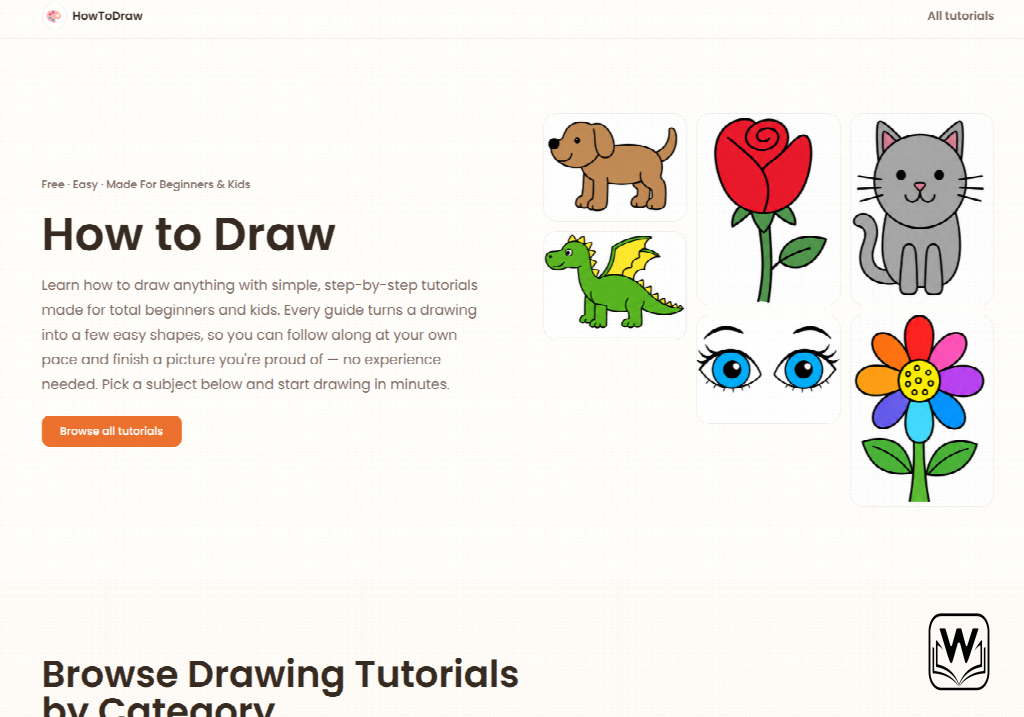
Learning to sketch has always carried a high barrier to entry. Most people quit drawing before their teenage years because blank paper feels intimidating.
Digital tools often make this problem worse by overwhelming beginners with complex layers and brush settings. I spent two weeks testing How To Draw to see if guided AI technology can genuinely solve this learning curve.
Here is my unbiased breakdown based on real daily drawing sessions.
- The Core Mission: Bridging the Gap Between Concept and Paper
- Breaking Down the Engine: Core Capabilities and Interface
- Progressive Step Generation
- Dynamic Line Assistance
- Putting It to the Test: A Four-Step Sketching Run
- Field Test Case: Sketching an Architectural Facade in 15 Minutes
- The Unfiltered Breakdown: Strengths and Blind Spots
- Where the Platform Excels
- Noticeable Limitations
- Who Gets the Most Value Out of This Tool?
- Visual Learners and Hobbyists
- Educators and Parents
- Concept Designers and Storyboarders
- Industry Shift: The Move Toward Skill-Building AI
- The Bottom Line: My Personal Verdict
The Core Mission: Bridging the Gap Between Concept and Paper
The blank page problem stops most people from expressing visual ideas. You might have a clear concept in your head, but your hand cannot find the right starting line.
Traditional video tutorials move too quickly for beginners. Static drawing books often skip the subtle transition steps between rough shapes and final outlines.
The fundamental goal of this platform is simple. It deconstructs complex visuals into manageable, bite-sized strokes that anyone can follow at their own pace.
Breaking Down the Engine: Core Capabilities and Interface
The user interface avoids unnecessary clutter. When you open the workspace, you find a clean canvas with direct access to generative sketch prompts.
Instead of outputting finished raster paintings, the engine focuses entirely on outline construction. It teaches structure rather than superficial decoration.
Progressive Step Generation
The platform analyzes prompts and isolates primary geometric anchors. It starts with basic circles, ovals, and guide axes before suggesting finer details.
This progressive staging mirrors how professional illustrators build underdrawings. You never feel lost because each new line builds directly on the previous one.
Dynamic Line Assistance
The tool provides adjustable reference overlays right on your digital workspace. You can trace directly on screen or use the guide as a side-by-side reference model.
The snapping sensitivity remains gentle and non-intrusive. It corrects major perspective flaws without stripping away the organic feel of freehand pencil work.
Putting It to the Test: A Four-Step Sketching Run
Using the web application requires zero graphic design background. You can start a new project in less than thirty seconds without configuring heavy brush presets.
The generation pipeline follows four clear stages:
- Entering the Subject Prompt: You type a specific object or character into the search field.
- Selecting Difficulty and Detail: You pick between basic minimalist shapes or multi-layered technical outlines.
- Pacing Through Visual Layers: You draw each step interactively while the software highlights active stroke paths.
- Exporting Vector Outlines: You save your finished sketch as a scalable vector or clean transparent PNG.
The entire process feels calm and structured. The system never rushes you to complete a stroke before you feel ready.
Field Test Case: Sketching an Architectural Facade in 15 Minutes
To test real-world utility, I assigned the engine a complex architectural subject: a European stone archway with decorative pillars. Complex perspective usually takes beginner artists upwards of an hour to lay out manually.
I tracked my drawing progress against traditional reference photos. The guided vector steps from How To Draw reduced my initial layout setup time by roughly 70%.
The system broke down the arch into four basic intersecting curves. From there, it added the stonework seams in logical visual clusters.
The resulting drawing looked clean, balanced, and structurally accurate. It helped me understand the vanishing points far better than a static reference photo ever did.
The Unfiltered Breakdown: Strengths and Blind Spots
No creative utility is perfect for every single scenario. Understanding what a platform cannot do is just as important as knowing its best features.
Where the Platform Excels
- Low Cognitive Load: You can pick up the application and start sketching immediately without reading manuals.
- Structural Learning: It emphasizes fundamental geometry instead of masking mistakes with digital filters.
- Browser-Based Efficiency: The application runs smoothly on basic laptops, Chromebooks, and tablets without lag.
- Clean Vector Output: Exported line art imports seamlessly into mainstream vector design software.
Noticeable Limitations
- Limited Shading Guidance: The tool focuses heavily on line work, offering fewer tips for complex lighting and shadow gradients.
- Style Uniformity: Generated guide lines lean toward clean illustrative outlines, which may feel restrictive for expressive abstract artists.
- Connection Dependency: Because calculations happen in the cloud, you need a stable internet connection for generating new prompts.
Who Gets the Most Value Out of This Tool?
Different creators will find different uses for guided line generation. It addresses specific friction points across several distinct user groups.
Visual Learners and Hobbyists
Adults returning to art will appreciate the low-pressure environment. It eliminates the frustration of staring at an empty sketchbook with no clear starting point.
The incremental feedback helps build hand-eye coordination over time. Practicing for fifteen minutes every day quickly establishes steady motor habits.
Educators and Parents
Art instructors can use the platform to generate consistent classroom worksheets. It gives younger students clear visual milestones during drawing lessons.
Children stay engaged because the step-by-step progress feels like solving an interactive visual puzzle. It turns screen time into active manual practice.
Concept Designers and Storyboarders
Digital creators often need rapid thumbnail sketches to pitch scene layouts. Generating structured wireframes on the fly speeds up early client presentations.
You can block out rough character poses and prop placements in minutes. That leaves more time for final rendering and post-production polish.
Industry Shift: The Move Toward Skill-Building AI
The broader artificial intelligence market has spent years automating human output. Most platforms generate finished images with one click, leaving the user as a passive observer.
This platform takes a refreshing philosophical turn. It uses neural networks to enhance human ability rather than replacing it entirely.
By breaking down complex subjects into learnable manual steps, it promotes active tactile participation. It treats technology as a digital coach instead of a factory machine.
This educational approach helps preserve genuine creative agency. It proves that assistive software can foster personal mastery alongside automated convenience.
The Bottom Line: My Personal Verdict
Using How To Draw over the past two weeks changed how I approach daily sketching practice. It takes the intimidation out of complex visual subjects by making structure easy to understand.
It is not an automated art generator that produces glossy, finished paintings on demand. Instead, it is an interactive drawing companion designed to sharpen your actual sketching skills.
If you want an accessible, objective way to build visual confidence and master linework fundamentals, this web tool is well worth your studio time.



A little discussion goes a long way.
Ask a question, share your experience, or help someone find an answer.
There is room for your perspective.
No discussions match this view yet.
Your voice belongs here
Keep it useful. Keep it kind.