
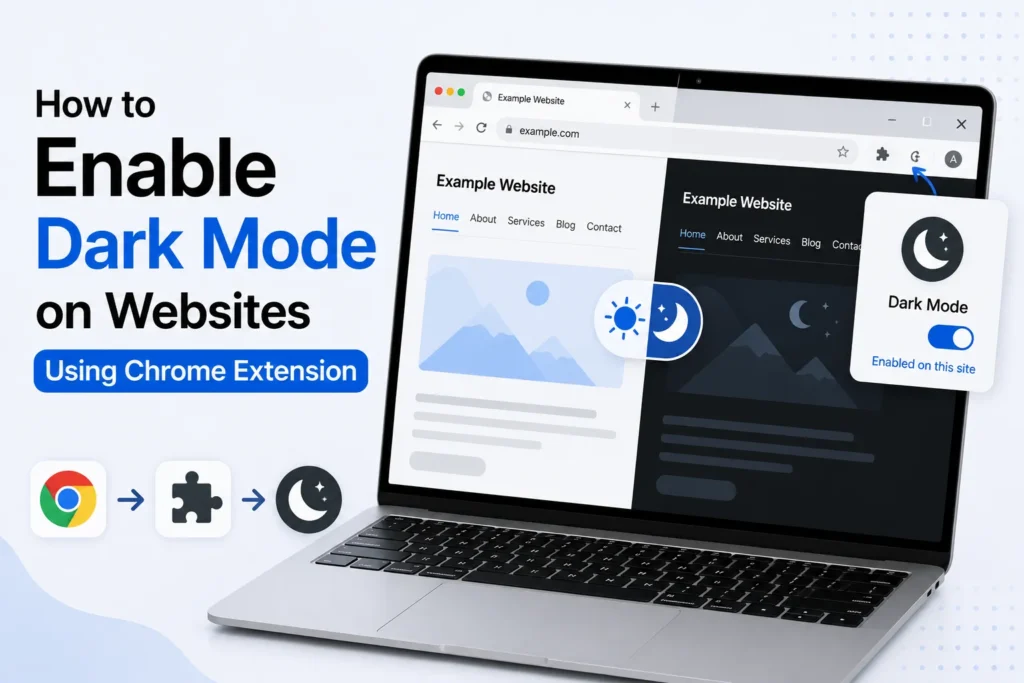
The built-in dark mode is not available on many websites and would strain eyes, especially at night. Fortunately, Google Chrome allows you to enable dark mode on any website through a simple browser extension. Here are some safe, free, and effective ways to enable dark mode across all websites without changing your device settings.
Why use Chrome extensions for dark mode?
Not all websites have a dark mode, and the built-in dark theme in Chrome does not darken the content in websites. The solution to this is extensions that convert all web pages into a darker color scheme while maintaining readability.
Here are some benefits of dark mode.
- Reduces eye strain
- Saves battery on AMOLED screens
- Better for nighttime browsing
- Works on all websites automatically
1. Enable Dark Mode Using “Dark Reader” Extension
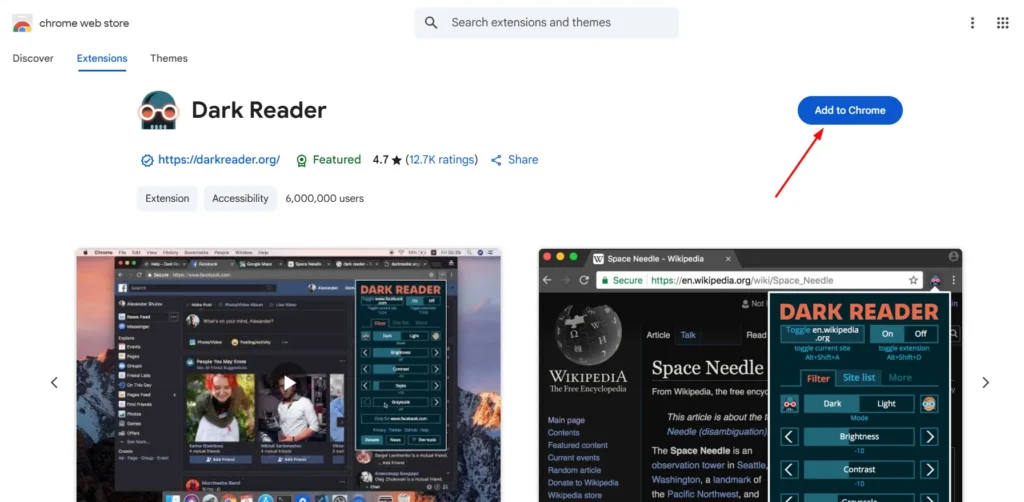
Dark Reader is the most popular and trusted dark mode extension in Chrome. It converts websites into beautiful, readable dark designs without breaking layout and design.
- Open Chrome.
- Go to Chrome Web Store.
- Search Dark Reader.
- Click Add to Chrome > Add Extension.
How to use
- After installation, click the Dark Reader icon in the top-right toolbar.
- Toggle Dark Mode ON.
- Adjust brightness, contrast, and theme style if you need.
You can also whitelist websites where you do not want dark mode.
2. Using “Night Eye” Chrome Extension
Night Eye is a powerful extension that applies a clean dark theme to any website.
- Open Chrome Web Store.
- Search Night Eye.
- Click Add to Chrome.
- After installation, open the extension from the toolbar.
- Toggle Dark Mode for all or specific websites.
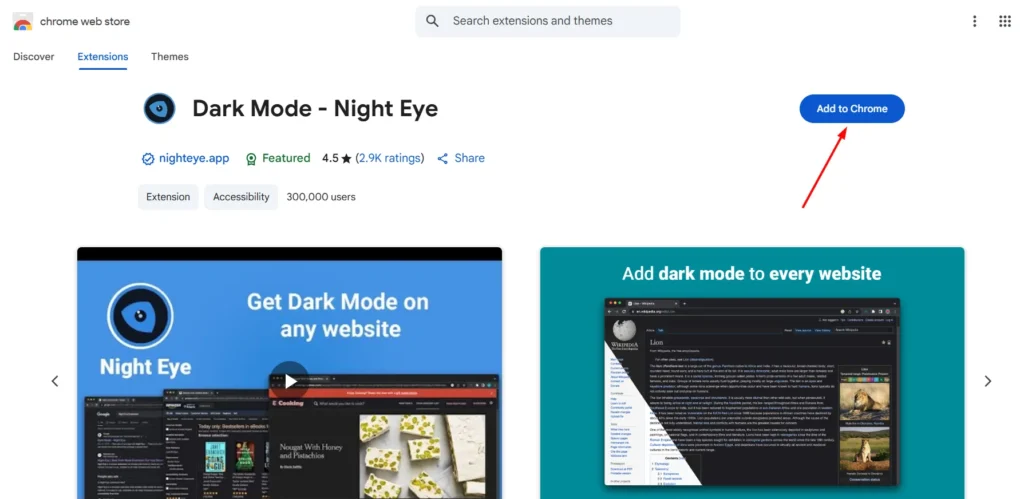
Night Eye keeps images and text clear while dimming background colors.
3. Using “Super Dark Mode” Extension
Super Dark Mode is a lightweight extension that works well for older laptops or low-RAM devices.
- Search Super Dark Mode in Chrome Web Store.
- Add the extension to Chrome.
- Enable dark mode using the extension toggle.
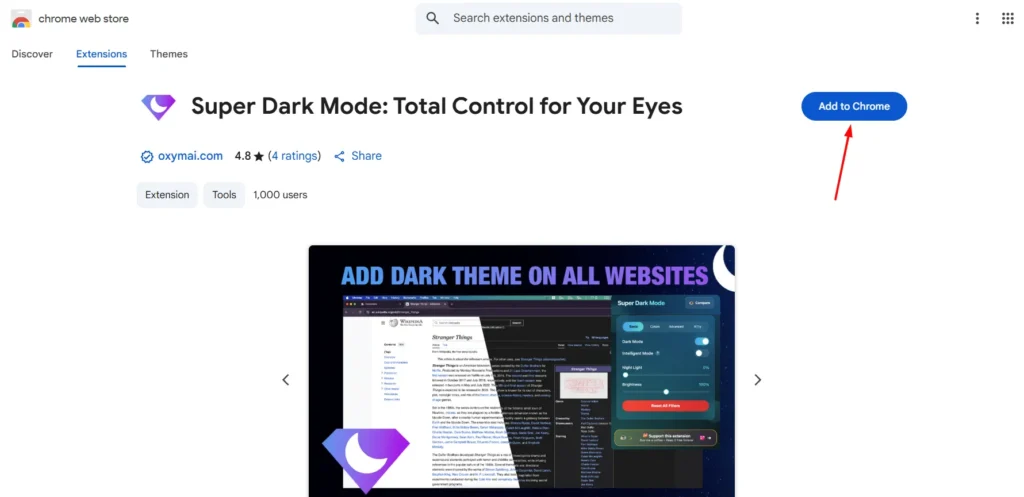
This extension offers multiple dark themes and schedules.
4. Using Chrome’s Built-In “Force Dark Mode” Feature
Chrome also has a built-in feature that forces dark mode on all webpages.
- Type in Chrome address bar:
chrome://flags - Search “Auto Dark Mode for Web Contents”.
- Change it to Enabled.
- Restart Chrome.
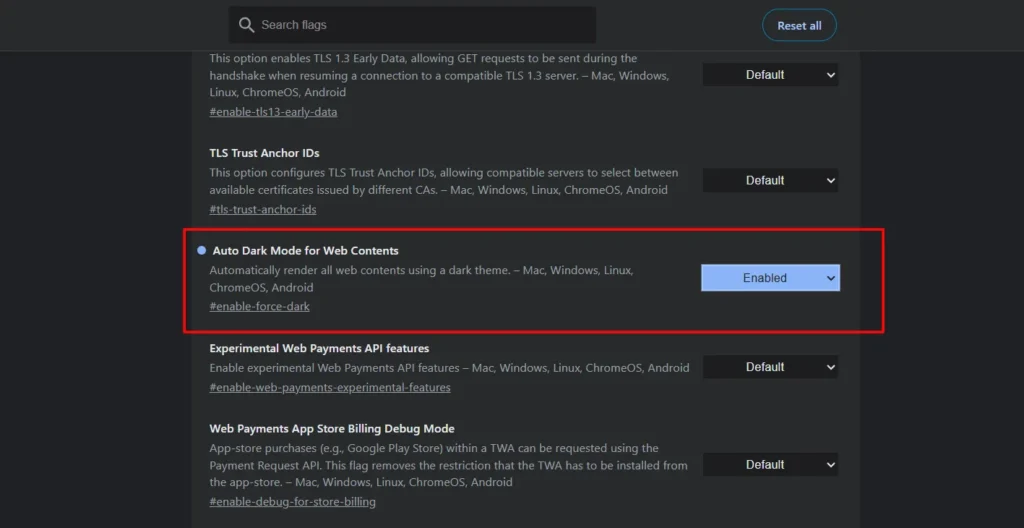
This feature works, but sometimes affects images or colors incorrectly.
5. Which method should you use?
| Method | Best For |
|---|---|
| Dark Reader | Most accurate, best quality dark mode |
| Night Eye | Smooth visuals, less strain on eyes |
| Super Dark Mode | Lightweight option for older devices |
| Chrome Force Dark Mode | No extension required |
For most users, Dark Reader gives the best results.
Frequently Asked Questions
Can I enable dark mode on every website in Google Chrome?
Yes. Chrome extensions such as Dark Reader and Night Eye can automatically apply a dark theme to most websites. While they work well on the majority of pages, some websites may not display perfectly because of their design.
Which Chrome extension is best for dark mode?
Dark Reader is widely recommended because it produces natural looking dark themes and offers controls for brightness, contrast, and color filters. It also lets you disable dark mode for specific websites when needed.
Does dark mode improve battery life?
Dark mode can help reduce battery consumption on devices with OLED or AMOLED displays because dark pixels use less power. On standard LCD screens, the battery savings are usually minimal.
Is Chrome’s Force Dark Mode safe to use?
Yes. Force Dark Mode is an experimental Chrome feature that can be enabled through Chrome Flags. It is generally safe to try, but some websites may display incorrect colors or image effects because the feature is still experimental.
Can I turn off dark mode for specific websites?
Yes. Popular extensions such as Dark Reader allow you to create a whitelist, so dark mode remains disabled on selected websites while staying enabled everywhere else.
Will dark mode affect website functionality?
In most cases, no. Dark mode changes the appearance of webpages without affecting how they work. However, a few websites may have visual issues, such as unusual colors or reduced image accuracy, depending on the extension or browser feature you use.







A little discussion goes a long way.
Ask a question, share your experience, or help someone find an answer.
There is room for your perspective.
No discussions match this view yet.
Your voice belongs here
Keep it useful. Keep it kind.