Close Menu
    Facebook X (Twitter) Instagram Pinterest YouTube Bluesky WhatsApp TikTok Threads RSS
    WikiTechLibrary
    • Converters & Media
    • Web Tools
    • Finance & Tax
    • Utility & Bills
    • Vehicle Tax
    WikiTechLibrary

    How to Use Emojis on a Chromebook

    By Ali RehmanDecember 24, 2022Updated:September 8, 2026No Comments3 Mins Read
    Facebook Twitter WhatsApp Threads Copy Link
    use emojy on chromebook

    Over the last few years, Google has done a tremendous job improving Chrome OS and bringing much-needed desktop-class functionality. Chromebooks come with a Clipboard History feature that helps to paste multiple copied. Apart from that there is a built-in tool Take a screenshot on a Chromebook.

    Like Windows and Mac, Chrome OS comes with emoji support. In fact, the emoji keyboard on the Chromebook has been improved by a mile and now supports kaomoji, currencies, symbols and more. Therefore, in this guide, we will explain how to find emojis and use them on Chromebook.

    Using Emoji on Chromebook 2024

    We’ve included three ways to use emoji on a Chromebook, including an easy way for Chrome OS devices with a touchscreen. That said, let’s dive in!

    Type Emoji on Chromebook Using Keyboard Shortcuts

    The best and easiest way to use emoji on a Chromebook is to use a Chrome OS keyboard shortcuts. Here’s how it works:

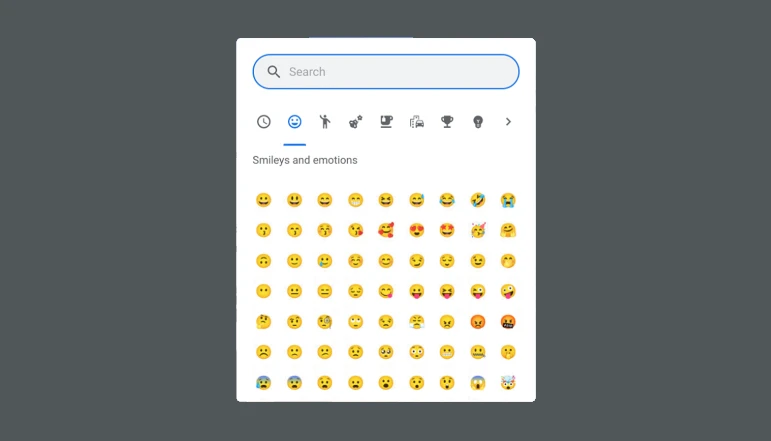
    1. On Chrome OS 92 or later, “Search (or Launcher Key) + Shift + Space” Shortcut to open the emoji keyboard on your Chromebook.

    2. This emoji popup Where you’ll find all the smileys and emoticons you can use on your Chromebook.

    3. Even search and find emojis quickly Your choice

    4. Also emoji popup comes with support for symbols, flags and kaomoji on Chromebooks.

    Using Emoji on Chromebook Using Trackpad

    1. Besides the keyboard shortcut, you can also: Right click your Chromebook to open the context menu in any text field. Next, you must select emoji“.

    2. This open emoji keyboard It lets you easily select or search for an emoji on your Chromebook.

    How to Use Emoji on a Touchscreen Chromebook

    Users with a touchscreen Chromebook who like to use their device like a tablet have a more familiar way to access emojis. Let’s see what happened:

    1. Just like on their smartphones, users are on Chromebooks with touchscreens “emoji” icon on the keyboard.

    2. What is this keyboard emoji It looks like a Chromebook with a touchscreen.

    3. If you want an on-screen keyboard in laptop mode, press “Settings” (gear) icon from the Quick Settings menu.

    4. In Setting app search for “on-screen keyboard”, open it.

    5. Toggle to enable Screen keyboard feature.

    6. A keyboard icon It’s at the bottom right on the Chrome OS Shelf. Click the icon to open the on-screen keyboard and you can easily switch to the emoji keyboard.

    Last Words

    These are three easy methods of typing emoji on a Chromebook. I like that Google not only adds emoji but also offers support for kaomoji, currencies, symbols, flags and more. Of course, it would be better if the Chrome OS keyboard had GIF integration like the Gboard app on Android. However, if you want Change the Google background on your Chromebook, we have a detailed guide linked here.


    Share. Facebook Twitter Pinterest LinkedIn Email WhatsApp Threads
    Ali Rehman

      Rehman is focusing on delivering easy-to-follow tutorials related to social media, technology, and daily life hacks. With a passion for simplifying digital tasks, he provides practical guides that help readers enhance their social media presence and tackle everyday challenges with ease.

      Related Articles

      image

      TCL’s 75-Inch QD-Mini LED Art TV Is $600 Off for Black Friday

      Rockchip Motherboard Suppliers in China: Buyer Checklist and Uniwin-Global Overview

      A Lip-Synced Rap Clip From Face Photos You Already Have

      Why Shopping For Quotes Online Could Save Your Business Time and Money

      tcl-60xe-nxtpaper-5g-puts-a-different-screen-at-the-center-of-its-169-99-offer

      TCL 60XE NXTPAPER 5G puts a different screen at the center of its $169.99 offer

      A Practical Workflow for Managing a Multilingual Restaurant Menu

      JOIN THE CONVERSATION

      A little discussion goes a long way.

      Ask a question, share your experience, or help someone find an answer.

      0 comments
      NewestOldestMost helpfulUnanswered
      ◇

      There is room for your perspective.

      No discussions match this view yet.

      +

      Your voice belongs here

      Keep it useful. Keep it kind.

      Cancel reply

      Your email address will not be published.


      MOST VIEWED
      how to turn off gemini ai in gmail How To

      How to turn off Gemini AI in Gmail

      By Muqadas Fatima
      How to Check Someone Discord Account Age How To

      How to Check Someone Discord Account Age – Discord Age Checker

      By Waqas Amjad
      how to write mobile number in international format How To

      How to write mobile number in international format

      By Ali Rehman
      instagram How To

      How to Block Posts from a Specific Hashtag on Instagram’s Explore Page

      By Muqadas Fatima
      What's New

      AI Video Generator Clips Need a Real Compression Preview

      November 12, 2026
      image

      Made in America and Priced at $7,999: StarBot Launches Spark Humanoid Robot

      November 5, 2026
      tiktok adds voice notes and image carousels in comments

      TikTok Adds Voice Notes and Image Carousels in Comments

      September 4, 2026
      google messages adds ai detection to chat photos

      Google Messages Adds AI Detection to Chat Photos

      September 3, 2026
      © 2026 WIKITECHLIBRARY | All Right Reserved
      • About Us
      • Contact Us
      • Privacy Policy
      • Terms & Conditions
      • Disclaimer

      Type above and press Enter to search. Press Esc to cancel.