
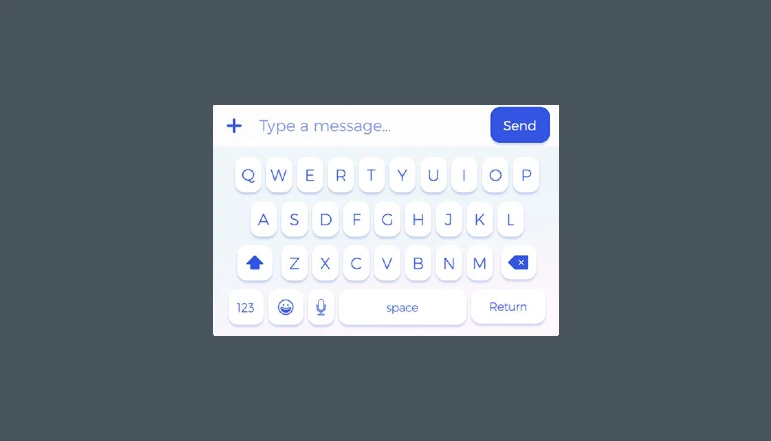
Turn off the auto-correct option – Today is the age of the internet. And everyone is using a smartphone. People use smartphones in different ways. Some use smartphones for their business. Some people use smartphones for their entertainment. While using a smartphone you sometimes have to type messages etc. Also if you should use a chat platform like WhatsApp or Facebook. So you have to type a lot of messages to chat with friends. You must use the Android keyboard to type the message. You get an option on this keyboard. of autocorrect.
AUTO CORRECT OPTION is very good and useful by the way. If you type your message in English. Then this is a great option for you. Also if you type your message. Still, this is a great option for you. But if you type your messages. Write meaningful words in English. So it creates a lot of trouble for you. You want to write something else. And because of this option, something else goes into writing. Because as soon as you click the space button. Your word will be automatically corrected and converted.
Sometimes whenever you are typing something in a hurry. Then this option continues to cause quite a lot of trouble. In such a situation, turn off the AUTO CORRECT option if you want to turn it off. So today we are going to tell you. How you can turn off the auto-correct option on your mobile? So that you don’t have any trouble typing.
What is AutoCorrect? How to turn off the auto-correct option?
Friends AUTO CORRECT is one such option. Using this you can type faster. The auto-correct option identifies words using a dictionary. What do you want to write? The Autocorrect option in English uses the English option.
Also, you can add some words of your own. The ones you type the most. But when typing in Hinglish. Or your spelling is wrong. So this auto-correct option becomes a problem for you. You want to write something else. And write something else.
How to turn off the auto-correct option
If you want to turn off the auto-correct option on your mobile. So here you can turn off this option by following some simple steps mentioned below.
- First, open your mobile settings.
- Now scroll down here and click on the Language option.
- Here you will see a language setting option like image. Click on it.
- This option varies in different handsets. When you see the language setting, click it.
- After that, you will see an auto-correct option here. Click on it.
- Here you will see four options. Out of which you have to click on the off option.
- Also, you have to see the second option below. Show correction suggestions.
- By clicking this option, you can always hide it.
- After that, you won’t face any problems whenever you type anything.
So friends this way you can turn off the auto-correct option on your mobile. And you can type anything fast. After that, you will not have any problems. If you like the article. So share it with your friends and also subscribe to our email to stay updated with such information.


A little discussion goes a long way.
Ask a question, share your experience, or help someone find an answer.
There is room for your perspective.
No discussions match this view yet.
Your voice belongs here
Keep it useful. Keep it kind.