
For many gamers, Roblox has become a go-to platform for immersive gaming experiences. It offers an exciting universe where players can design their own games and play ones created by others. However, just like any other technology, it is not immune to errors.
One such error that Xbox One users often encounter is the Roblox Error Code 105. This article will provide you with a guide to understanding and resolving this error, allowing you to get back to your gaming adventures as soon as possible.
The Roblox Error Code 105 is less commonly known and doesn’t occur frequently. Nonetheless, it can be quite frustrating when it does appear. The good news is that it’s fixable. And that’s exactly what we’re going to do in this guide – help you fix the Roblox Error Code 105 on your Xbox One console!
The Roblox Error Code 105 typically shows up when a player tries to join a game that is already full. In other words, it means that the game you’re attempting to join has reached its maximum player capacity, leaving no available slot for you to enter. If you’re facing this error, it’s important to understand that this is not necessarily a problem with your Xbox console or the Roblox platform itself. Instead, it could simply be due to the game server being full.
Reasons for Roblox Error Code 105 on Xbox One
While the primary cause of the Roblox Error Code 105 is a full game server, there are several other factors that can contribute to this error. Some of these include:
- Internet Connection Issues: A weak or unstable internet connection can interfere with the Roblox app and its ability to connect to game servers, leading to Error Code 105.
- Corrupt OS Files: If your Xbox console’s operating system files are corrupted, it could cause various issues, including the Roblox Error Code 105.
- Outdated Firmware: Just like any other software, your Xbox console’s firmware needs to be updated regularly. An outdated firmware can result in numerous errors, including the one in question.
- Corrupt Cache Files: Cache files help your console run more smoothly by storing temporary data. However, if these files get corrupted, they can cause problems with your console’s functionality and lead to errors such as the Roblox Error Code 105.
- Hardware Issues: In some cases, the problem might be with the Xbox console’s hardware itself. For instance, a failing Hard Disk Drive (HDD) can cause a variety of problems, including this error code.
Regardless of the cause, there are several ways to address this error and get your Roblox gaming back on track, as we will explore in the next sections.
Internet Connection and Server Capacity in Roblox Error Code 105
As mentioned earlier, a full-game server is the primary cause of the Roblox Error Code 105. But the role of your internet connection cannot be overlooked either. Here’s why.
How to check for Roblox downtime issues
Before you start troubleshooting your console or the Roblox app, it’s worth checking if Roblox is experiencing downtime. Websites like Downdetector and Statusgator can provide real-time updates on Roblox’s server status. If the platform is indeed down, your best course of action might be to wait for a while until the server stabilizes.
Stable internet connection
A strong and stable internet connection is crucial for online gaming. If your internet connection is weak or unstable, it can interfere with your console’s ability to connect to the game servers, leading to errors like the Roblox Error Code 105. Therefore, before proceeding with other troubleshooting steps, ensure that you have a reliable internet connection.
How to Fixing Roblox Error Code 105 on Xbox One
Now that we understand what the Roblox Error Code 105 is and what causes it, let’s move on to the most important part: how to fix it. Here’s a step-by-step guide:
Step 1: Restart Xbox
Restarting your Xbox console can help clear temporary glitches or issues that might be affecting its network connectivity or the Roblox app itself. It’s a simple process that can help resolve error code 105. Follow these steps to restart your Xbox:
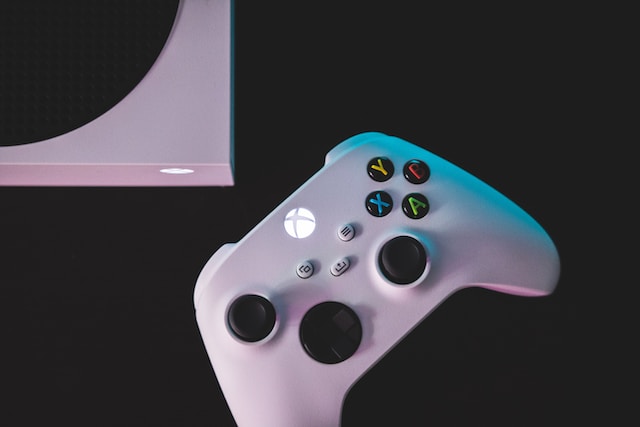
- Press and hold the Xbox button on your controller. This button is located in the center of the controller and has the Xbox logo on it.
- A menu will appear on the screen.
- Select ‘Restart console’ from the menu.
- Confirm the restart when prompted. Your Xbox will shut down and then start up again.
Once your Xbox has restarted, try joining the Roblox game again to see if the error has been resolved.
Step 2: Update Xbox
Xbox consoles receive regular updates from Microsoft. These updates can include improvements to network connectivity, security, and compatibility with third-party apps like Roblox. By keeping your Xbox up to date, you ensure that it is running the latest software with bug fixes and improvements. Here’s how you update your Xbox console:
- Press the Xbox button on your controller.
- Navigate to ‘Profile & system’ and select ‘Settings.’
- Go to ‘System’ and then ‘Updates & downloads.’
- Select ‘Console update available’ if an update is pending, and follow the on-screen instructions to start the update. If it shows ‘No console update available,’ this means your Xbox is up to date already.
After updating your Xbox console, try playing the Roblox game again and check if the error persists.
Step 3: Power Cycle Xbox
Power cycling involves clearing the temporary files on your Xbox One console, which can be the source of corrupt files causing the error. It also helps drain the power capacitor, potentially fixing HDD-related issues associated with the error code 105. Here’s how you can power cycle your Xbox:
- Ensure that your Xbox console is powered on and in an idle state rather than in hibernation mode.
- Press and hold the Xbox Button for about 10 seconds until the LED stops flashing and the fan shuts off.
- After your console has powered down, disconnect all the cables connected to it, including the power cord, HDMI cable, and any other accessories. Allow the power capacitor to drain completely. Wait for at least one minute before proceeding.
- Reconnect all the cables to your Xbox. Power on the console by pressing the Xbox Button.
Observe whether the Xbox animation appears on the screen. If it does, this indicates a successful power cycling process. Try launching Roblox again to verify if the error has been resolved.
Conclusion
Roblox Error Code 105 on Xbox One can be a frustrating hurdle in your gaming experience, but it’s not insurmountable. As we’ve seen, there are several potential causes of this error, ranging from full-game servers to hardware problems. However, with a systematic approach, you can identify and address these issues.


A little discussion goes a long way.
Ask a question, share your experience, or help someone find an answer.
There is room for your perspective.
No discussions match this view yet.
Your voice belongs here
Keep it useful. Keep it kind.