
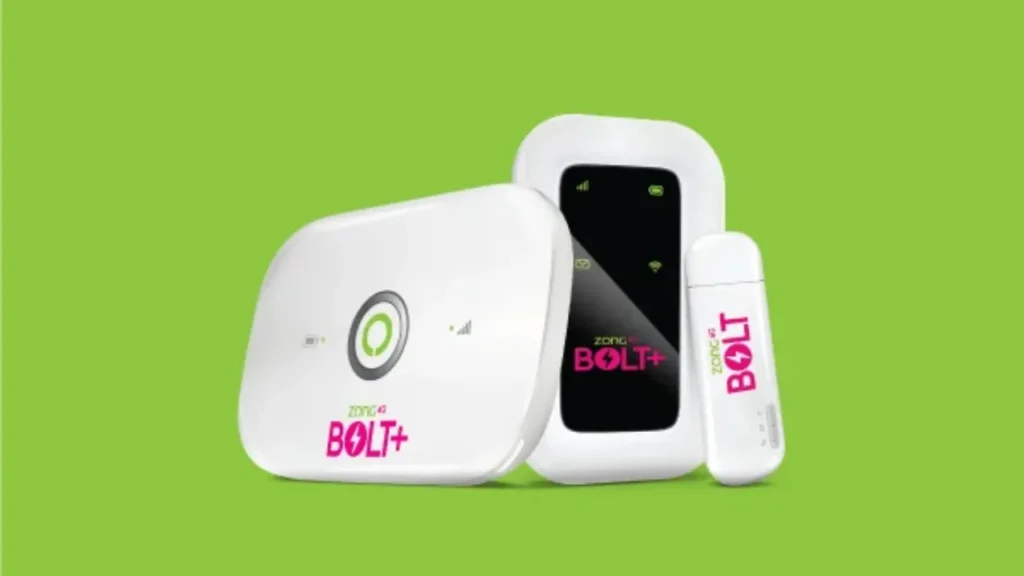
Zong MBB Device Portal provides users with complete control over their WiFi configurations, including changing WiFi password, network name (SSID), and other default Zong Mobile Broadband options. The Zong 4G Bolt+ device or Zong MBB device is both simple and quick to log in.
How to log in to your Zong router
Follow these steps to access the Zong device dashboard.
- Open any browser on your phone or laptop.
- Type 192.168.8.1 in the address bar and press Enter.
- When the login page appears, enter the following credentials
- Username: admin
- Password: admin
- Click Log In to access the Zong MBB Device Portal.
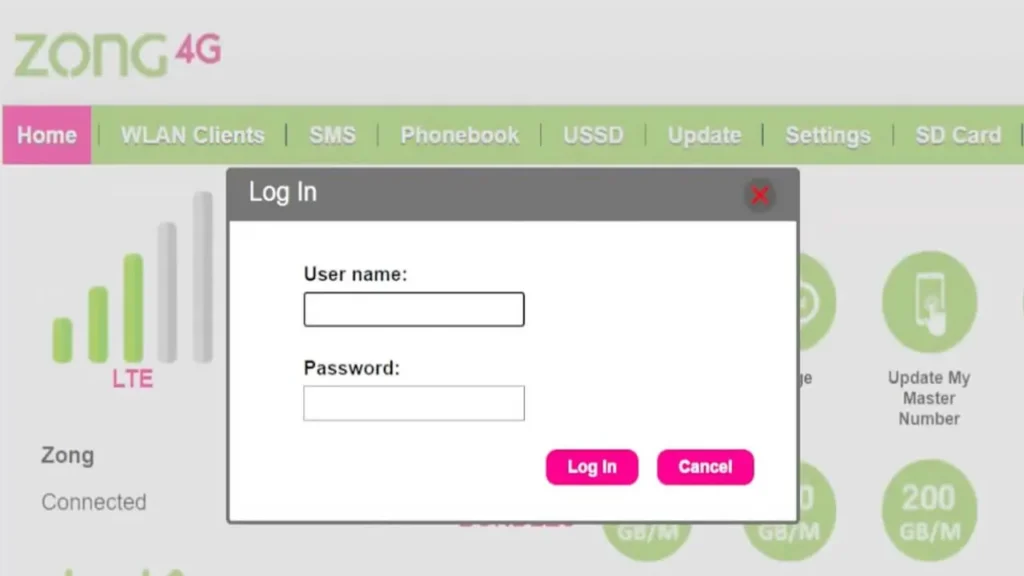
After logging in, you can control WiFi settings, SMS, usage details, and other device features.
Note: These same steps work for Zong 4G Bolt+ devices.
How to change Zong WiFi password and SSID
Follow these steps to update your WiFi name or password.
- Connect your phone or laptop to your Zong 4G device’s WiFi network.
- Log in to the MBB Device Portal using 192.168.8.1.
- From the top menu, click Settings.
- Navigate to WLAN > WLAN Basic Settings.
- Update the required fields:
- SSID: Enter your new WiFi network name.
- Security Mode: Select WPA2-PSK for best security.
- WPA Pre-Shared Key: Enter your new WiFi password.
- Click Apply to save your changes.
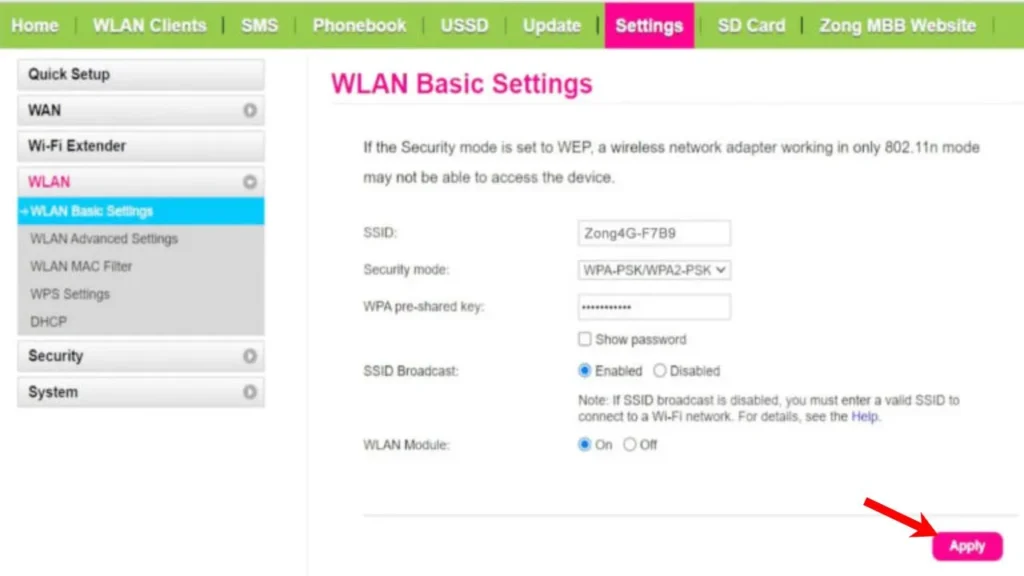
Your Zong WiFi will restart or refresh settings, and your new SSID and password will be applied immediately.





A little discussion goes a long way.
Ask a question, share your experience, or help someone find an answer.
There is room for your perspective.
No discussions match this view yet.
Your voice belongs here
Keep it useful. Keep it kind.