
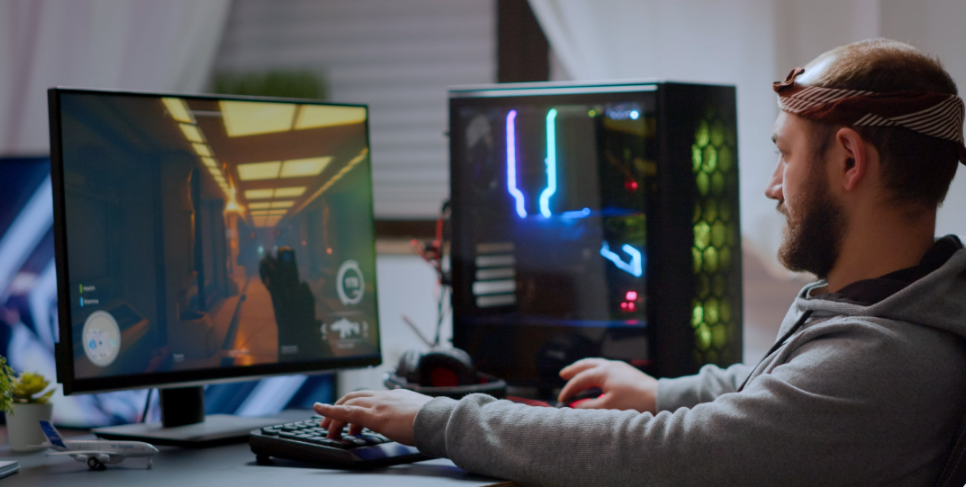
Remote desktop software is no longer limited to accessing files or controlling a computer from afar; it is also used to access network resources such as applications, services, and other computers. The use of remote desktop applications is now widespread in the fields of gaming, remote working, technical support, creative pursuits, and gaining access to powerful PCs, on phones and laptops. For these jobs, it’s crucial latency doesn’t introduce a lag of any sort between the input and the output.
When choosing a low-latency remote desktop, there are various factors to consider, including responsiveness, image quality, platform support, security, and ease of installation. StarDesk was designed with these in mind to provide remote access for both gaming and productivity on a variety of devices.
- What Does Low Latency Mean in Remote Desktop?
- Why Is StarDesk a Good Choice?
- StarDesk Features
- How to Download StarDesk Remote
- Is StarDesk Better for Gaming or Work?
- Tips for Better Remote Desktop Performance
- FAQs
- Is StarDesk suitable for gaming?
- Which platforms does StarDesk support?
- Does StarDesk support 4K?
- Where can I get StarDesk?
What Does Low Latency Mean in Remote Desktop?
Low-latency remote desktop refers to the time it takes for an action on your device to show up on the remote computer. Lower latency usually results in a more responsive experience, which is especially important for gaming, video editing, design applications, and other interactive tasks.
However, software is not the only thing that impacts performance. The experience can be affected by your Internet signal, network congestion, the host computer’s performance and the separation between devices. A quality remote desktop app needs to stream efficiently and respond to input reliably.
Why Is StarDesk a Good Choice?
StarDesk is not just about remote access to the computer, but also about gaming.StarDesk is not limited to computer access, it’s about remote gaming. It works on Windows, Mac, iOS and Android, enabling users to take control of a PC or Mac from almost any device. It now has features like high-resolution streaming, gaming controls, file access and privacy features.
Two reasons users may consider StarDesk are the following
Gaming: Games with high action levels can seem smoother if the network and hardware are capable of delivering low-latency, up to 4K at 144 FPS.
Work: Cross-platform access means that applications, files, multiple screens, and other resources can be accessed remotely by a user without being physically in the remote computer.
StarDesk Features
High Image Quality
StarDesk allows you to enjoy up to 4K resolution and a maximum of 144 frames per second, ensuring a clear and smooth remote experience. It is particularly beneficial in gaming, as higher frames per second smooth out the motion, but it can also come in handy for tasks that require attention to detail like interfaces, creative work, and high-resolution content.
Multi-Platform Support
StarDesk is available for iOS, Android, macOS and Windows. This flexibility allows you to leave your great PC at home and connect to it from a phone, tablet, Mac or Windows PC when necessary.
For someone who switches between devices during the day, this removes the need to be tied to a single operating system.
Privacy Mode
While the remote connection can cause privacy issues where the connection is made, a person is still physically close to the host computer. StarDesk’s Privacy Mode features such settings as the option to hide the host-side display with Black Screen Protection, or to mute the sound of the controlled computer using Mute Host Device.
These are useful when you have to log on to your personal or work PC in a shared environment without people nearby seeing or hearing the remote session.
How to Download StarDesk Remote
Users can download StarDesk Remote for their preferred platform and install the application on the devices they plan to use. StarDesk is available for Windows, macOS, iOS and Android. Once the client machine is installed, plug it into the host machine and choose the machine to access. Use a stable network and don’t do unnecessary bandwidth consuming activity when streaming!
Is StarDesk Better for Gaming or Work?
StarDesk can be useful for both. High refresh streaming support and game controller support for gamers, Remote access to applications, files, multiple displays and daily productivity for the professionals.
Depending on the needs, the best choice is to be made. Basic access to files may be all that’s needed for some people, and they might not need advanced streaming functionality. But those who choose to have a single app for gaming and productivity will find StarDesk’s performance and platform support to be more convenient.
Tips for Better Remote Desktop Performance
A fast remote desktop connection also depends on your setup.
- Use Ethernet for the host computer whenever possible.
- Choose a stable Wi-Fi connection for mobile devices.
- Close unnecessary downloads and bandwidth-heavy applications.
- Use a proper resolution and frame rate that work well with your network.
- Make sure the host computer’s drivers and remote desktop software are up to date.
- These actions can help minimize disruptions and provide a smoother remote session.
FAQs
Is StarDesk suitable for gaming?
Yes. It enables low-latency remote gaming and streams up to 4K at 144 FPS.
Which platforms does StarDesk support?
It works on Windows, macOS, iOS, and Android.
Does StarDesk support 4K?
Yes, StarDesk can stream up to 4K resolution at 144 FPS.
Where can I get StarDesk?
You can download it from StarDesk’s official download page.




A little discussion goes a long way.
Ask a question, share your experience, or help someone find an answer.
There is room for your perspective.
No discussions match this view yet.
Your voice belongs here
Keep it useful. Keep it kind.